Find a saved login and copy its password
Search your vault for one login, look at its password, and copy the username or password to paste into a sign-in page.
- 7 steps
- About 3 minutes
Before you start
- You are signed in to HashThat.
- You have saved at least one login. If not, follow Save your first login first.
Step 1: Open your password list
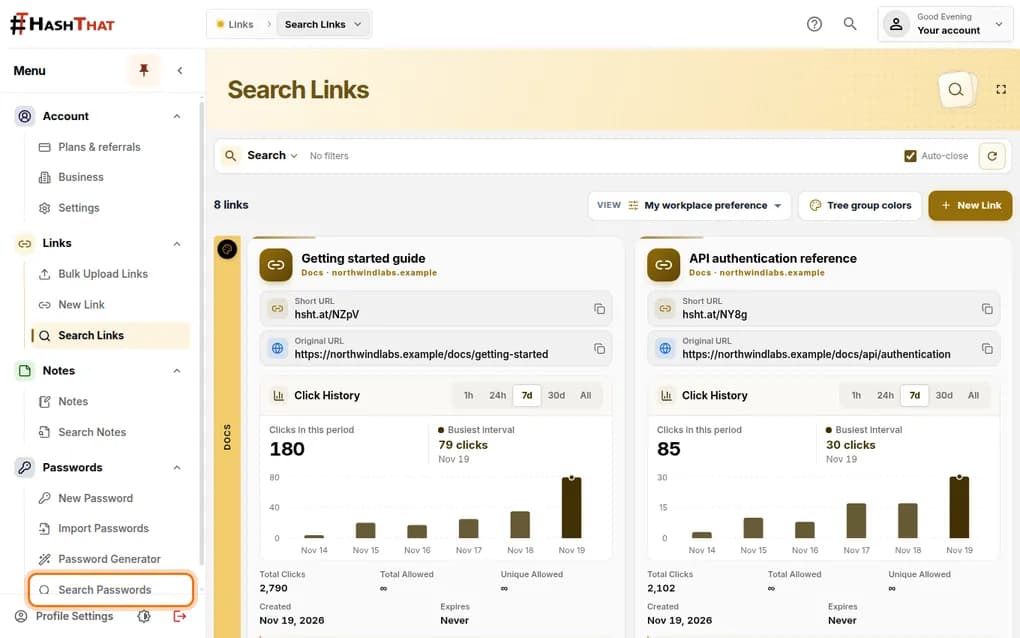
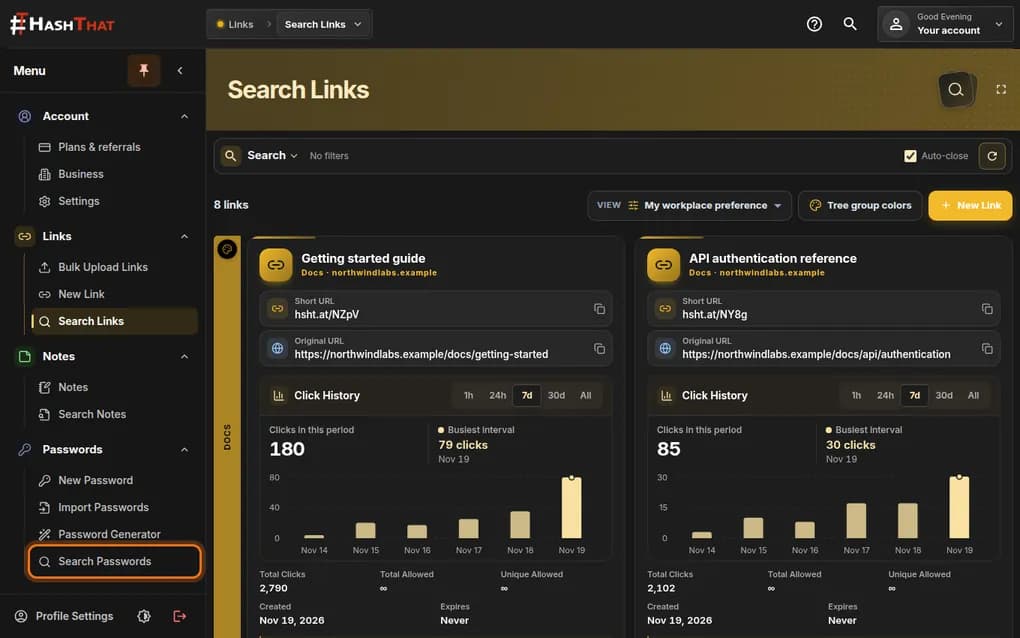
- Look at the menu on the left side of the screen.
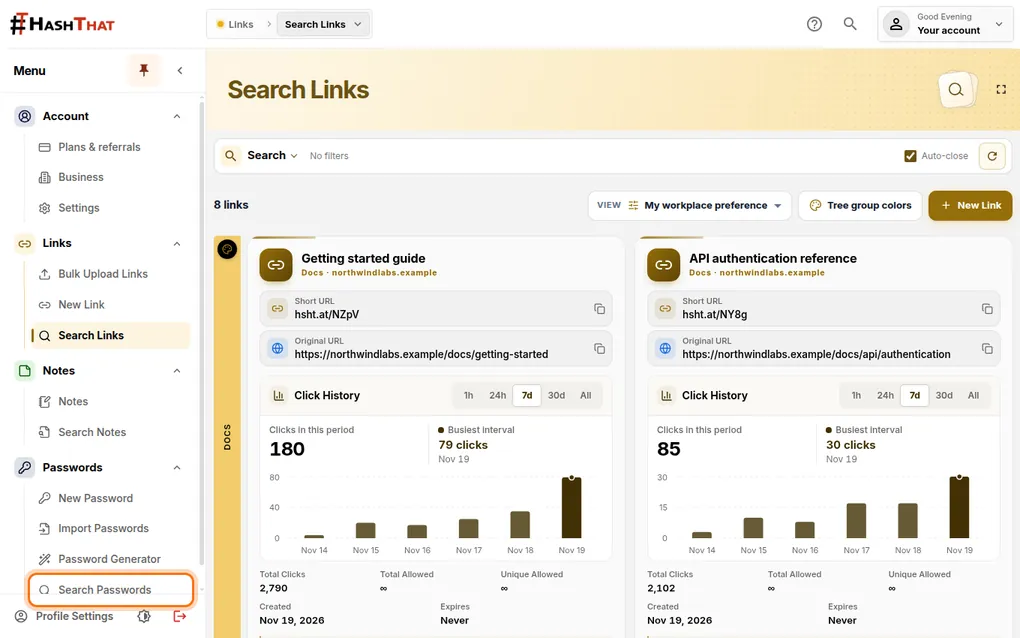
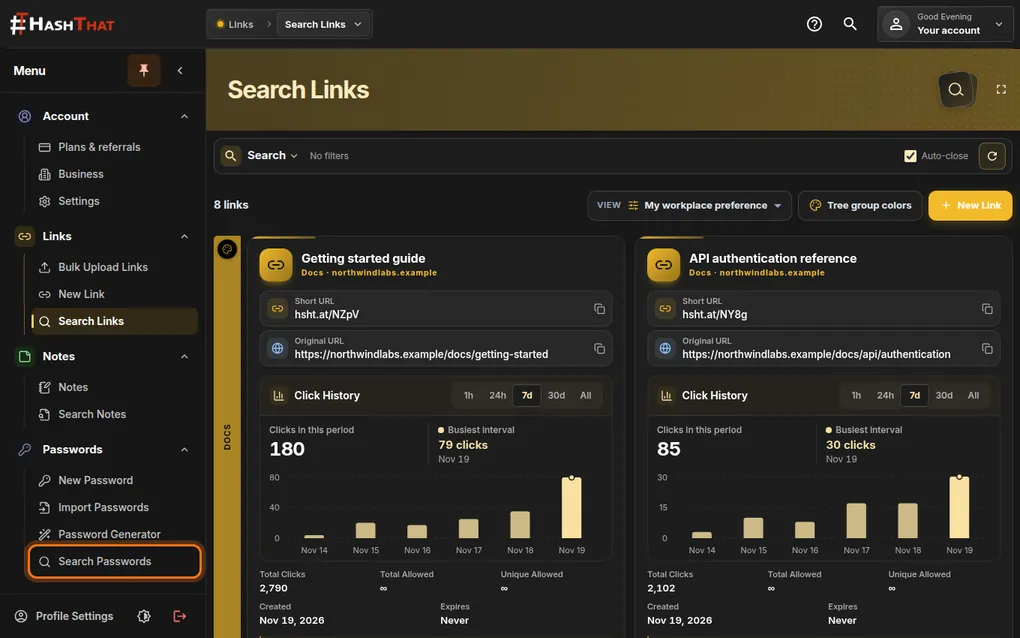
- Under Passwords, click Search Passwords.
You should see: A page titled Search Passwords with coloured bars, one for each category.
 Full size
 Full size
Search Passwords is the last item in the Passwords group. Step 2: Open the search box
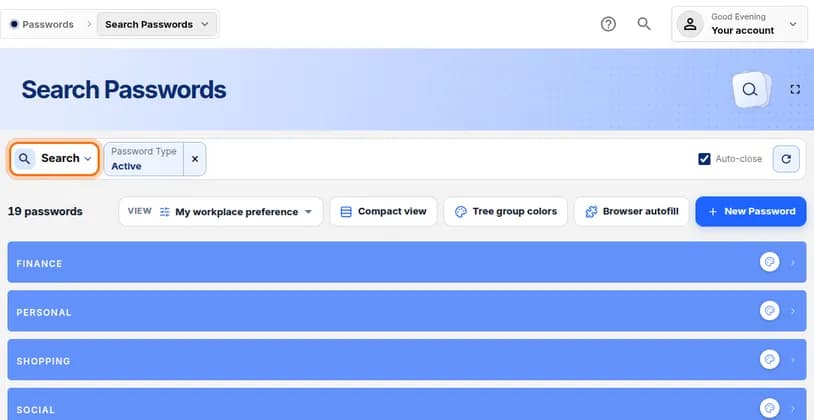
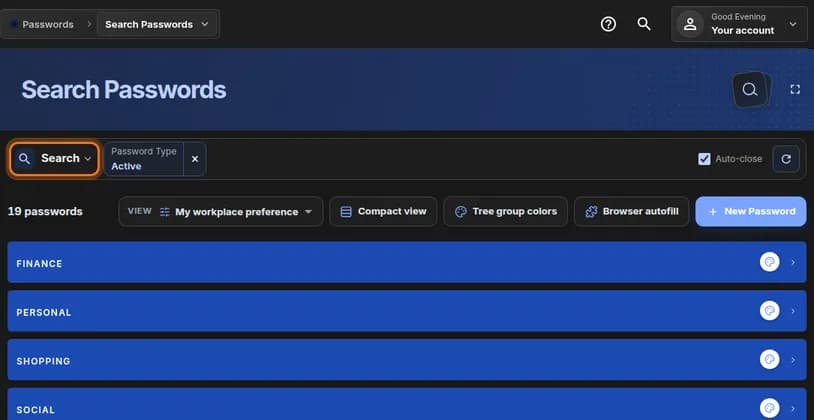
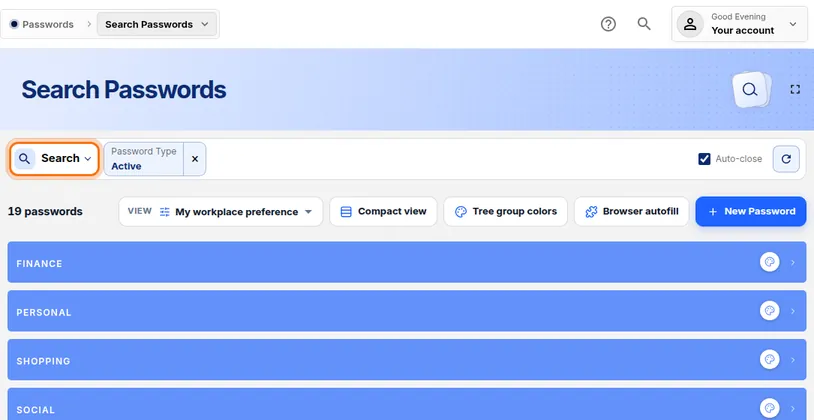
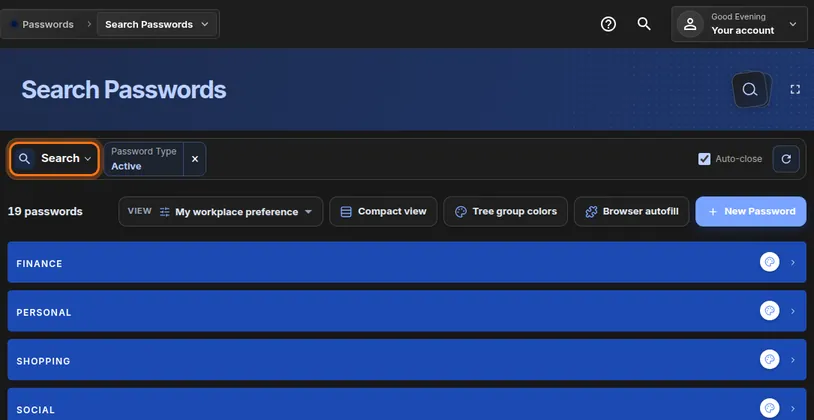
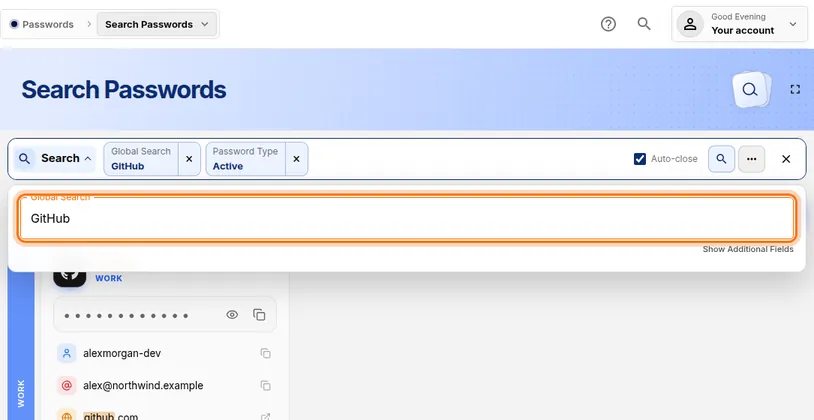
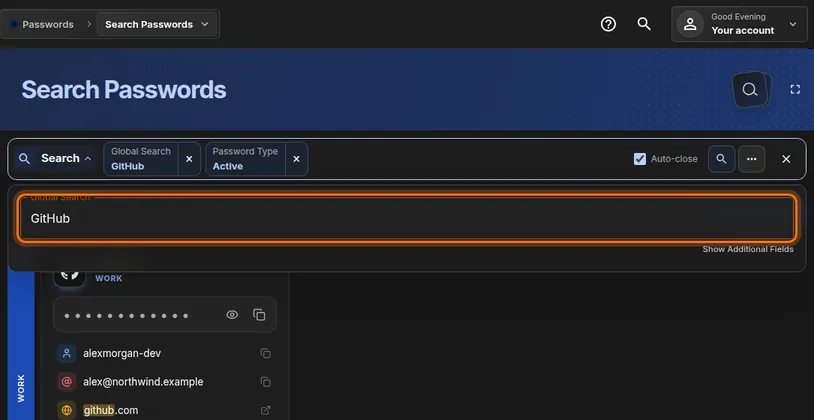
- Near the top left of the page, click the Search button.
You should see: A box labelled Global Search opens just below the button.
 Full size
 Full size
The Search button sits above the list, next to the Password Type filter. Step 3: Type the name of the login
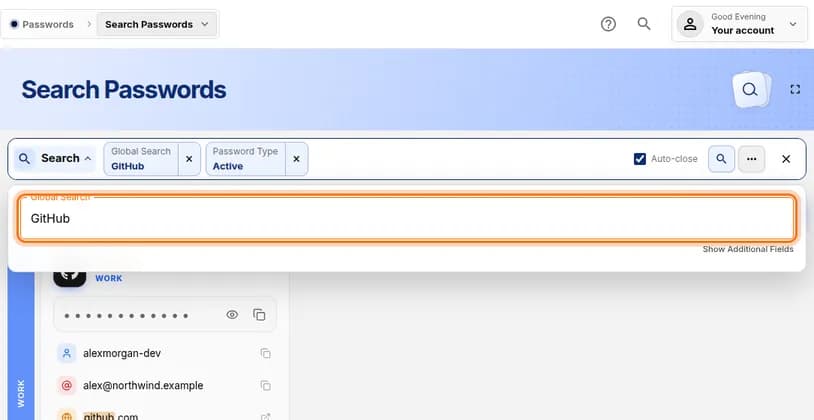
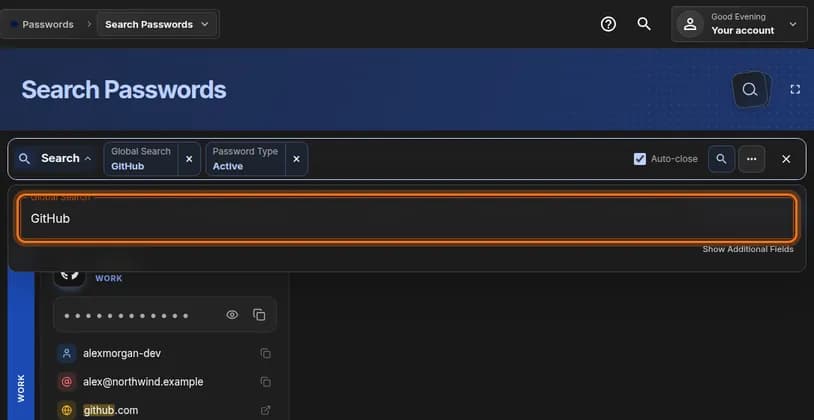
- Click inside Global Search.
- Type part of the name, the website or the username. For example, type GitHub.
- Press Enter on your keyboard.
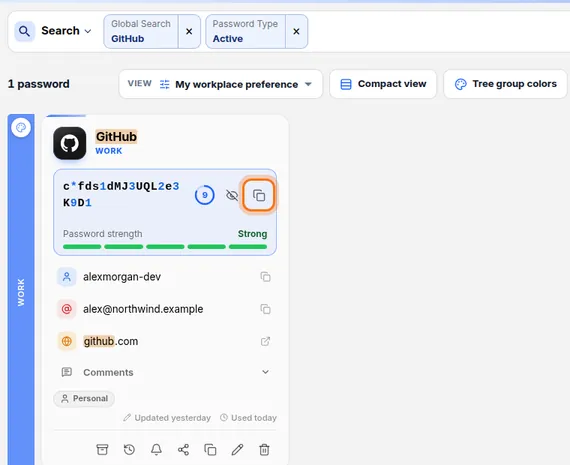
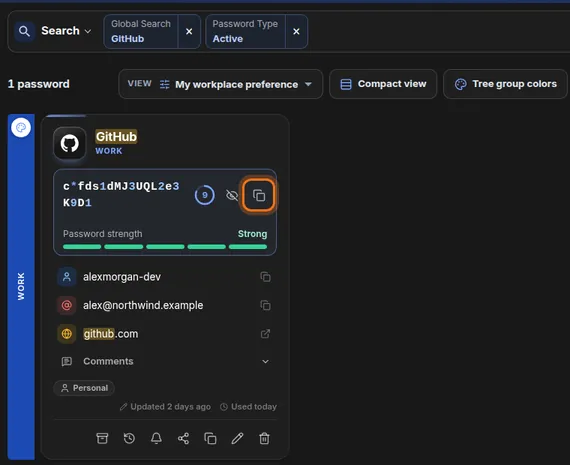
You should see: Only the matching logins stay on the page, and the word you typed is highlighted on each card.
 Full size
 Full size
You do not need the full name. A few letters are enough. Step 4: Show the password
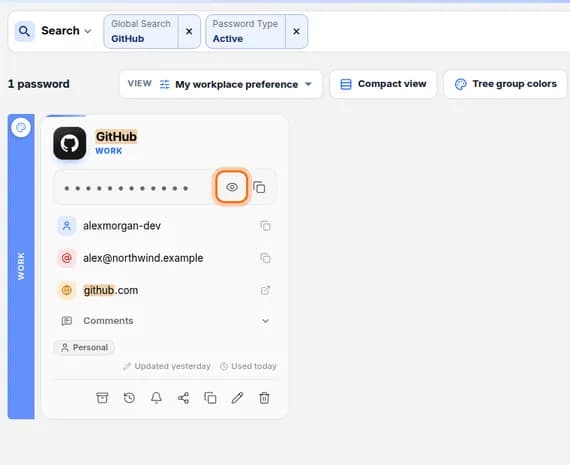
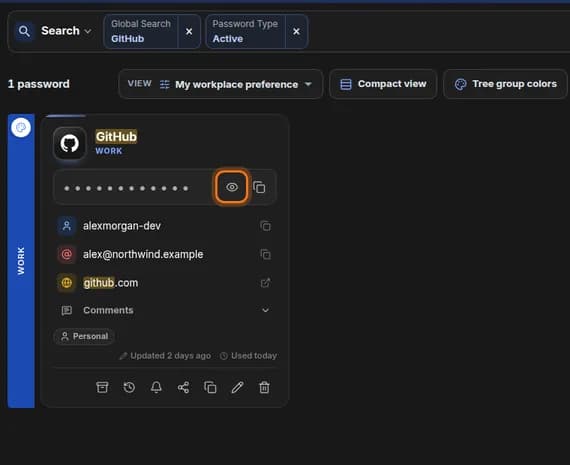
- Find the card for the login you want.
- On the row of dots, click the eye icon.
You should see: The dots change into the real password, with a small countdown next to it.
 Full size
 Full size
The eye icon shows the password. Nobody else can see it unless they can see your screen. The password hides itself again when the countdown ends. Click the eye again if you need more time.
Step 5: Copy the password
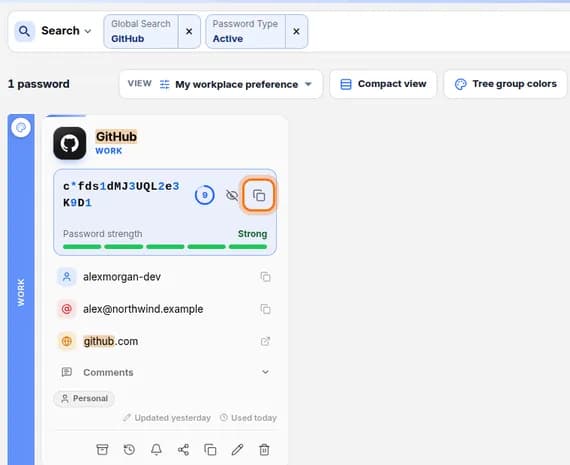
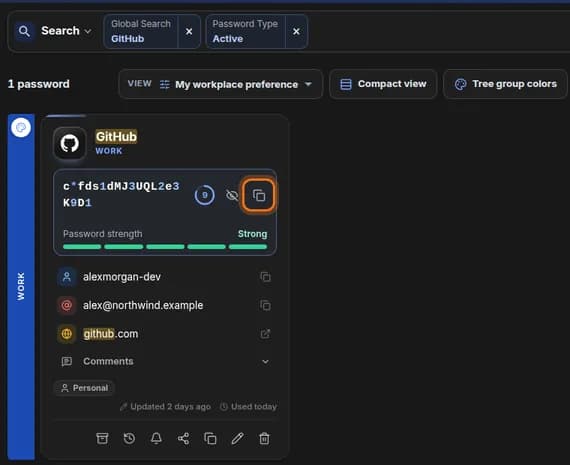
- Click the copy icon (two overlapping squares) at the end of the password row.
- Go to the website’s sign-in page and click its password box.
- Paste: press Ctrl + V on Windows or Cmd + V on a Mac.
 Full size
 Full size
You can copy without showing the password first. The copy icon works either way. Step 6: Copy the username or open the website
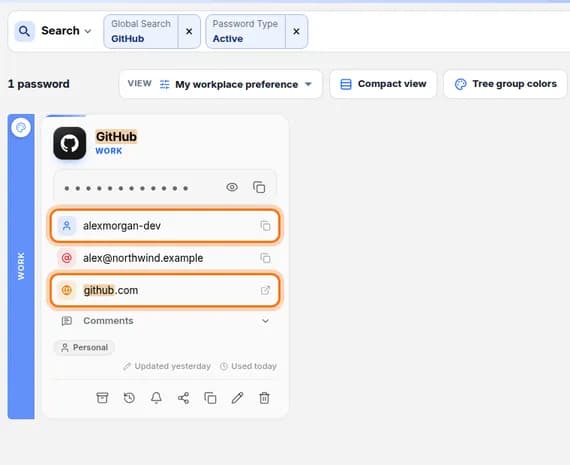
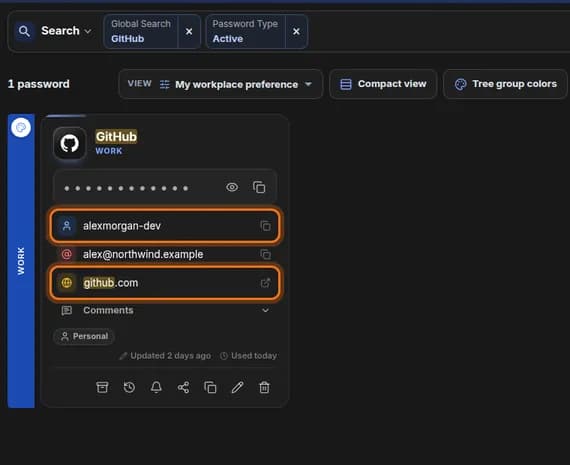
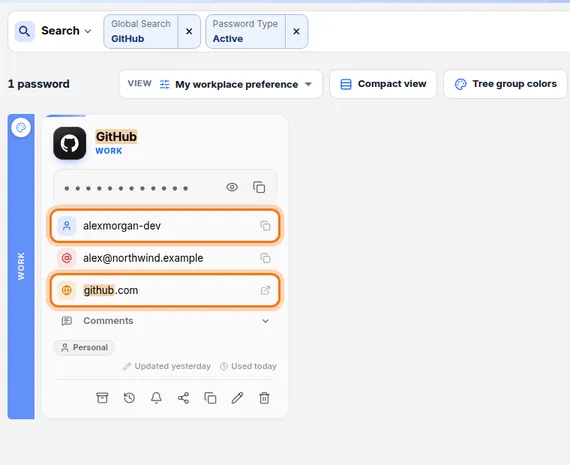
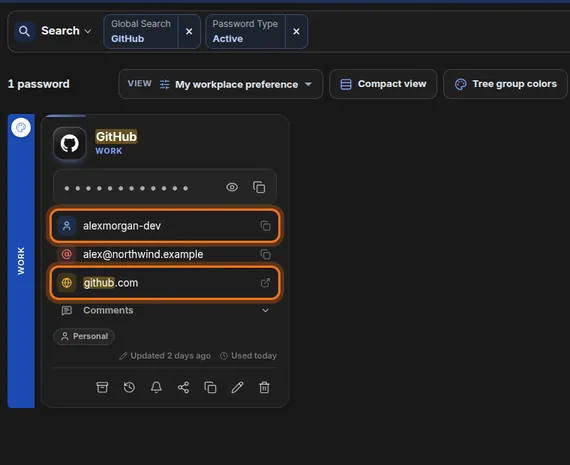
- To copy the username or email, click the copy icon at the end of that row.
- To go to the website, click the small arrow icon at the end of the website row. It opens in a new tab.
 Full size
 Full size
Each row has its own icon on the right. Step 7: Clear the search when you finish
- At the top of the page, find the small box that shows Global Search and your word.
- Click the × next to it.
You should see: All your categories are listed again.


Check it worked
- The website accepted the username and password you pasted.
- After you clear the search, the count at the top left shows all your passwords again.
If something looks different
The search finds nothing
Check the spelling, then try a shorter word, such as the first few letters of the website. Also check the Password Type filter at the top says Active. Archived logins are hidden until you change it.
The password disappeared before I could read it
That is the countdown hiding it again. Click the eye icon once more, or use the copy icon, which does not need the password to be visible.
I only see coloured bars, no cards
Each bar is a category. Click a bar to open it and see the logins inside. A search opens the right bars for you.
Tip: On a computer you use every day, add the HashThat browser extension. It fills the username and password for you, so you do not need to copy them.