Fill a login with the browser extension
Connect the HashThat Autofill extension to your account once, then fill a saved login on a website with one click.
- 4 steps
- About 5 minutes
Before you start
- The HashThat Autofill extension for your desktop browser. It is listed as coming soon, so this guide is a preview for people who already have it installed.
- Passwords Pro.
- A saved login whose Website address starts with https:// and matches the website you want to sign in to.
Step 1: Open the extension and start connecting
- Click the puzzle-piece icon at the top right of your browser.
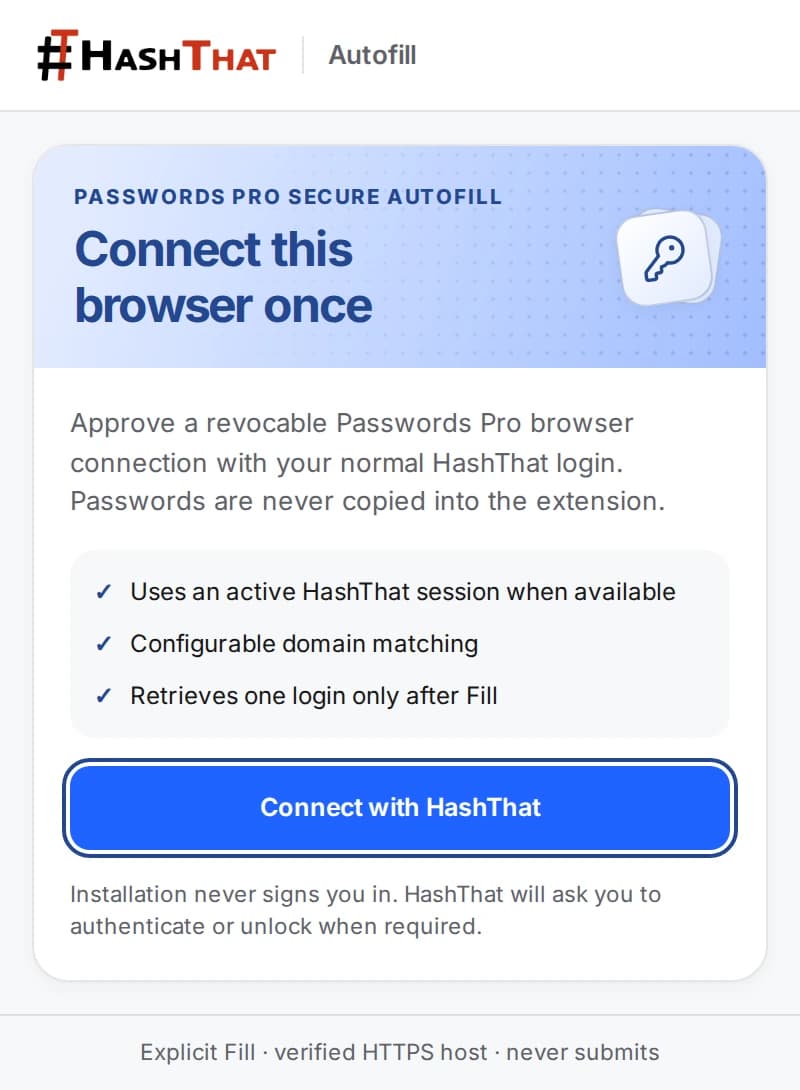
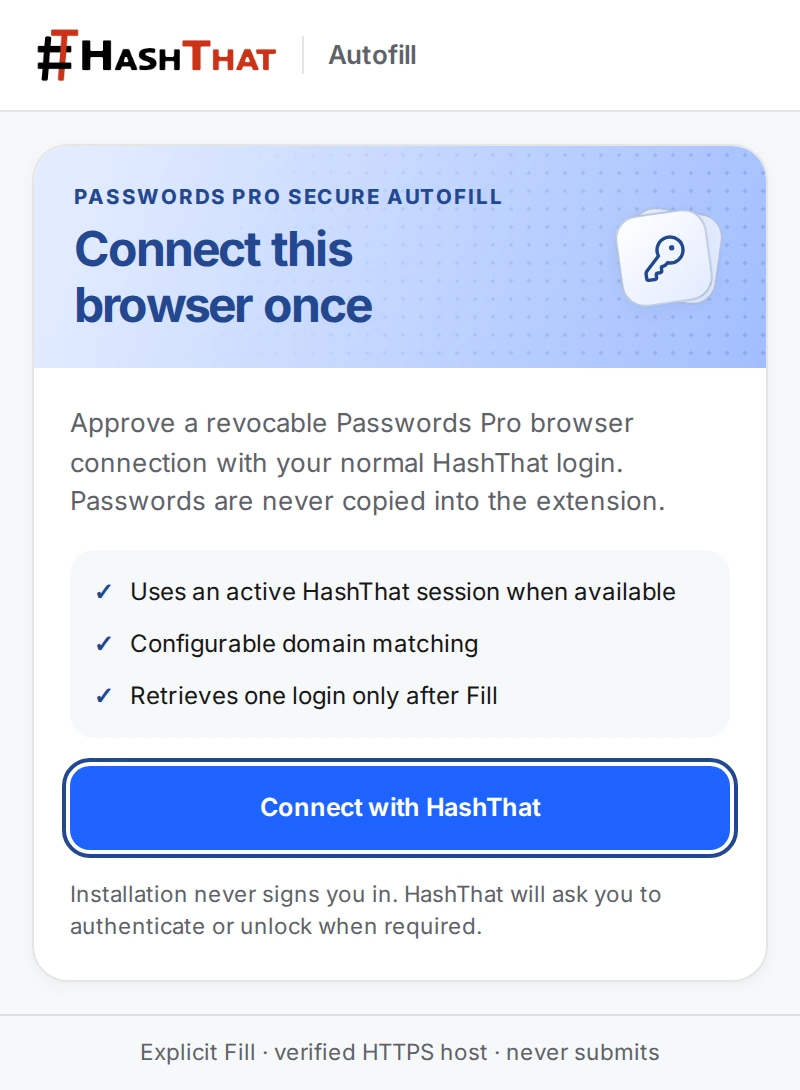
- Click HashThat Autofill in the list. A small window opens with the heading Connect this browser once.
- Click the blue Connect with HashThat button.
- A new browser tab opens with HashThat. Sign in or unlock your account there if HashThat asks you to.
 Full size
You only connect each browser once. Step 2: Approve the browser
- In the HashThat tab, read the question Connect this browser?
- Click Connect browser.
- Wait for the message HashThat autofill is ready, then click Done.
You should see: The extension window now shows a green dot and the word Connected.
Step 3: Open the website and pick the login
- Go to the sign-in page of the website, where the username and password boxes are. Its address must start with https://.
- Open the extension again from the puzzle-piece icon.
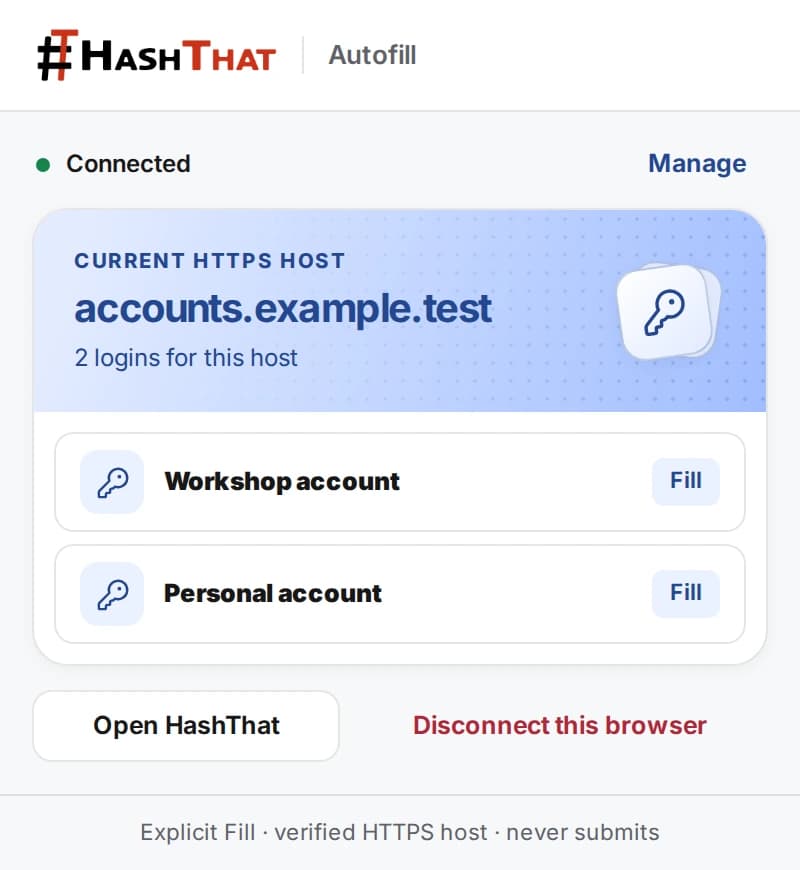
- Read Current HTTPS host. It must be the website you meant to visit.
- Find the login by its description and click Fill beside it.
You should see: The website’s username and password boxes are filled in.
 Full size
Two logins match this website. Their descriptions tell them apart. Step 4: Sign in yourself
- If HashThat asks you to unlock, do so and return to the website.
- Check that the right account was filled in.
- Click the website’s own sign-in button.
The extension never presses the sign-in button for you. You always make the final click.

Check it worked
- The extension shows Connected with a green dot.
- The website’s boxes hold the username and password of the login you picked.
- You are signed in after clicking the website’s own button.
If something looks different
The extension lists no logins for this website
Compare Current HTTPS host in the extension with the Website address saved on the login. If the login uses Exact host only, a sign-in page on a different subdomain will not match. Check the real sign-in address before you change the saved login.
I want to disconnect a browser
Open the extension and click Disconnect this browser. You can also review connected browsers in HashThat under Settings, in Connected Extensions.
Tip: Always read the host name in the extension before you click Fill. It is your check that you are on the real website and not a look-alike.