Generate a strong password
Create a random password, adjust it to a website’s rules, copy it, and keep it in your vault.
- 8 steps
- About 4 minutes
Before you start
- You are signed in to HashThat. The generator works on the free plan and on Passwords Pro.
- The website’s sign-up or change-password page is open in another browser tab.
- You know the website’s password rules, if it shows any (for example “8 to 20 characters”).
Step 1: Open the Password Generator
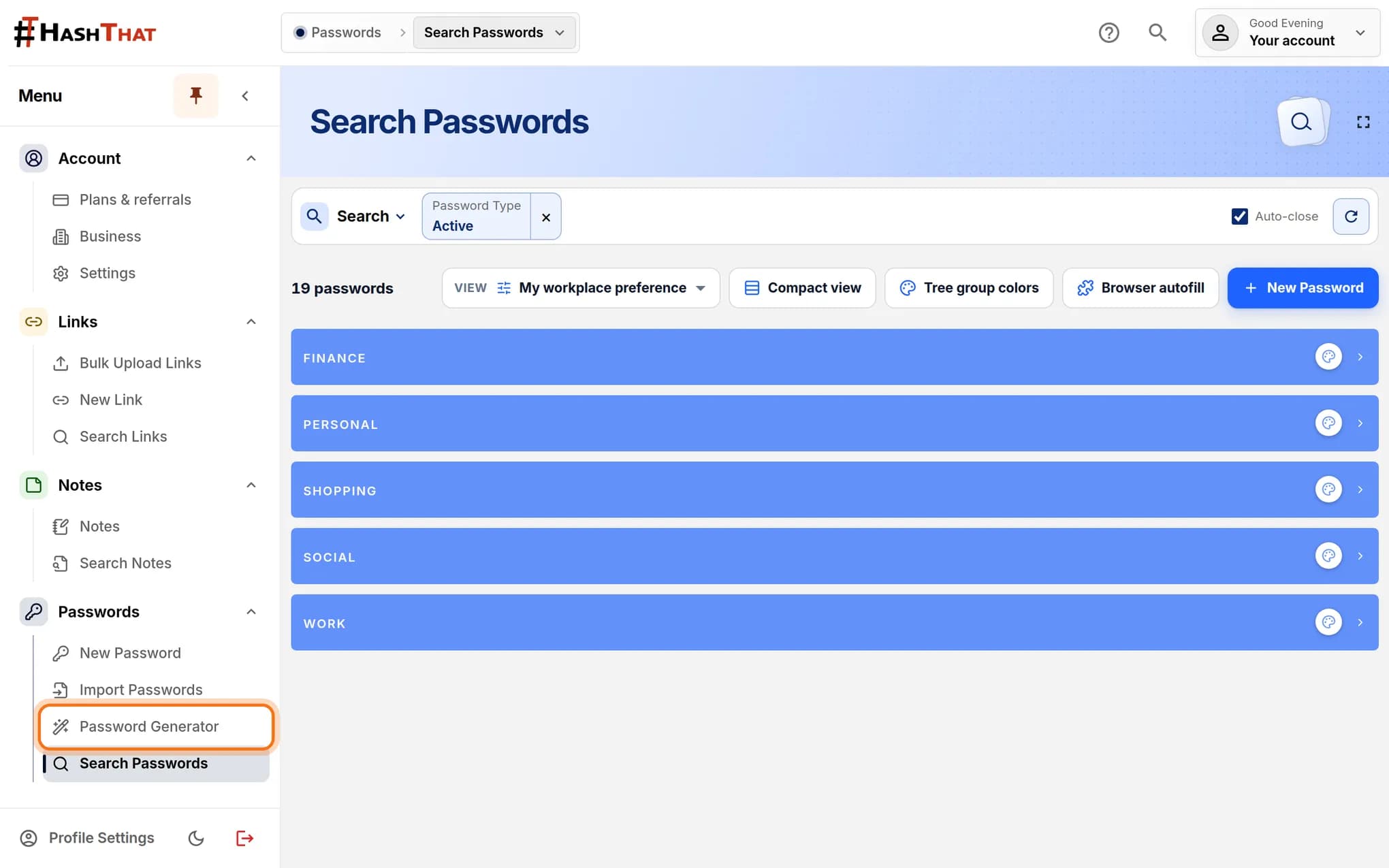
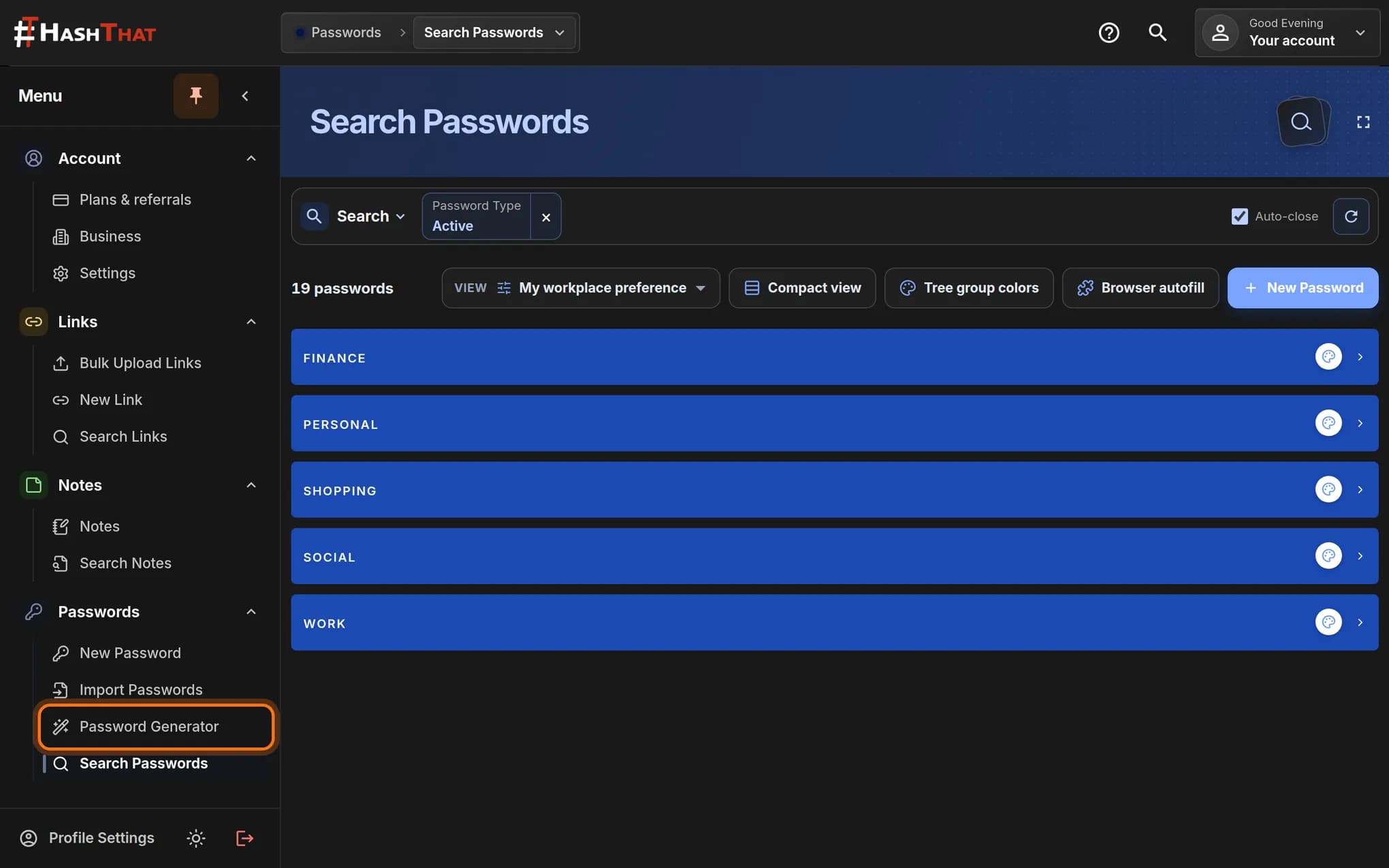
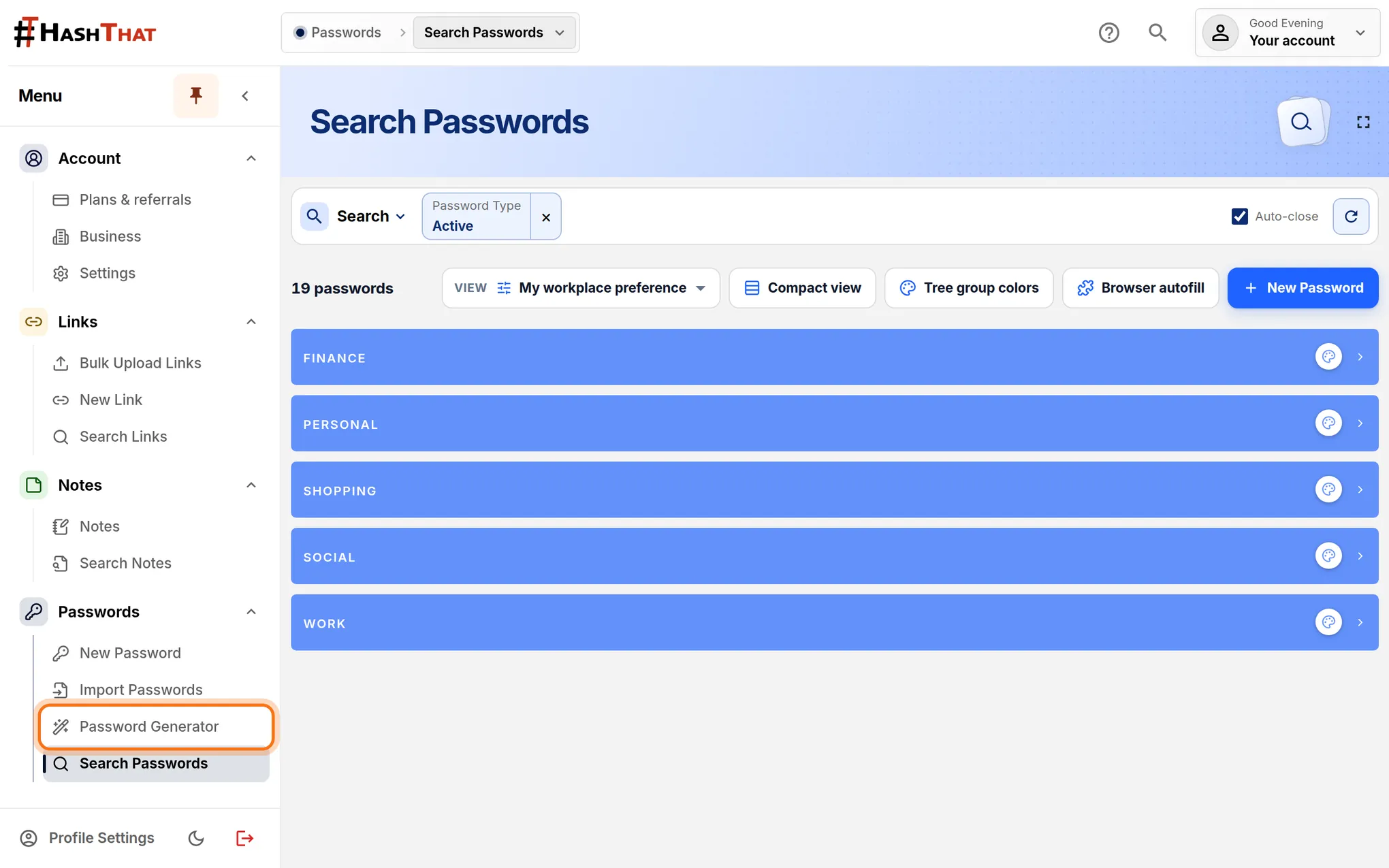
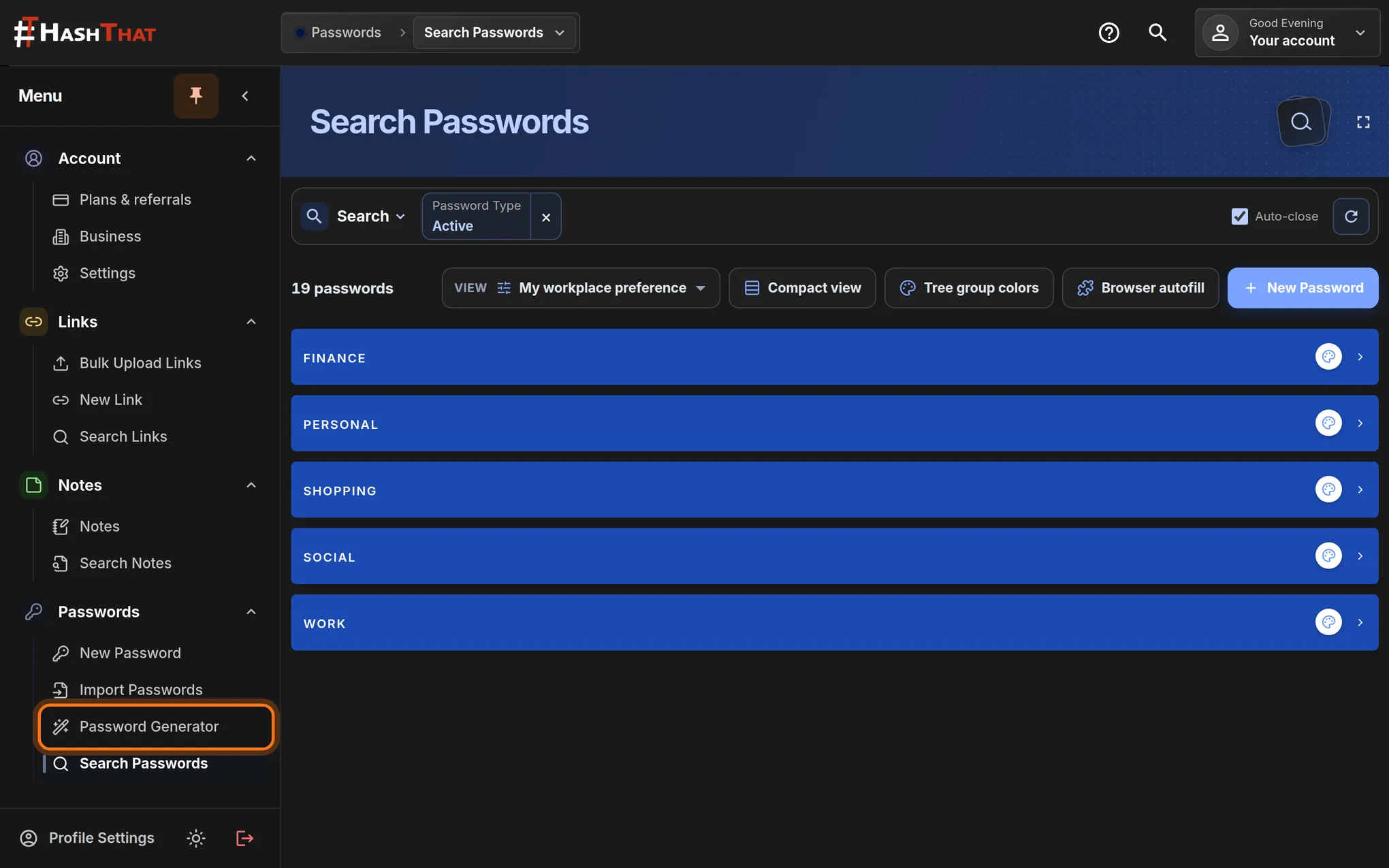
- Look at the menu on the left.
- Under Passwords, click Password Generator.
You should see: A page titled Password Generator with a password already created for you.
 Full size
 Full size
Password Generator is the third item under Passwords. Step 2: Pick a preset
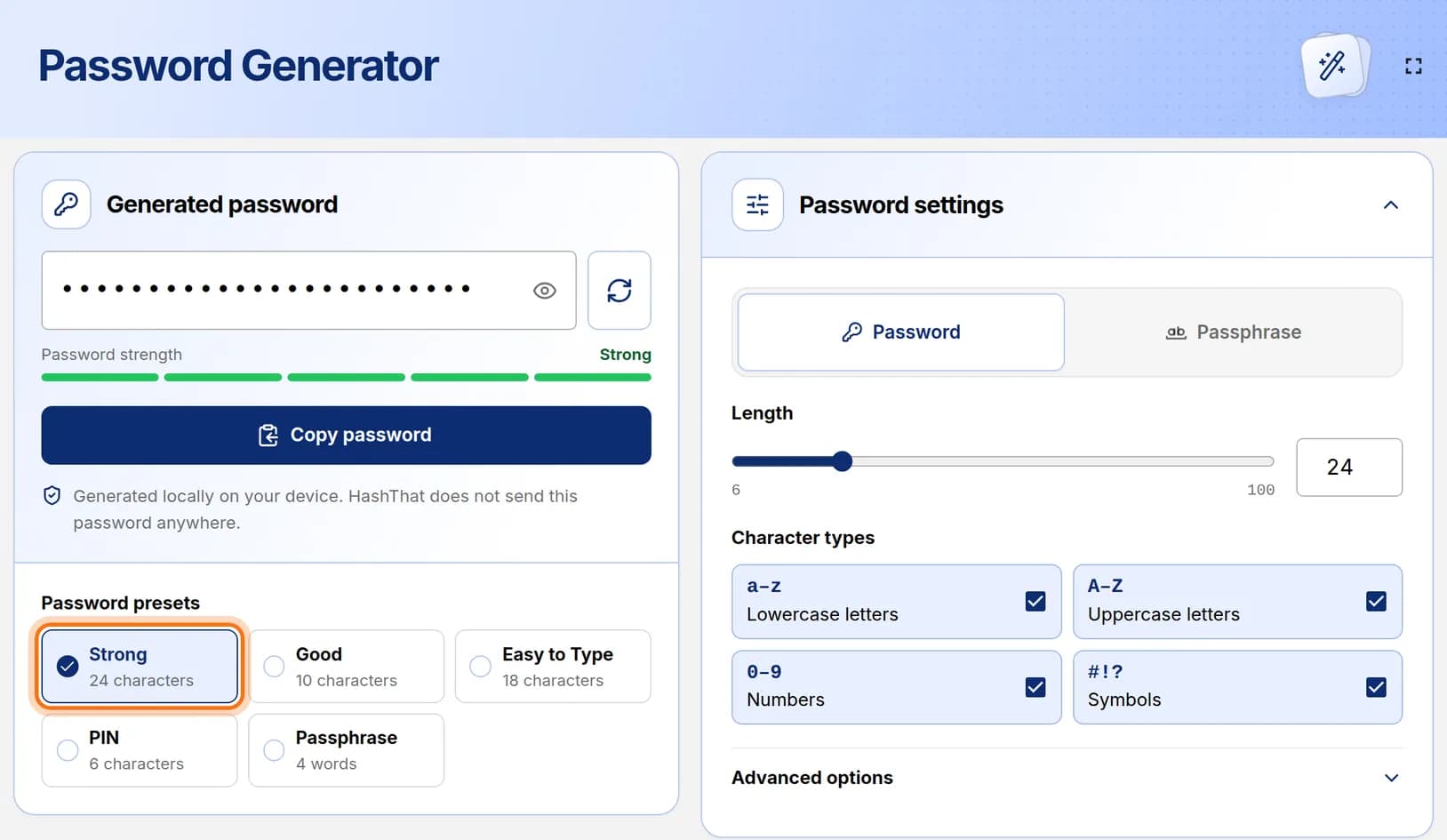
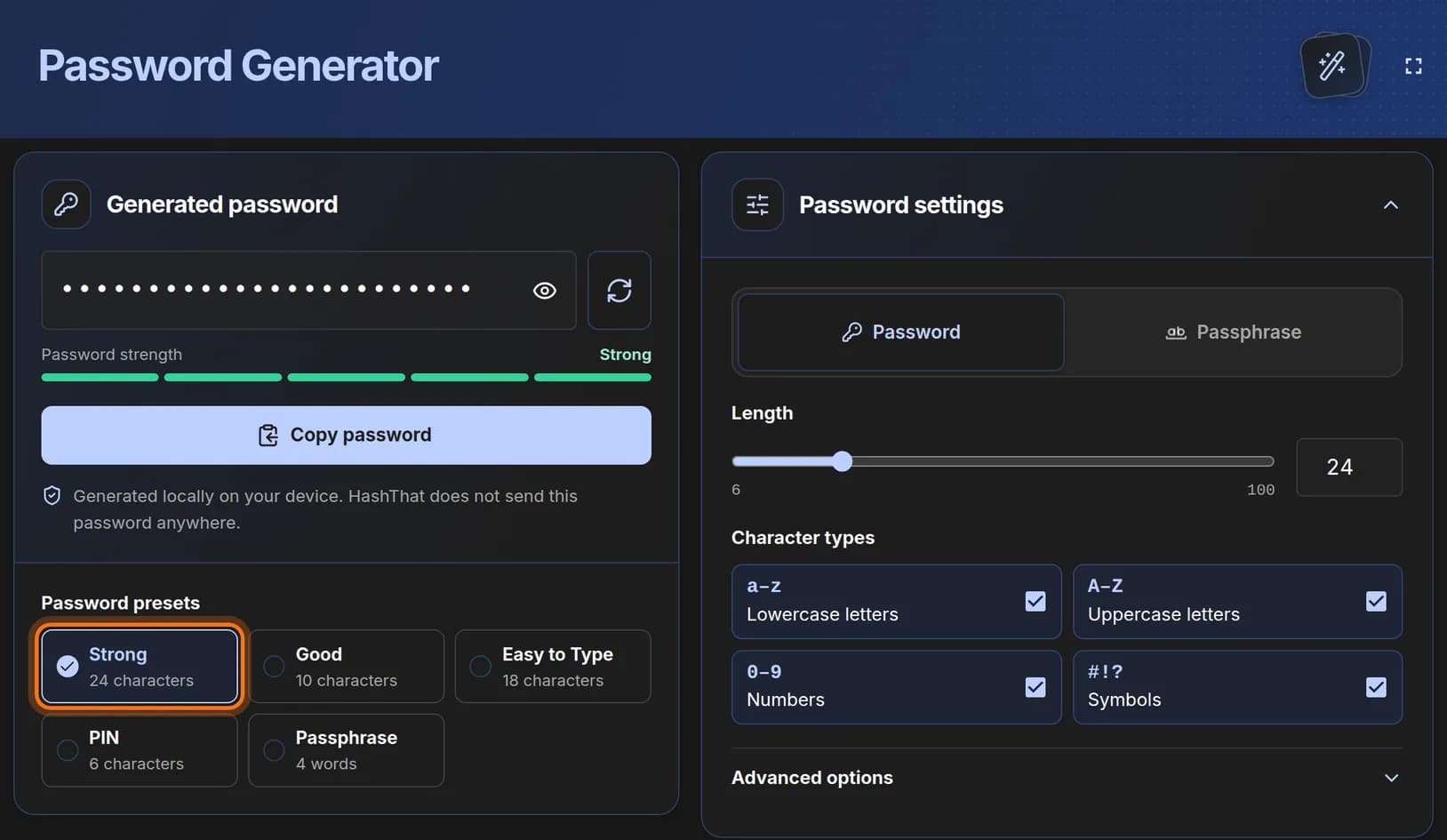
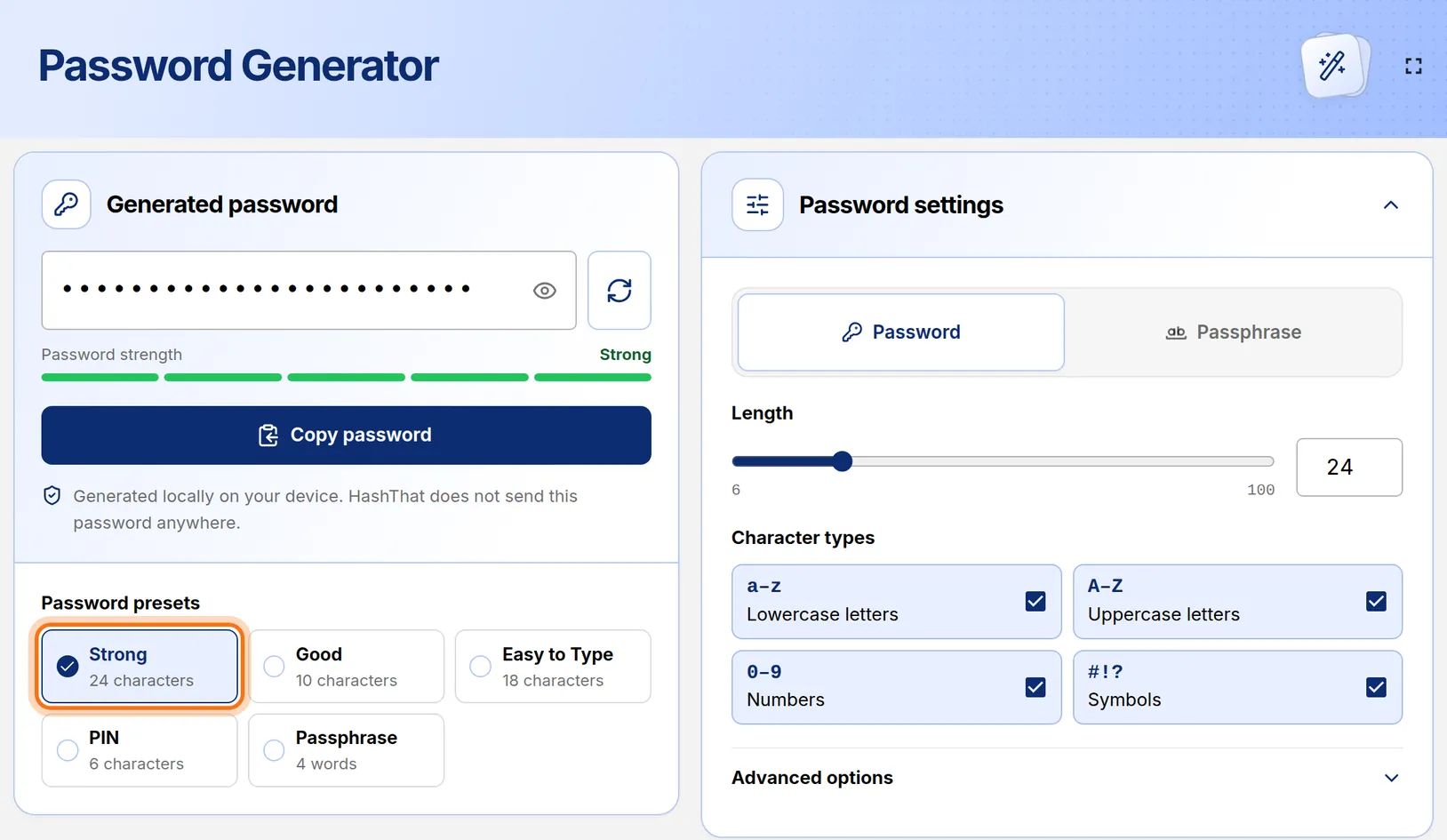
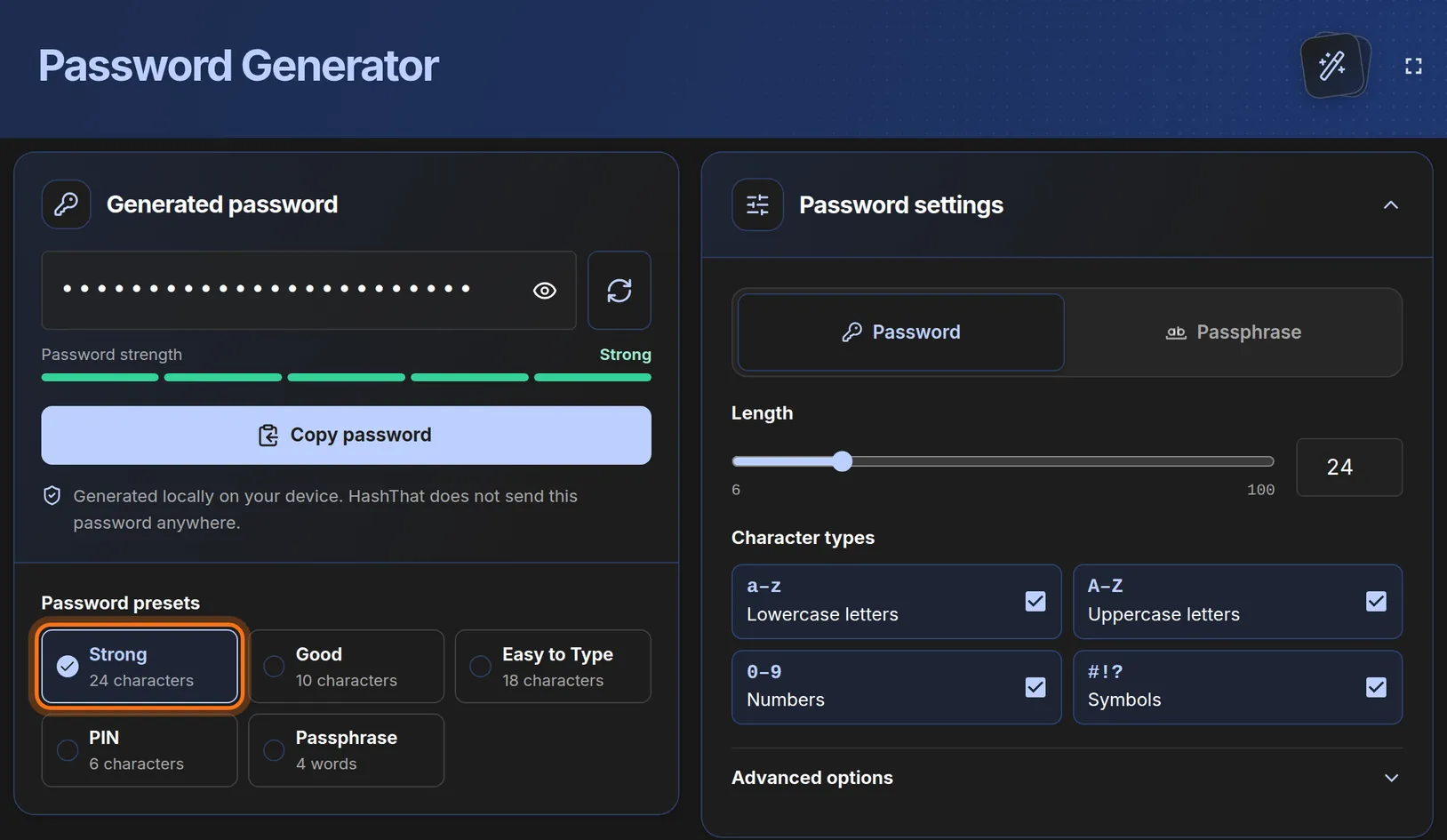
- Find Password presets on the left.
- Click Strong. It makes a password of 24 characters.
You should see: A new password in Generated password, and a full green Password strength bar.
 Full size
 Full size
Strong is the best choice unless the website asks for something shorter. The other presets are Good (10 characters), Easy to Type (18 characters), PIN (6 digits) and Passphrase (4 words).
Step 3: Match the website’s rules
- Skip this step if the website has no special rules.
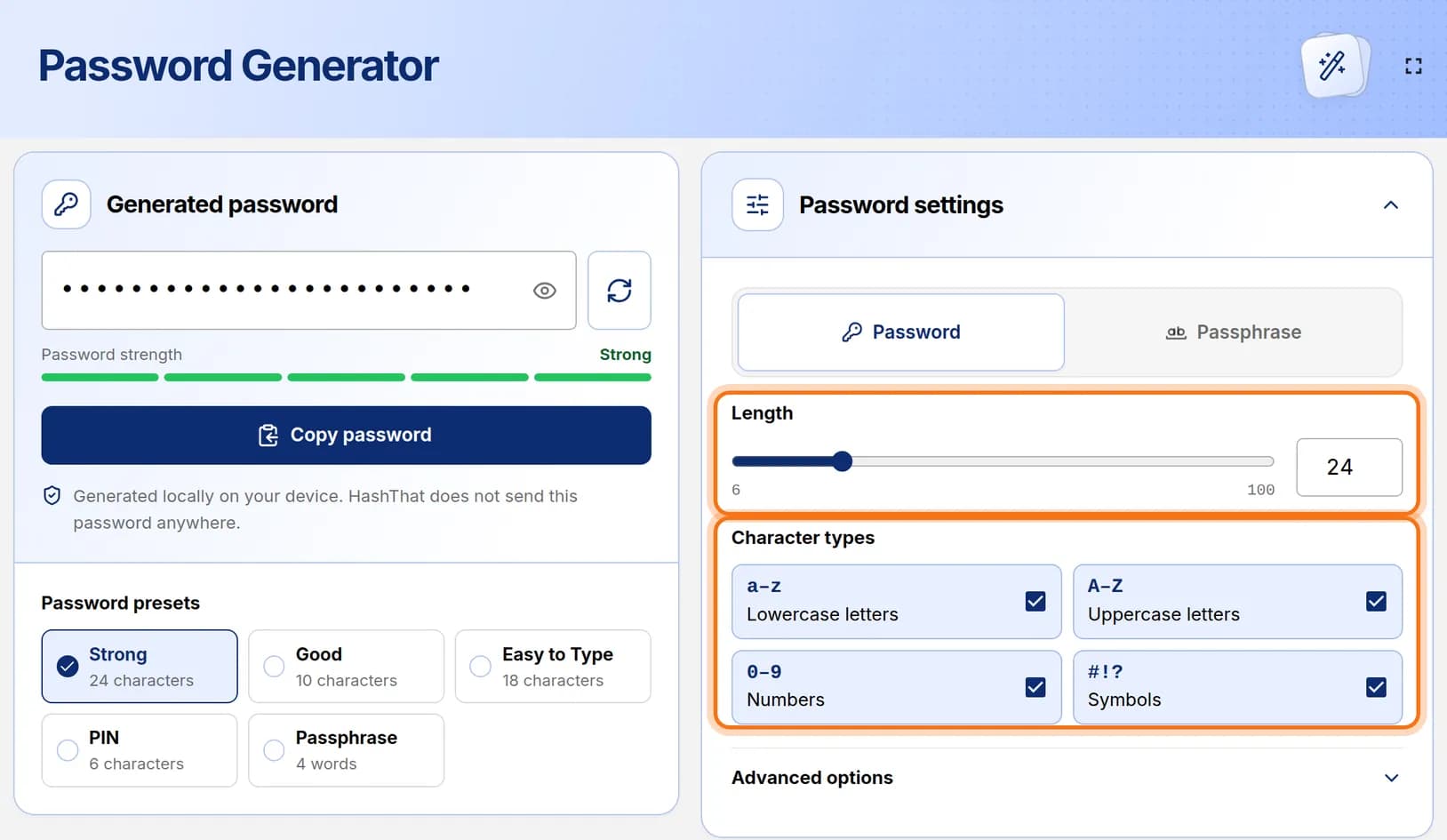
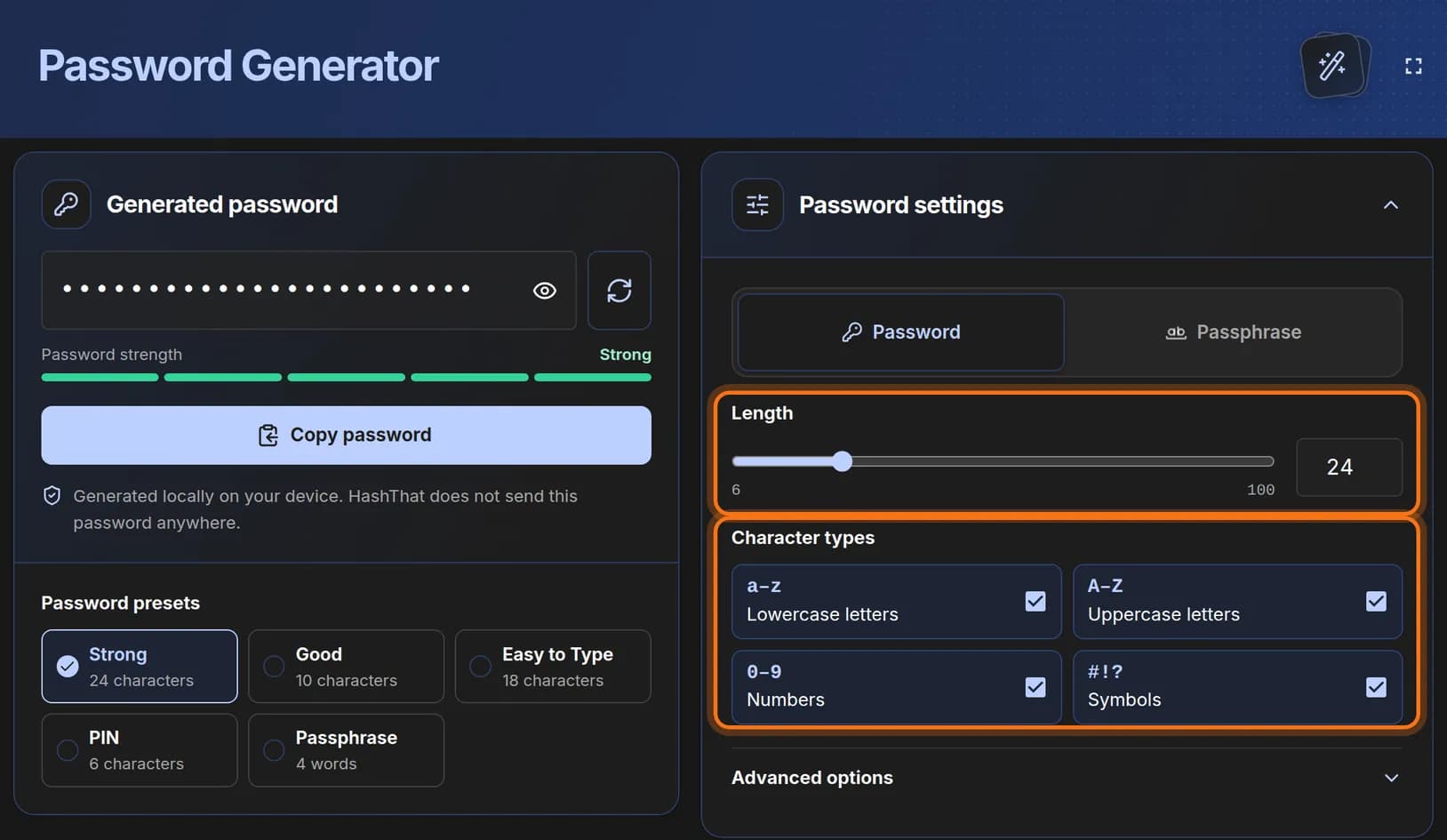
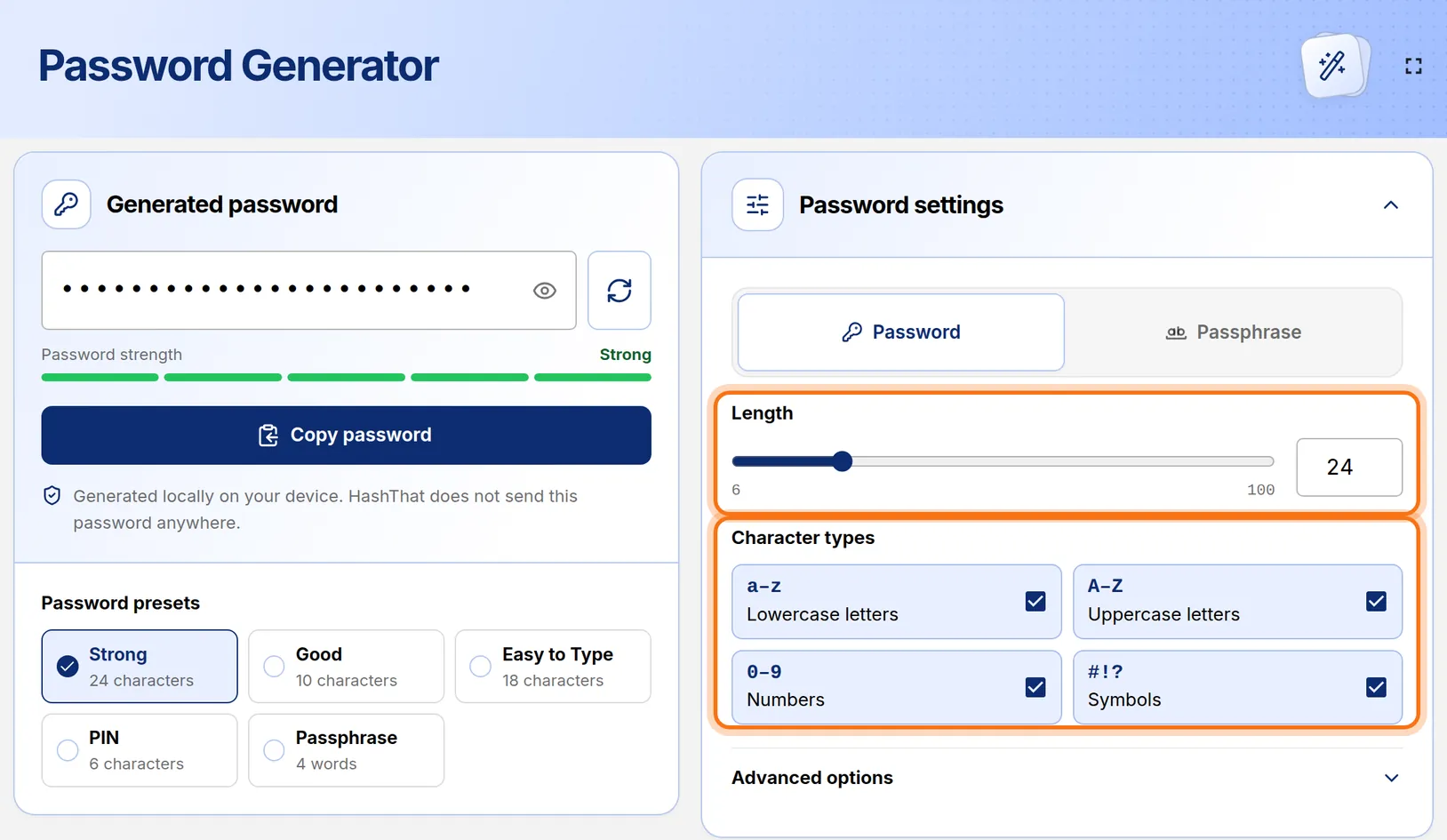
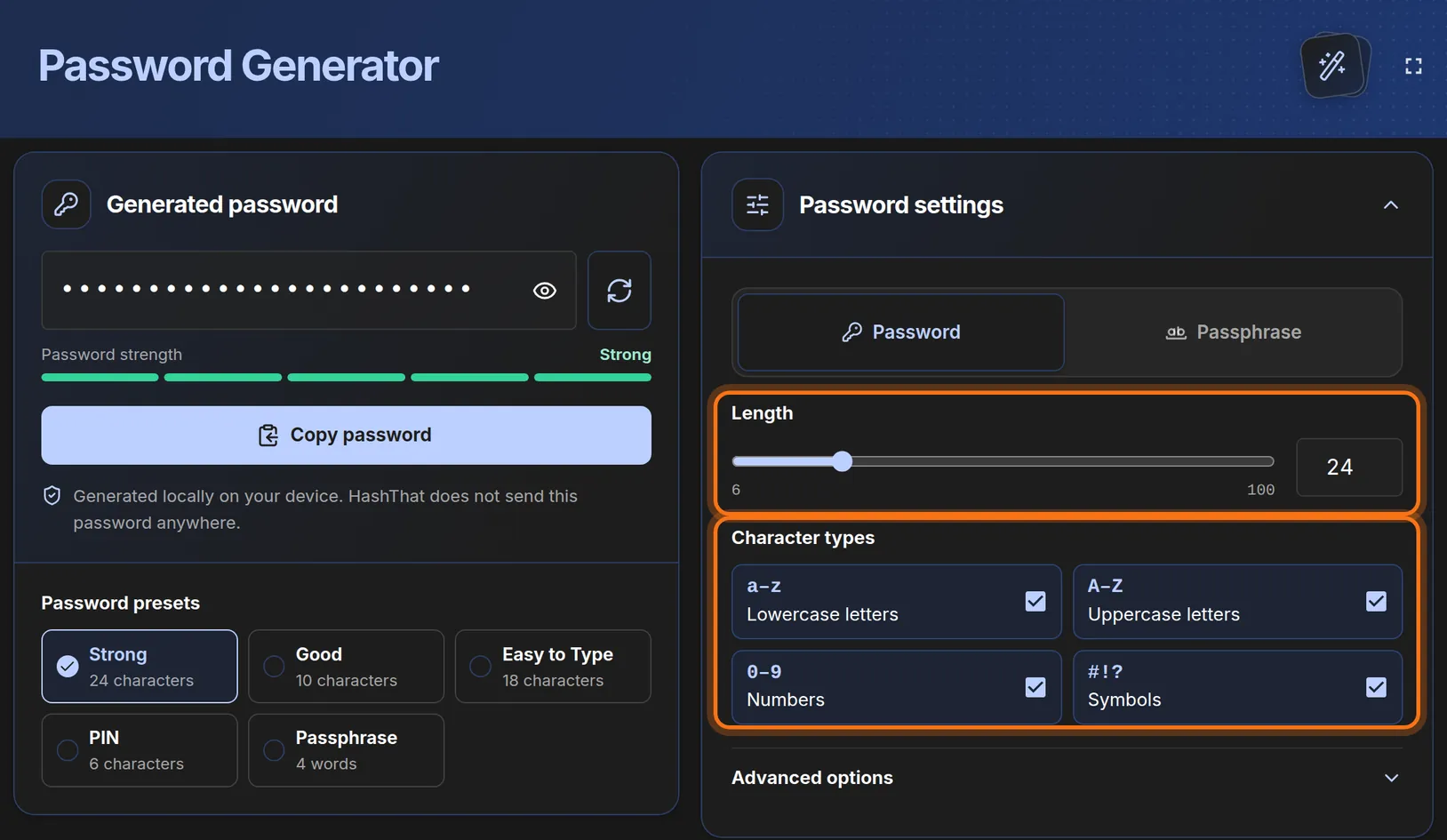
- To change the length, drag the Length slider or type a number in the box beside it.
- Under Character types, untick any kind the website does not allow, such as Symbols.
You should see: A new password each time you change a setting.
 Full size
 Full size
Length and Character types cover most website rules. Step 4: Limit the symbols, if the site is picky
- Do this only when a website accepts certain symbols and rejects others.
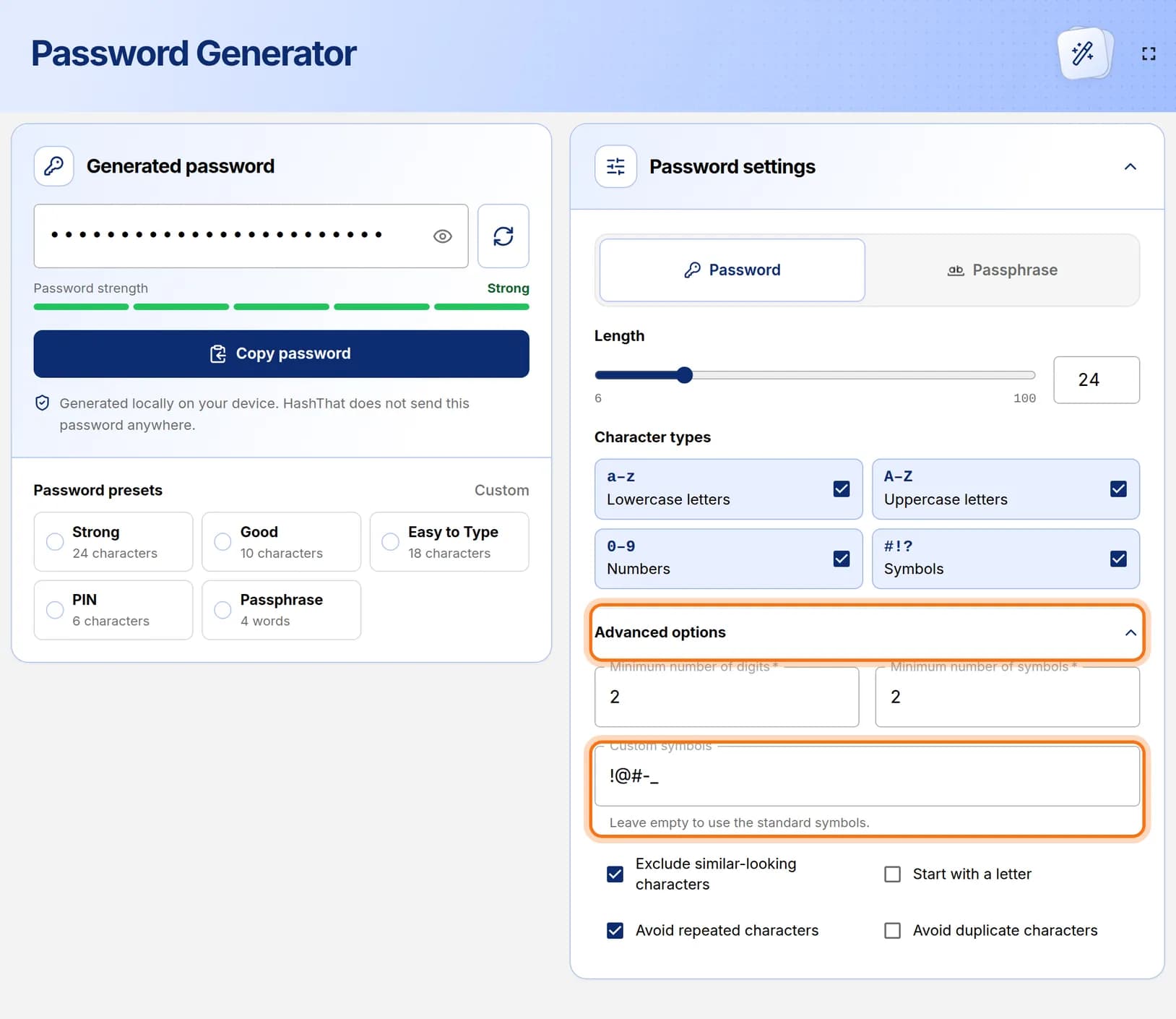
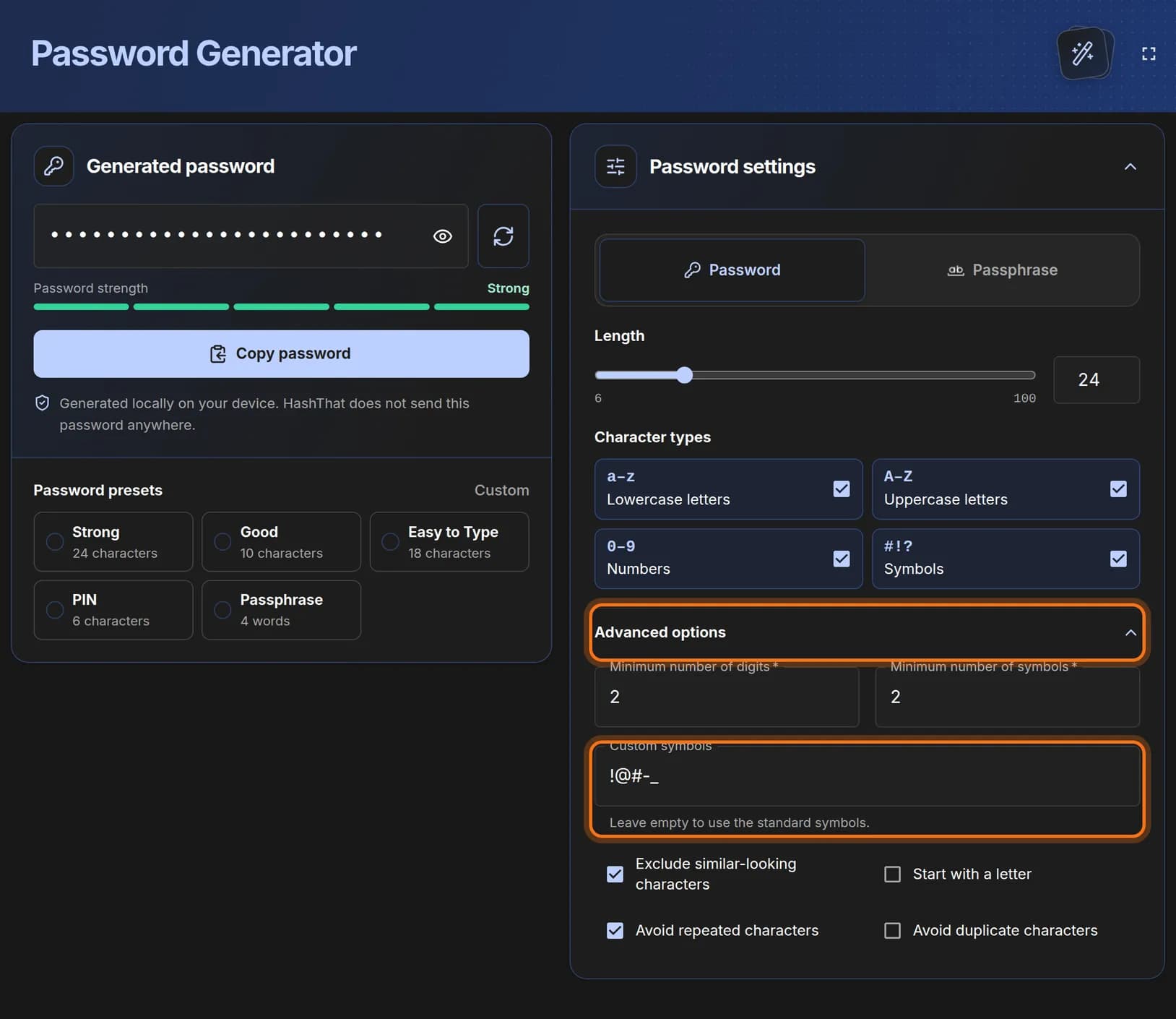
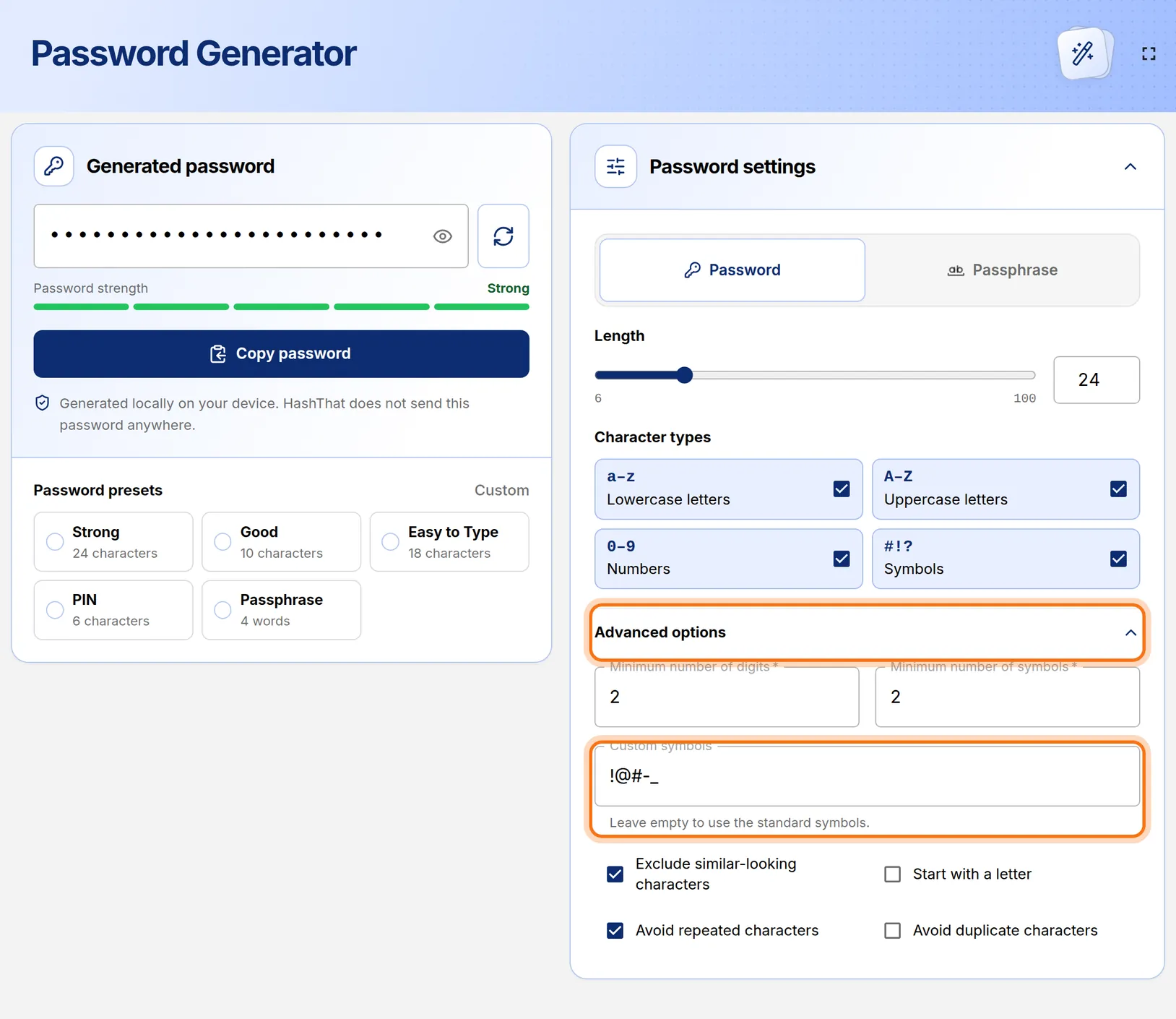
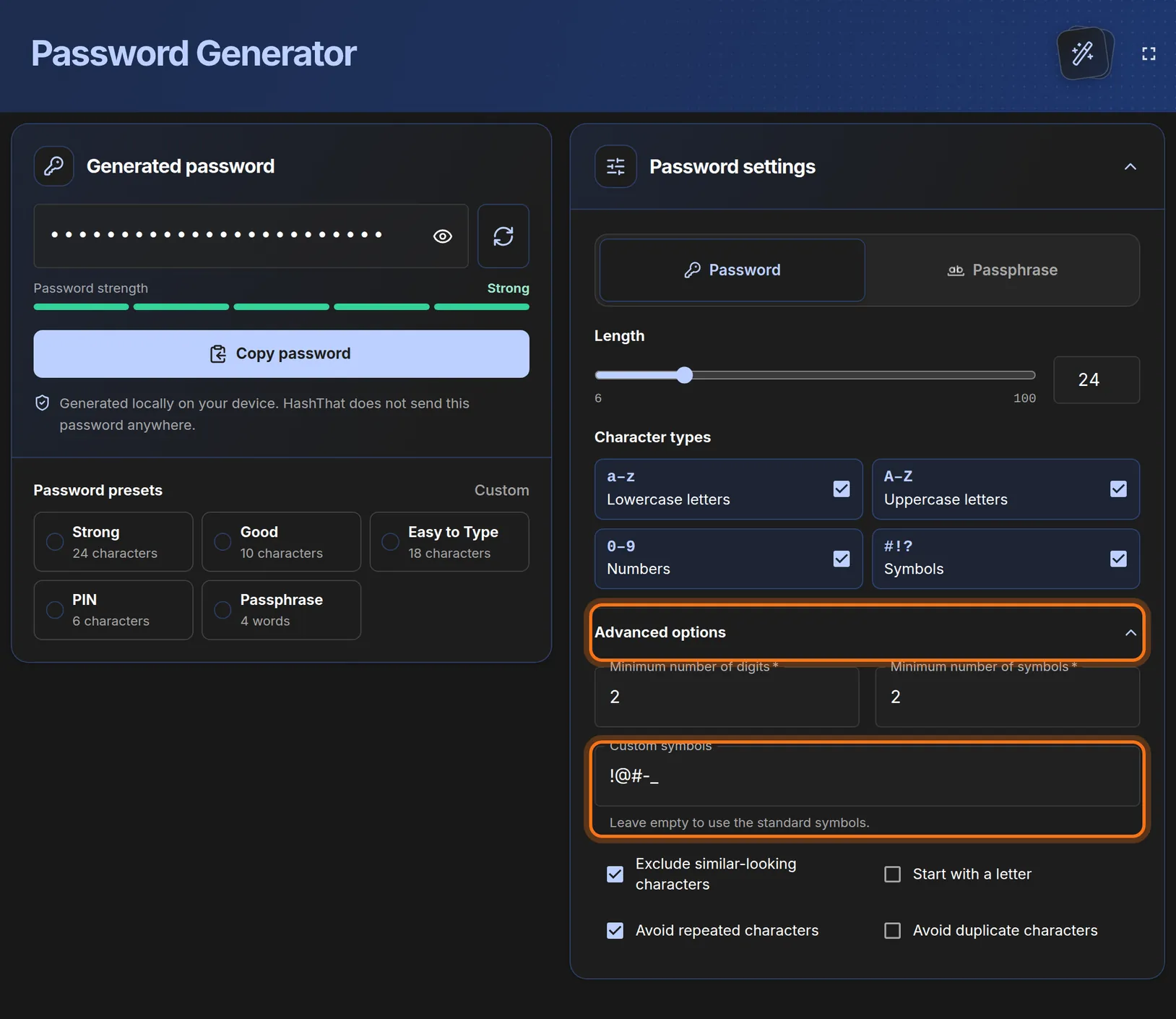
- Click Advanced options to open it.
- In Custom symbols, type exactly the symbols the website allows, for example !@#-_.
You should see: A new password that uses only the symbols you typed.
 Full size
 Full size
Leave Custom symbols empty to use the standard set. Step 5: Look at the password
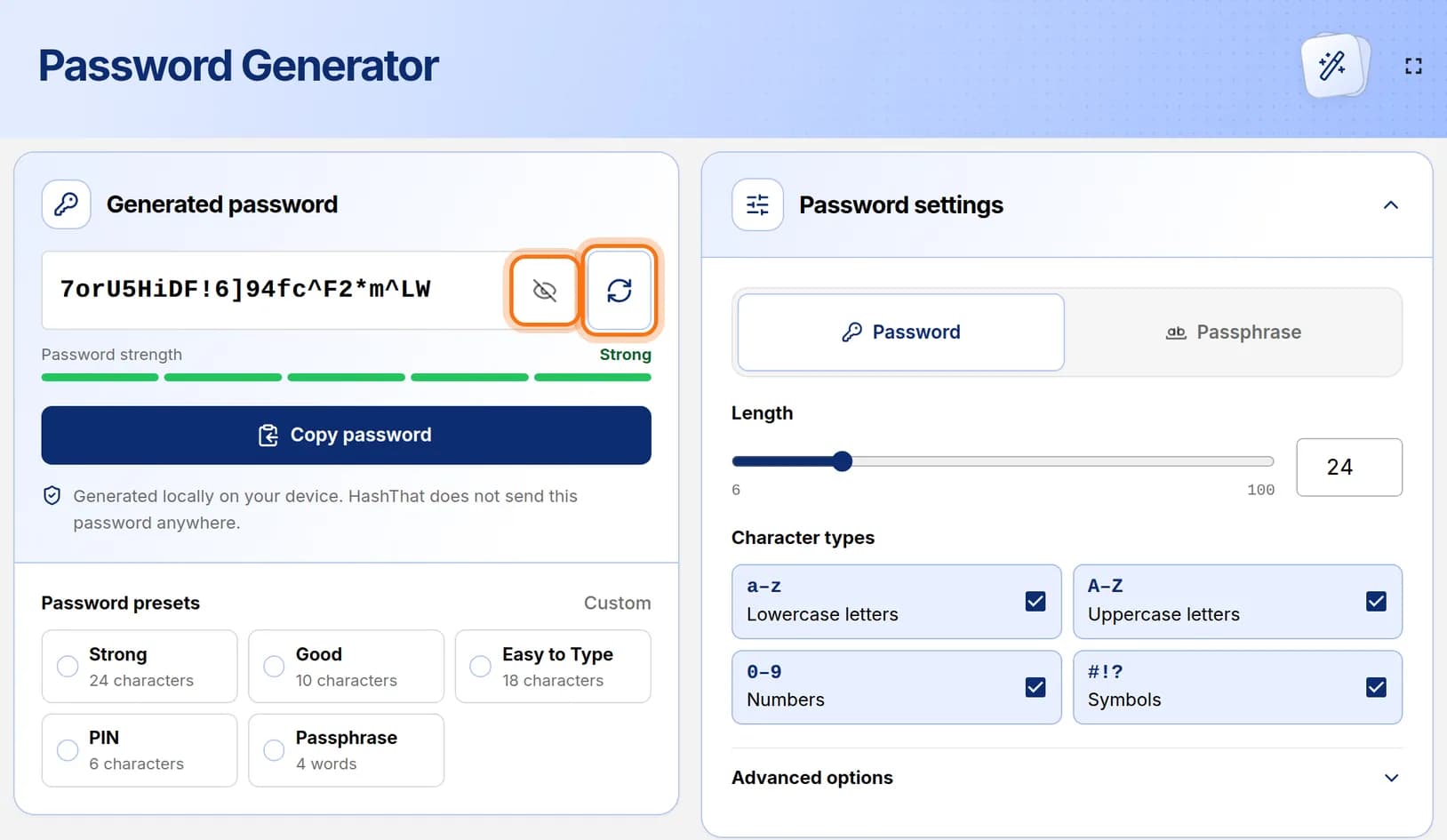
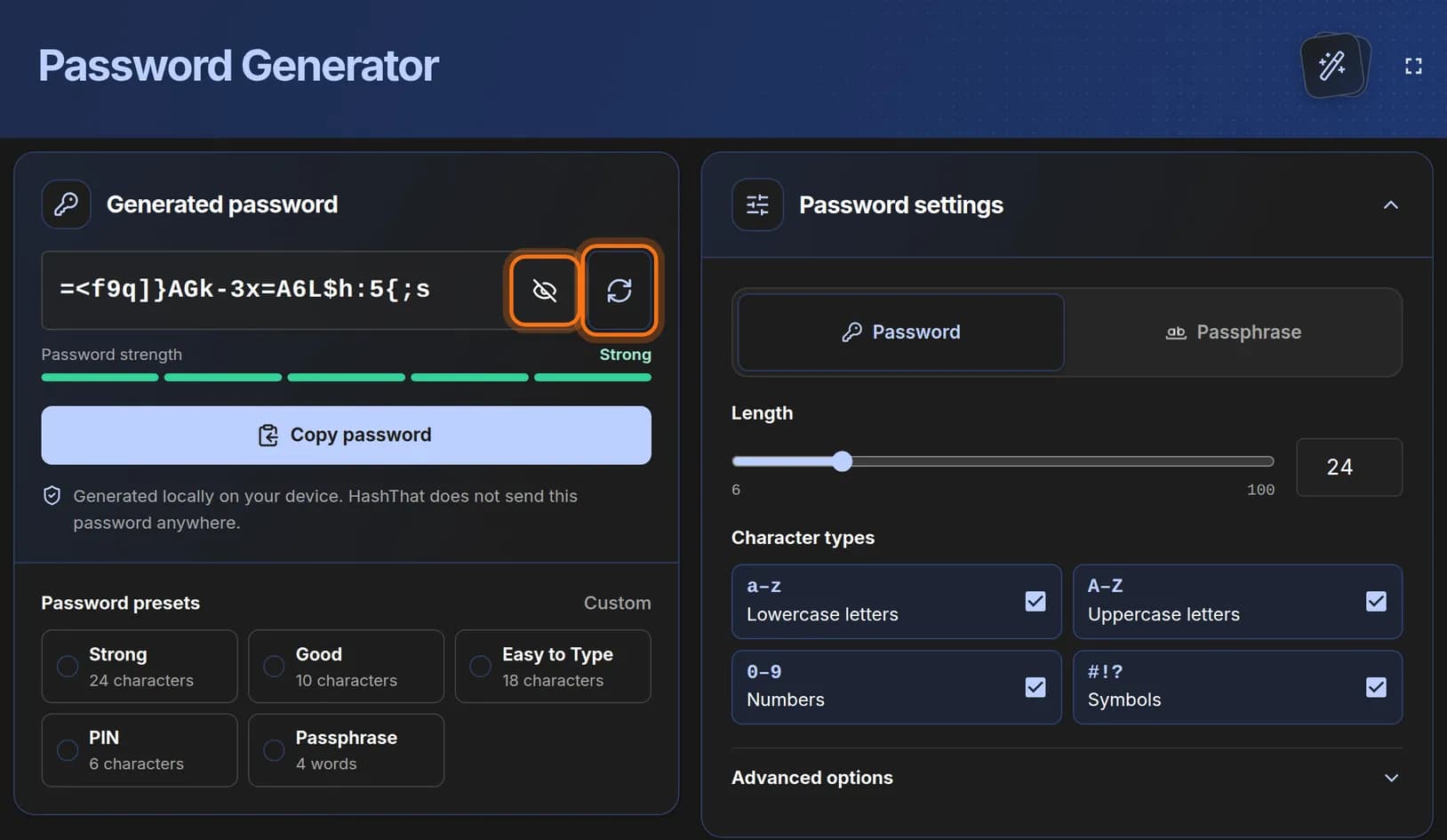
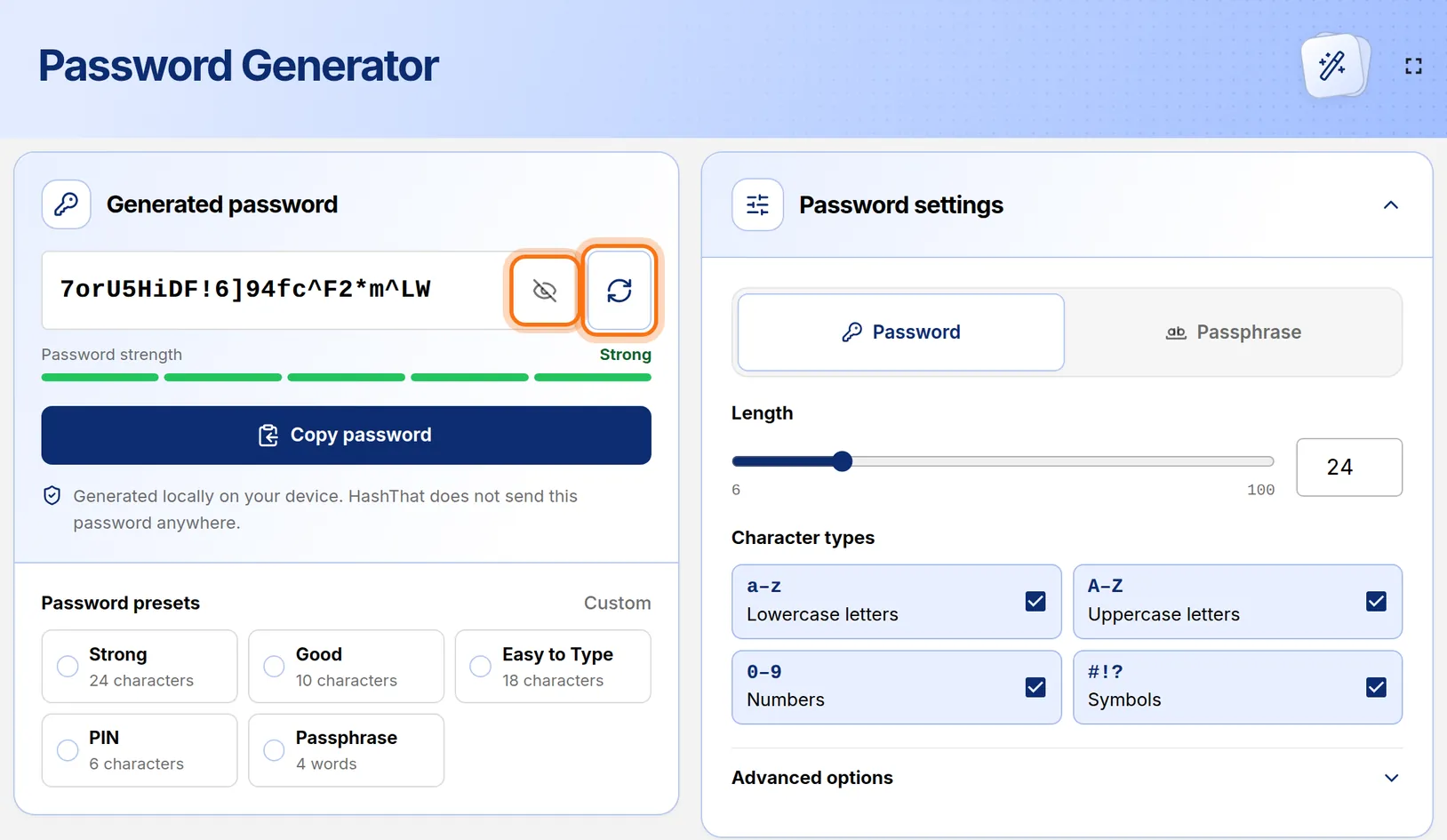
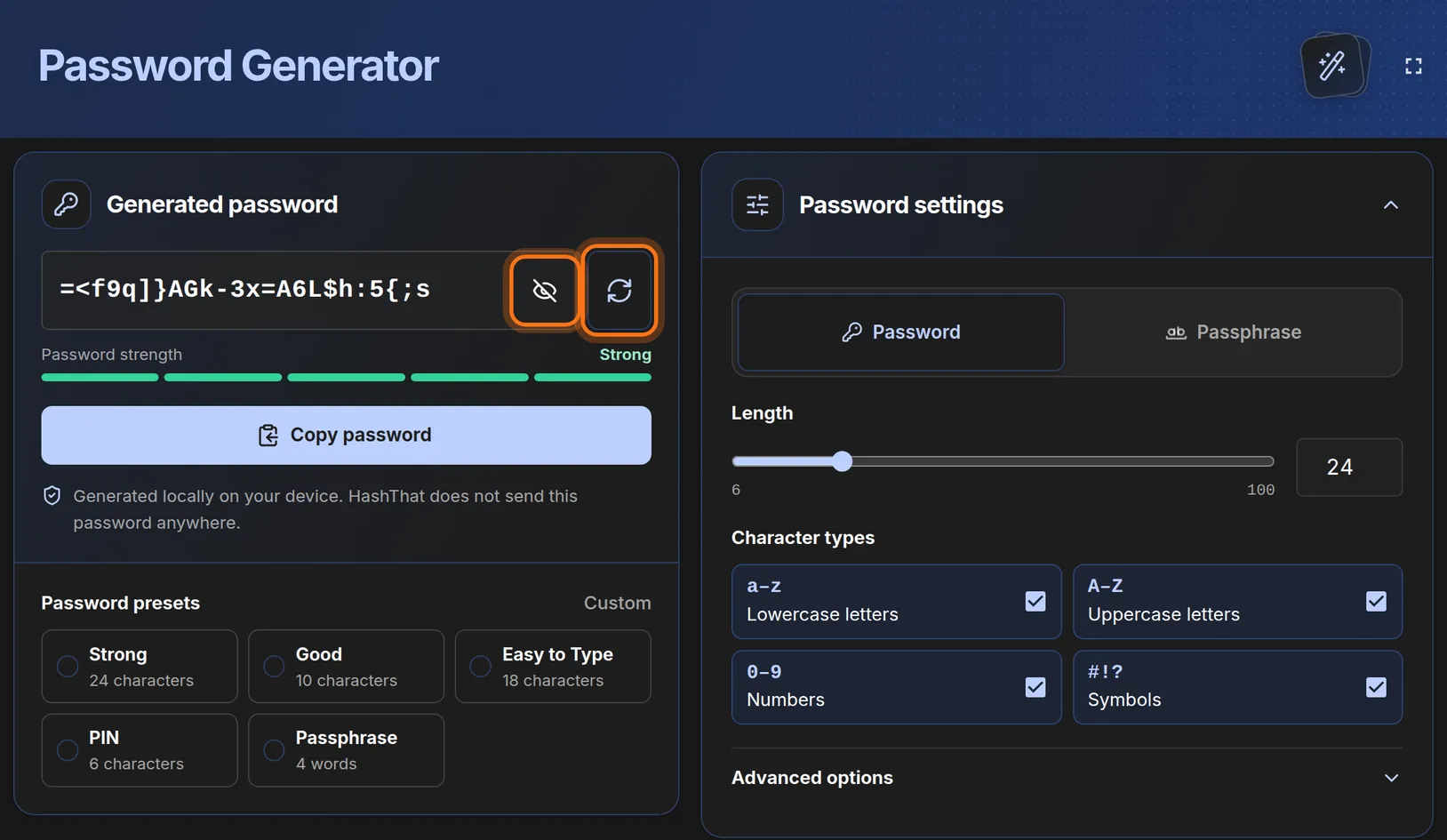
- Click the eye icon in the Generated password box to read the password.
- Not happy with it? Click the round arrows button beside it to make another one.
 Full size
 Full size
The eye shows or hides the password. The arrows create a new one. The password is created on your own device. HashThat does not send it anywhere.
Step 6: Copy the password
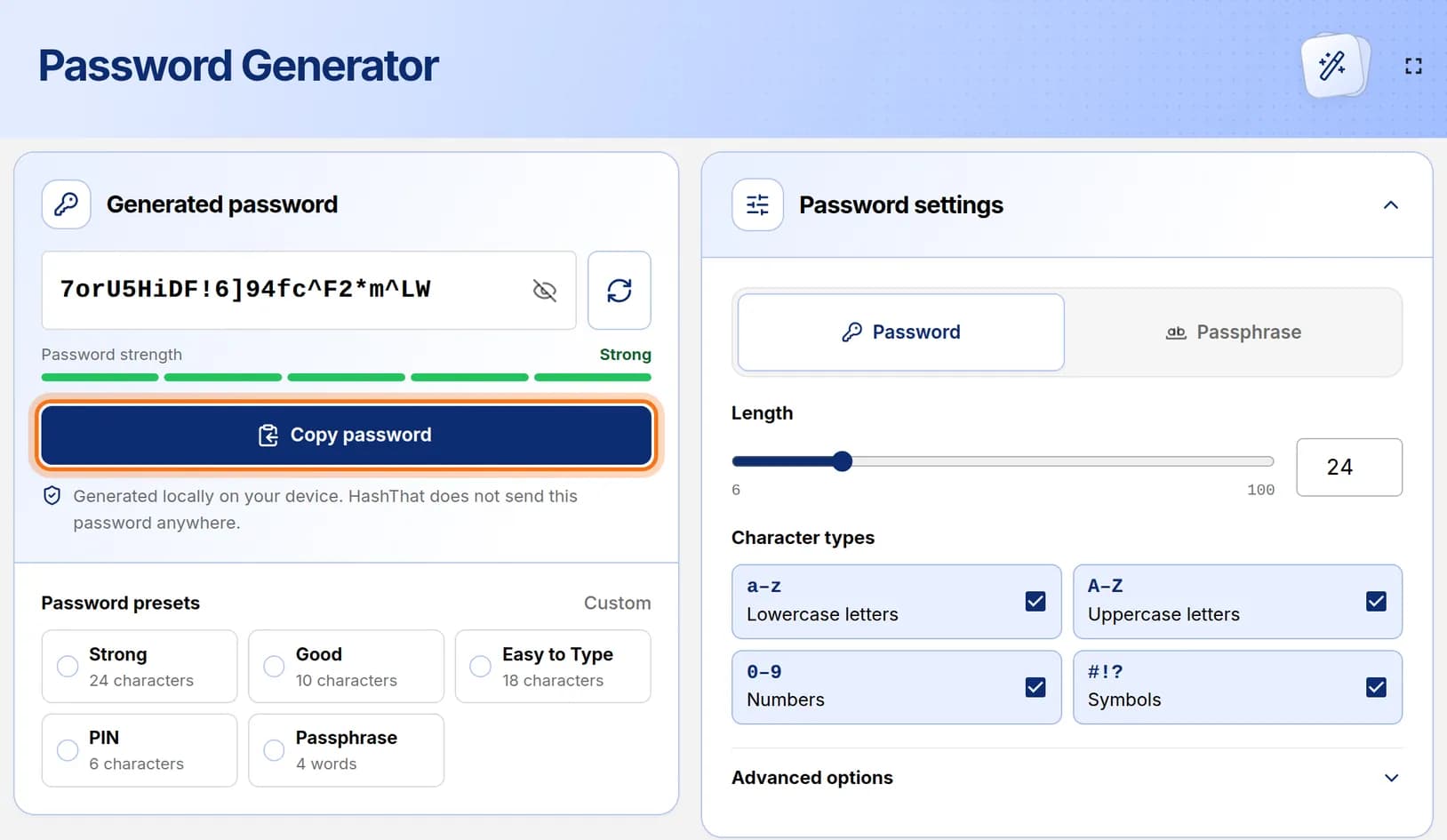
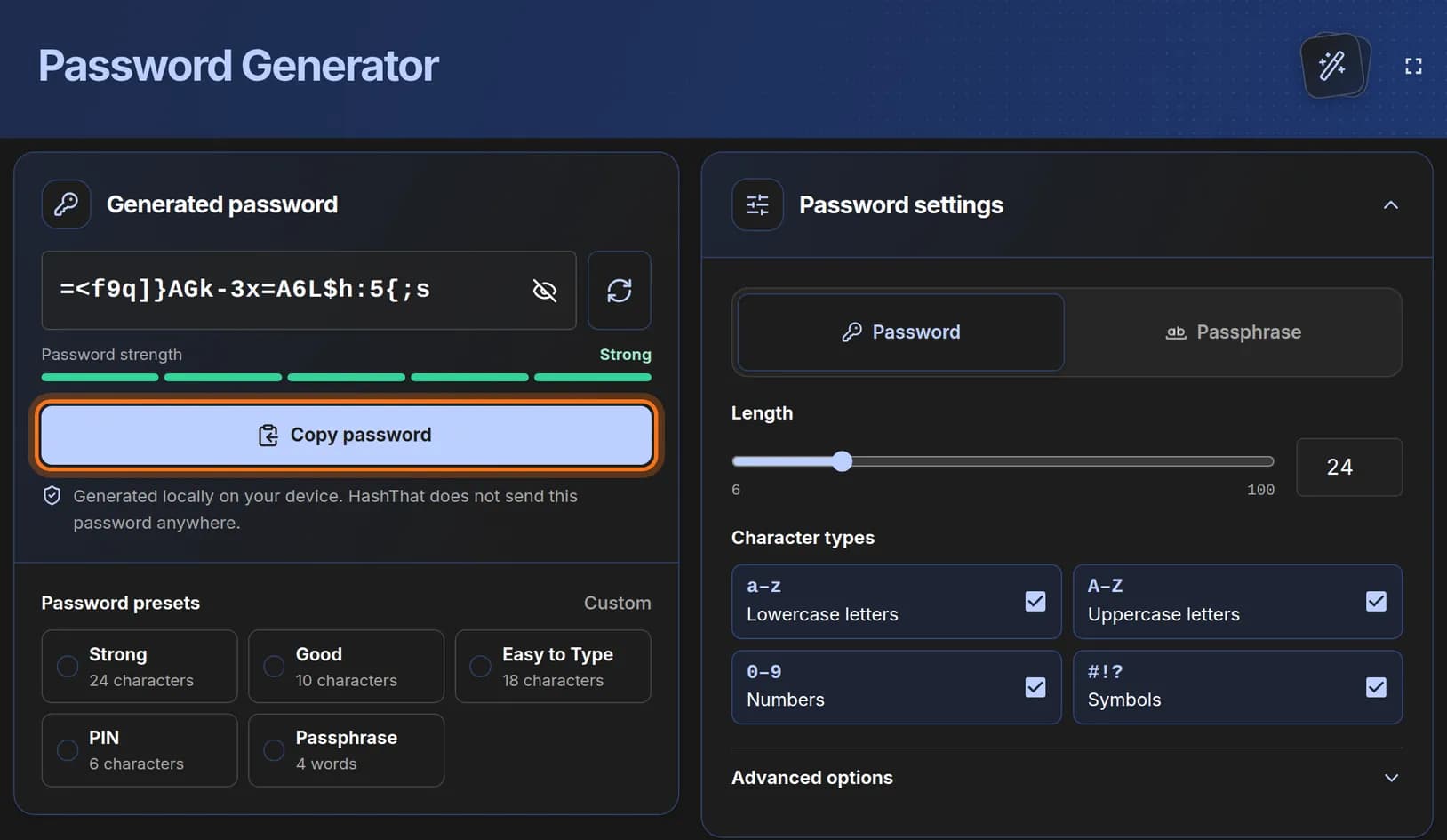
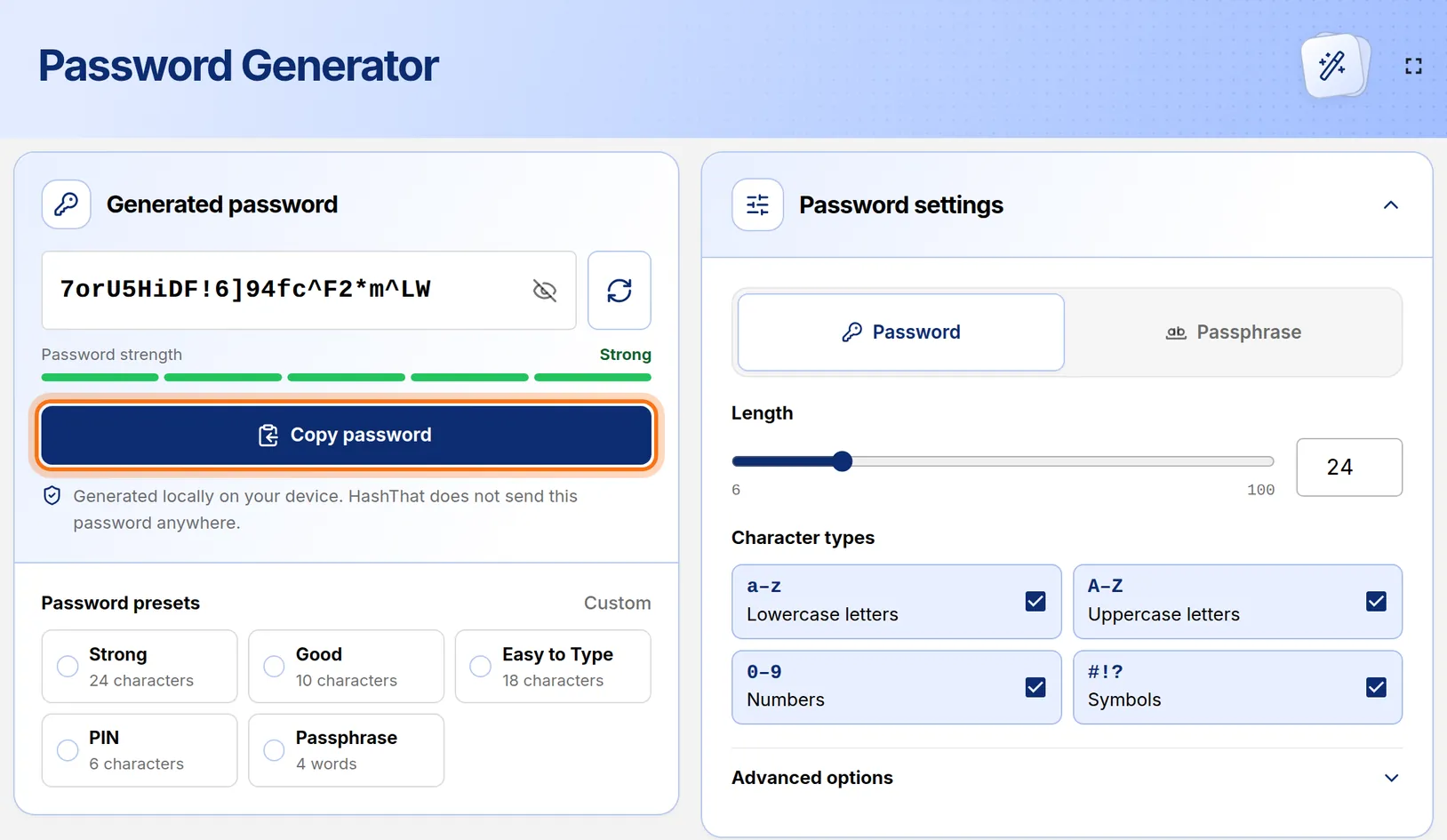
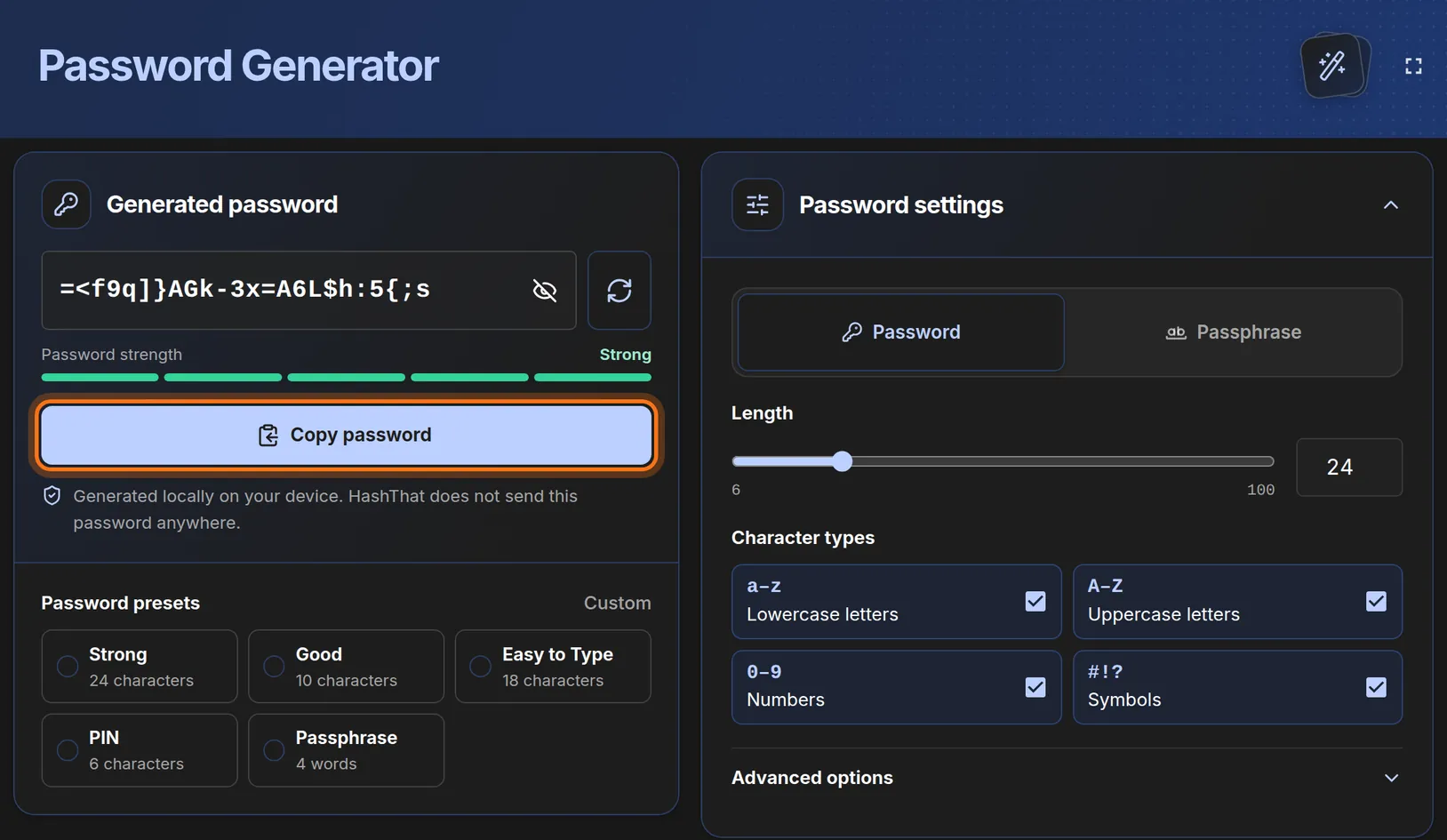
- Click the wide Copy password button.
- Switch to the tab with the website.
- Paste it into the website’s new-password box, and into the “confirm password” box if there is one.
- Finish the website’s form and wait until the website says the password was accepted.
 Full size
 Full size
Do not generate again until the website has accepted this password. Step 7: Open the login where you will keep it
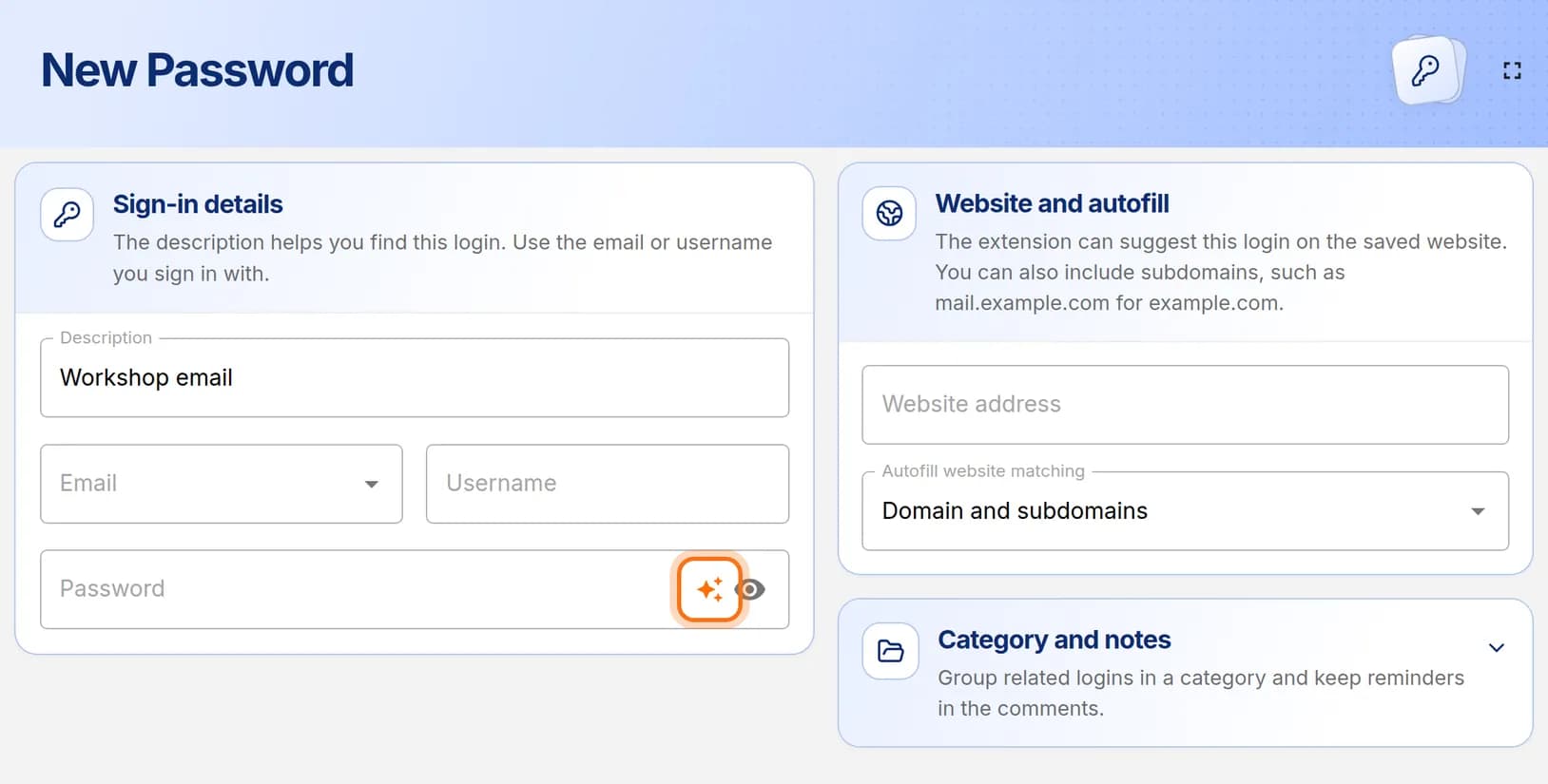
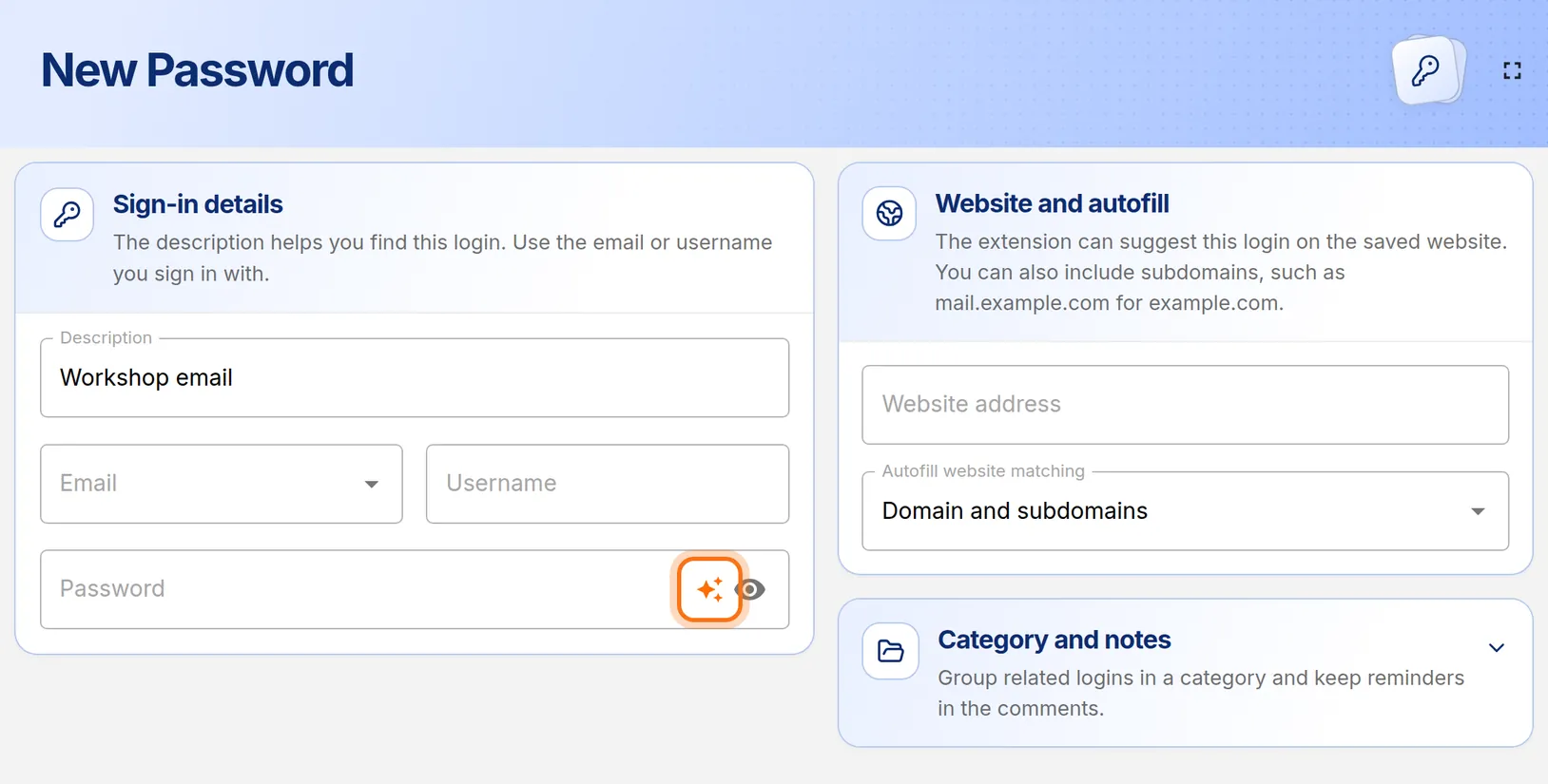
- Back in HashThat, click New Password in the left menu. To update a login you already saved, open its card and click the pencil icon instead.
- Type a name in Description and fill in your email or username.
- In the Password box, paste the password you copied.
 Full size
 Full size
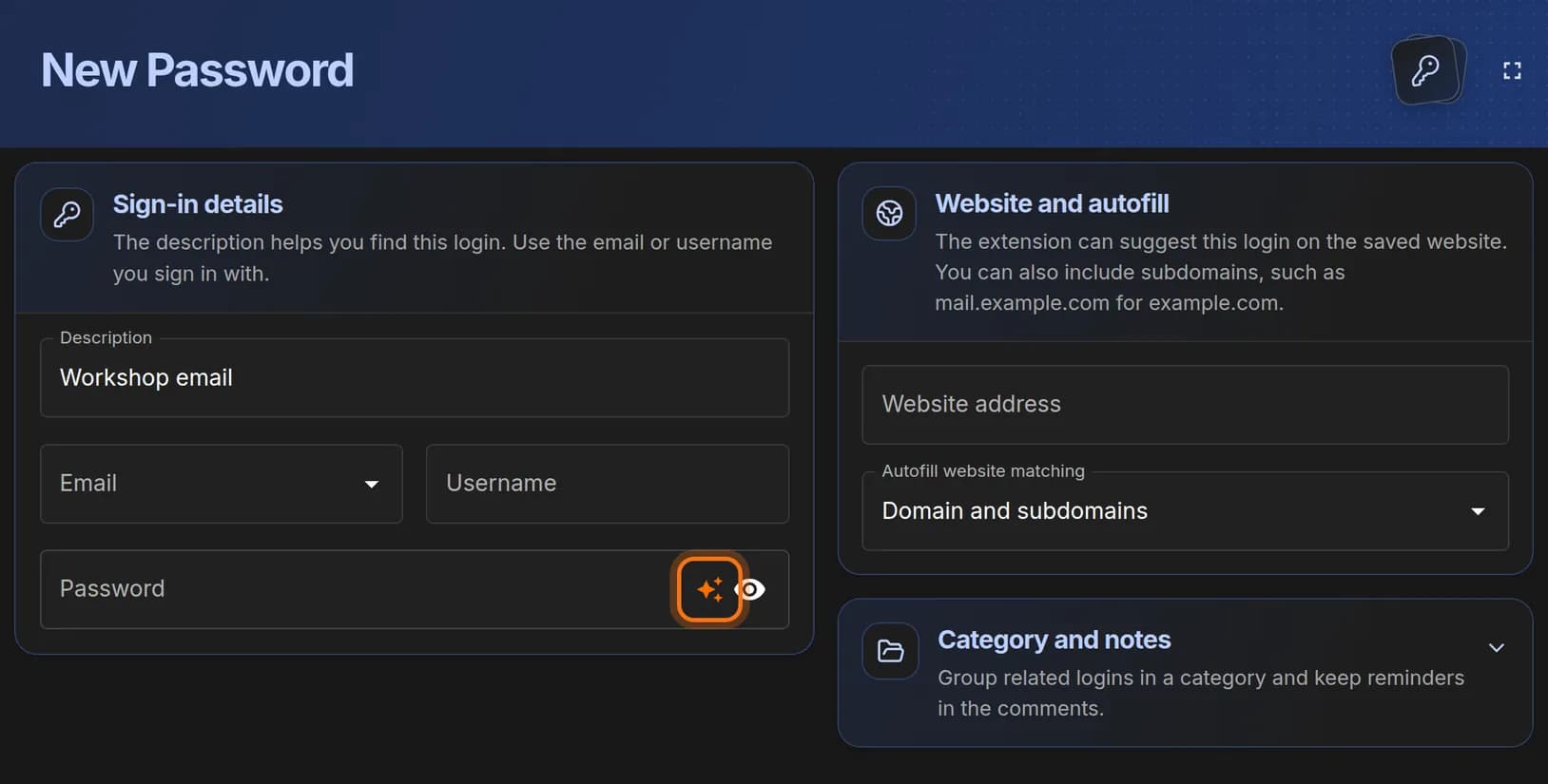
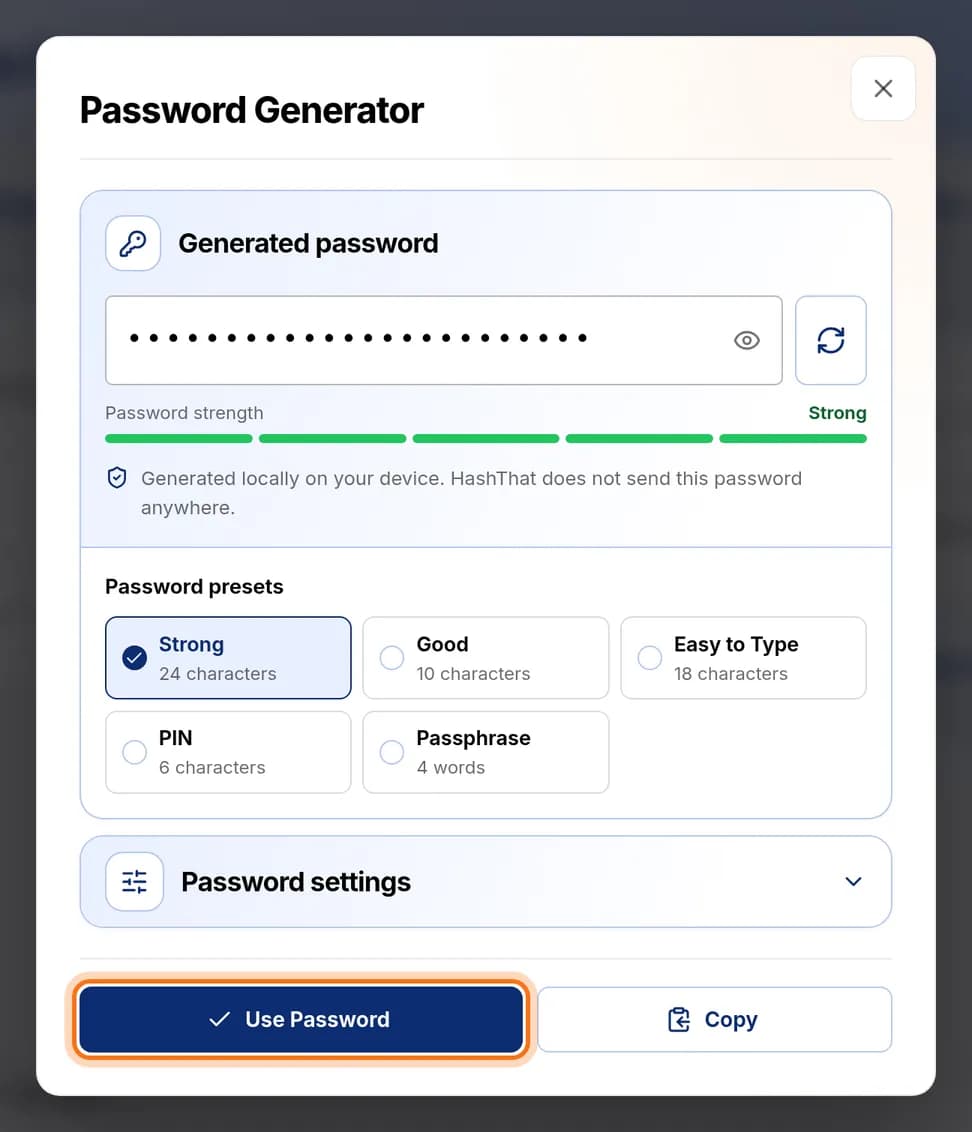
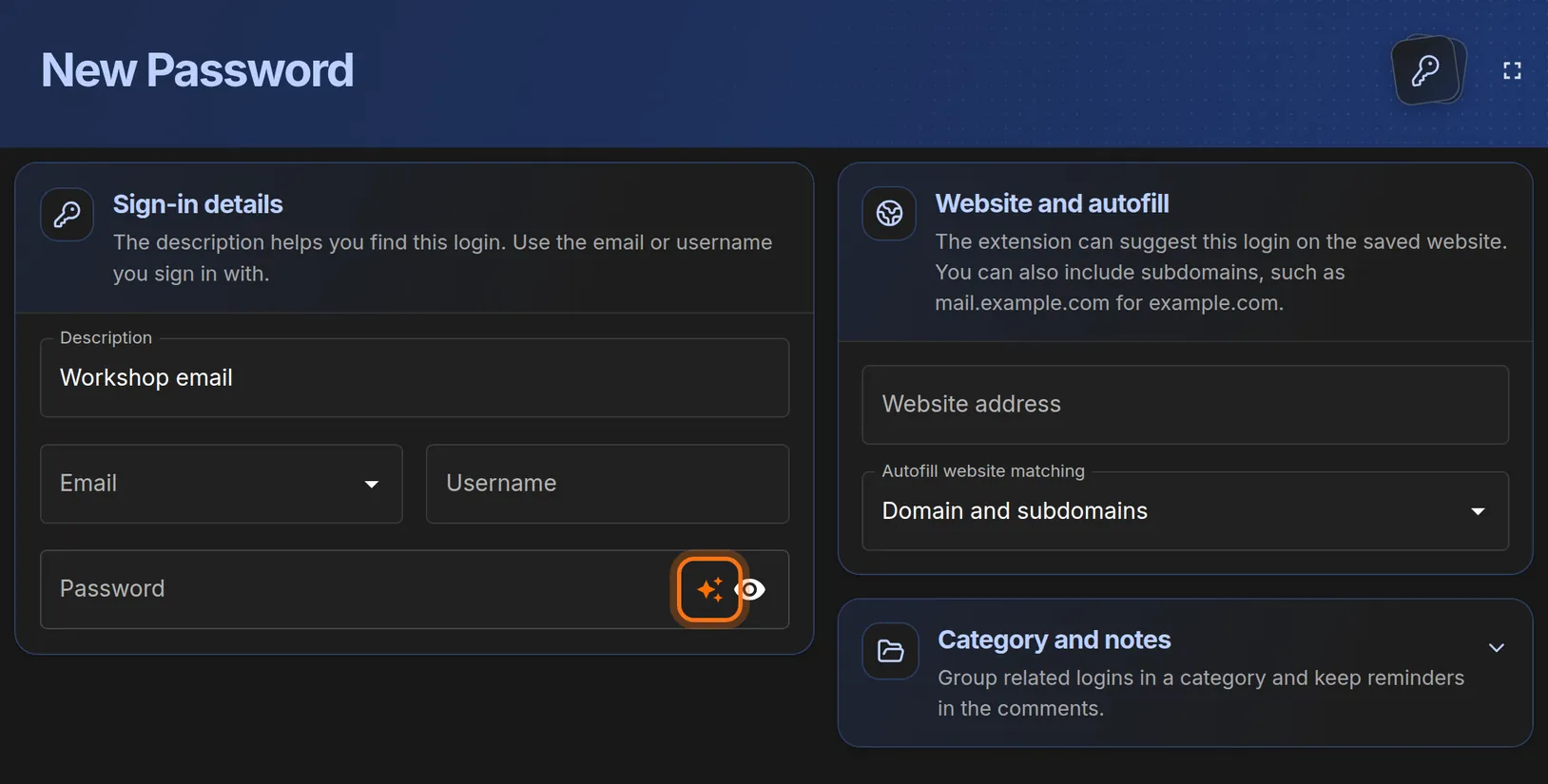
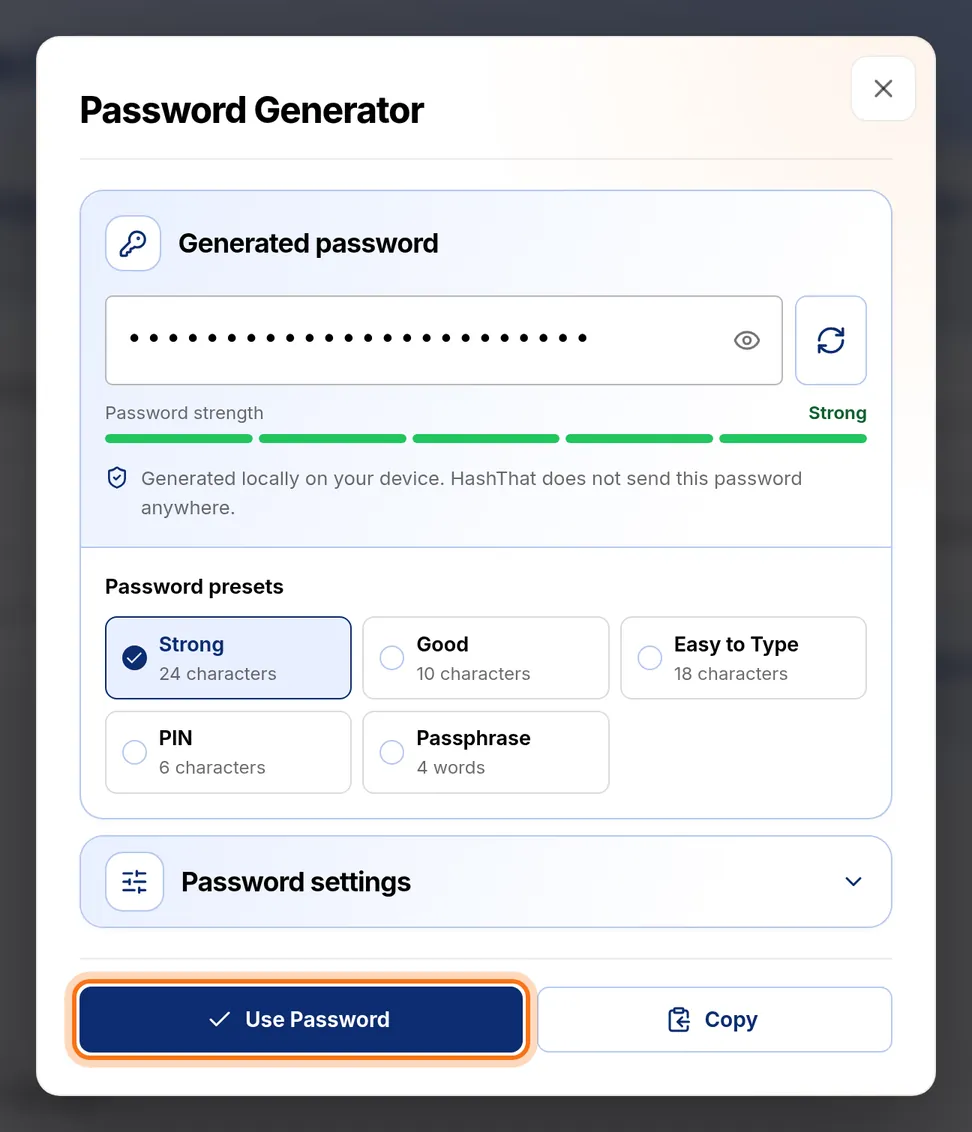
The sparkle icon in the Password box opens the same generator inside the form. Starting from the form instead? Click the sparkle icon, pick a preset, then click Use Password. Paste that same password on the website afterwards.
Step 8: Save the login
- If you opened the generator inside the form, click Use Password to place the password in the box.
- Click Save at the bottom right of the form.
You should see: The message Record saved. at the bottom left of the screen.
 Full size
 Full size
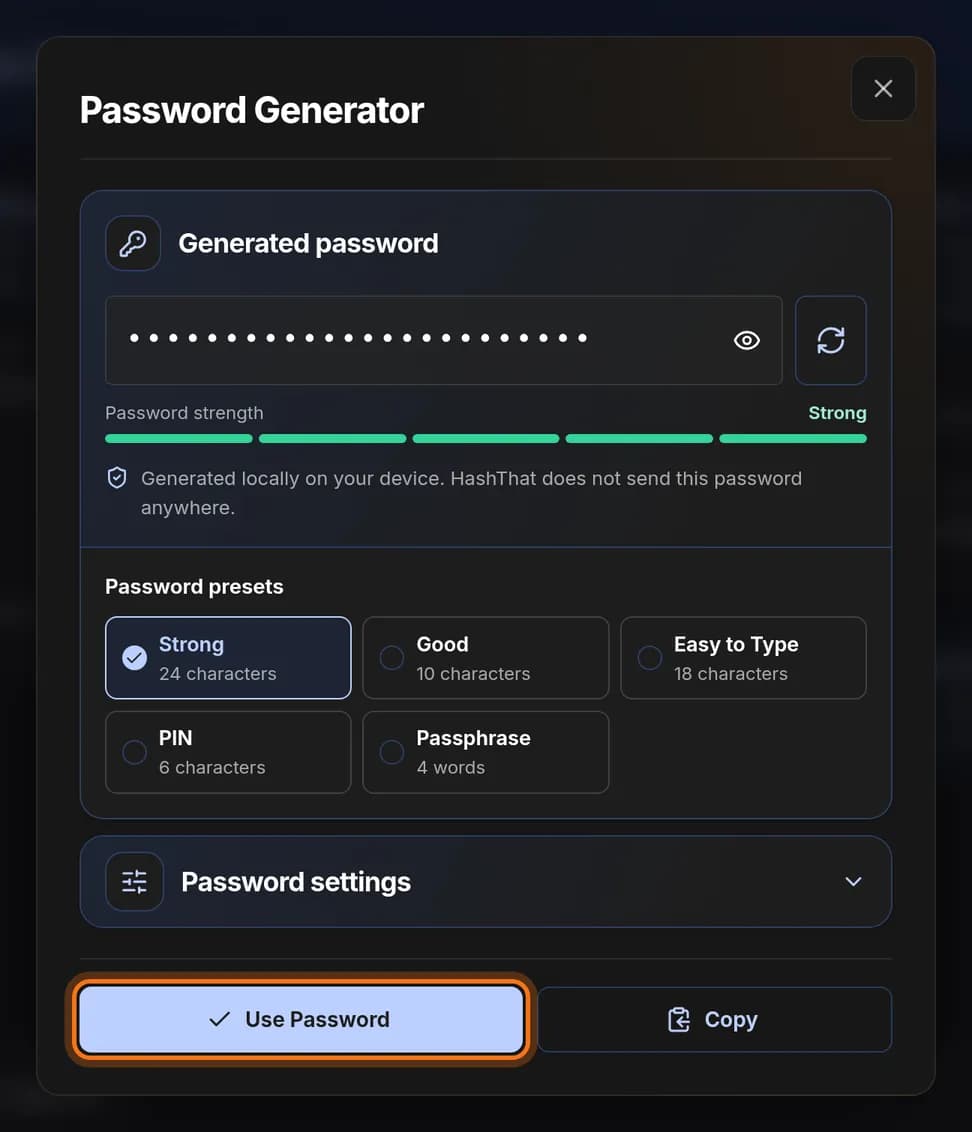
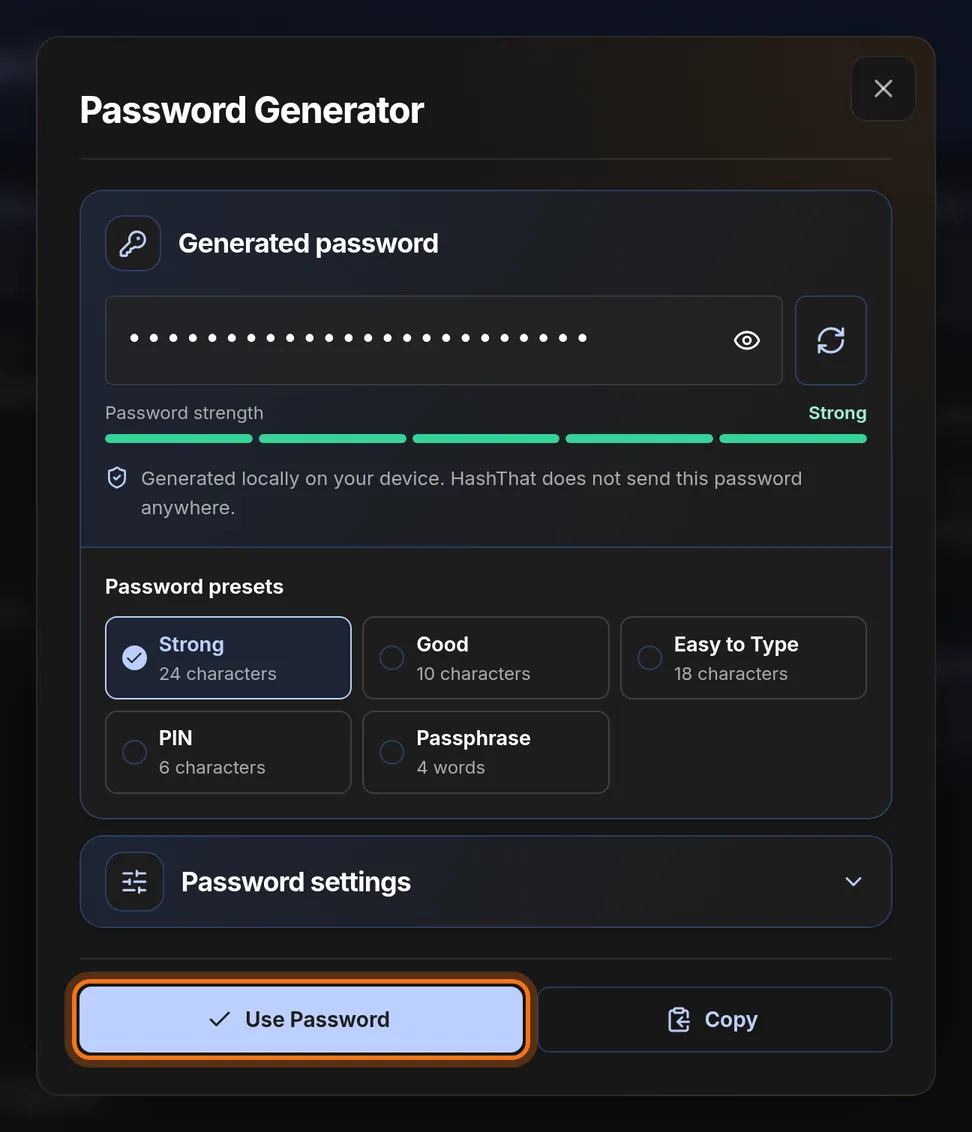
Use Password fills the form’s Password box with the generated value.
Check it worked
- The website confirmed that the new password was set.
- The login in HashThat holds the same password. Click the eye icon on its card to compare.
- You can sign in to the website with the saved password.
If something looks different
The website rejects the password
Read the website’s rule and adjust Length, Character types or Custom symbols to match. Then copy the new password and try again.
I generated a new password by accident
The password in the generator changed, but the one you already pasted on the website did not. Go back to the website, set a password again with the current value, and save that one.
Tip: Choose Passphrase when you will have to type the password by hand, for example on a TV or a games console. Four random words are easier to type than 24 mixed characters.