Import passwords from a file
Move many logins into HashThat at once from a CSV, Excel or JSON file.
- 7 steps
- About 8 minutes
Before you start
- Passwords Pro for an import into your personal vault, or a business vault you are allowed to add passwords to.
- A file with your logins: CSV, Excel (XLSX) or JSON. Most browsers and password managers can export one.
- A spreadsheet program such as Excel, Numbers or Google Sheets to check the file.
Step 1: Open Import Passwords
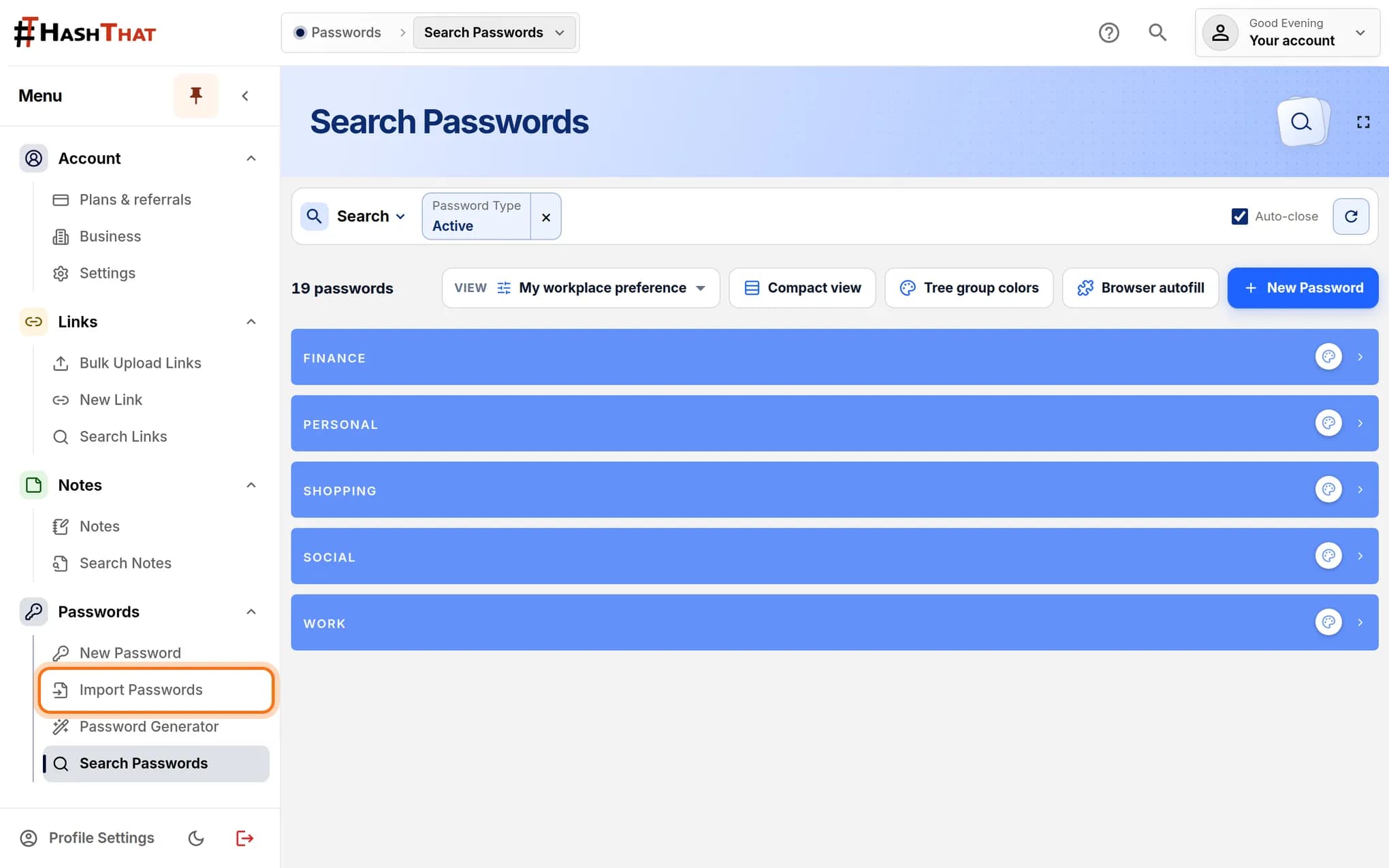
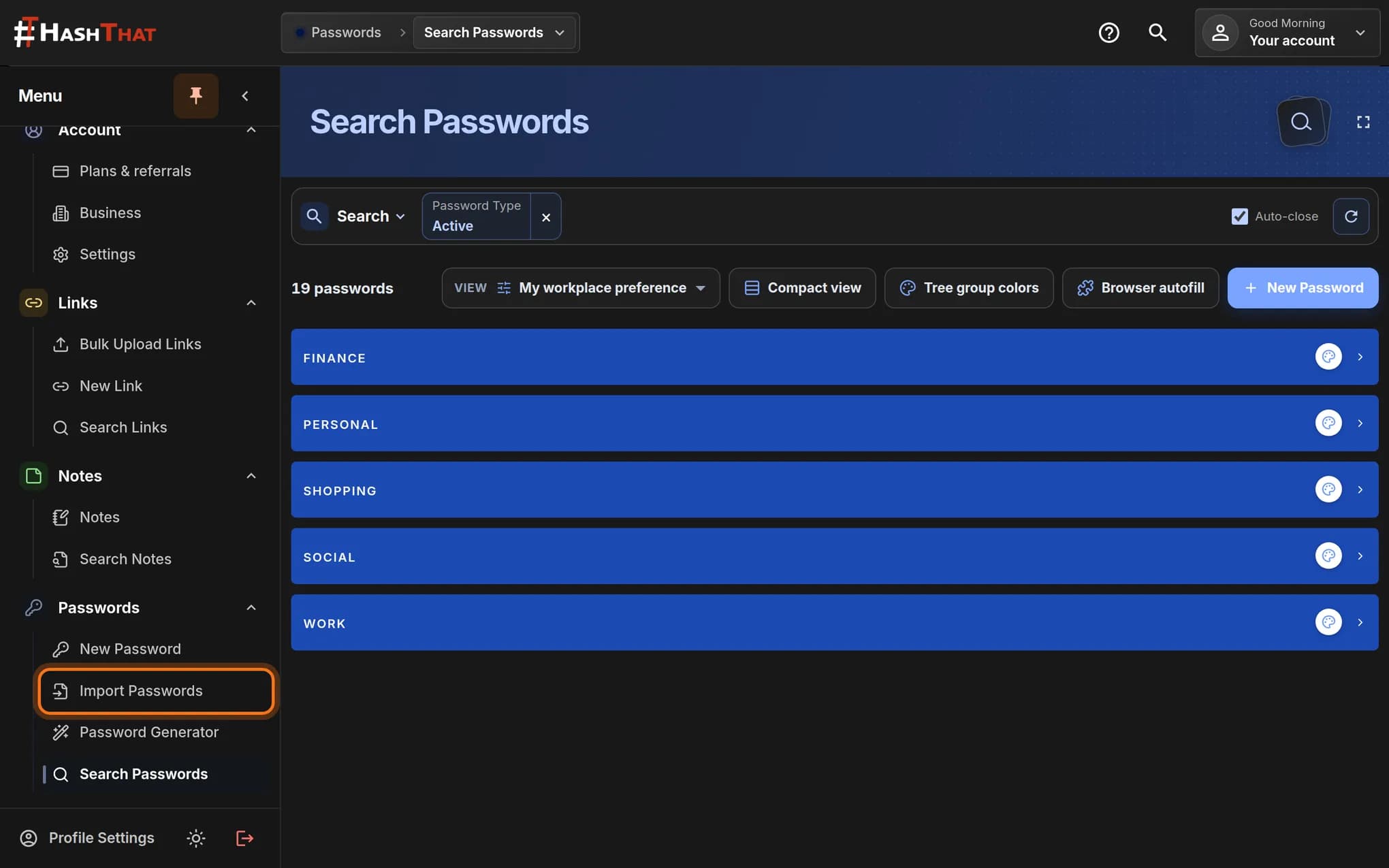
- Look at the menu on the left.
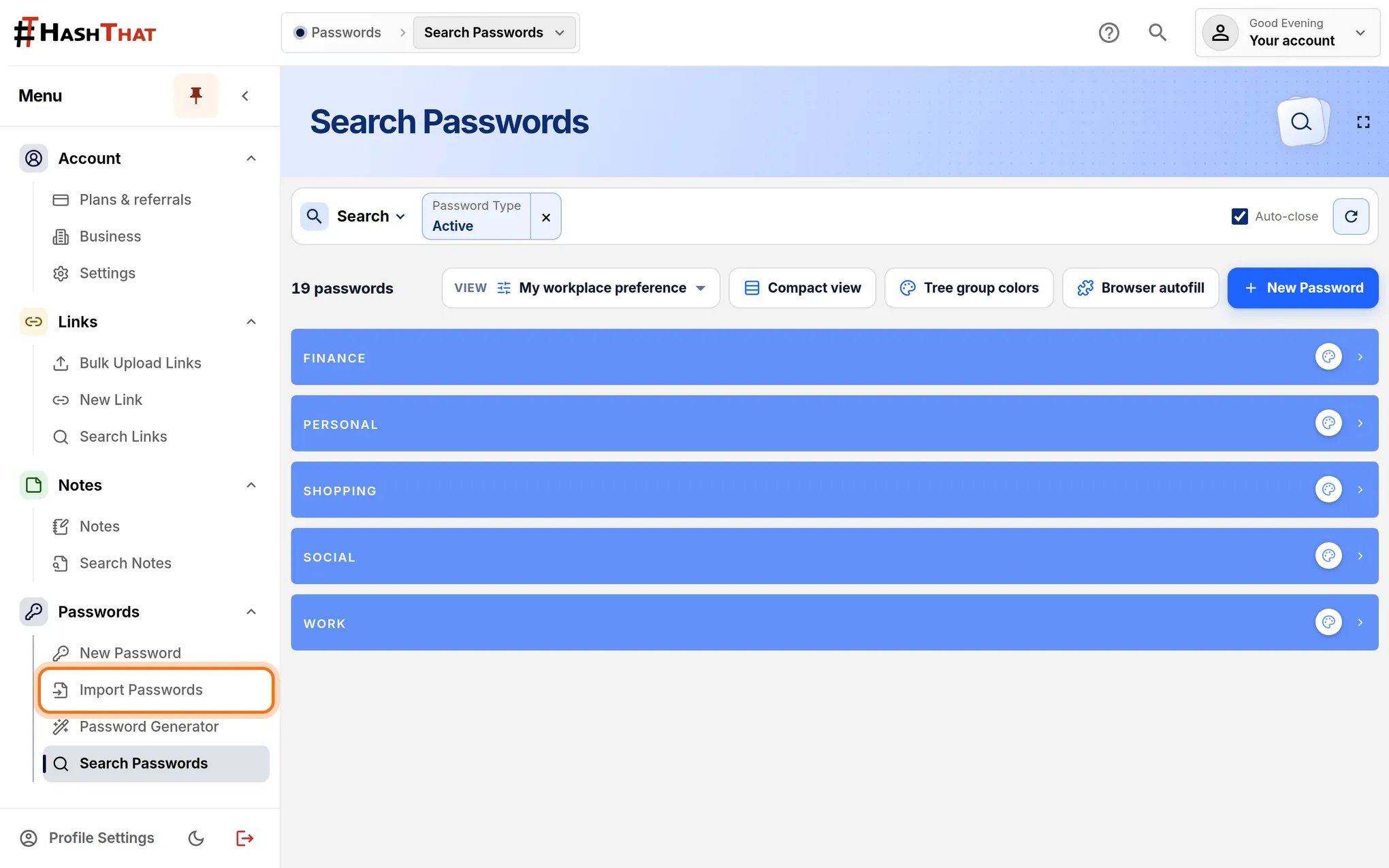
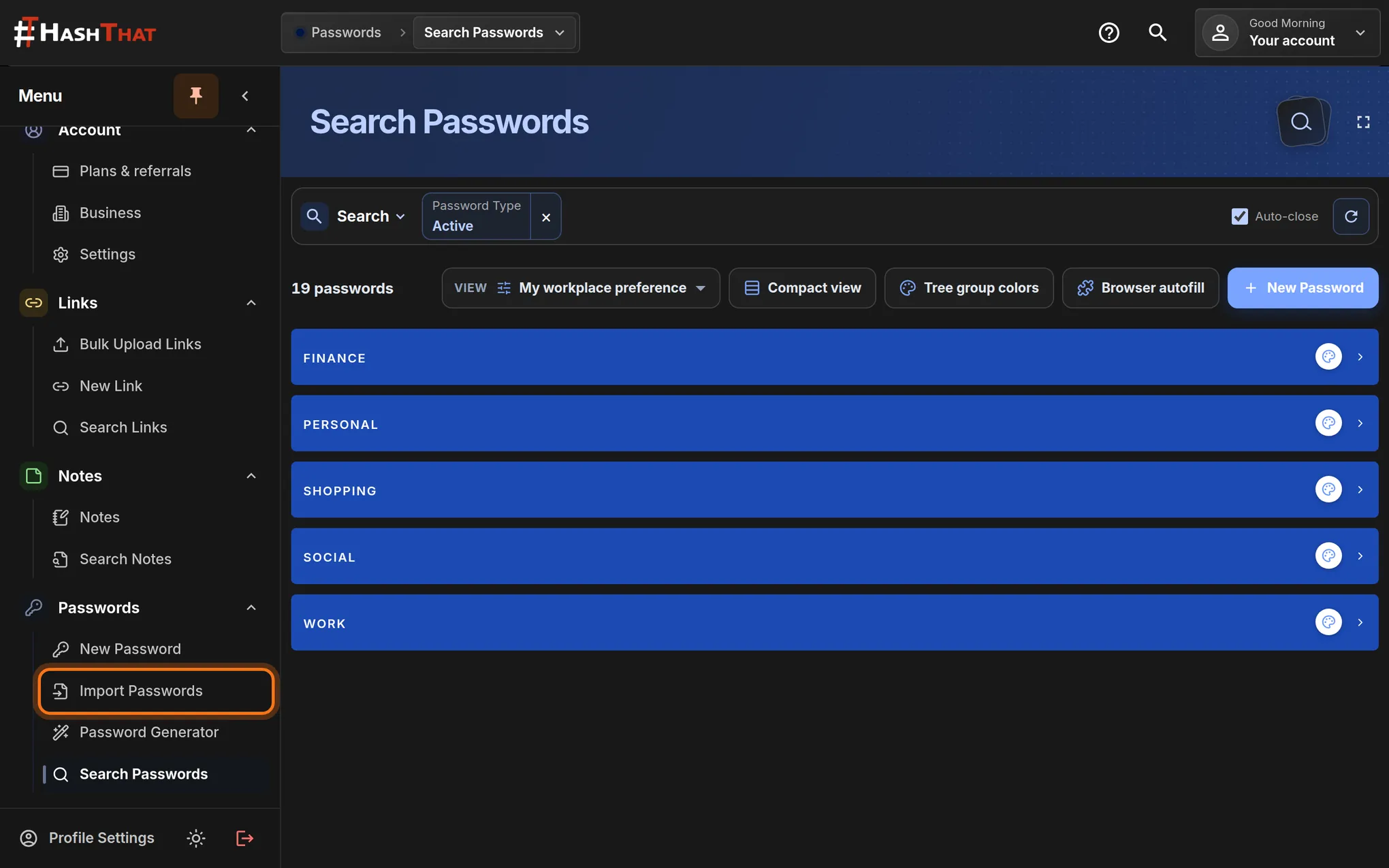
- Under Passwords, click Import Passwords.
You should see: A page titled Import passwords with two panels: Choose your file and Prepare your file.
 Full size
 Full size
Import Passwords is the second item under Passwords. Step 2: Download the template
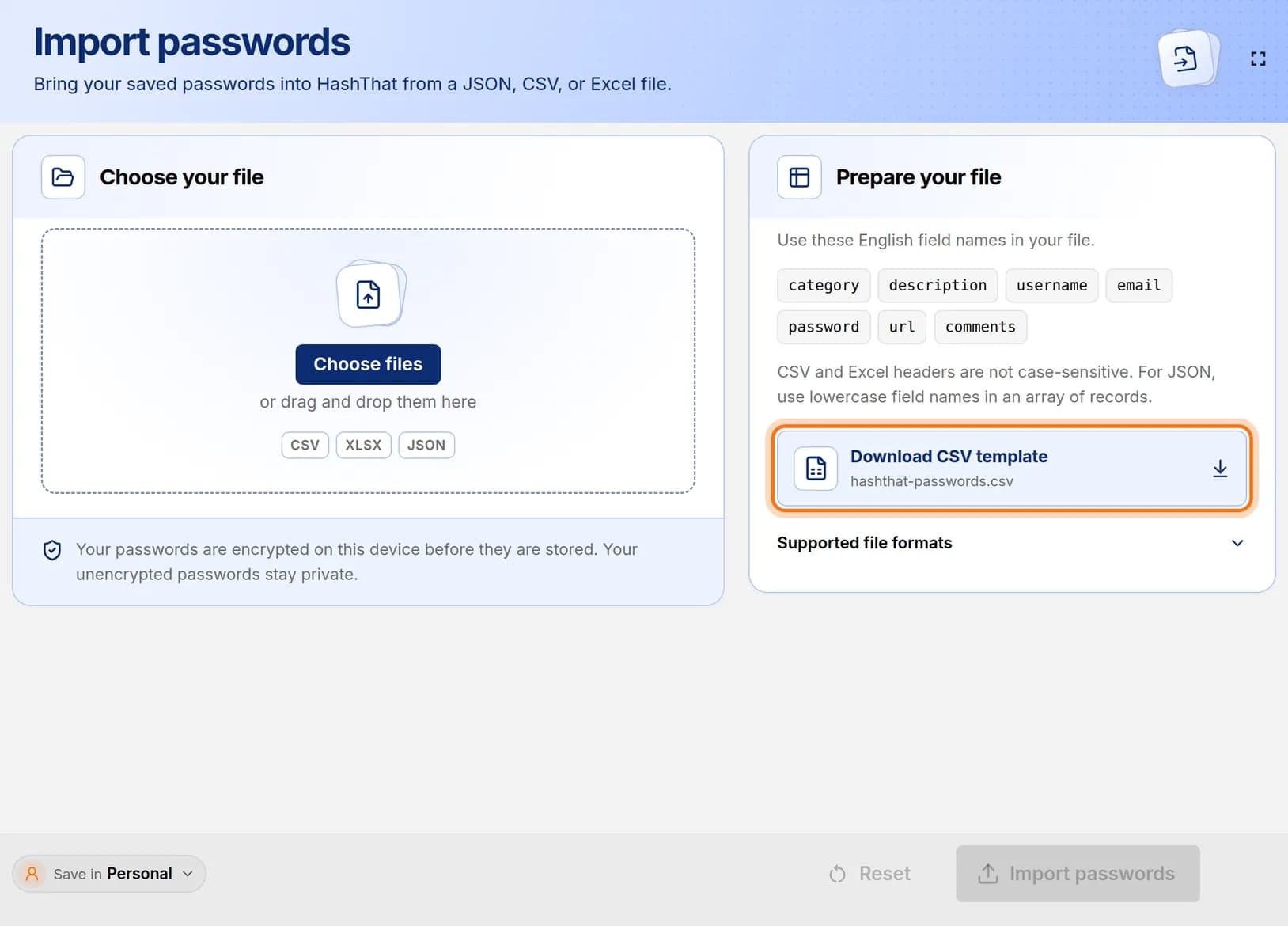
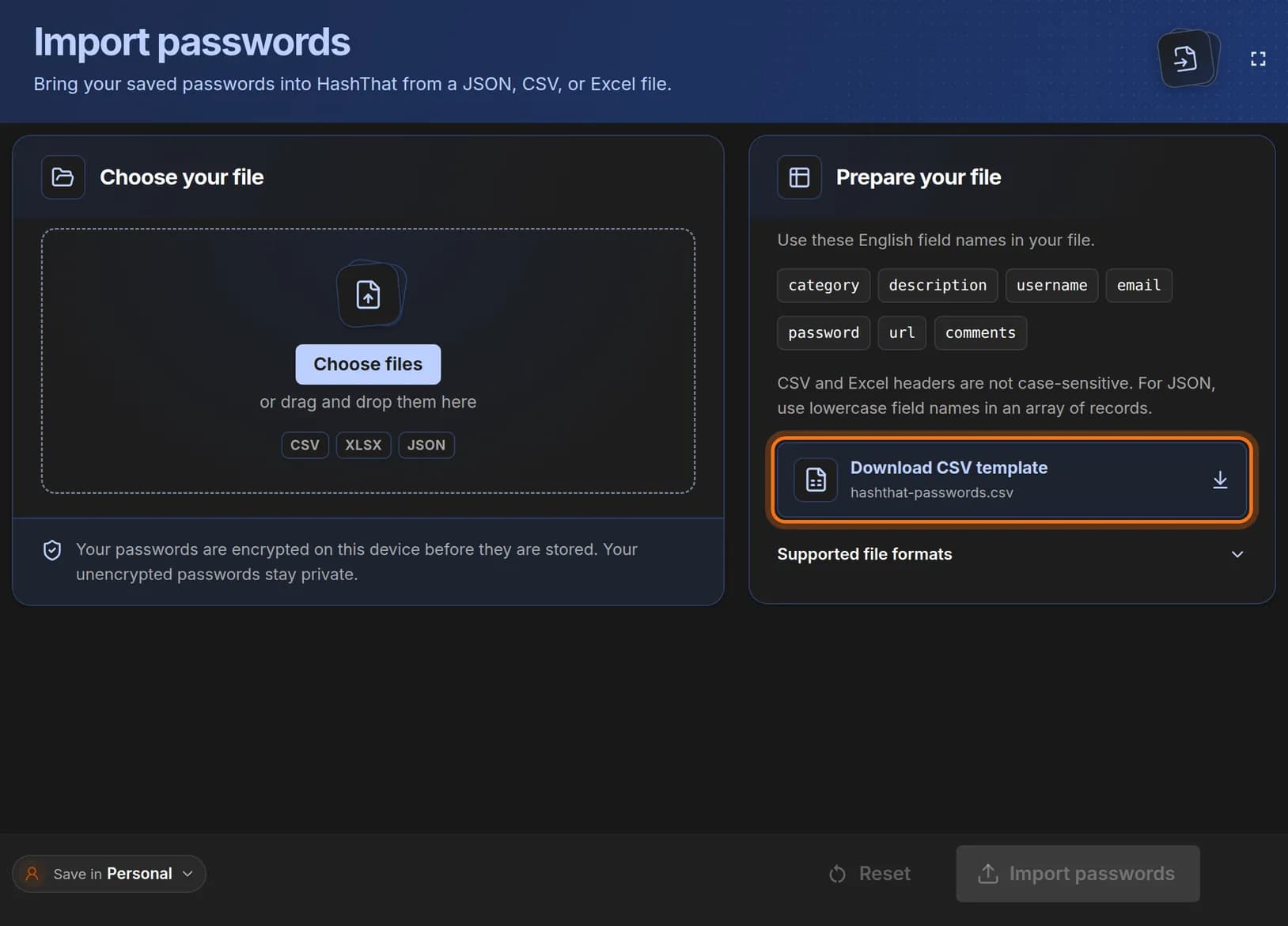
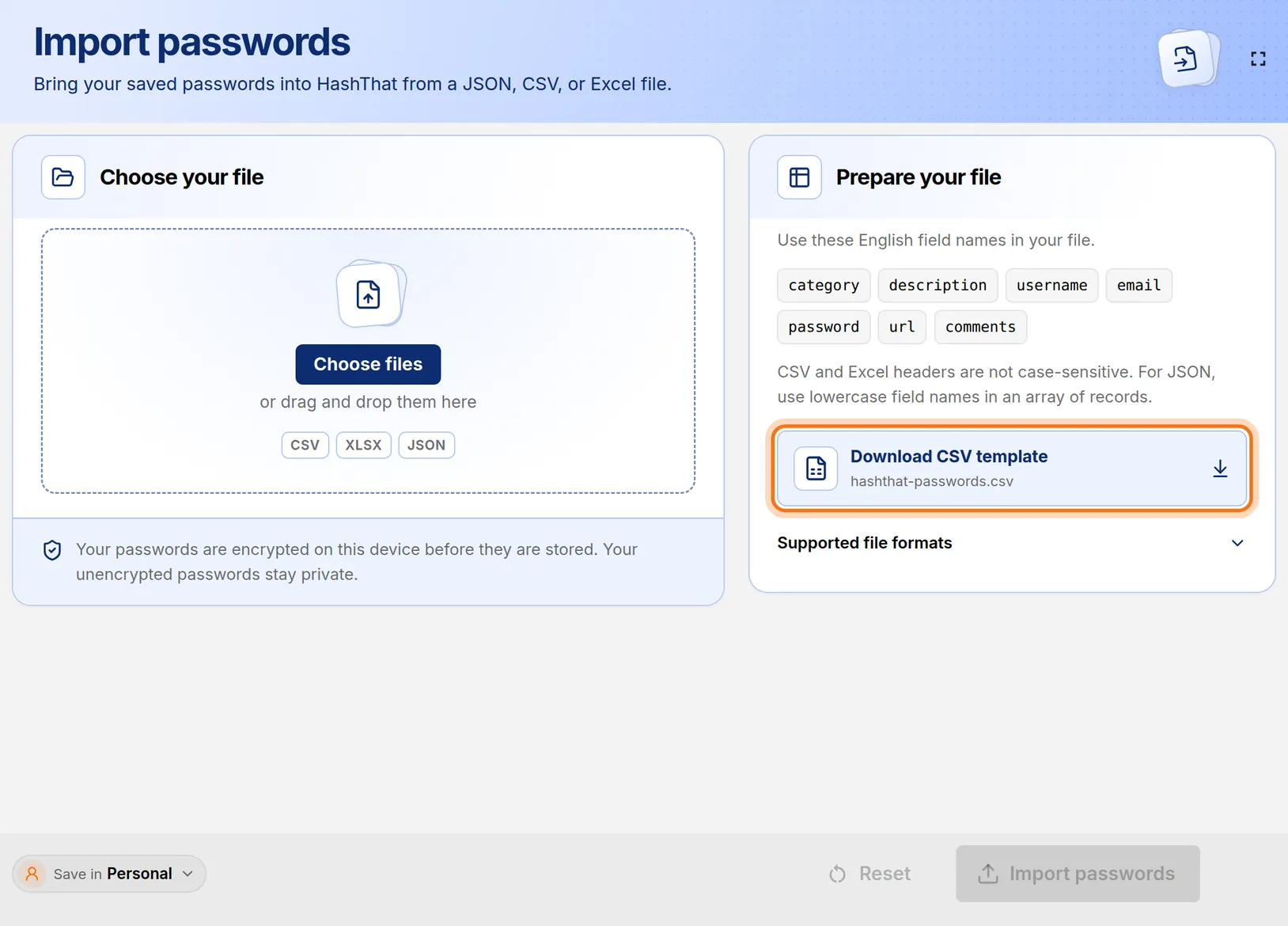
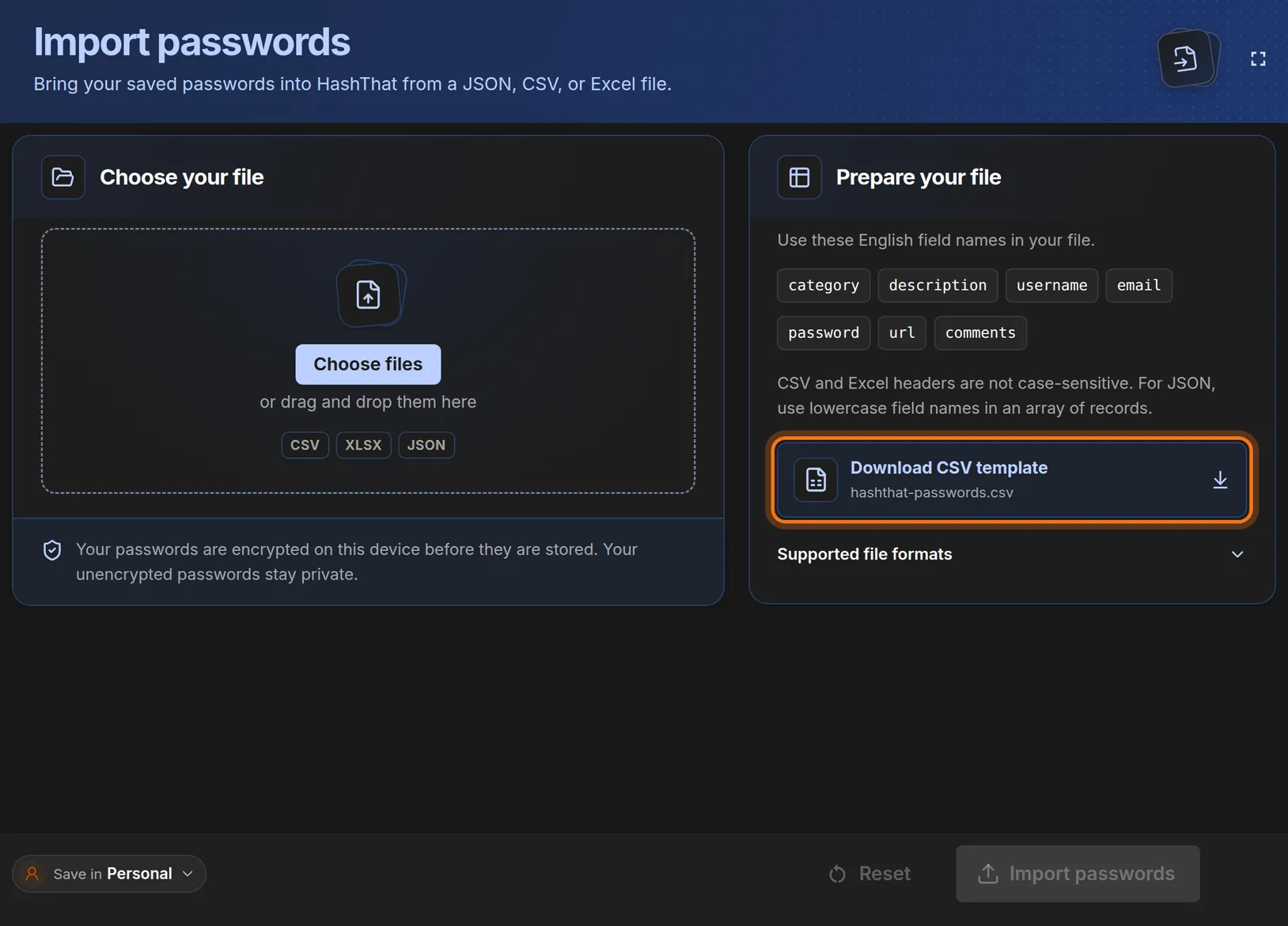
- In the Prepare your file panel, click Download CSV template.
- Your browser saves a file named hashthat-passwords.csv, usually in your Downloads folder.
- Open that file in your spreadsheet program.
 Full size
 Full size
The template already has the right column names in the first row. Step 3: Use the same column names in your file
- Open your own export file next to the template.
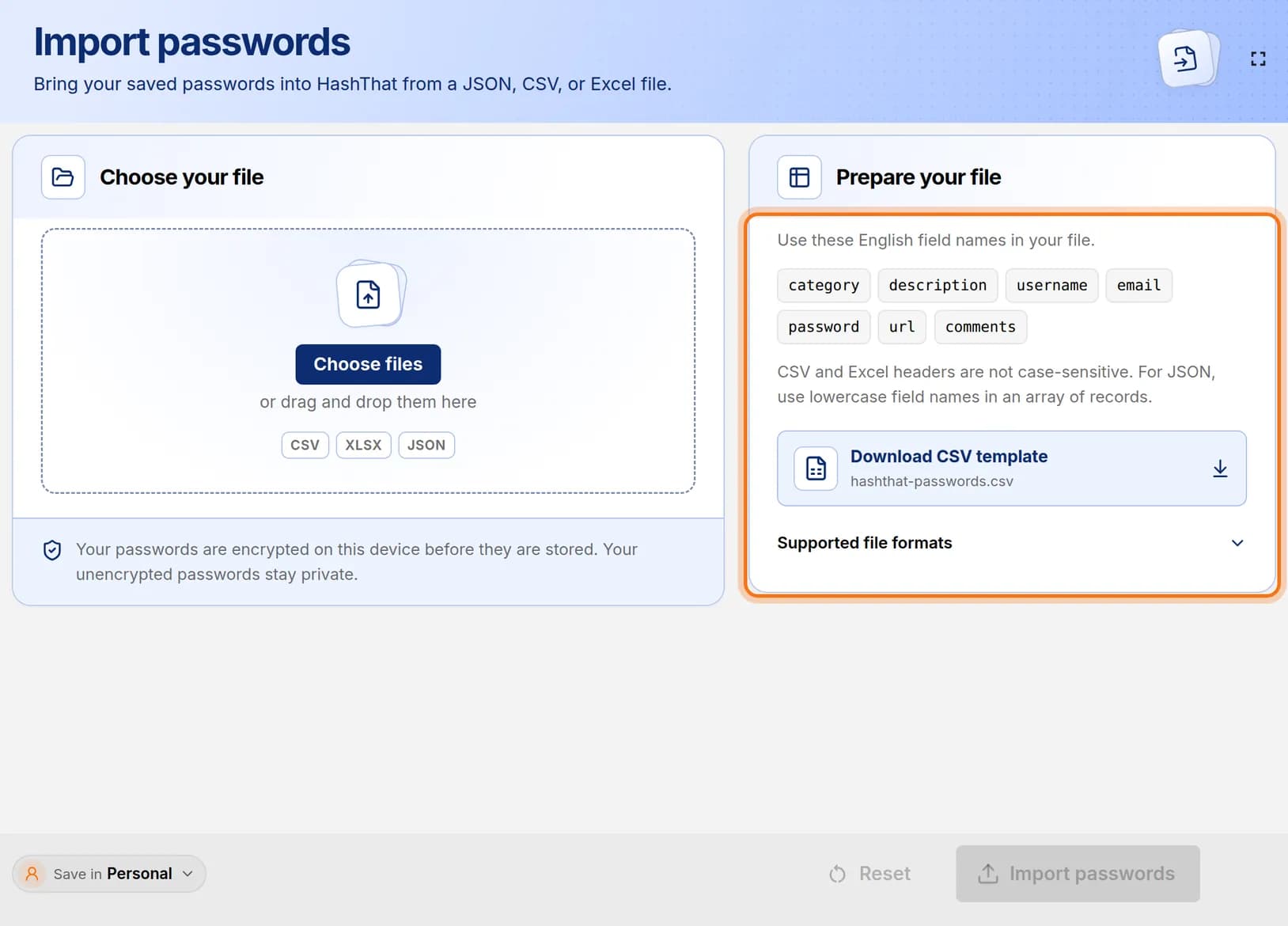
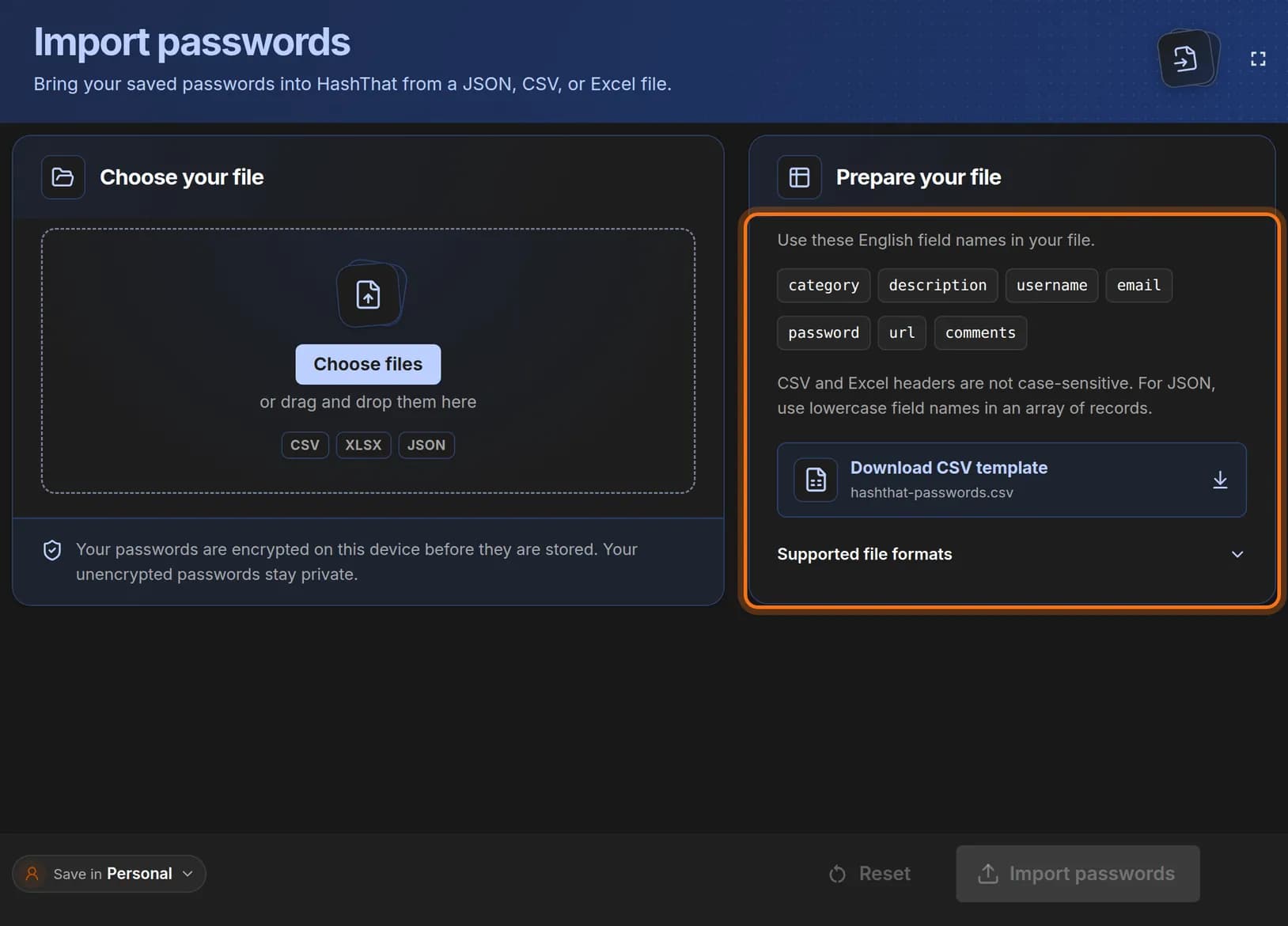
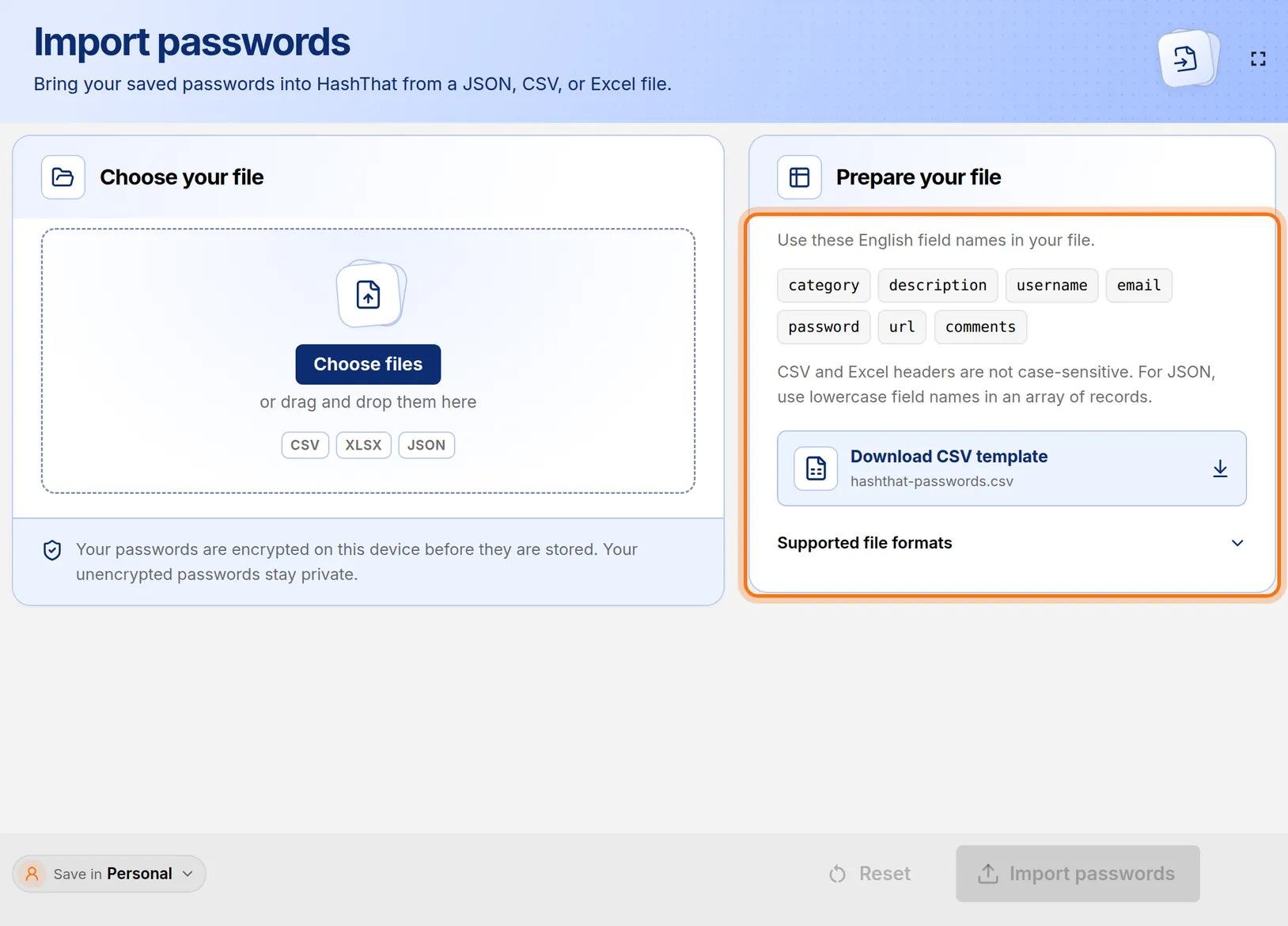
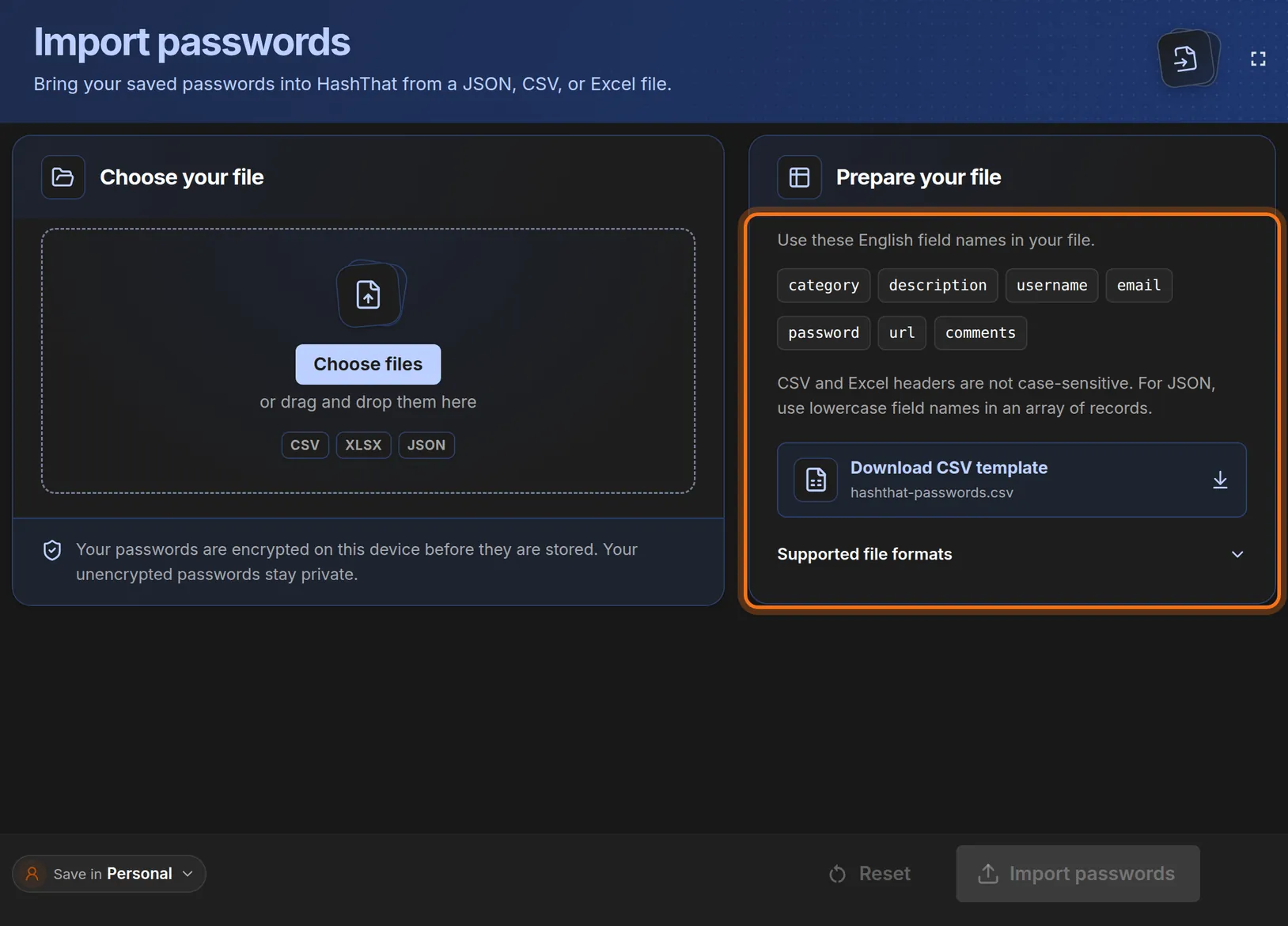
- Rename the columns in the first row of your file so they match the names in the template.
- For example, change a column called “name” or “title” to description, and “login” to username.
- Put one login on each row. Leave a cell empty when you have nothing for it.
 Full size
 Full size
These seven names are the ones HashThat reads. Capital letters do not matter in CSV and Excel files. category description username email password url comments Work Team chat alex.morgan alex@northwind.example •••••••• https://chat.northwind.example Shared channel admin Personal Photo storage alex.morgan@example.com •••••••• https://photos.example.com What a finished file looks like. In your file the password column holds the real passwords. An Excel file is read from its first sheet only. A JSON file must be a list of records with these names in lowercase. One import can hold up to 1,000 passwords.
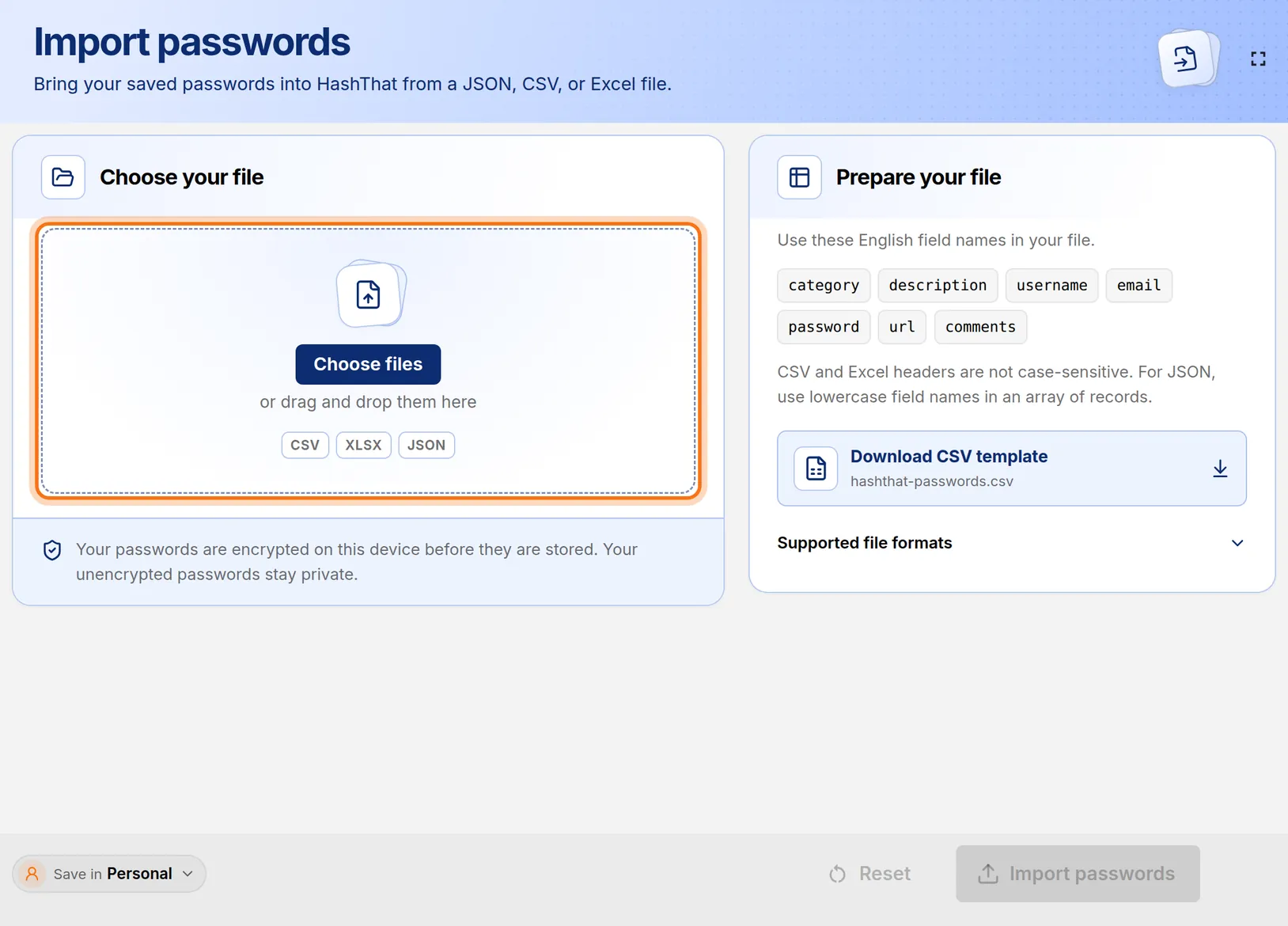
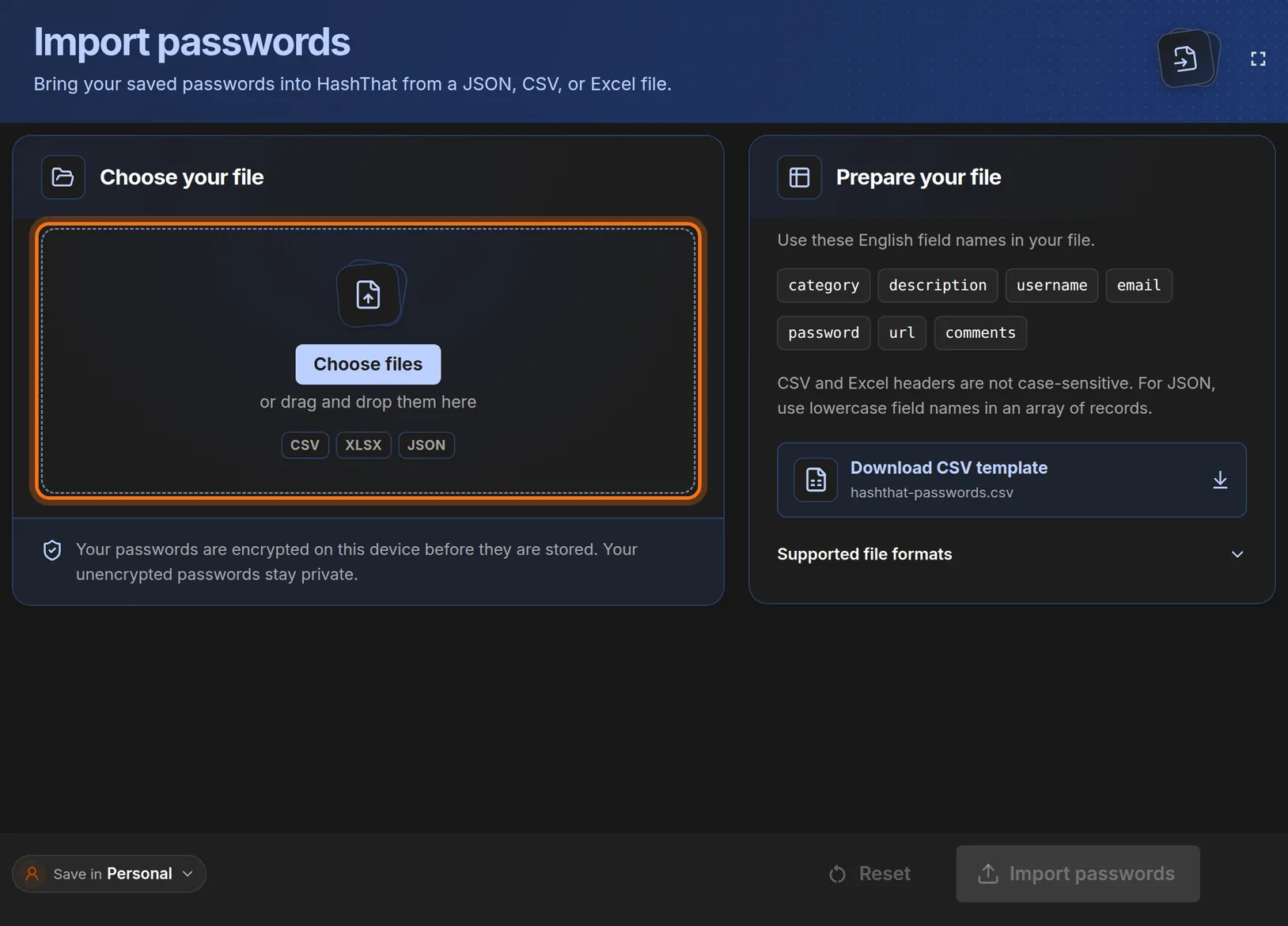
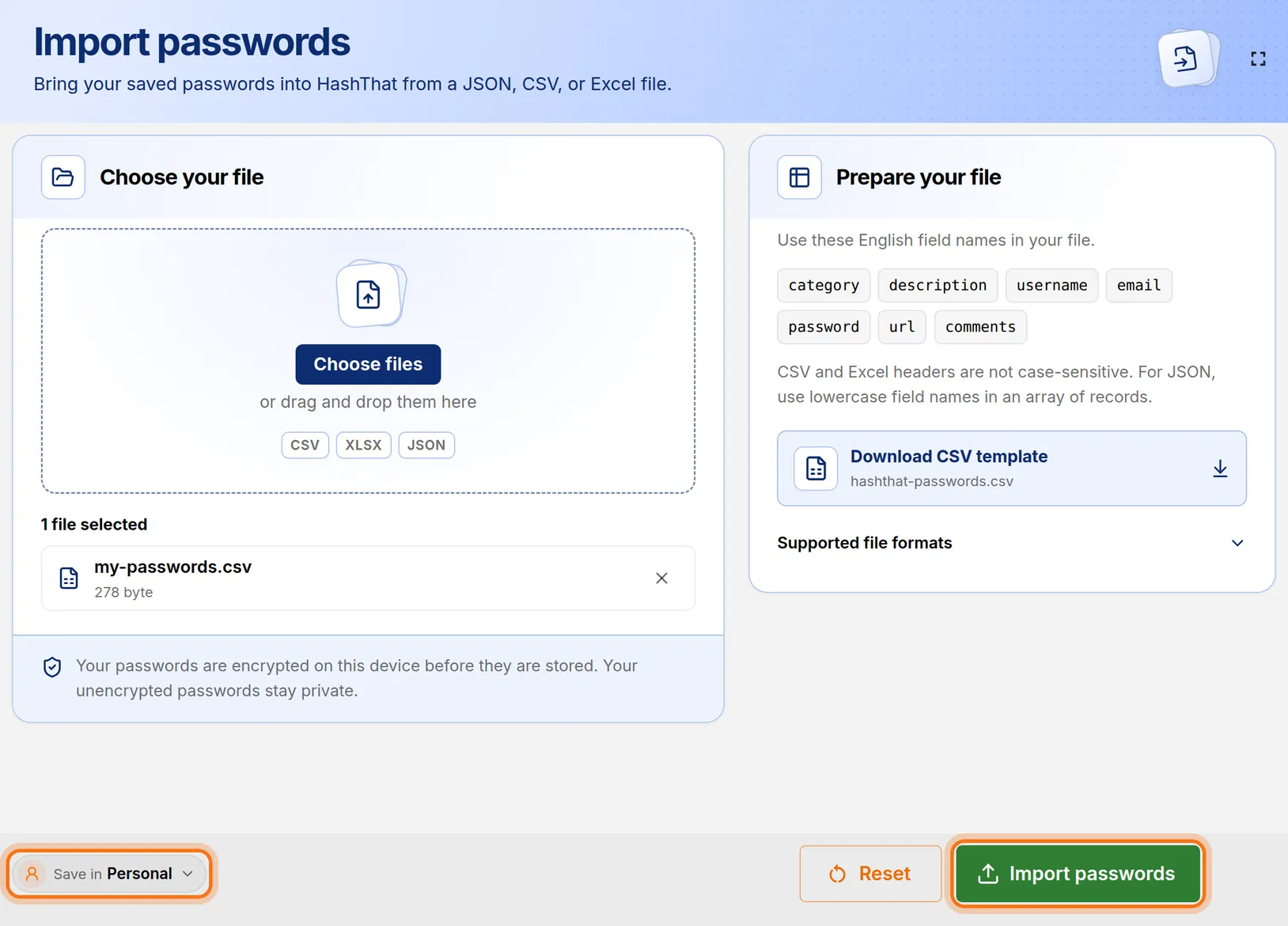
Step 4: Choose your file
- Save your file and return to HashThat.
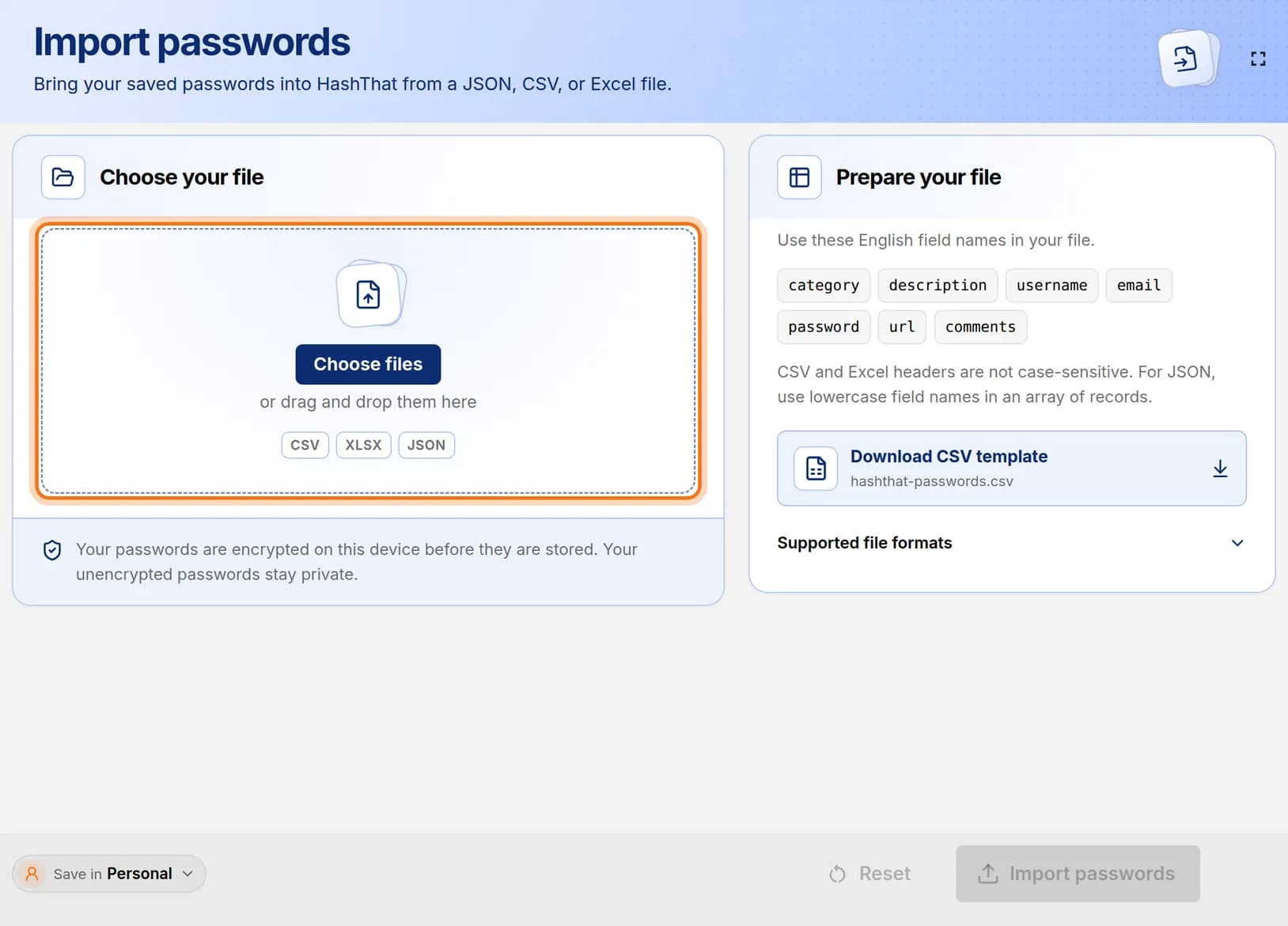
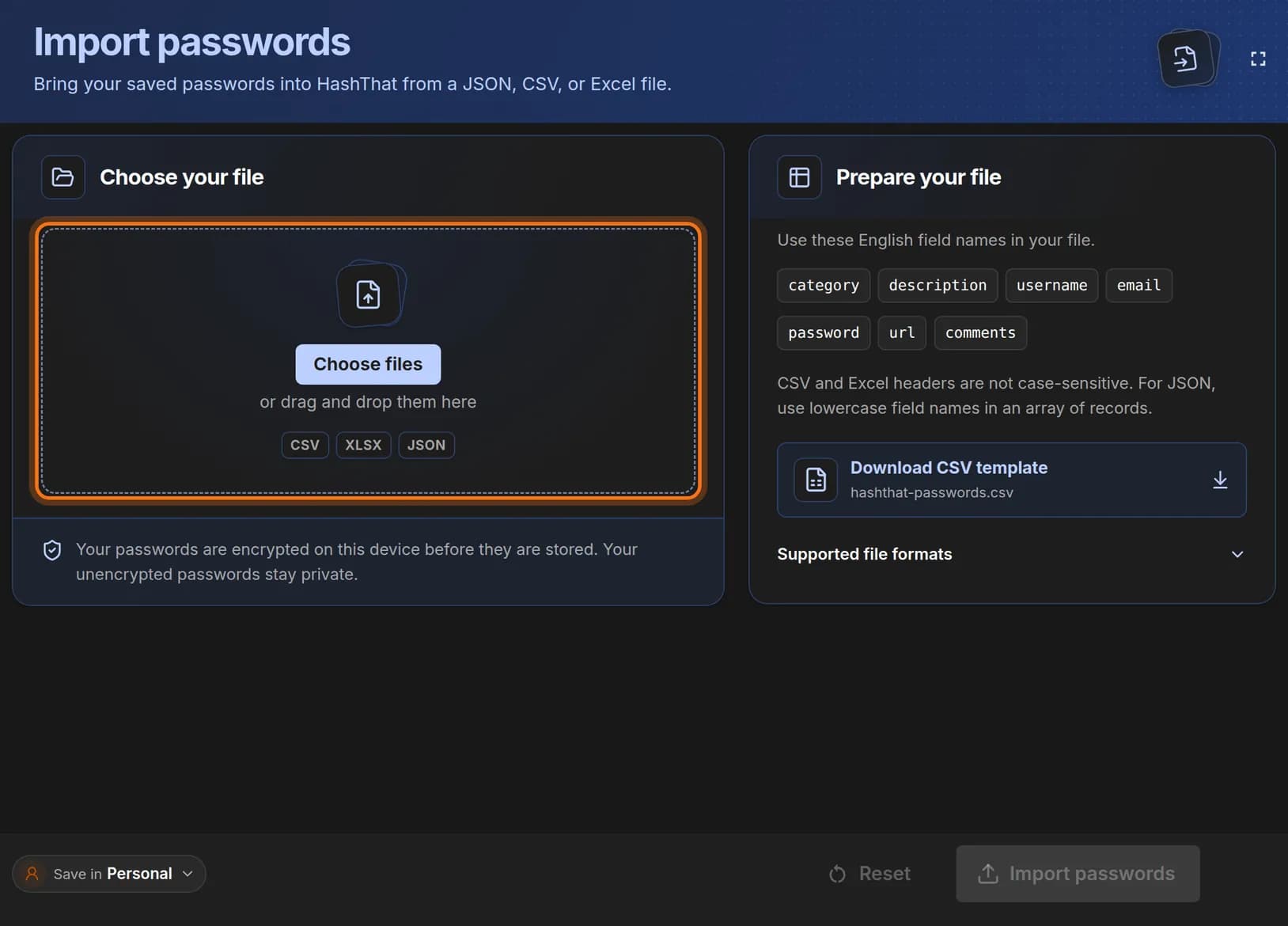
- In the Choose your file panel, click Choose files.
- Select your file and confirm. You can also drag the file onto the dashed box.
 Full size
 Full size
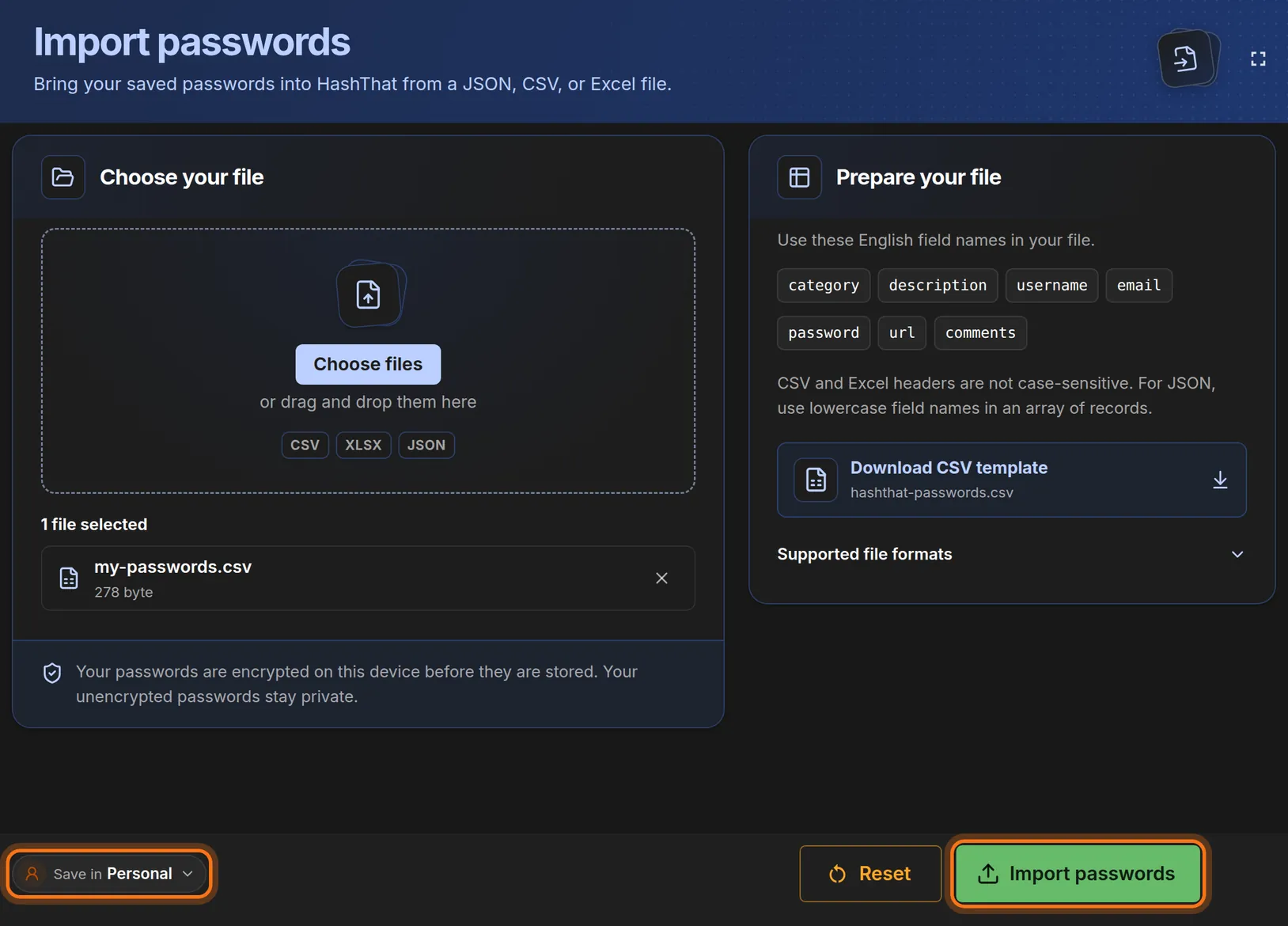
The box accepts CSV, XLSX and JSON files. Step 5: Check the file name
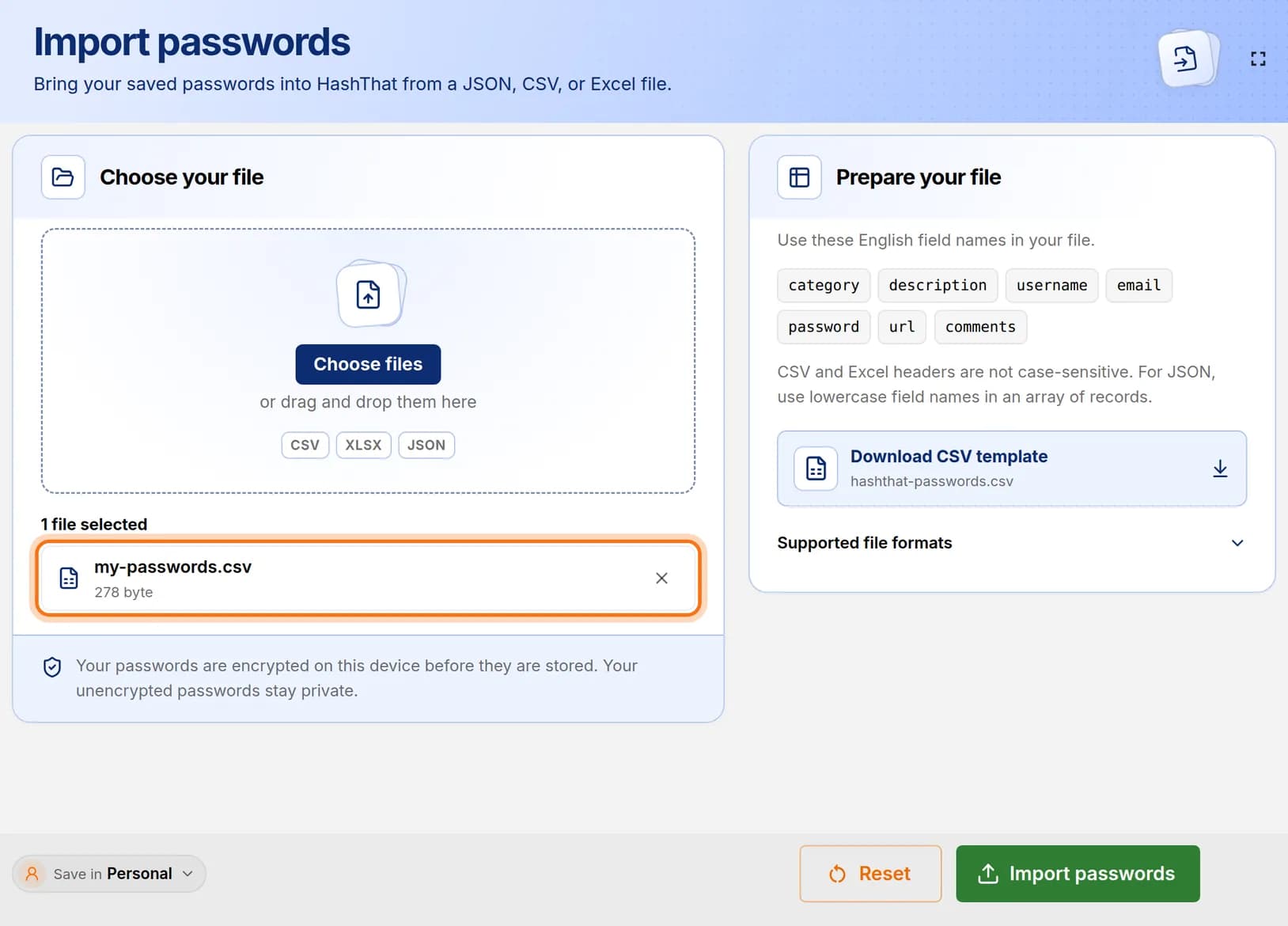
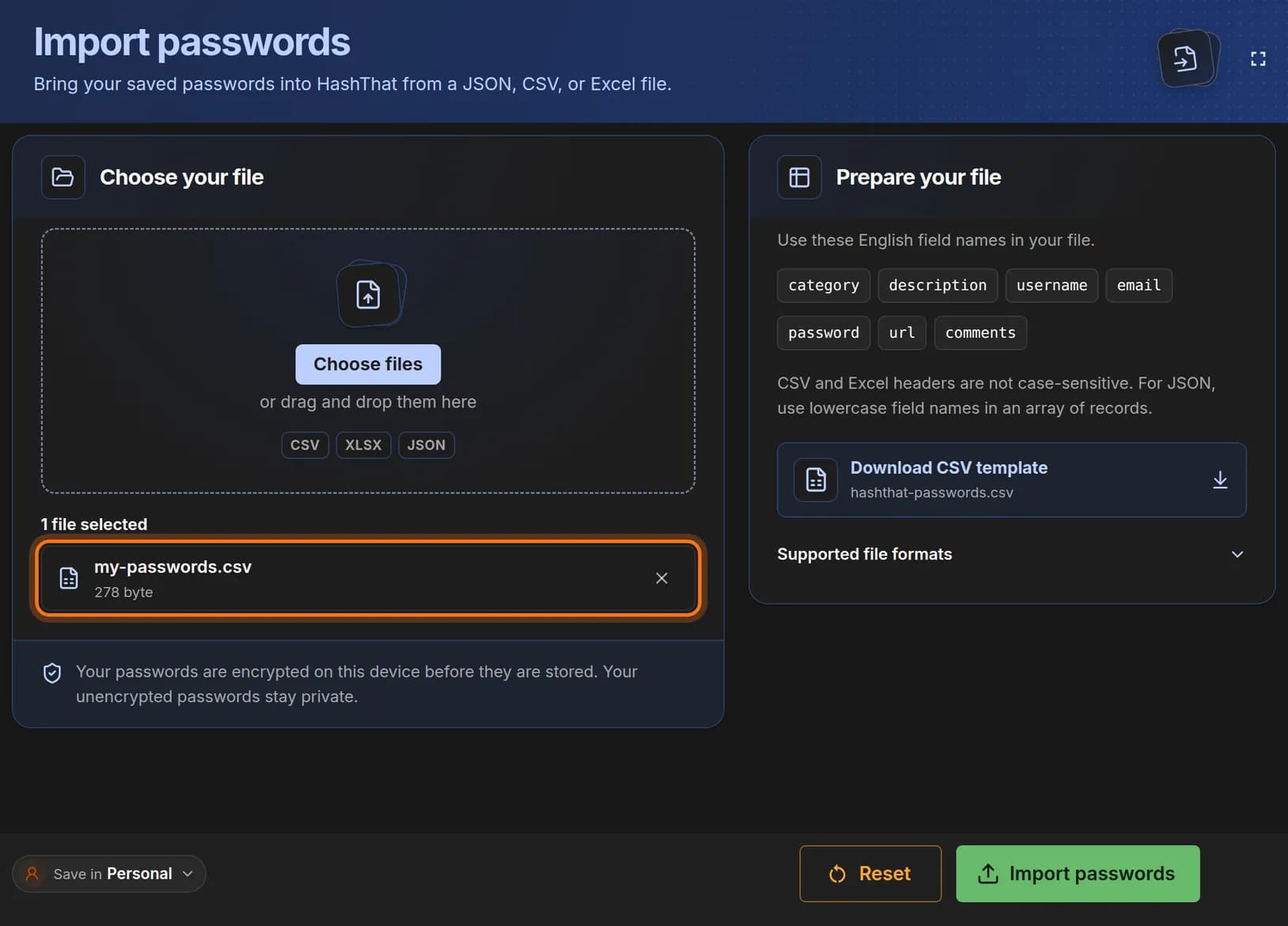
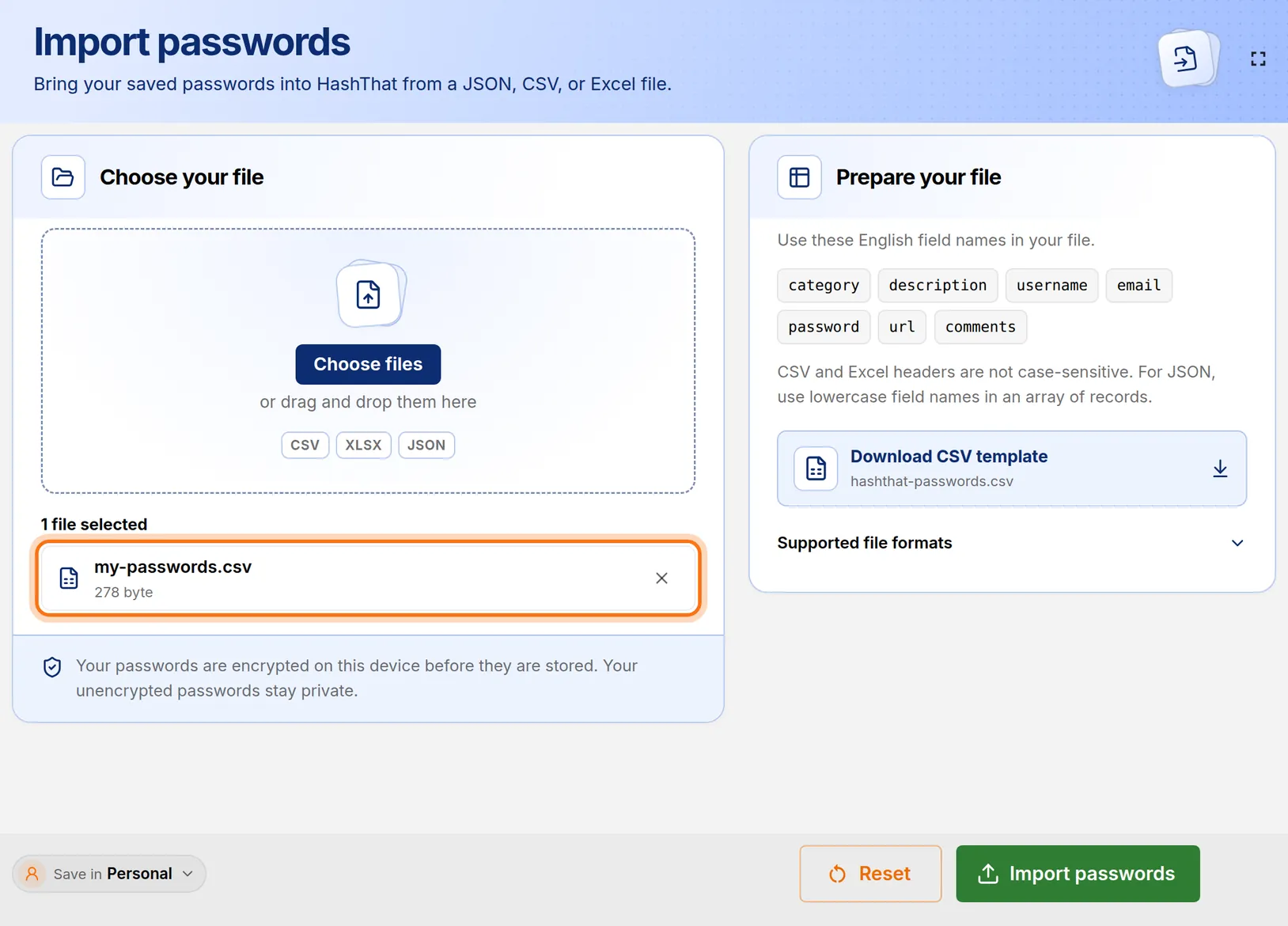
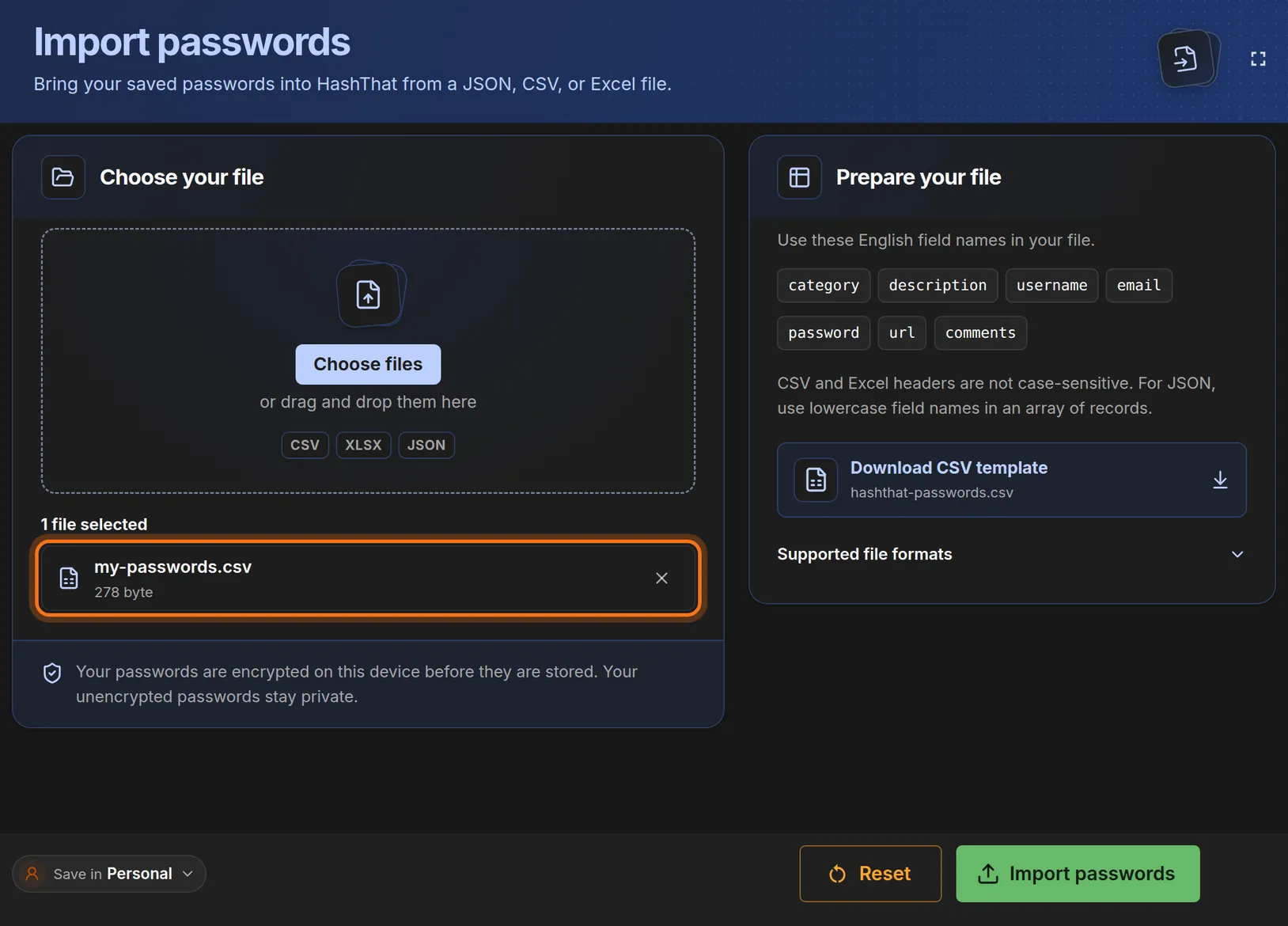
- Look below the dashed box.
- Read the line 1 file selected and the file name under it.
- Wrong file? Click the × on that row and choose again.
You should see: Your file’s name in the list, and the Import passwords button turning green.
 Full size
 Full size
Nothing is imported yet. This only shows which file is ready. Step 6: Choose where to save, then import
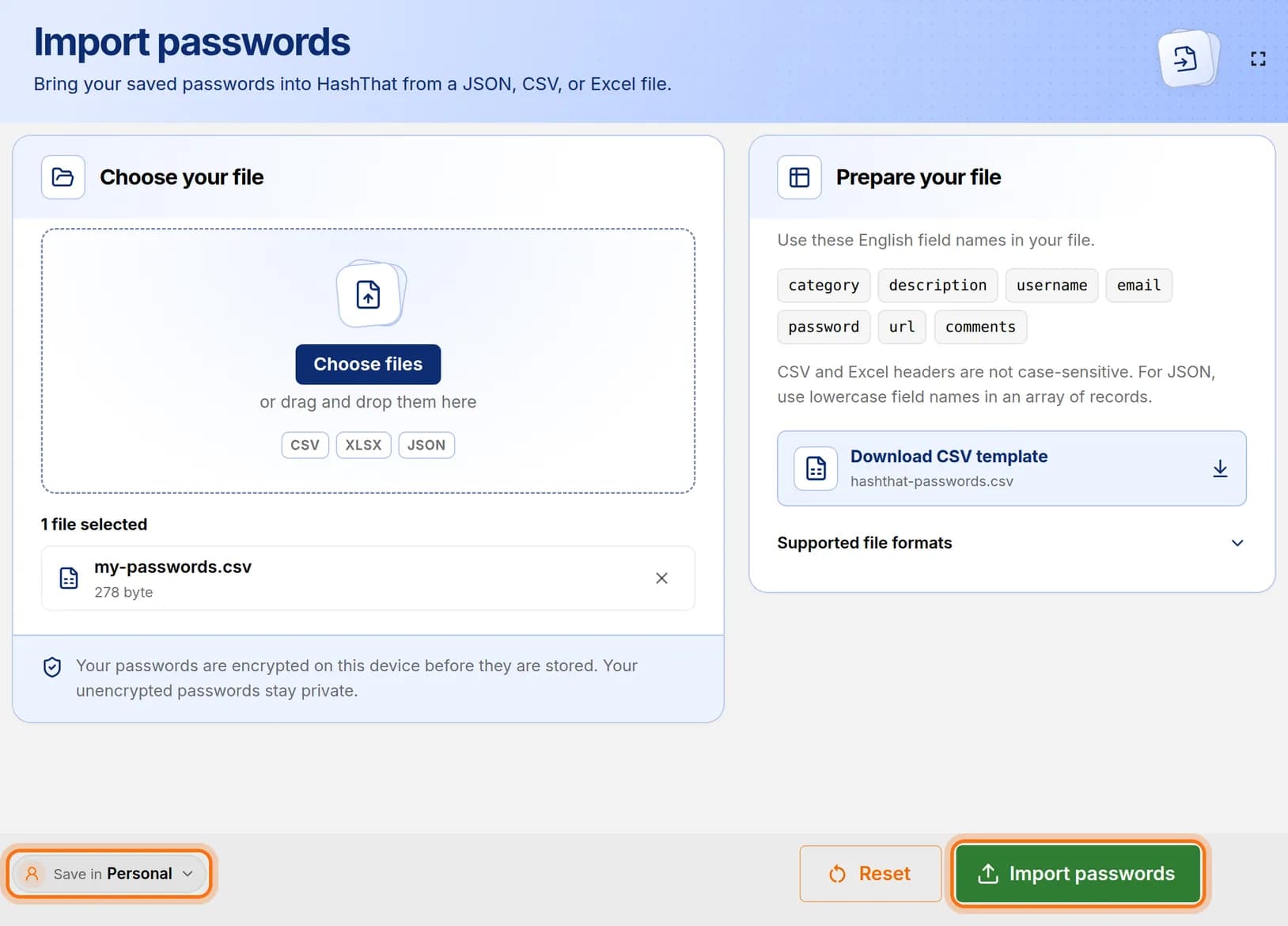
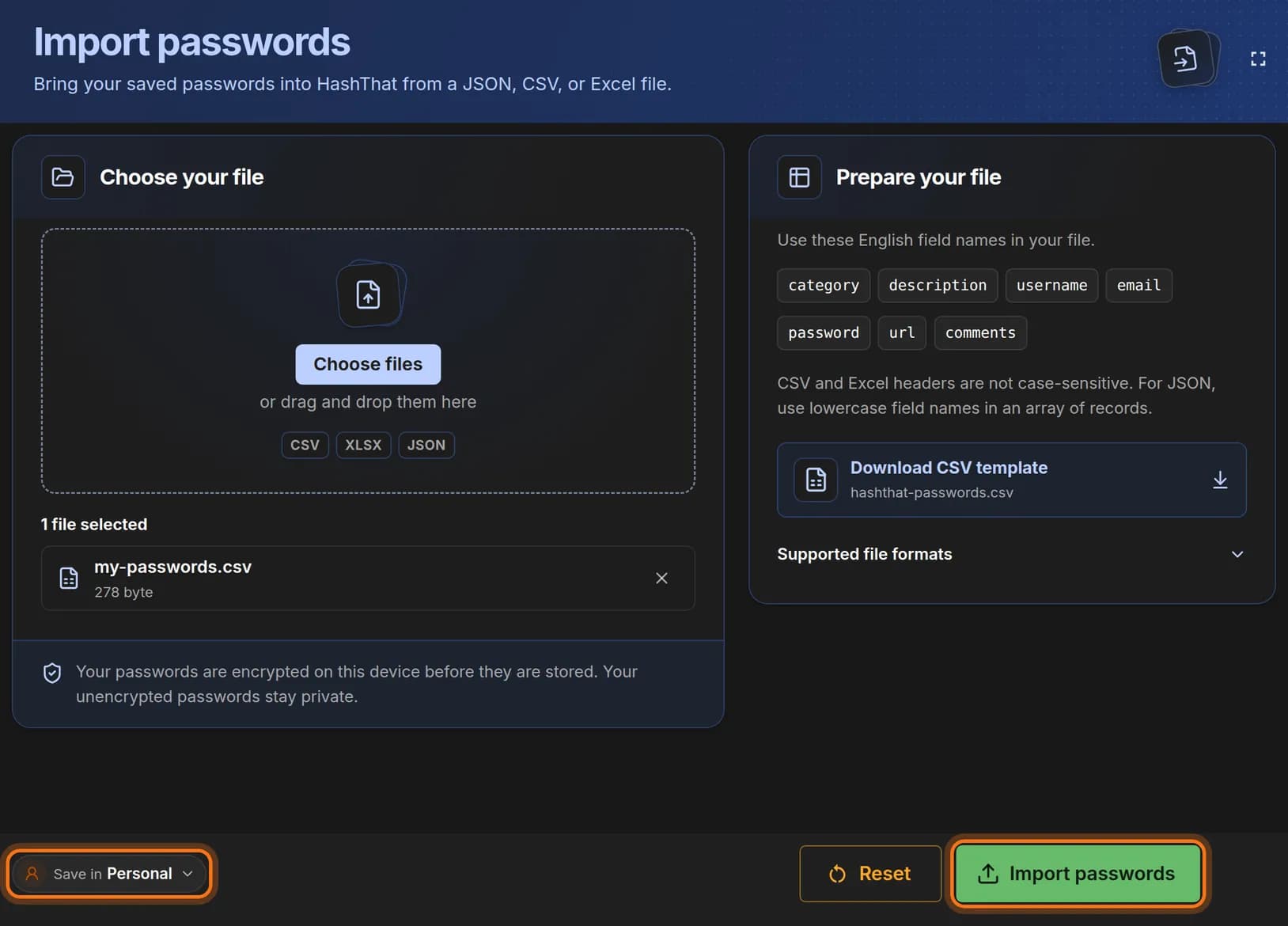
- At the bottom left, read Save in. It should say Personal for your own vault.
- To import into a team vault, click Save in and pick that vault.
- Click the green Import passwords button.
You should see: The message The passwords have been imported.
 Full size
 Full size
Passwords are encrypted on your device before they are stored. Step 7: Check the imported logins
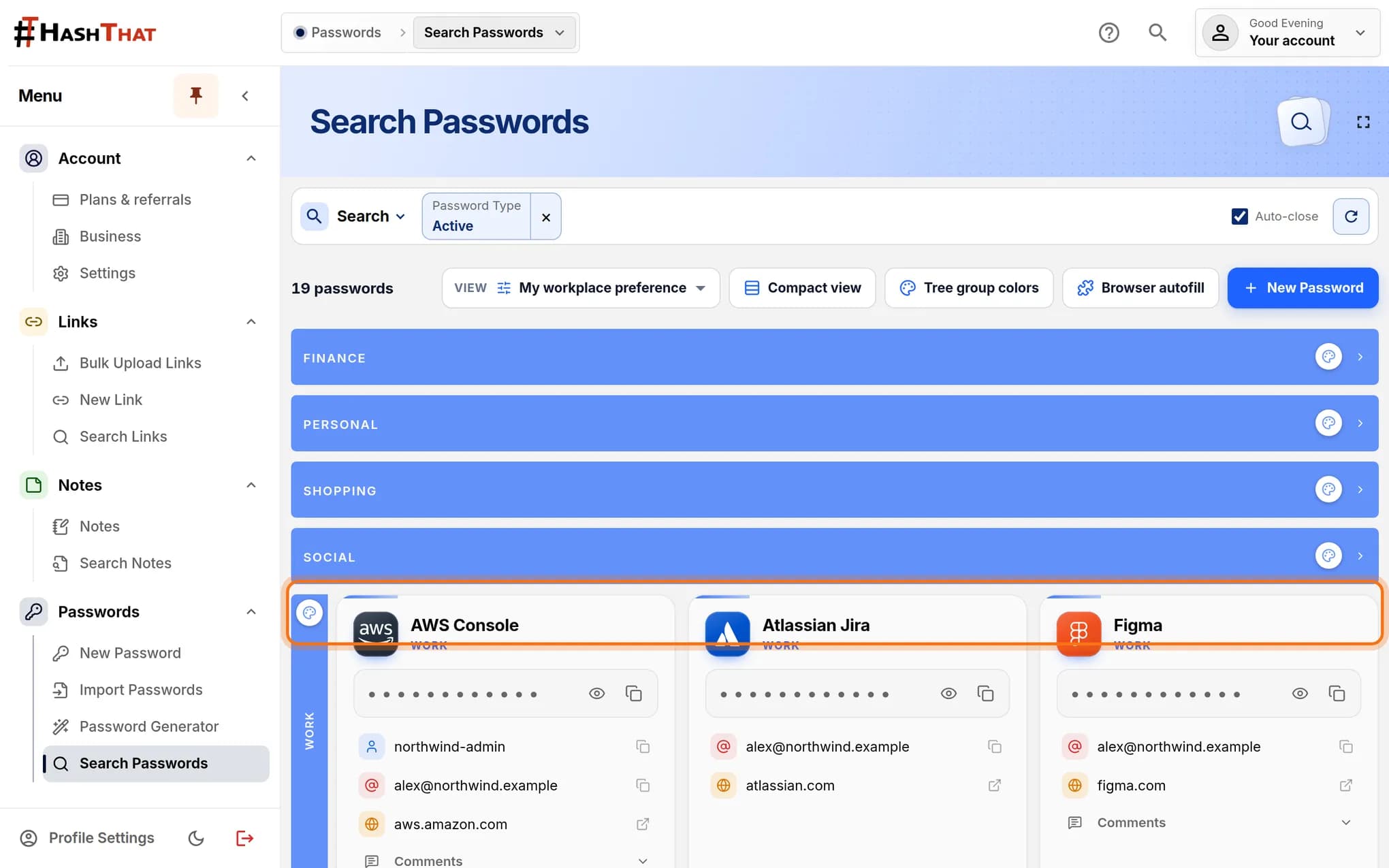
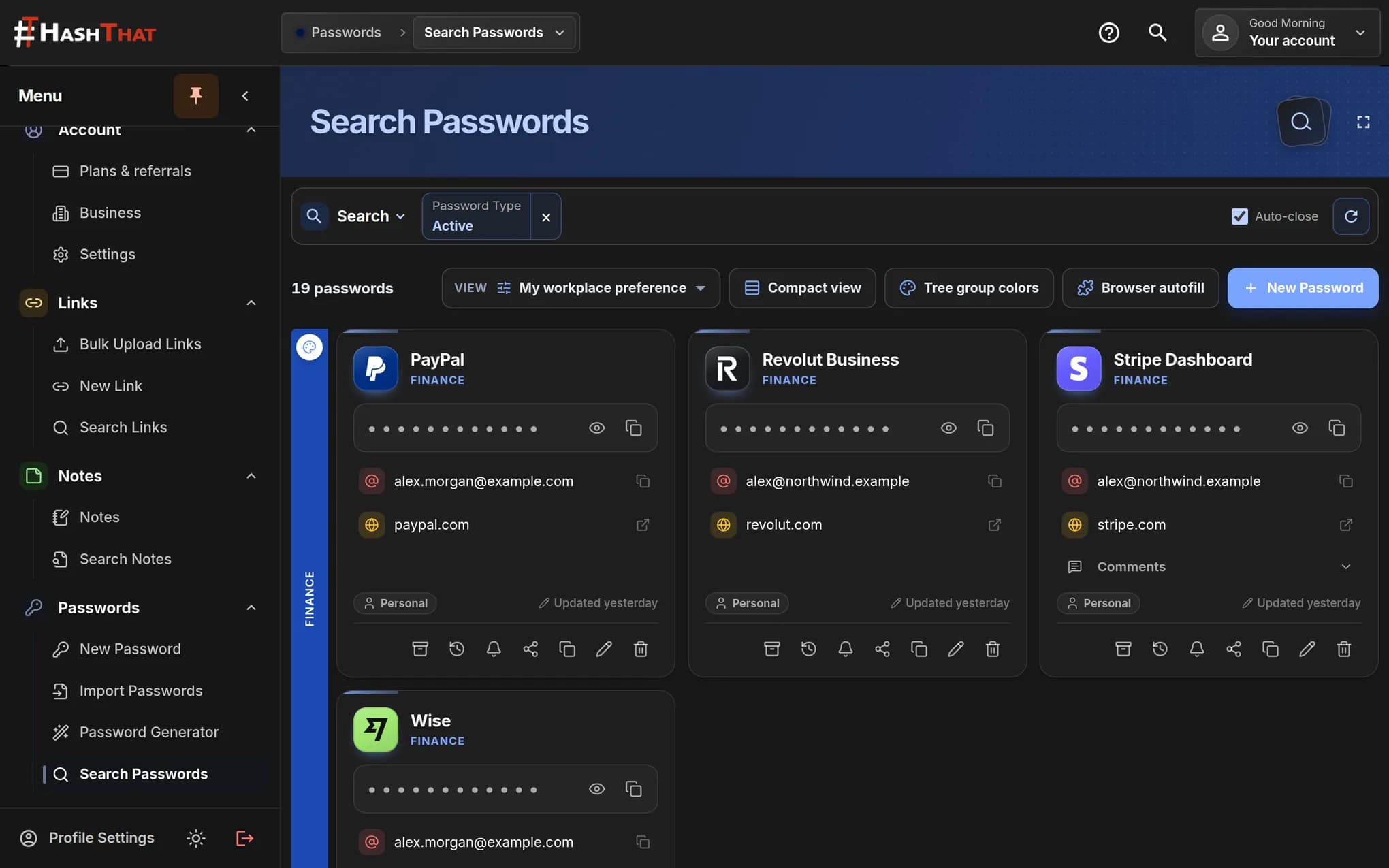
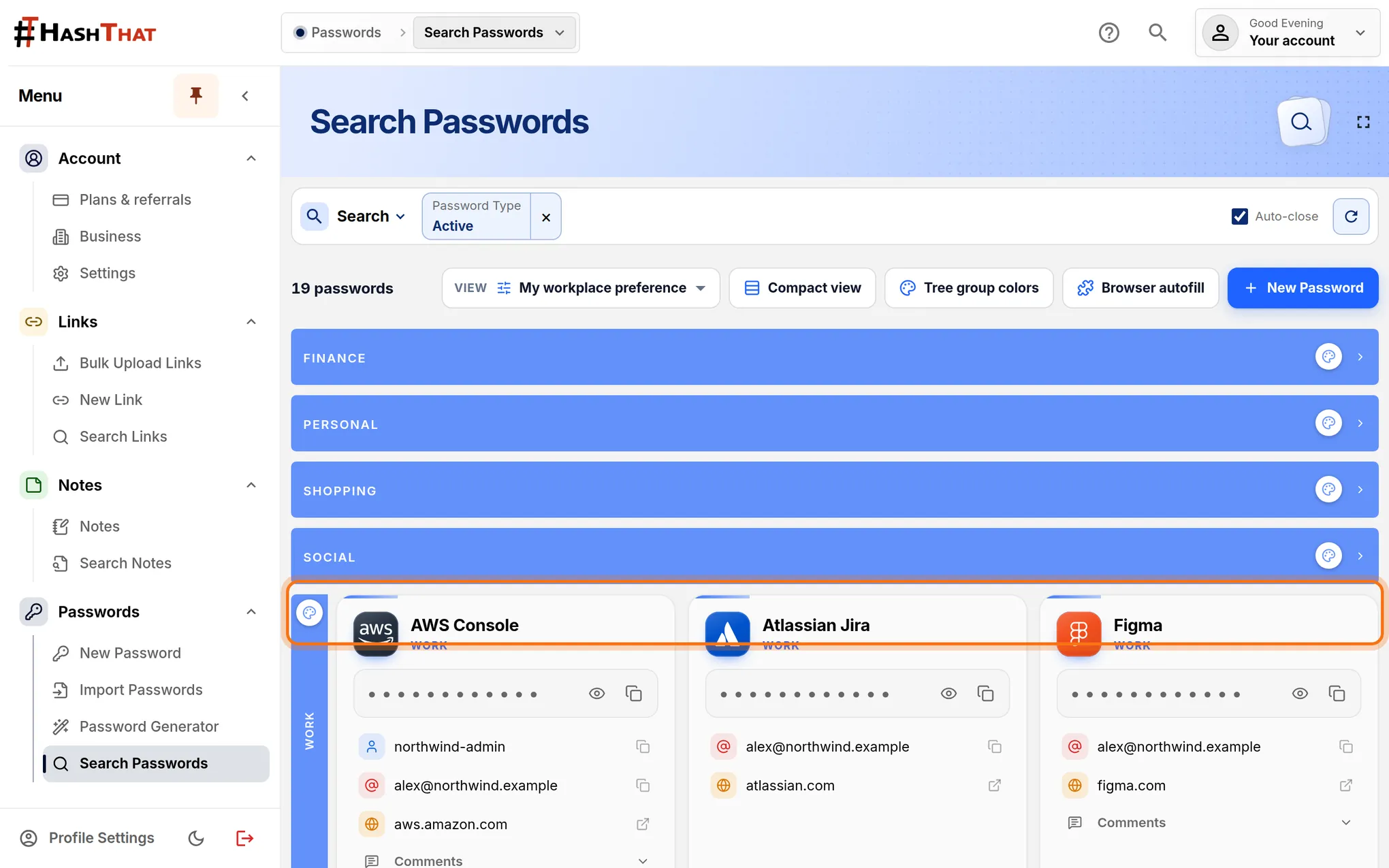
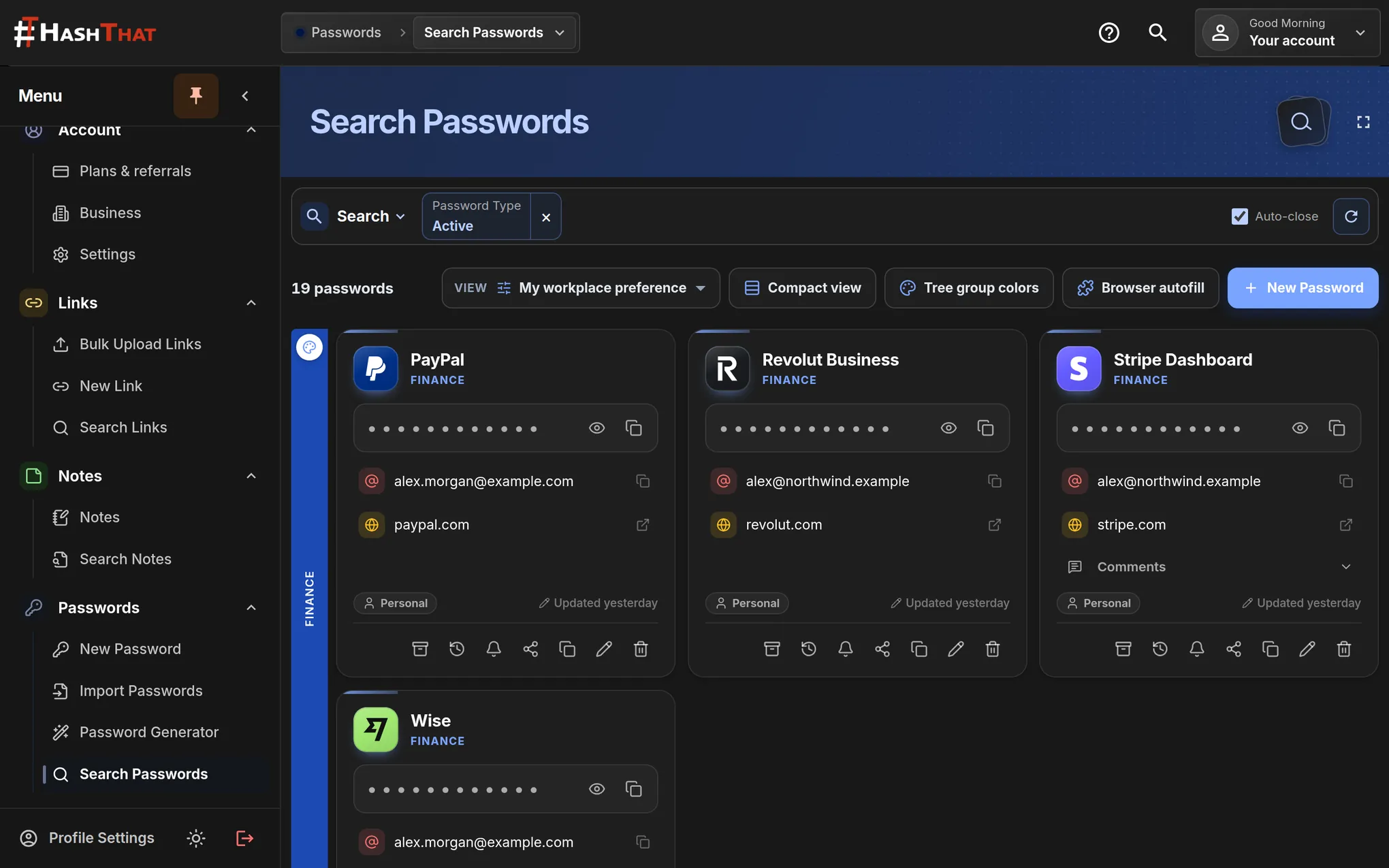
- In the left menu, click Search Passwords.
- Click a coloured category bar to open it.
- Find one login from your file and compare its email, username and website with the row in your file.
 Full size
 Full size
Each category from your file becomes a group you can open and close.
Check it worked
- The number at the top of Search Passwords went up by the number of rows in your file.
- A login you pick has its username, email and website in the right places.
- The logins are in the vault you chose under Save in.
If something looks different
The Import passwords button stays grey
No file is selected yet. Click Choose files, pick your file, and check that its name appears under the dashed box.
A value landed in the wrong place
The column name in your file did not match. Fix the first row so it uses the names from the template, delete the wrongly imported cards, and import the corrected file.
HashThat says I need Passwords Pro
Importing into your personal vault is part of Passwords Pro. You can still add logins one at a time on the free plan.
Tip: An export file holds your passwords as readable text. After you have checked the import, delete the file from your Downloads folder and empty the bin.