Change a saved password and keep the old one on record
Replace the password on a saved login with a new strong one, save it, and see where HashThat keeps the previous password.
- 7 steps
- About 5 minutes
Before you start
- You are signed in to HashThat.
- The login you want to change is already saved.
- You can sign in to the website itself, because you also change the password there.
Step 1: Find the login
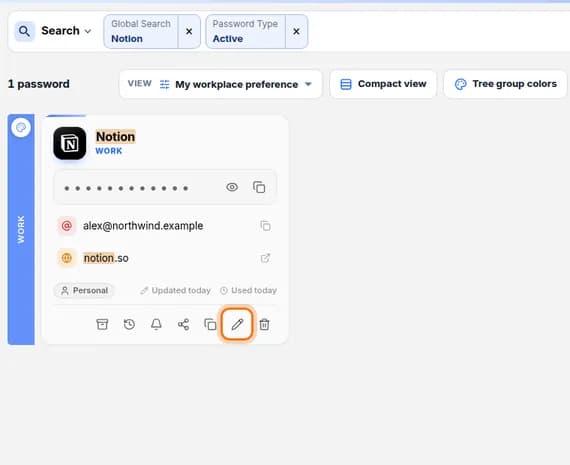
- In the left menu, under Passwords, click Search Passwords.
- Click Search, type the name of the login, and press Enter.
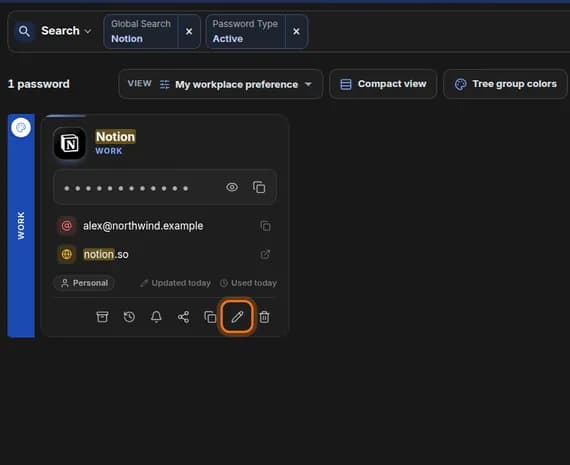
- At the bottom of the card, click the pencil icon.
You should see: A page titled Edit password with the saved details filled in.
 Full size
 Full size
The pencil is the second icon from the right. Step 2: Open the password generator
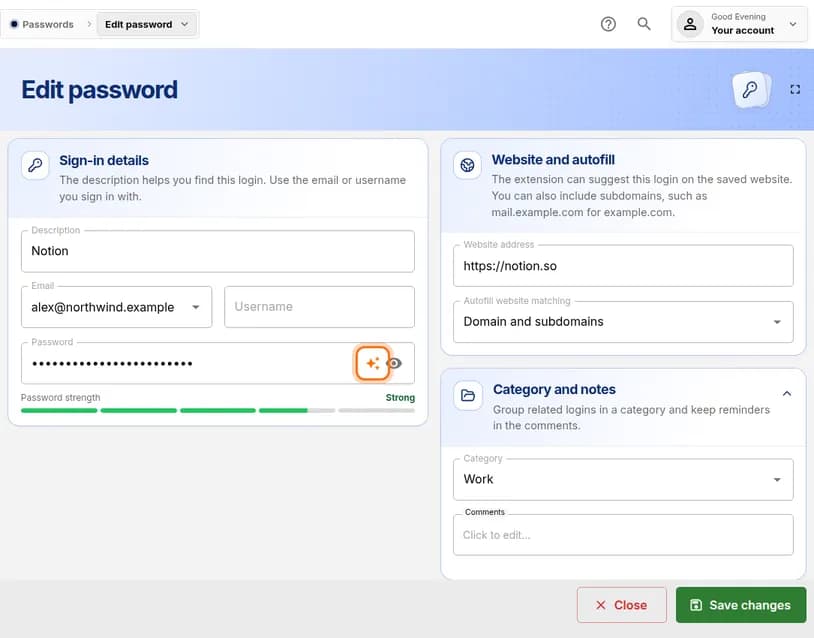
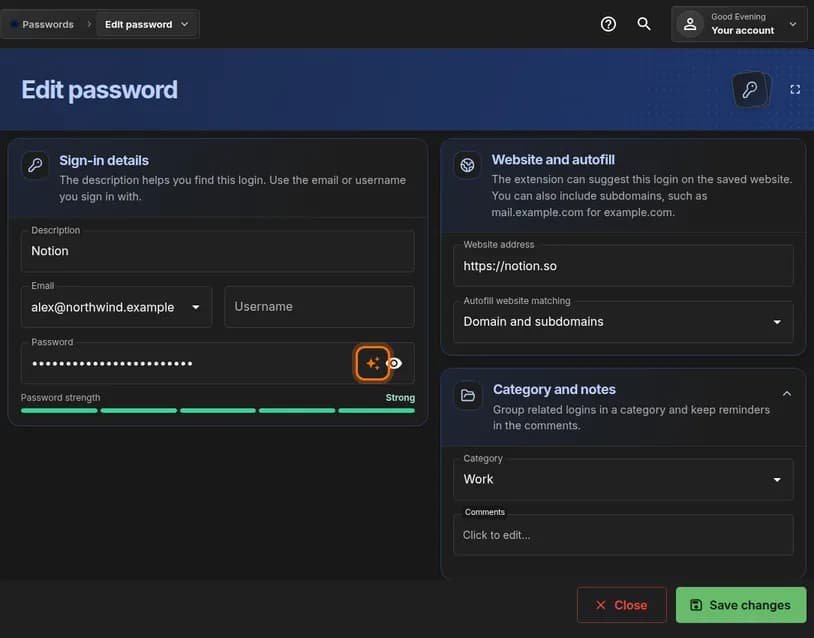
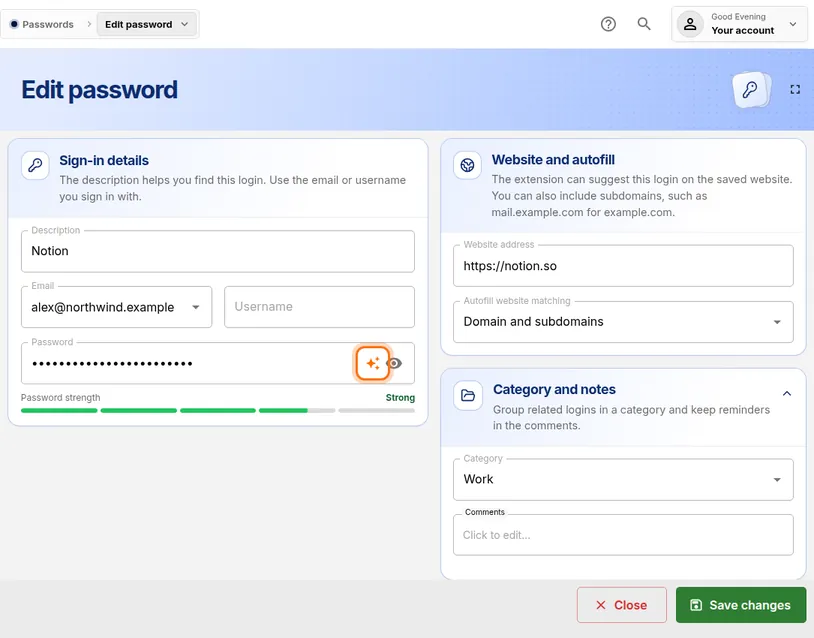
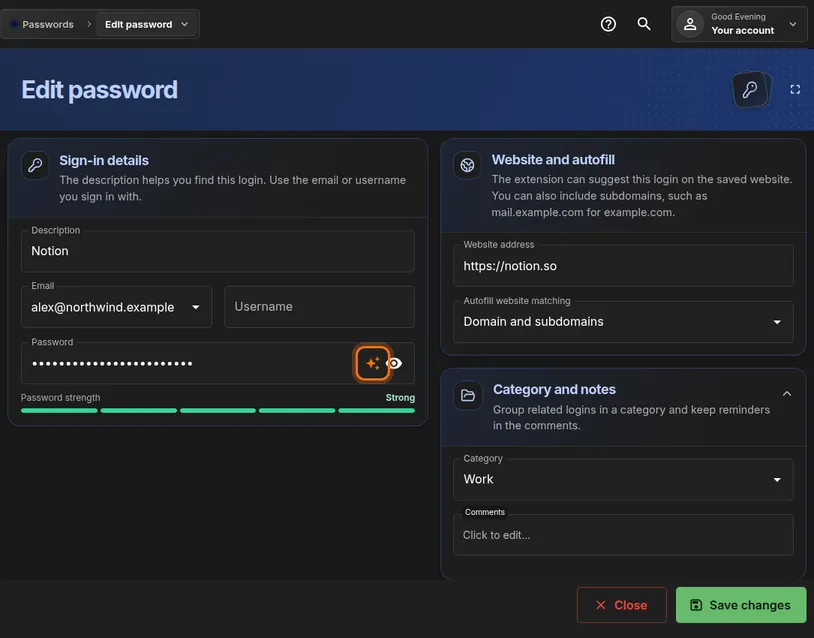
- Find the Password box in the Sign-in details panel.
- At the right end of that box, click the sparkle icon.
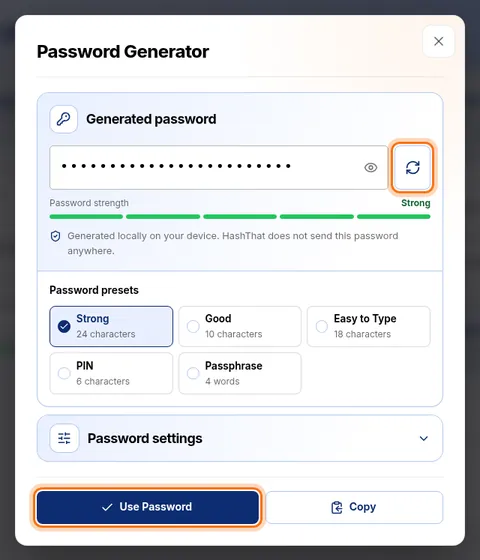
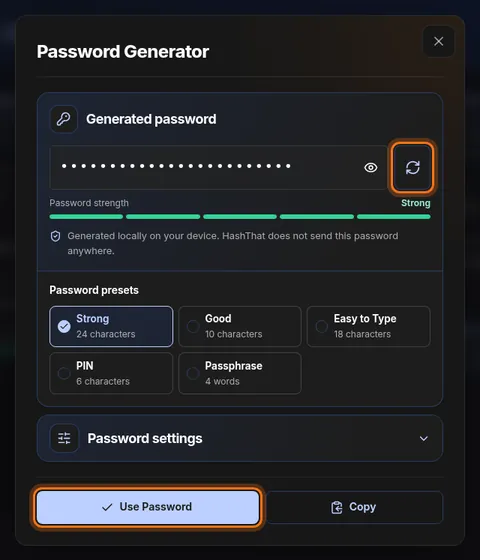
You should see: A window titled Password Generator opens with a new password already made.
 Full size
 Full size
The icon sits just before the eye icon. Prefer your own password? Skip this step, click the Password box, delete what is there and type the new one.
Step 3: Choose the new password
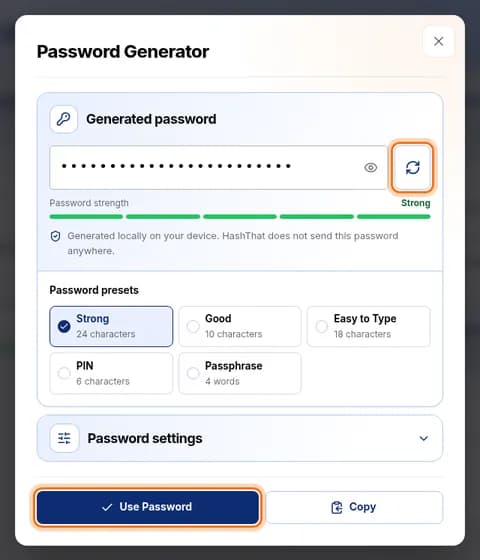
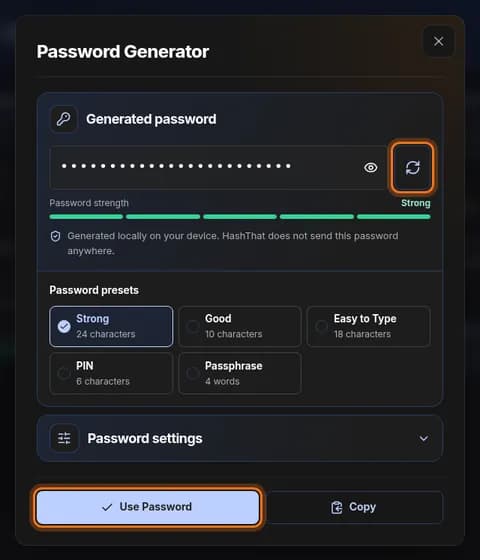
- Leave Strong selected unless the website has special rules.
- Not happy with it? Click the round arrows icon to make another one.
- Click Use Password.
You should see: The window closes and the Password box holds the new password.
 Full size
 Full size
The password is made on your device. It is not sent anywhere. Step 4: Change it on the website too
- Click the eye icon in the Password box so you can see the new password, then copy it.
- Open the website in another tab and go to its change-password page.
- Paste the new password there and confirm the change on the website.
Do this before you save in HashThat. If the website refuses the password, you can still make a different one.
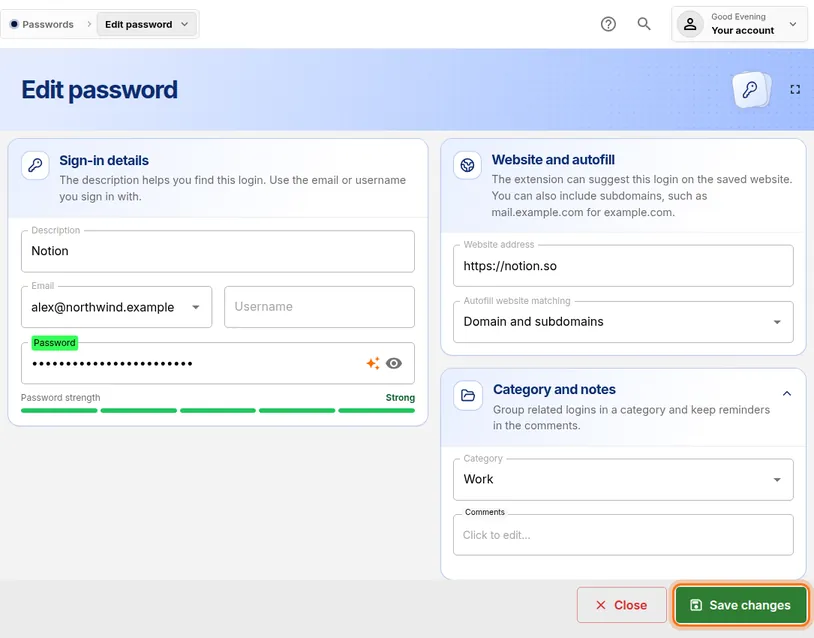
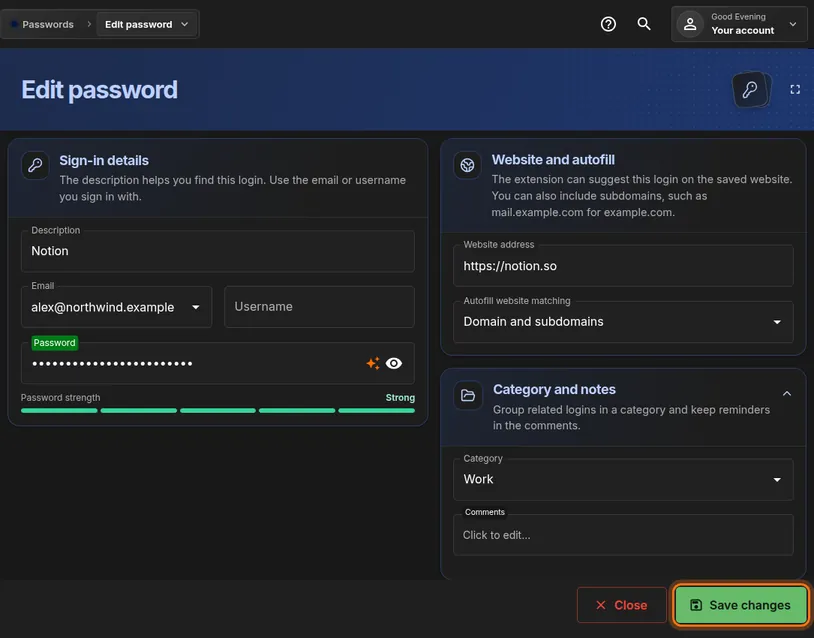
Step 5: Save the change
- Return to the HashThat tab.
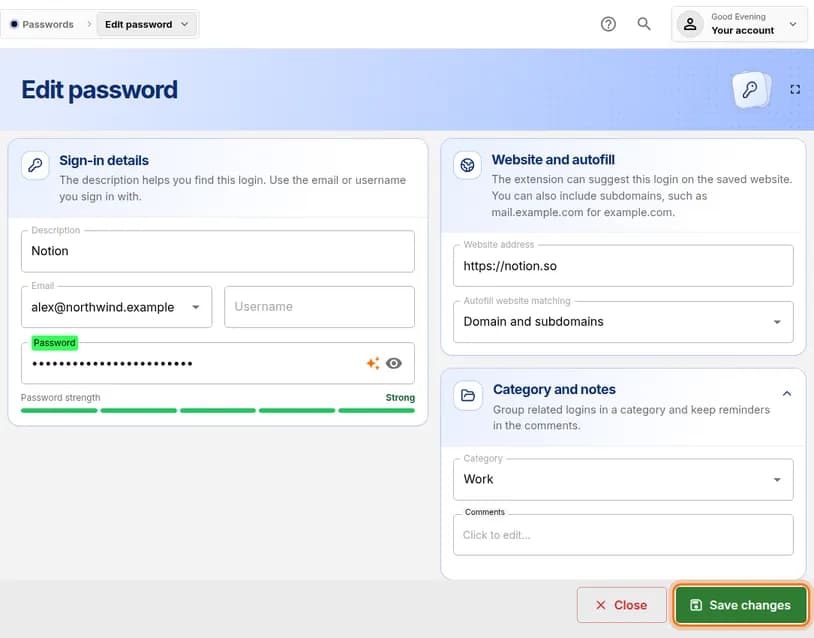
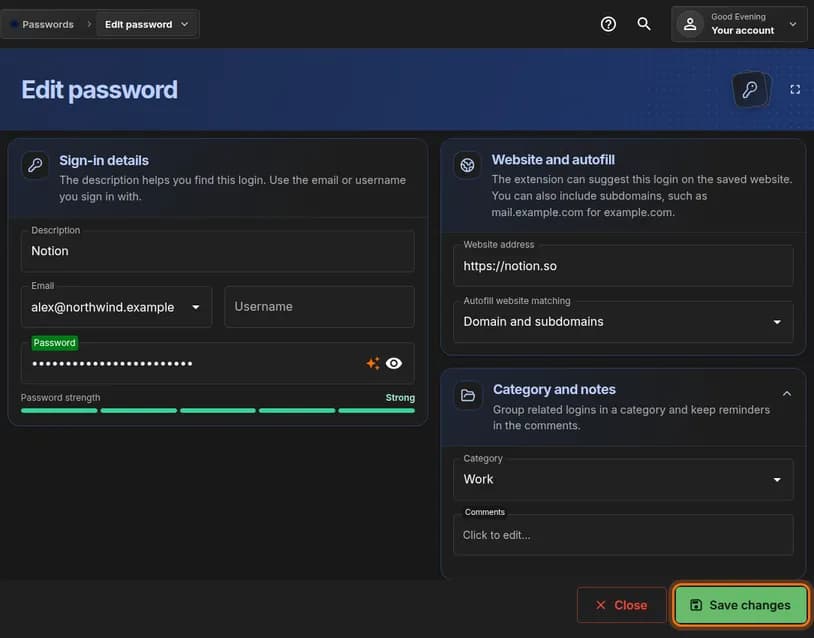
- Click the green Save changes button at the bottom right.
You should see: A short message that says Record updated, and you are back on your password list.
 Full size
 Full size
The Password label turns green to show that this box has changed. Step 6: Open the login’s history
- Find the card again on Search Passwords.
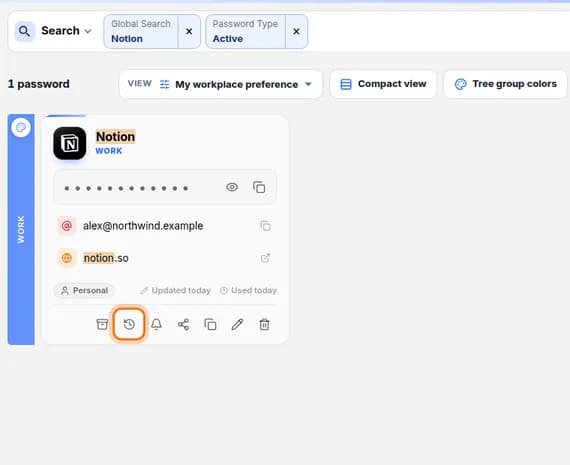
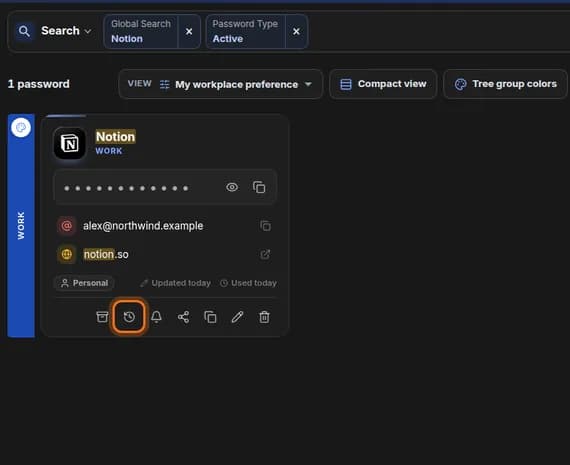
- At the bottom of the card, click the clock icon.
You should see: A page titled View History.
 Full size
 Full size
The clock is the second icon from the left. Step 7: Find the previous password
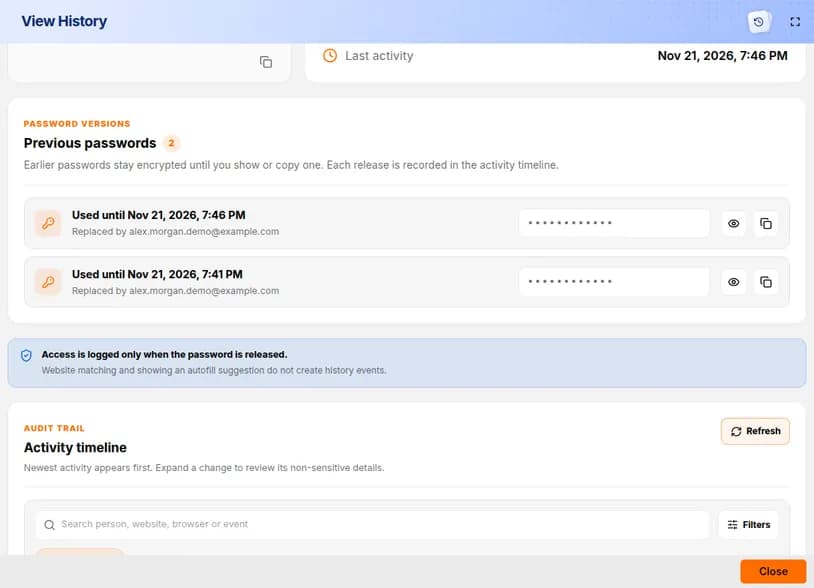
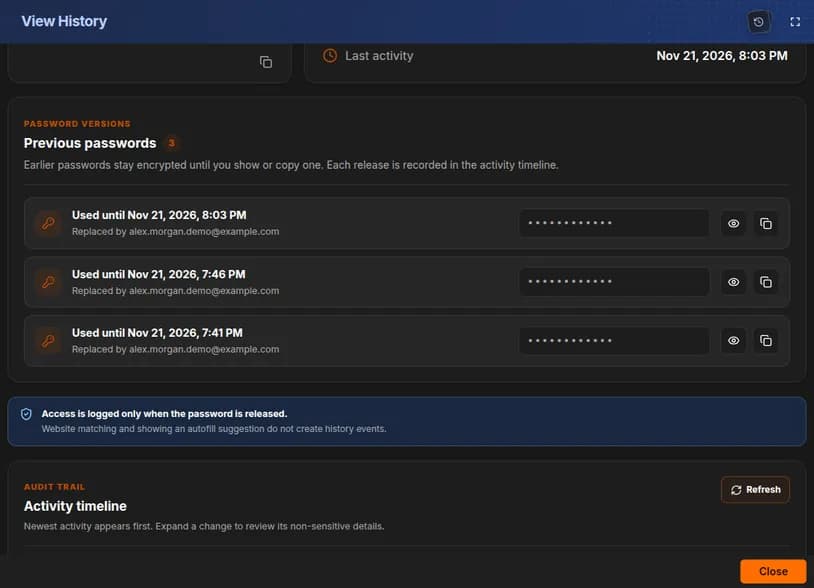
- Scroll down to the section called Previous passwords.
- The password you just replaced is listed there, hidden behind dots.
- Click Close at the bottom right when you finish.
 Full size
 Full size
Earlier passwords stay encrypted until you choose to show or copy one. This is useful if the website did not accept the change and still wants the old password.




Check it worked
- You can sign in to the website with the new password.
- The card on Search Passwords says Updated today.
- View History lists one more change than before.
If something looks different
The website rejects the generated password
Some websites limit the length or the symbols. Open the generator again, click Password settings, and lower the length or turn symbols off. Then click Use Password.
I saved in HashThat but forgot to change the website
Open View History with the clock icon, find the entry under Previous passwords, show it, and use it to sign in to the website. Then change the website’s password to the new one.
I do not see Previous passwords
Scroll further down the View History page. The section sits below the activity totals. It stays empty until a password has been changed at least once.
Tip: Change one login at a time and test it straight away. It is much easier to fix a single mismatch than several.