Colour-code your password categories
Give each category its own colour so you can spot Work, Finance or Personal logins at a glance.
- 5 steps
- About 3 minutes
Before you start
- You are signed in to HashThat with Passwords Pro (the free trial includes it).
- Your logins use at least two categories, such as Work and Personal.
Step 1: Open your password list
- In the left menu, under Passwords, click Search Passwords.
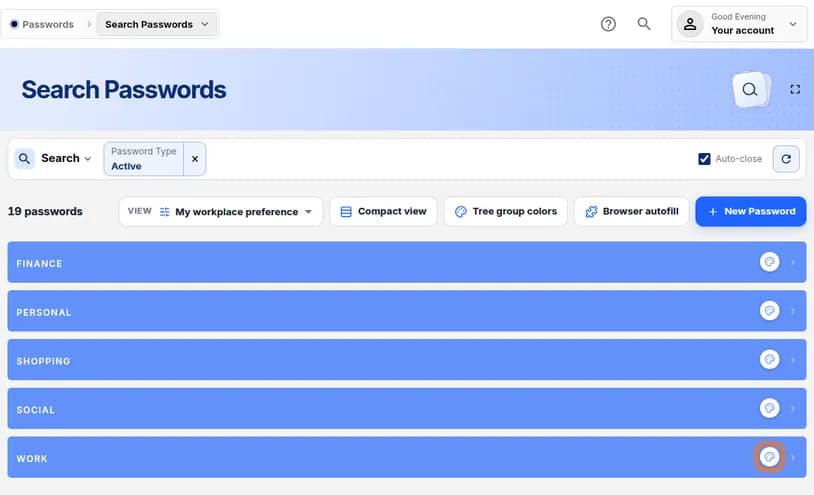
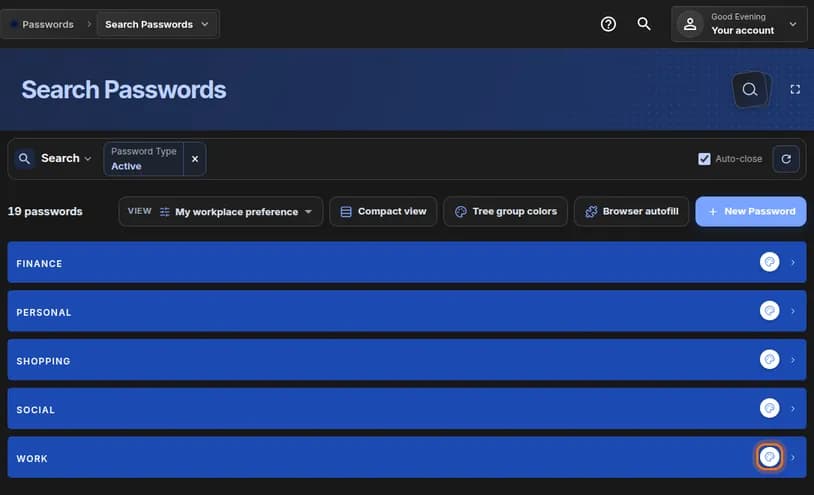
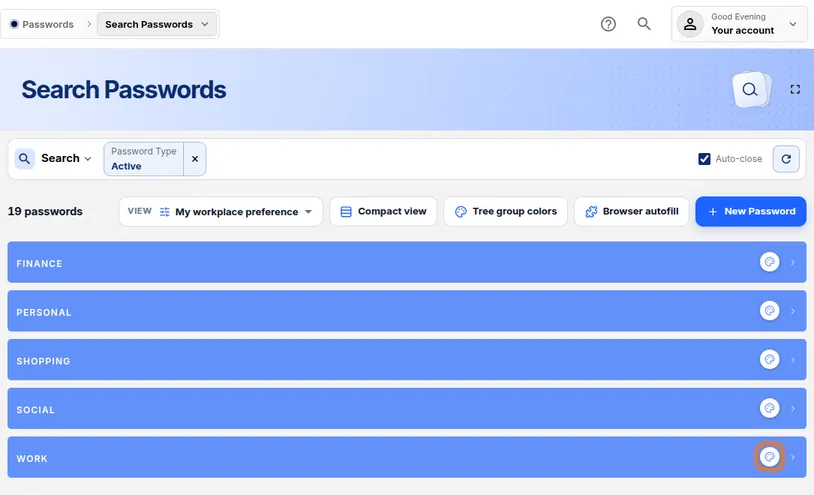
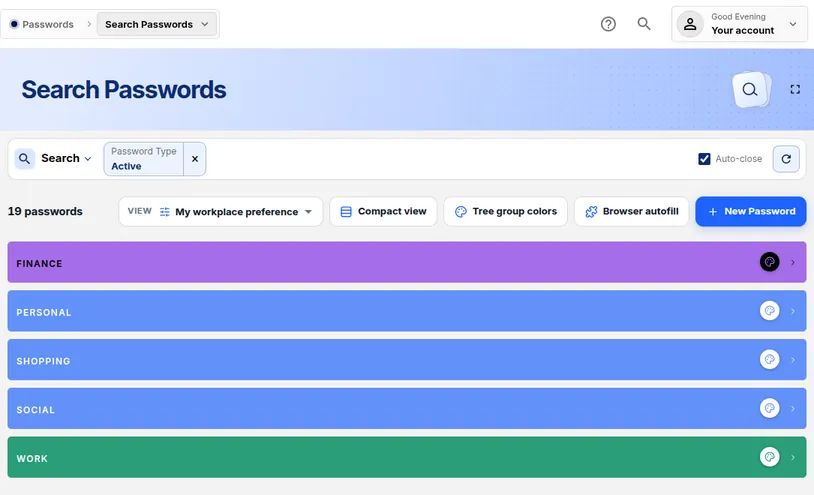
- Find the bar for the category you want to colour, for example WORK.
- At the right end of that bar, click the round palette icon.
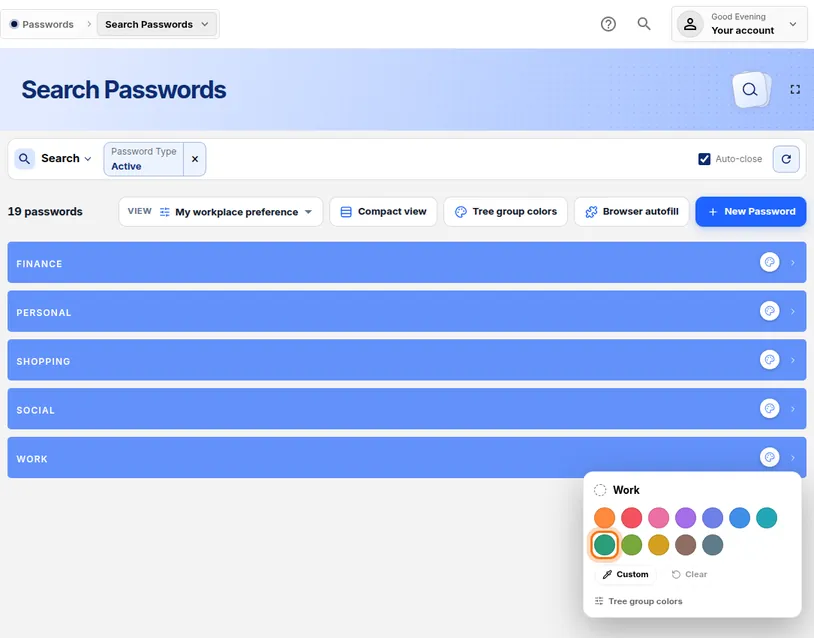
You should see: A small panel opens with a set of coloured circles.
 Full size
 Full size
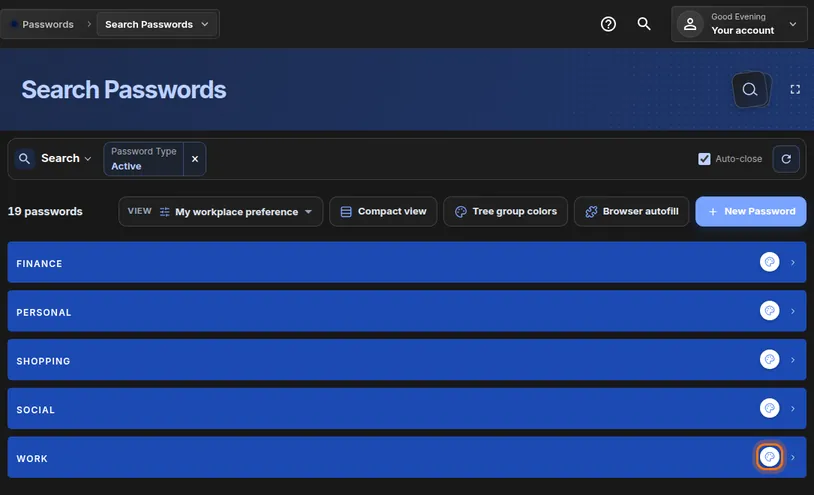
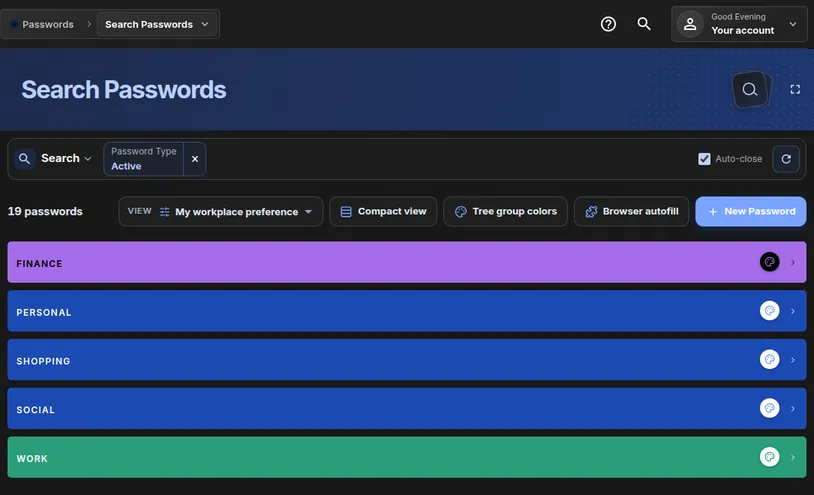
Every category bar has its own palette icon. Step 2: Pick a colour
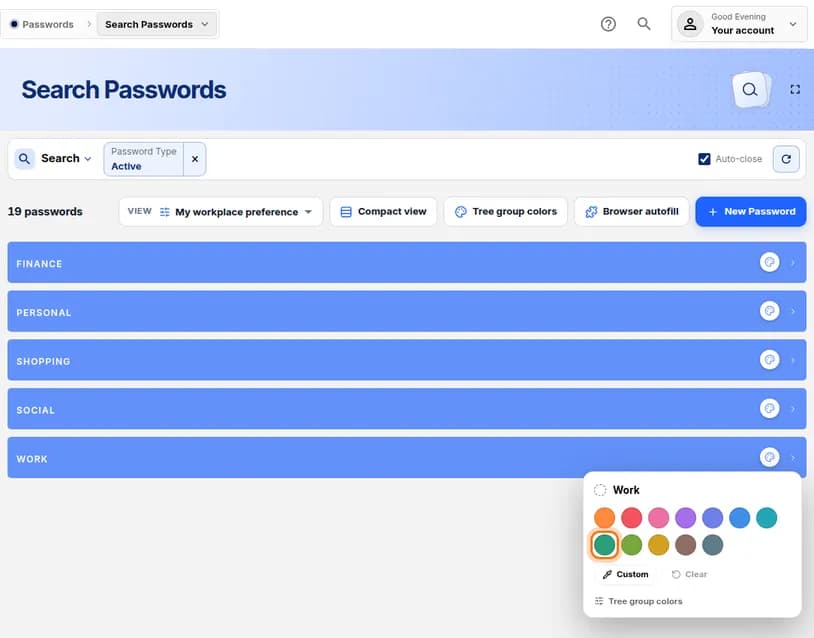
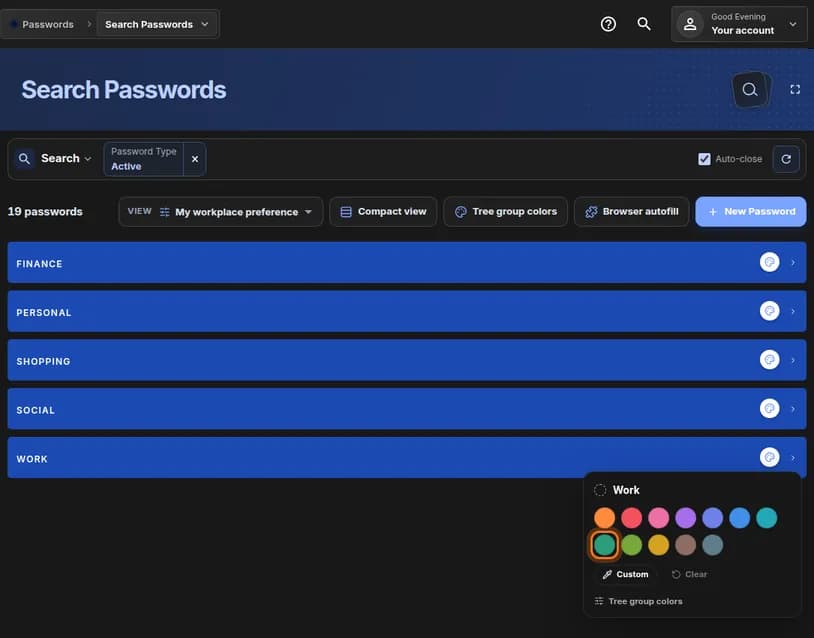
- Click one of the coloured circles.
- Want an exact shade? Click Custom and choose it there.
You should see: The bar changes colour straight away.
 Full size
 Full size
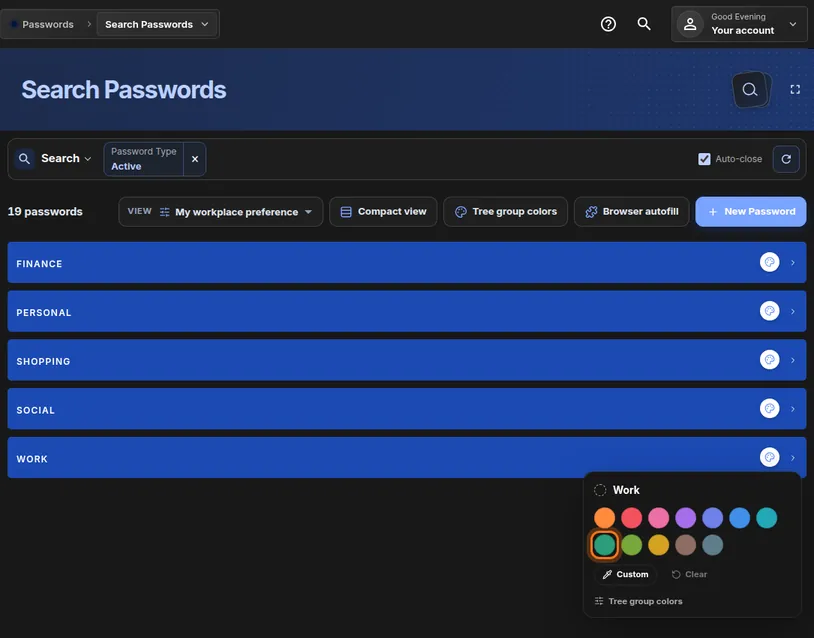
Twelve ready-made colours, plus Custom for your own. Step 3: Colour the other categories
- Click the palette icon on the next bar.
- Pick a different colour, so the bars are easy to tell apart.
- Repeat for each category you want to colour.
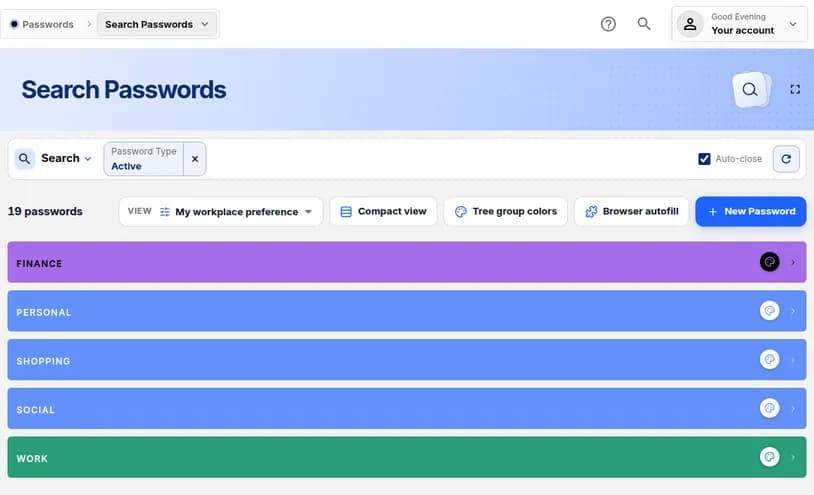 Full size
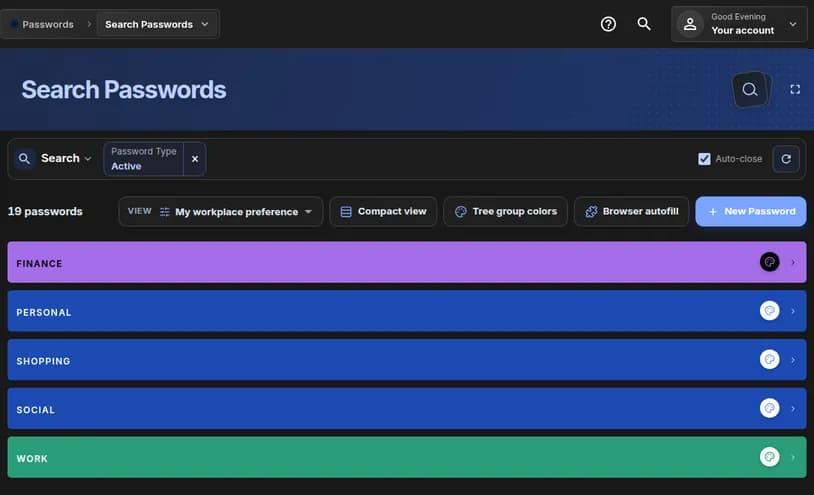 Full size
Cards inside a category use the same colour for their label. Step 4: Review all colours in one place
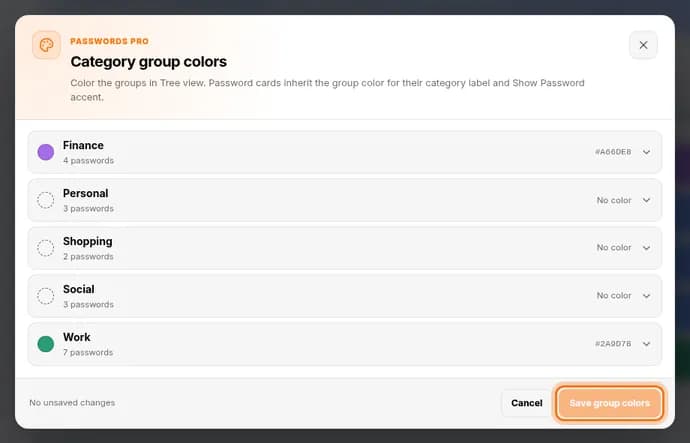
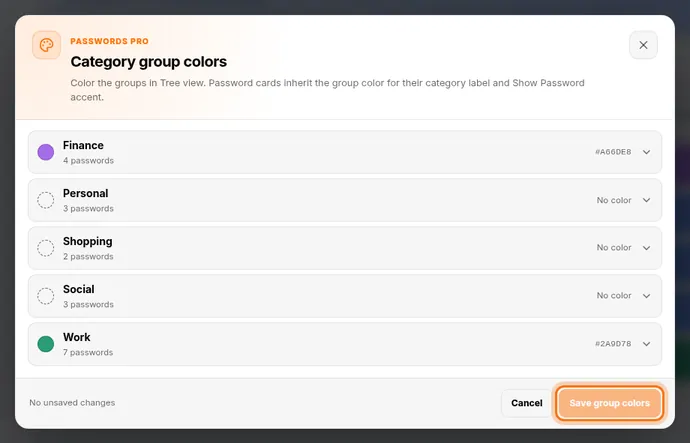
- Above the list, click Tree group colors.
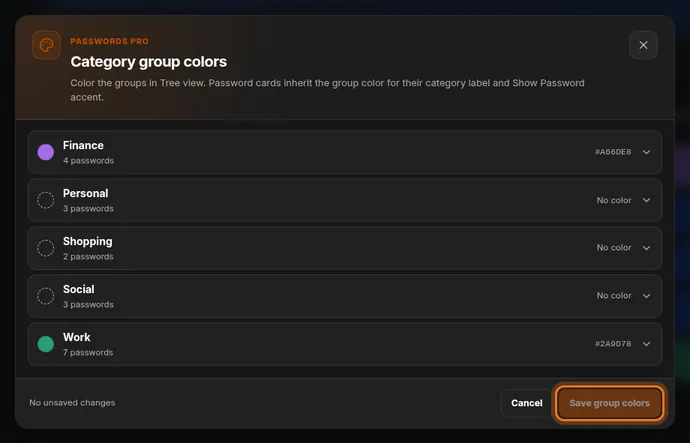
- Check the list. Each category shows its colour or No color.
- To change one here, click its row, pick a colour, and click Save group colors.
 Full size
 Full size
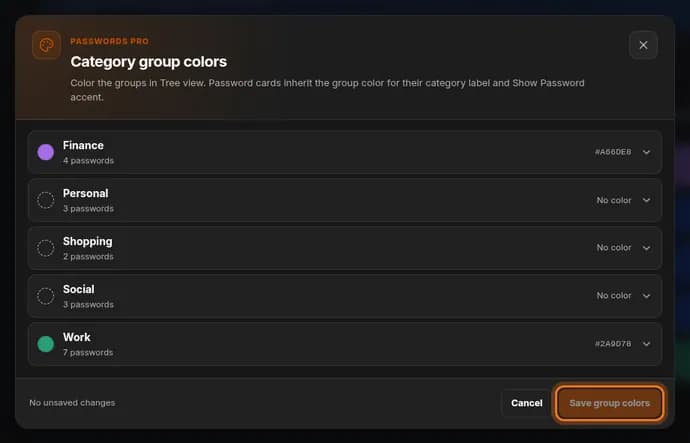
This window shows every category and how many passwords it holds. Step 5: Remove a colour you no longer want
- Click the palette icon on the bar.
- Click Clear.
You should see: The bar goes back to the standard blue.
Check it worked
- Each coloured bar keeps its colour after you leave the page and come back.
- Open a coloured category. The category label on each card has the same colour.
If something looks different
I picked the wrong colour
Click the palette icon on that bar again and click a different circle. The new colour replaces the old one.
All my logins are in one bar
Colours follow categories. Edit a login with the pencil icon, type a name in Category, and save. Logins with the same category share a bar.
The palette is locked
Group colours are part of Passwords Pro. Open Plans & referrals in the left menu to see your plan.
Tip: Use colour for meaning, not decoration. For example red for money, green for work. Three or four colours are easier to remember than twelve.