See where you are signed in and sign out another device
Check every phone, tablet and browser that is signed in to your account, and sign out any you no longer use or do not recognise.
- 6 steps
- About 4 minutes
Before you start
- You are signed in to HashThat on a device you trust.
Step 1: Open Manage Logins & Sessions
- In the left menu, under Account, click Settings.
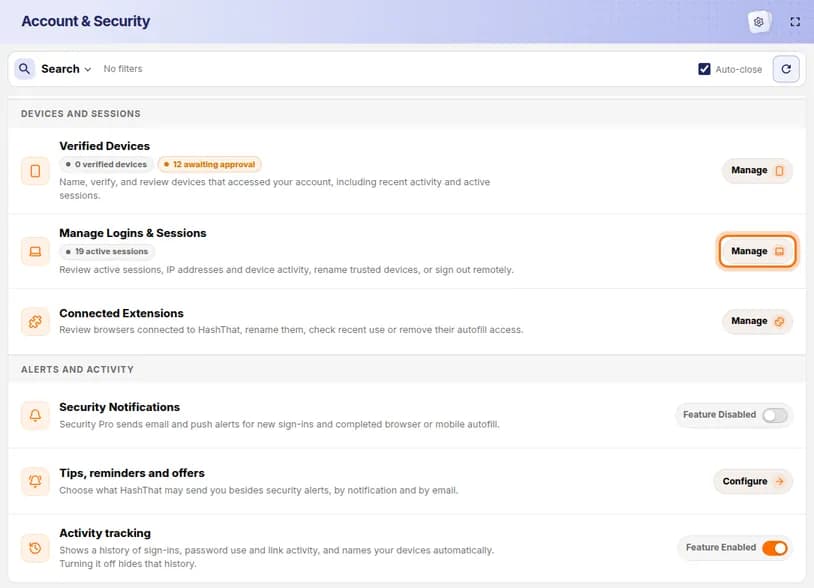
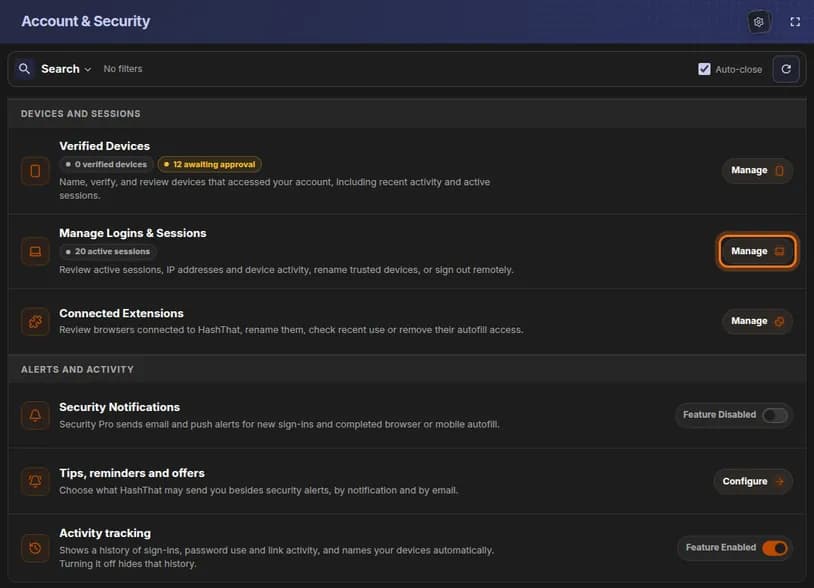
- Scroll down to the Security section and find the group Devices and sessions.
- On the row Manage Logins & Sessions, click Manage.
You should see: A window titled Manage Logins & Sessions.
 Full size
 Full size
The row also shows how many sessions are active right now. Step 2: Read the overview
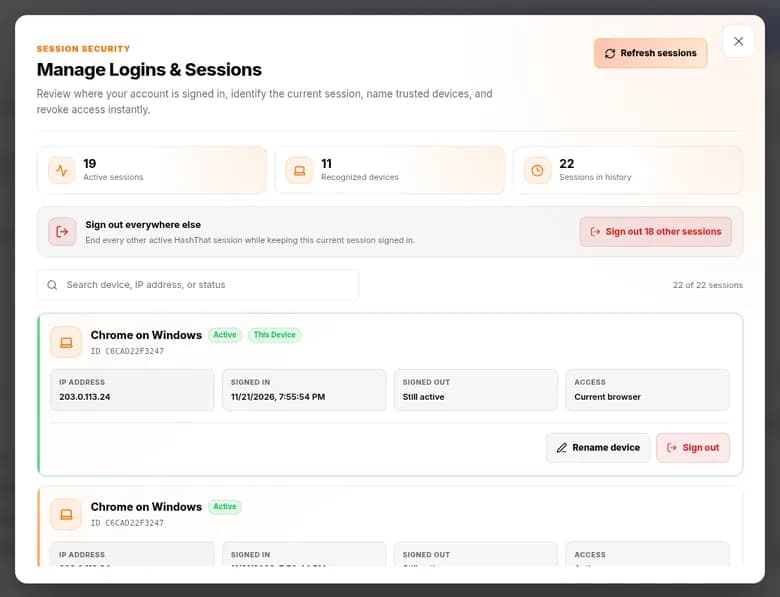
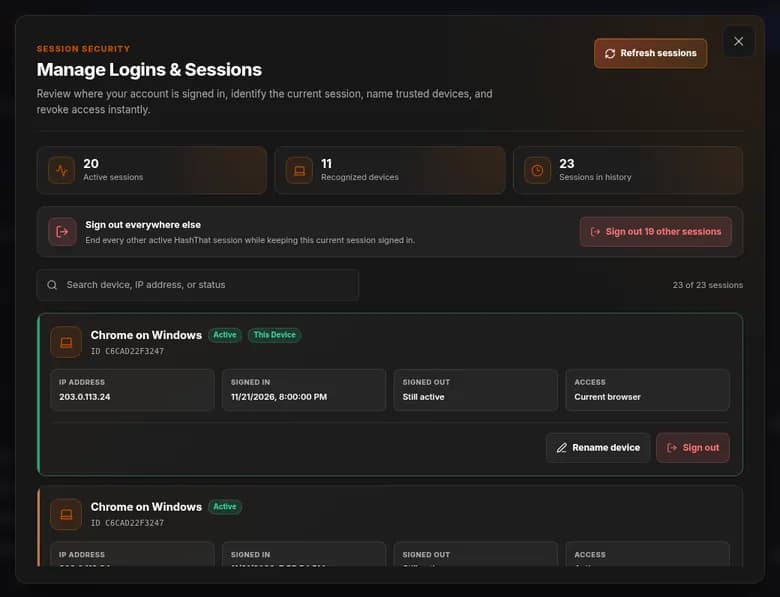
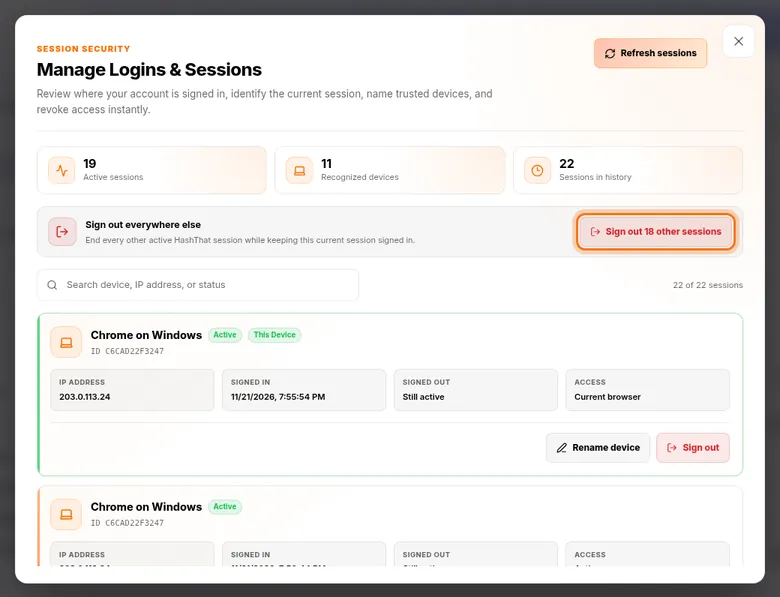
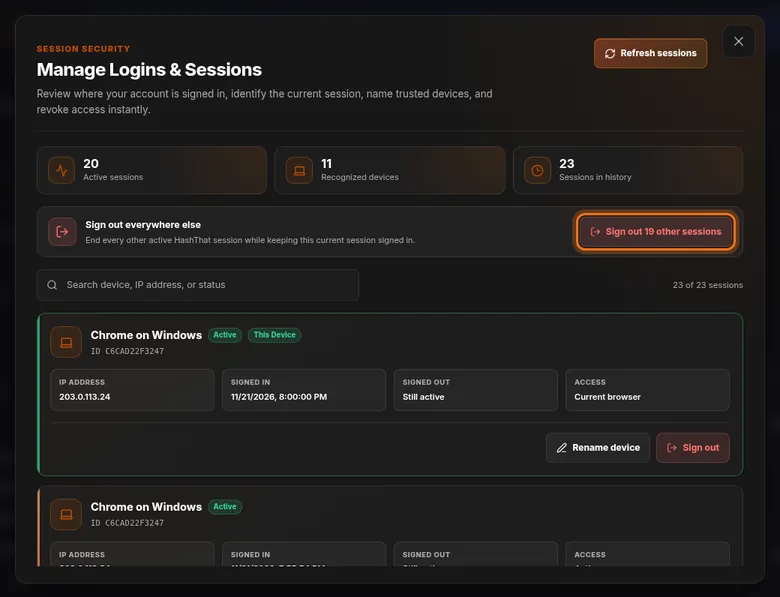
- At the top, three numbers show Active sessions, Recognized devices and Sessions in history.
- Below them, each card is one sign-in. The card marked This Device is the one you are using now.
- On each card, check the device name, the IP address and the Signed in date.
 Full size
 Full size
A session is one sign-in on one device. The green Active label means it is still signed in. Many cards? Type a device name or the word active into the search box above the list.
Step 3: Sign out one device
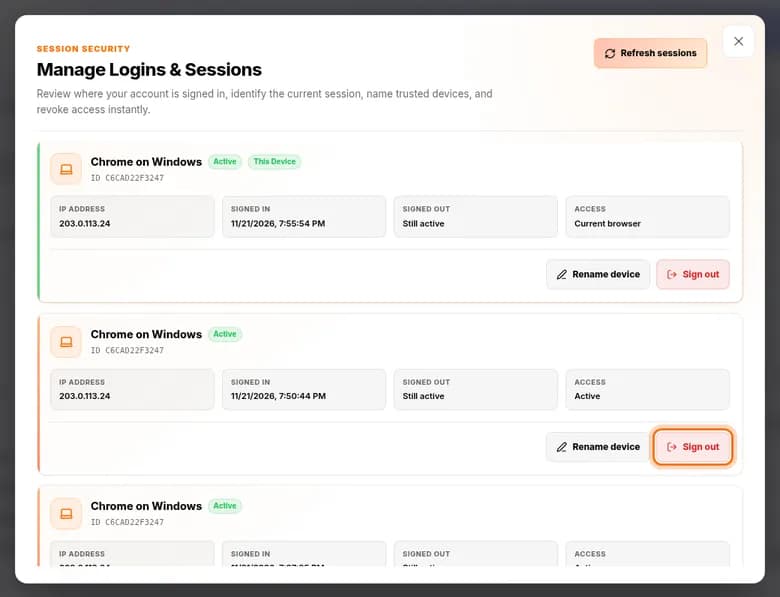
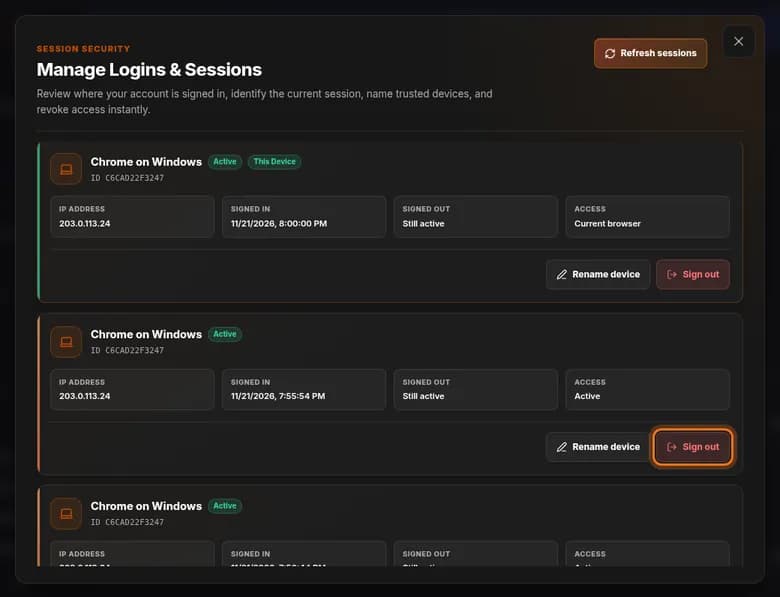
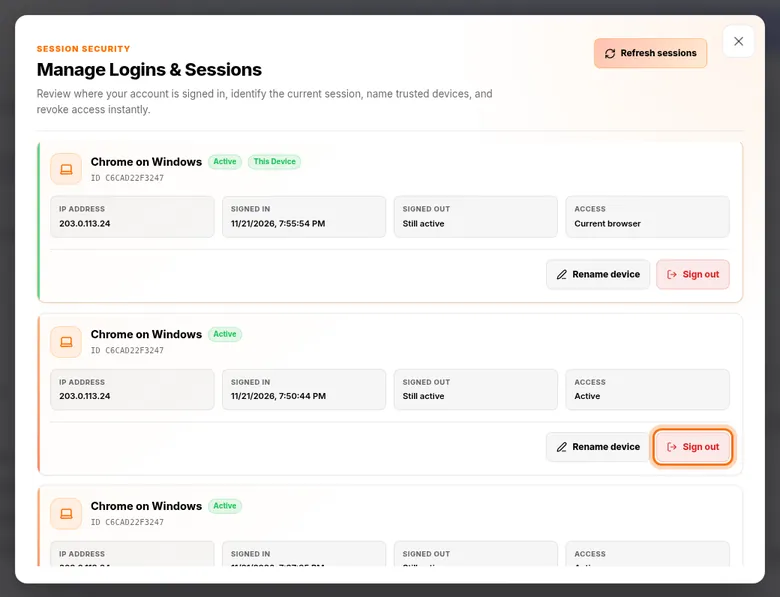
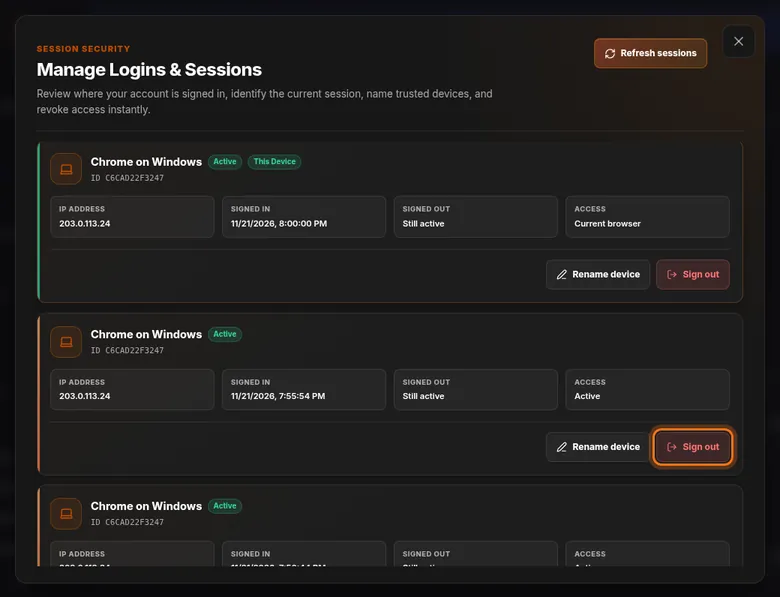
- Find the card for the device you want to sign out.
- Make sure it is not the card marked This Device.
- Click the red Sign out button on that card.
You should see: The card’s label changes from Active to Signed Out, and Signed out shows the time.
 Full size
 Full size
That device goes back to the sign-in page. Nothing on it is deleted from your account. Step 4: Or sign out everywhere else at once
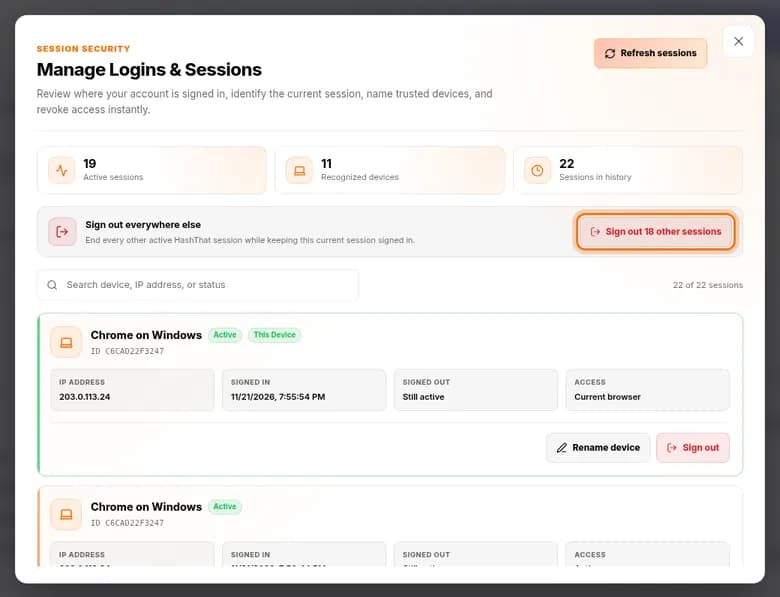
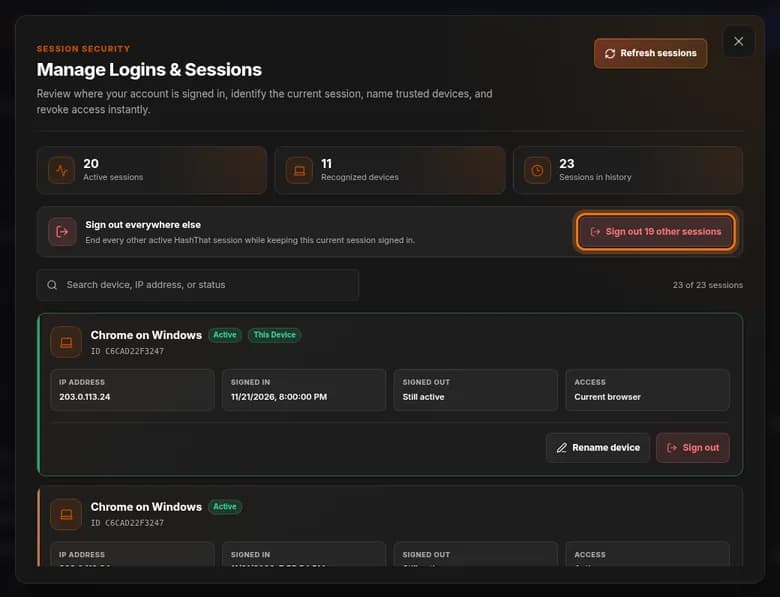
- Find the bar Sign out everywhere else near the top of the window.
- Click the button on the right. It says Sign out followed by the number of other sessions.
You should see: Every session except the one you are using is ended.
 Full size
 Full size
Use this if you have lost a device or see a sign-in you do not recognise. Step 5: Name the devices you keep
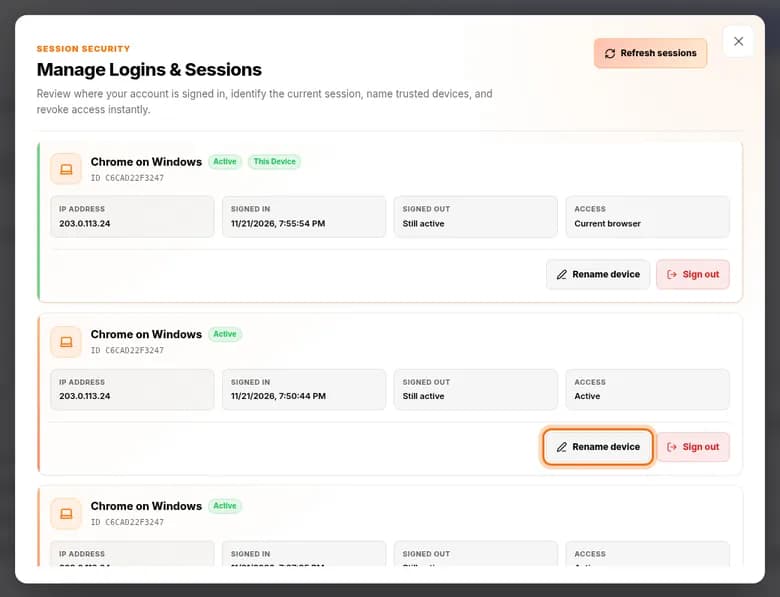
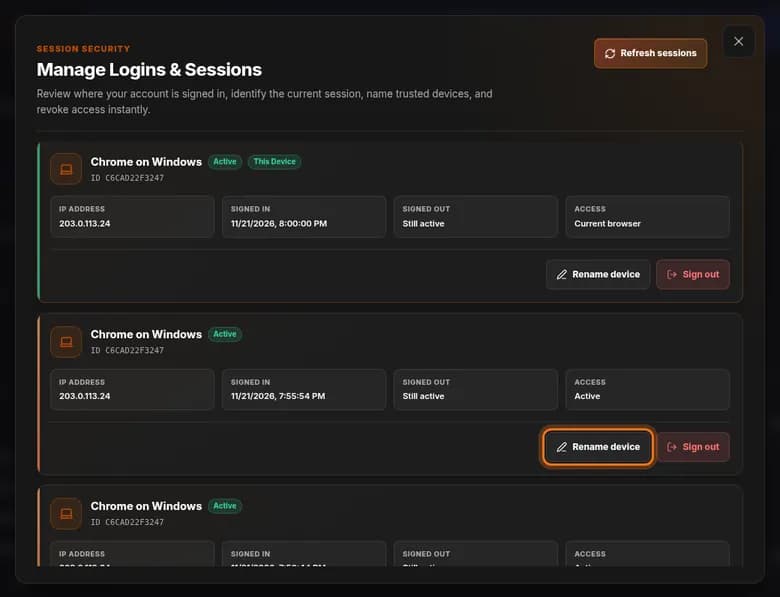
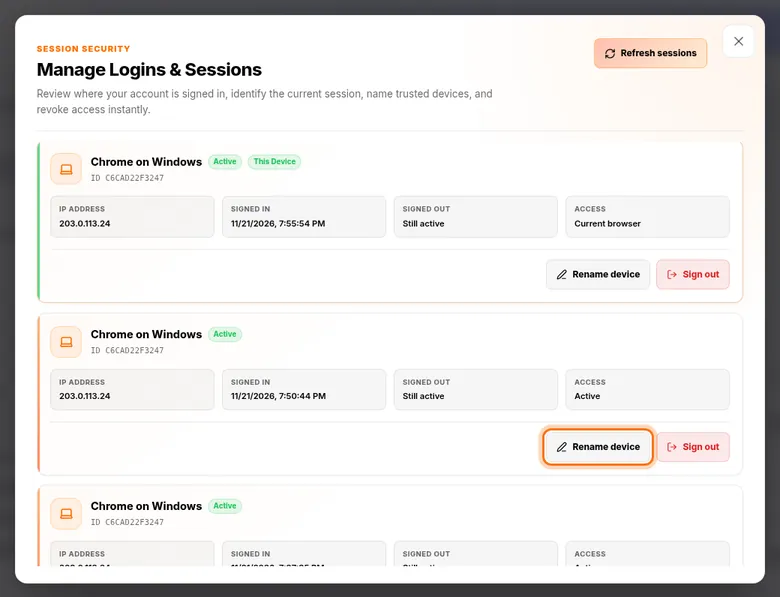
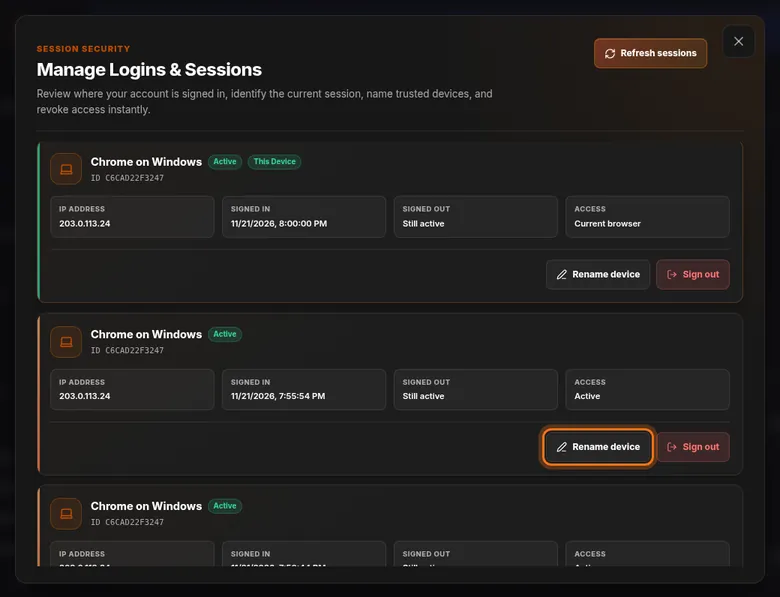
- On a card you recognise, click Rename device.
- Type a name you will know later, such as Office laptop, and save.
 Full size
 Full size
Clear names make an unfamiliar device stand out the next time you look. Step 6: Close the window
- Click the × at the top right of the window.


Check it worked
- Active sessions shows only the devices you still use.
- The device you signed out shows the sign-in page the next time it opens HashThat.
If something looks different
I do not recognise a device in the list
Sign it out straight away, then change your master password and turn on two-factor authentication. The tutorials Change your master password and Set up two-factor authentication show how.
I signed myself out by mistake
Nothing is lost. Sign in again with your email and master password.
The same browser appears several times
Each sign-in is its own session. A browser where you logged in three times has three cards. Sign out everywhere else tidies them up in one click.
Tip: Make this a habit: open this window once a month and after every trip. It takes a minute and shows at once if something is wrong.