Change your master password
Replace the one password that unlocks your vault, without losing anything stored in it, and renew your recovery file afterwards.
- 7 steps
- About 5 minutes
Before you start
- You are signed in to HashThat on a computer.
- You know your current master password. This guide does not work if you have forgotten it.
- You have decided on a new master password: long, not used anywhere else, and one you can remember.
Step 1: Open Settings
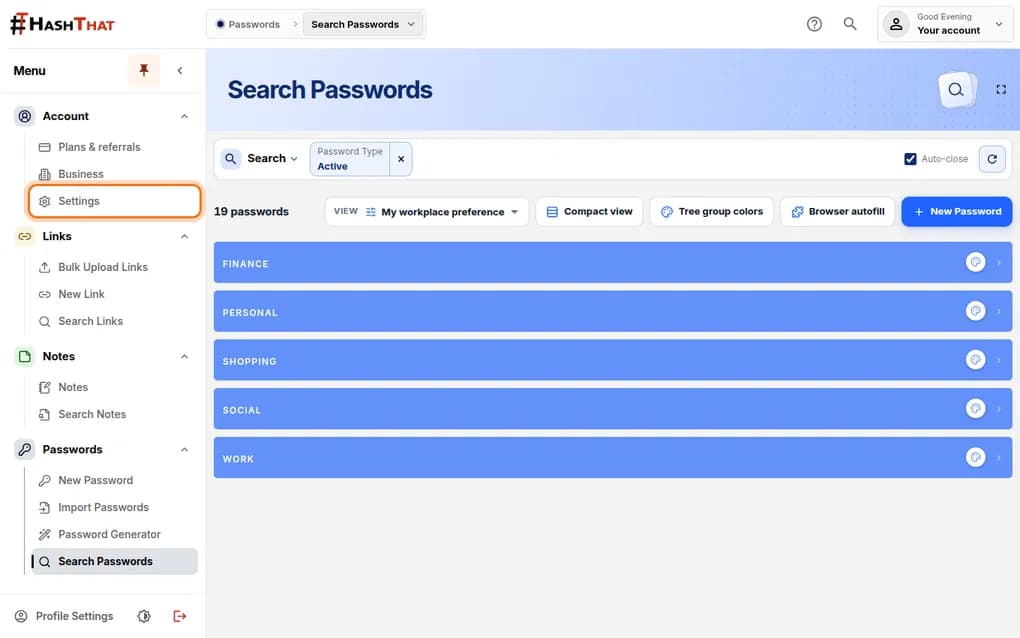
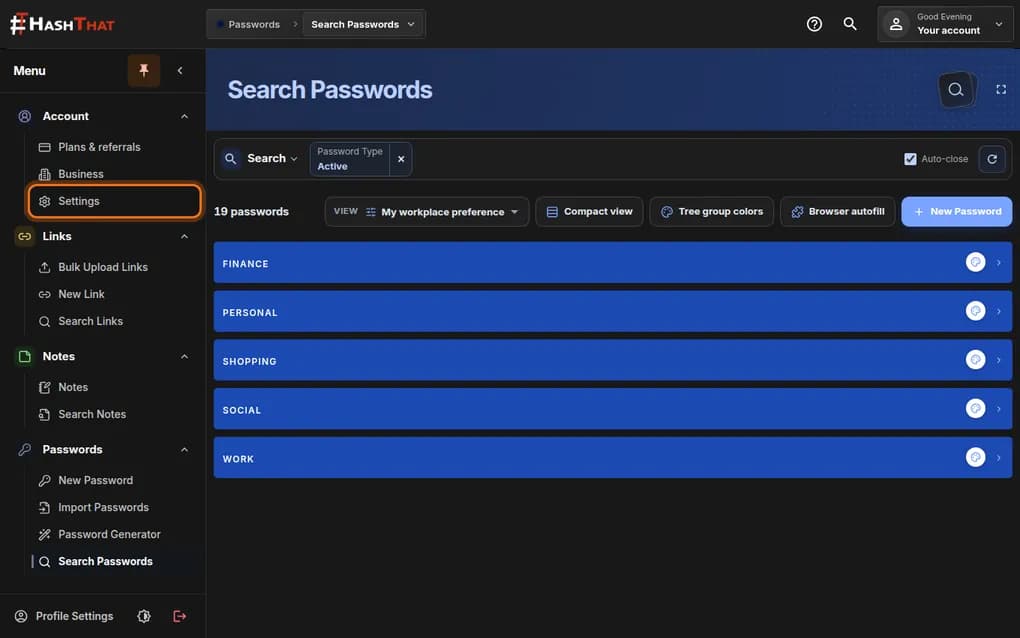
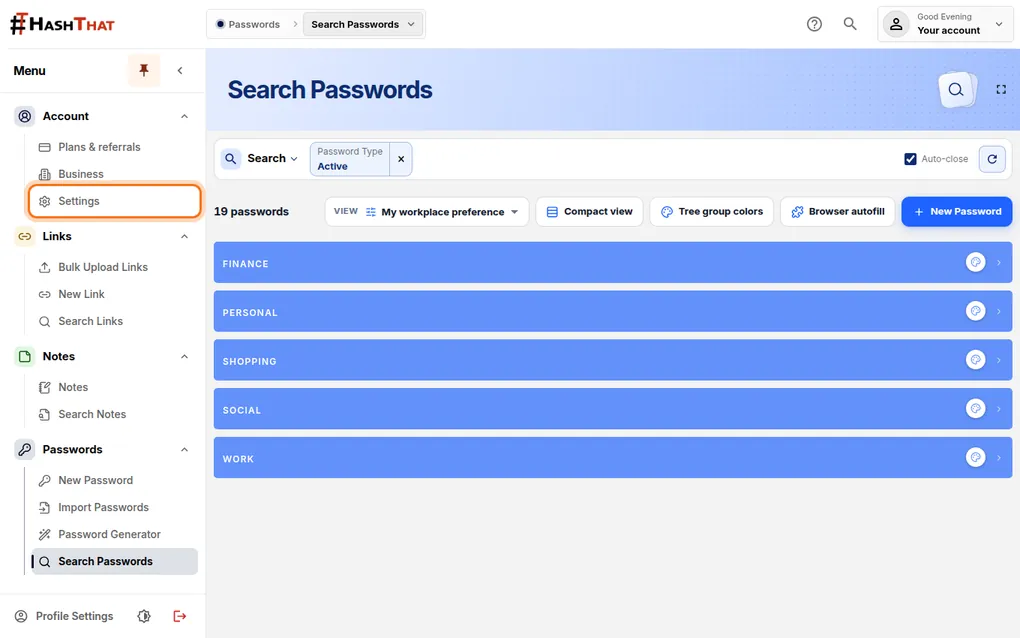
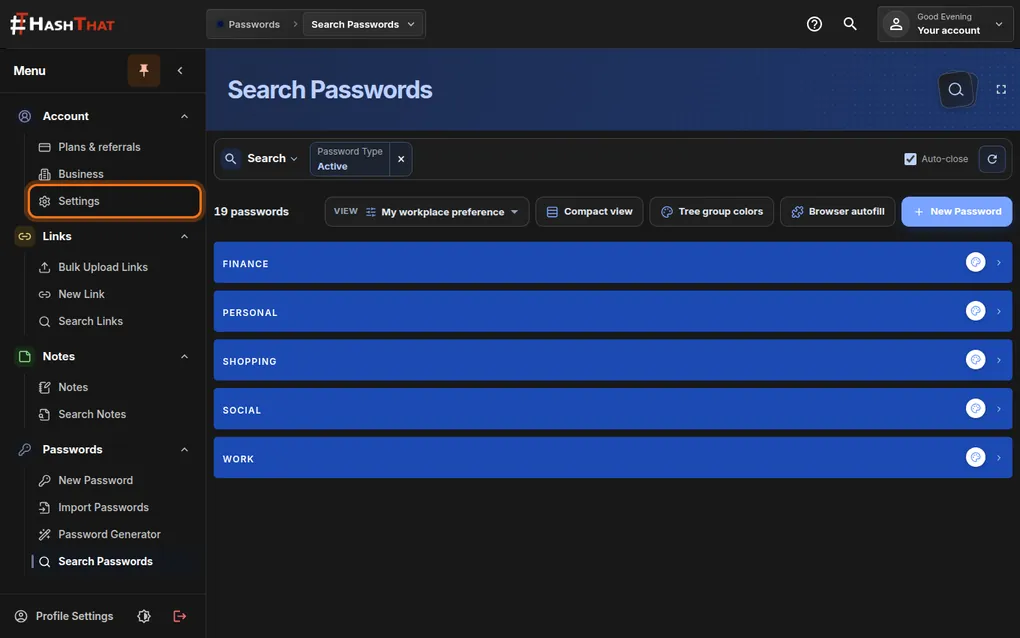
- Look at the menu on the left side of the screen.
- Under Account, click Settings.
You should see: A page titled Account & Security.
 Full size
 Full size
Settings is the third item in the Account group. Step 2: Find Update Password
- Stay in the first section, Profile.
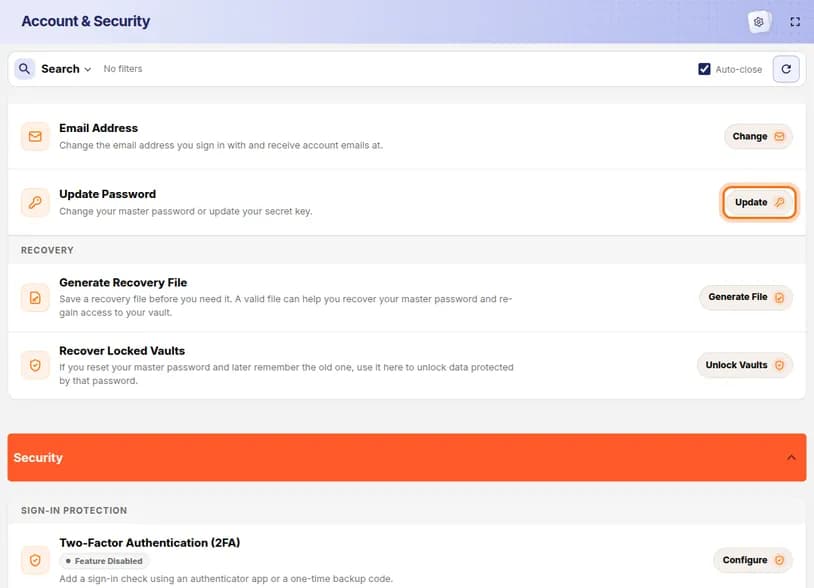
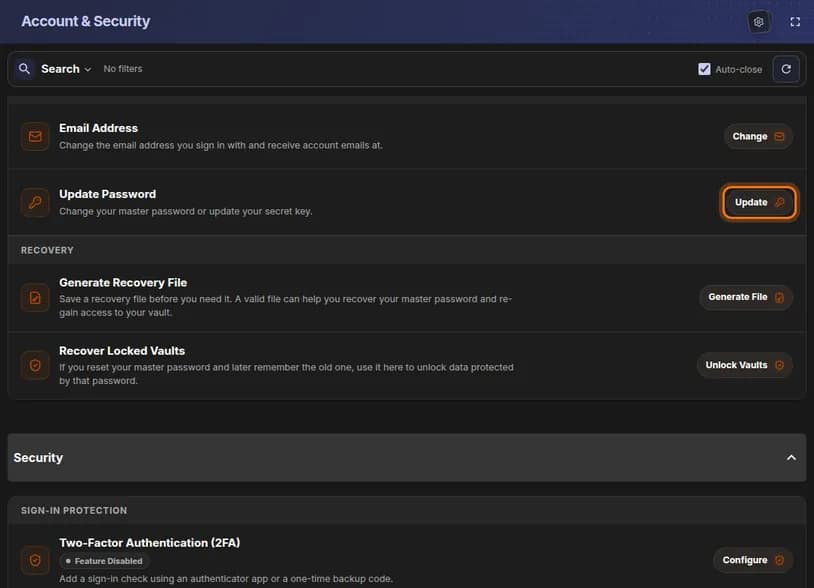
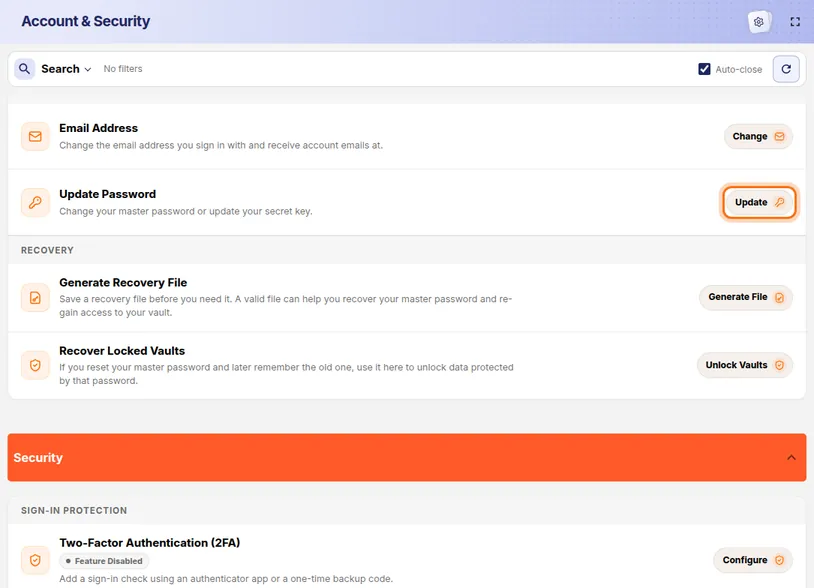
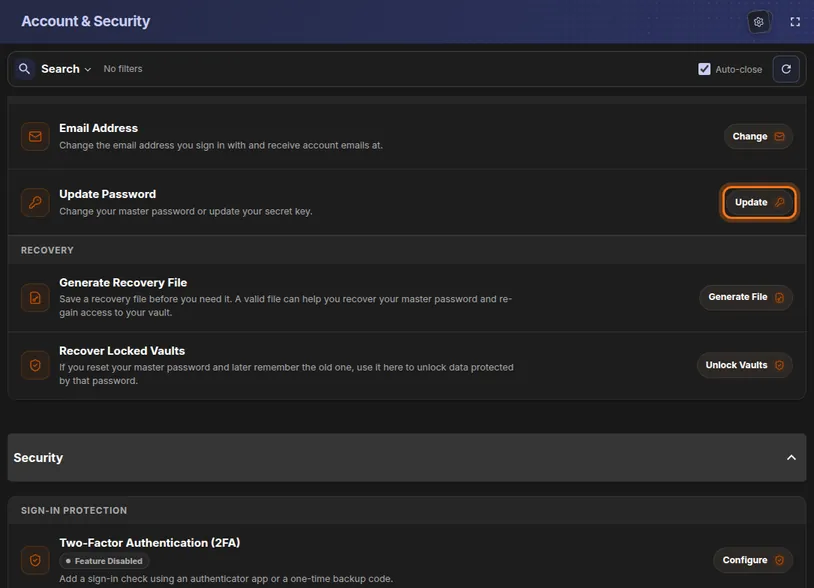
- Find the row called Update Password.
- Click the Update button at the right end of that row.
You should see: A window titled Update Password.
 Full size
 Full size
Update Password is the second row, just below Email Address. Step 3: Enter your current password
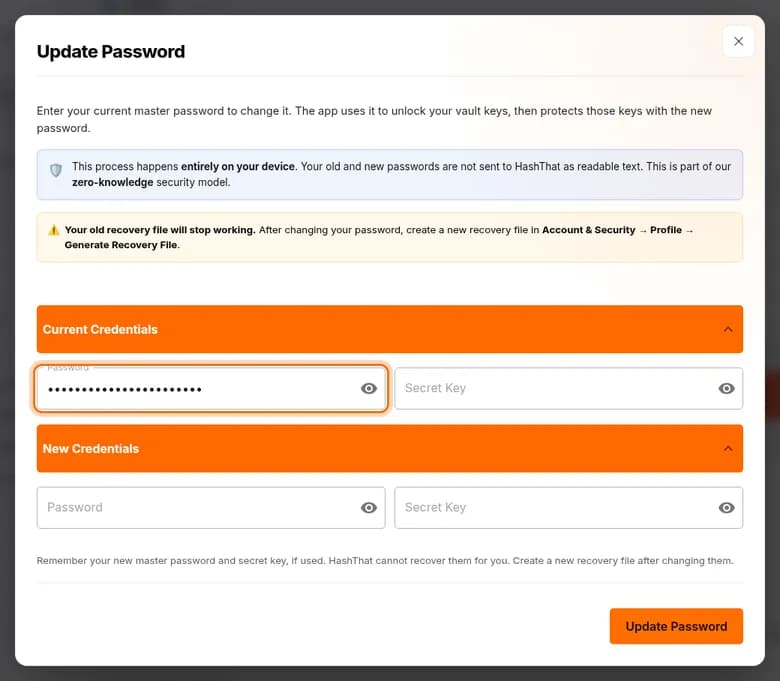
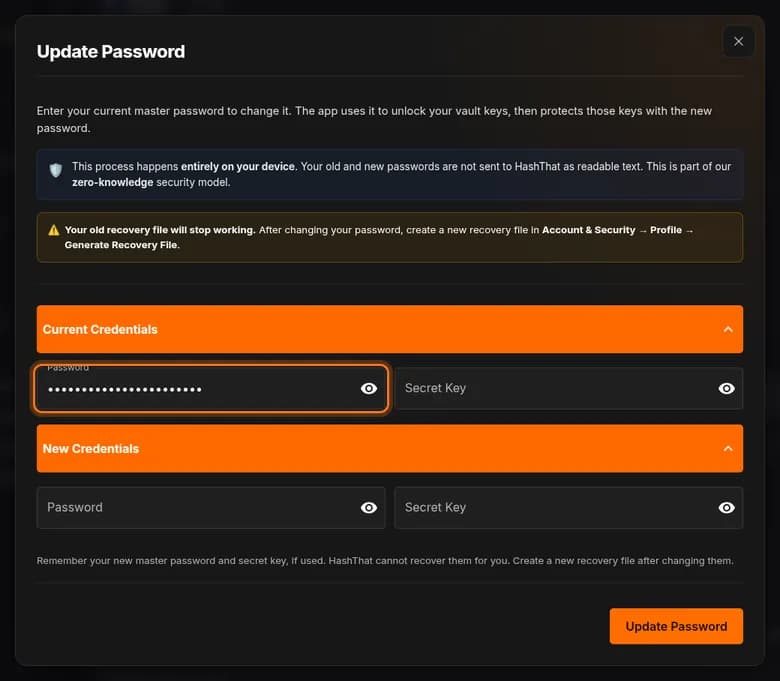
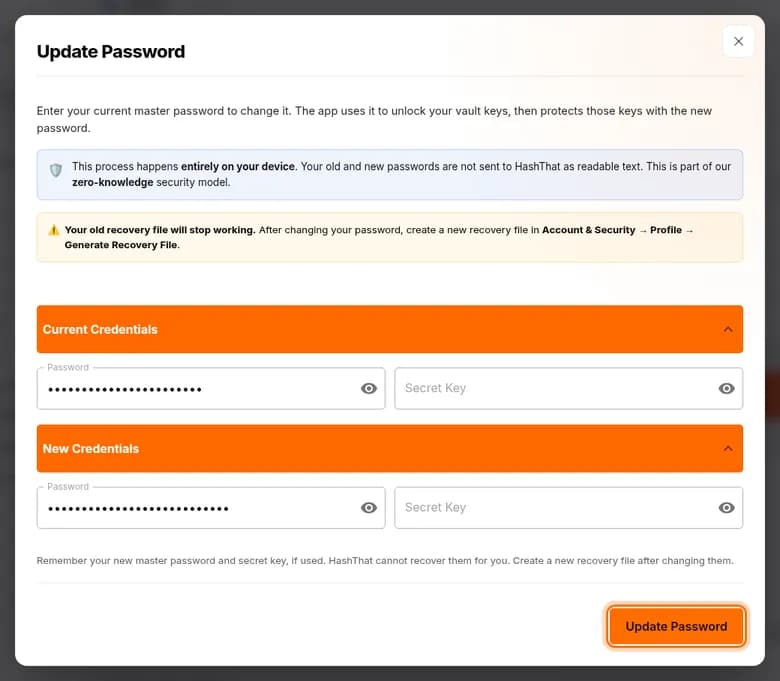
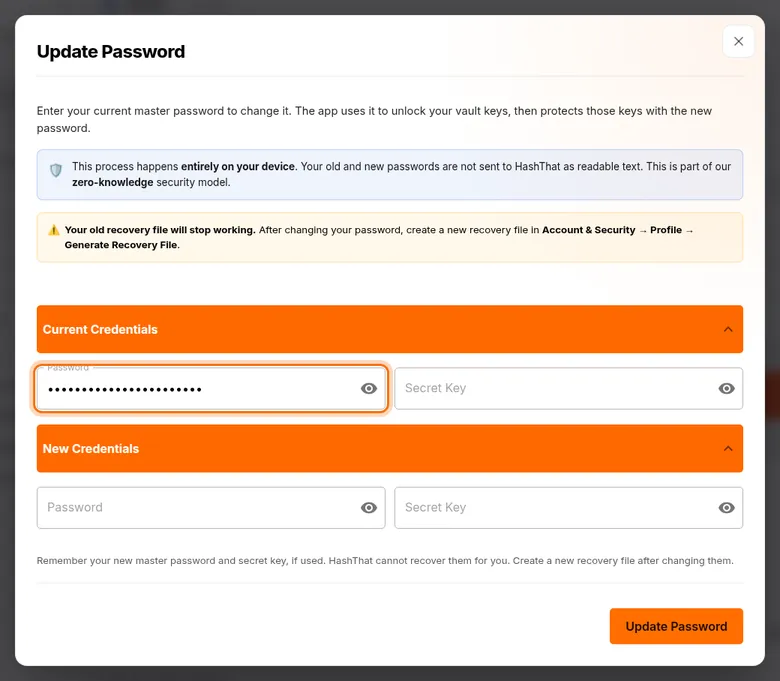
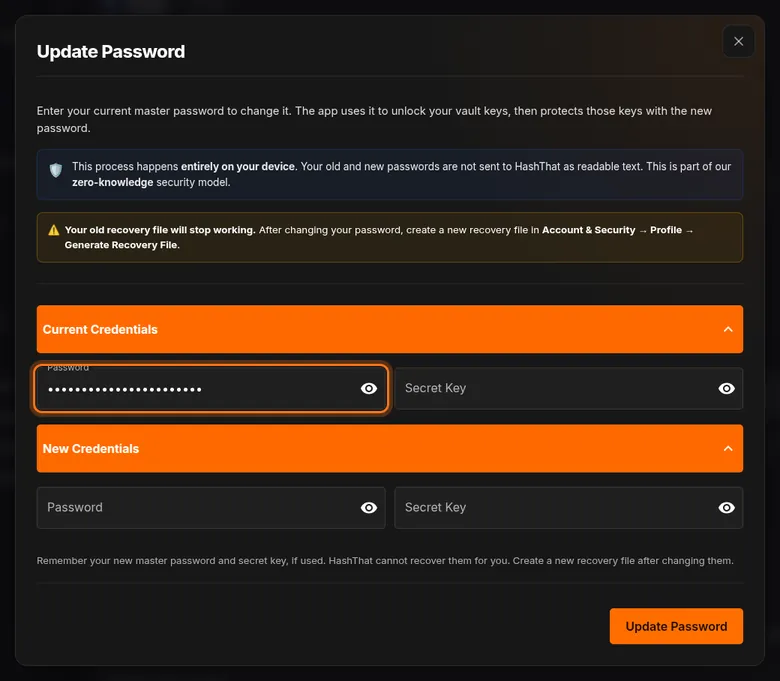
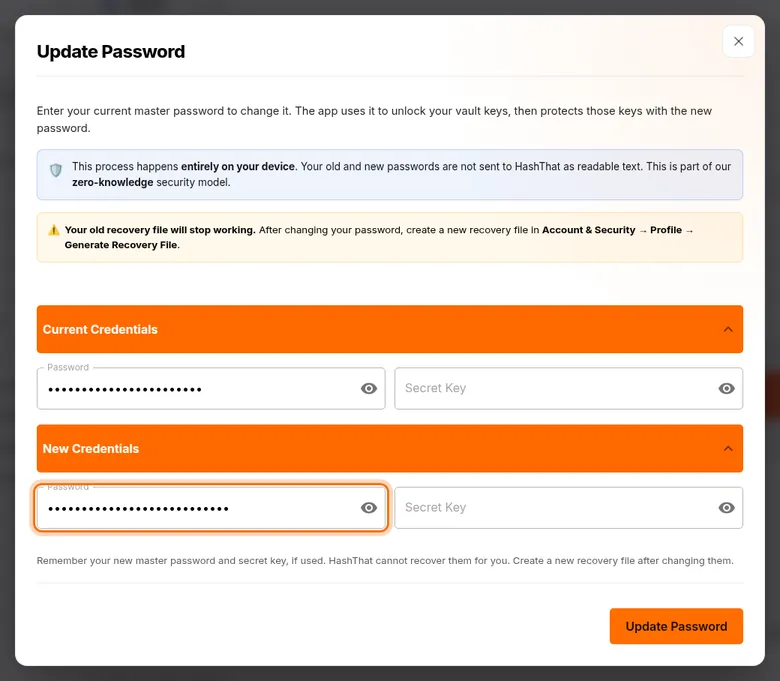
- Read the two notices at the top of the window.
- Under Current Credentials, click Password and type the master password you use today.
- Only if you sign in with a secret key: type it into Secret Key on the same line.
 Full size
 Full size
HashThat needs the current password to unlock your vault keys on this device. No secret key? Leave both Secret Key boxes empty.
Step 4: Enter your new password
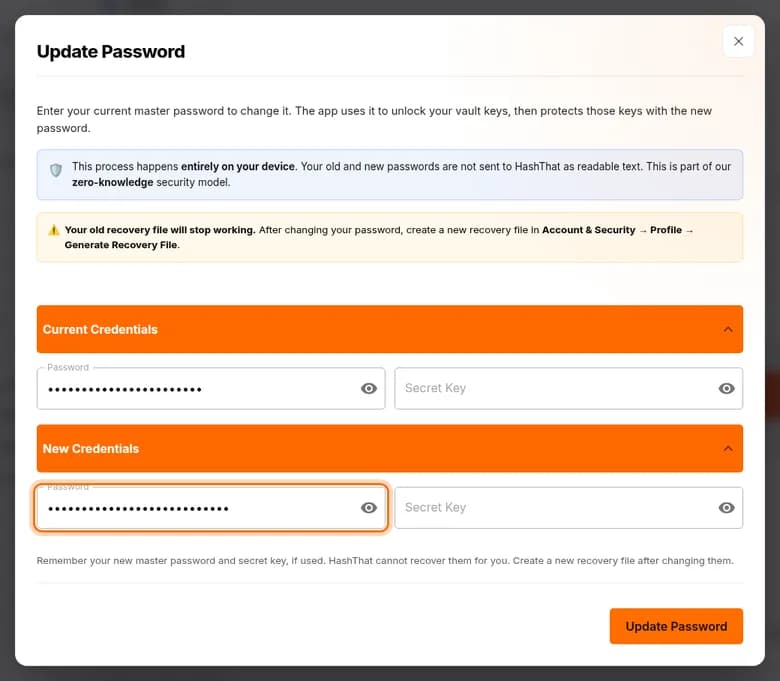
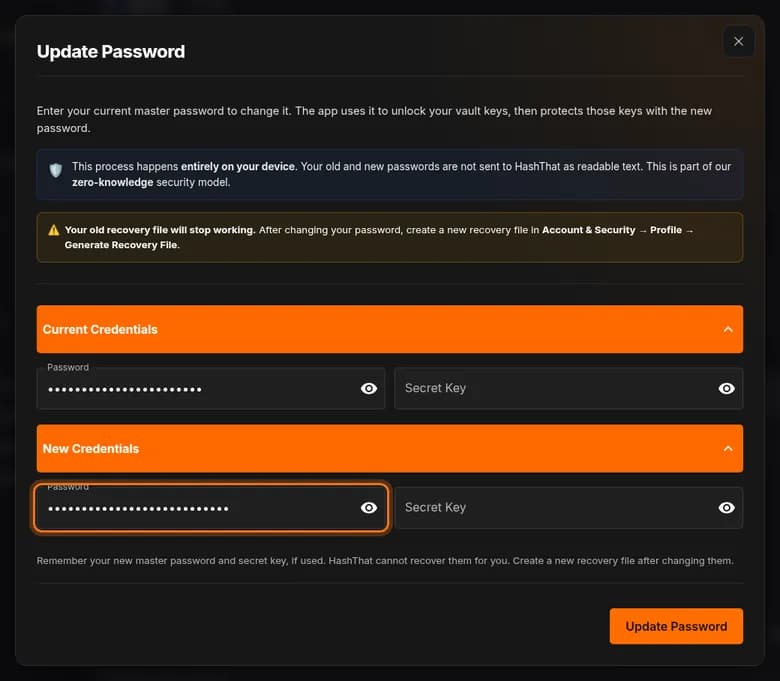
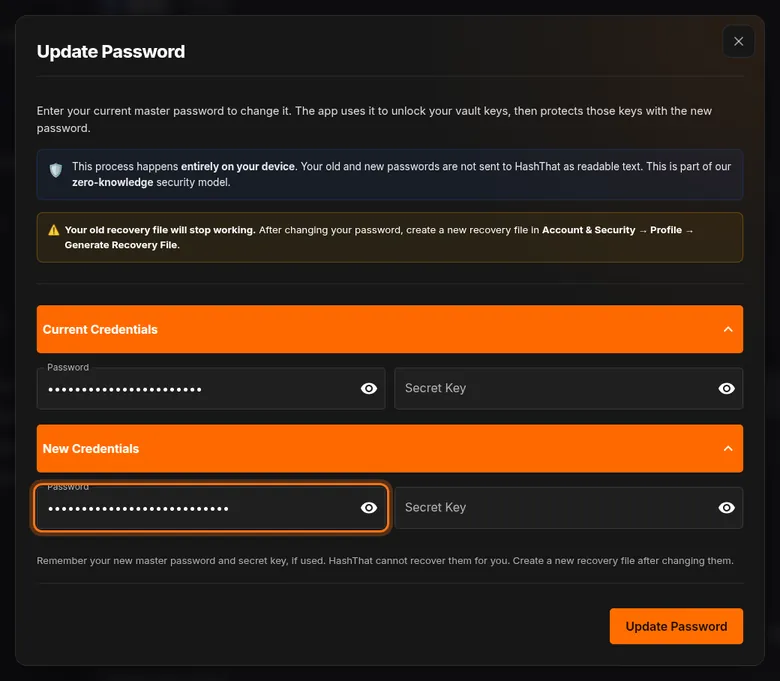
- Under New Credentials, click Password and type the new master password.
- Click the eye icon at the end of the box and read it back, letter by letter.
 Full size
 Full size
You type the new password once, so check it with the eye icon before you continue. A good master password is four or more unrelated words, such as a short sentence only you would think of.
Step 5: Confirm the change
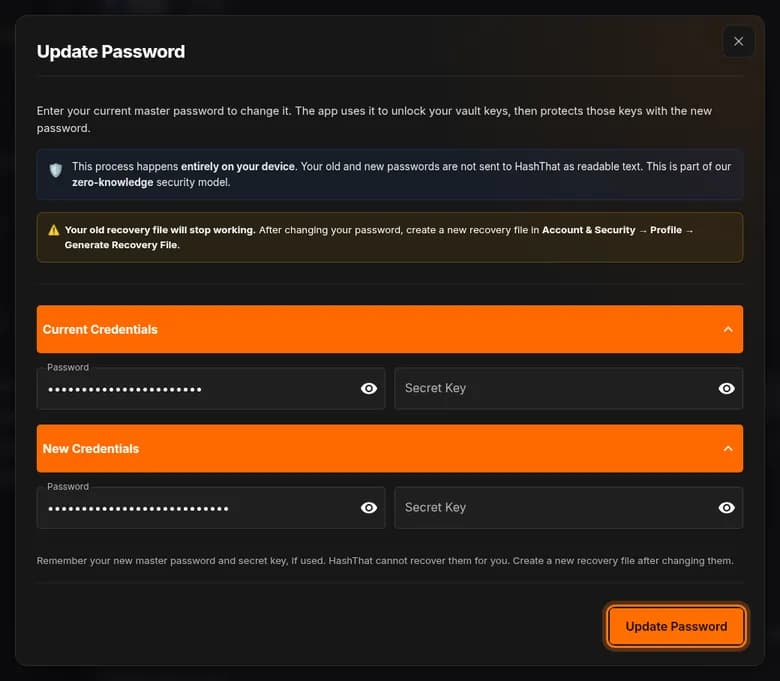
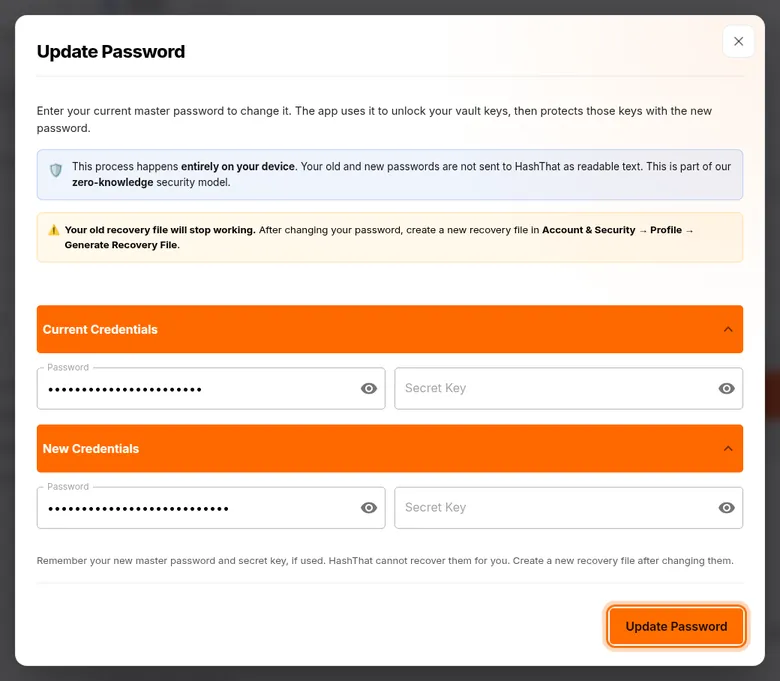
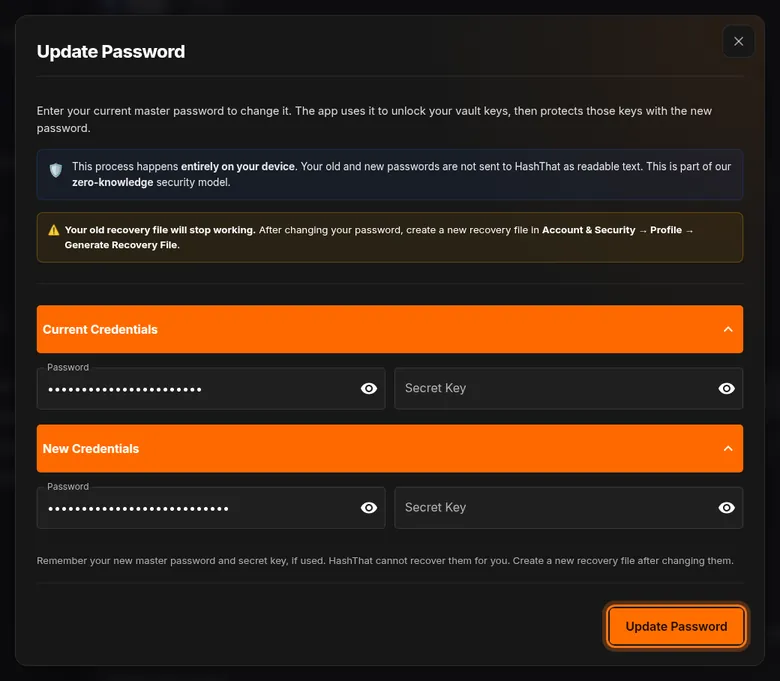
- Click the orange Update Password button at the bottom right.
- Wait until HashThat confirms the change. Do not close the tab while it works.
 Full size
 Full size
Your vault is re-protected on your device. The passwords are never sent to HashThat as readable text. Step 6: Make a new recovery file
- On the Account & Security page, find Generate Recovery File in the Recovery group.
- Click Generate File and save the new file somewhere safe.
- Delete the old recovery file. It stopped working when you changed the password.
The tutorial Create a vault recovery file shows this step by step.
Step 7: Sign in again on your other devices
- Open HashThat on your phone and on any other computer.
- Sign in with the new master password.
Check it worked
- Log out and sign in again. The new master password works and the old one does not.
- Your passwords, notes and links are all still there.
- You have a new recovery file, saved after the change.
If something looks different
It says my current password is wrong
Type it slowly and use the eye icon to check it. Make sure Caps Lock is off. If you normally sign in with a secret key, it has to be entered in Secret Key as well.
I forgot my current master password
You cannot change it from here. On the sign-in page, click Need help logging in? and use your recovery file. HashThat cannot read or reset your master password for you.
Do I have to change my saved passwords too?
No. The master password only unlocks the vault. The logins inside it stay exactly as they are.
Tip: Write the new master password on paper and keep it somewhere safe at home until you are sure you remember it. Then destroy the paper.