Change the email address you sign in with
Move your account to a new email address. Nothing changes until you open the confirmation link sent to the new address.
- 6 steps
- About 4 minutes
Before you start
- You are signed in to HashThat.
- You can open the inbox of the new email address right now.
- You know your master password.
Step 1: Open the Email Address setting
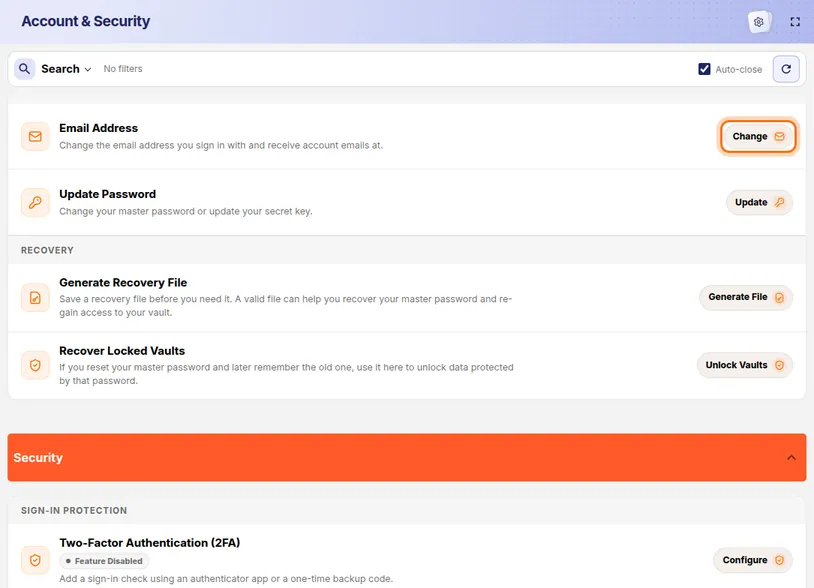
- In the left menu, under Account, click Settings.
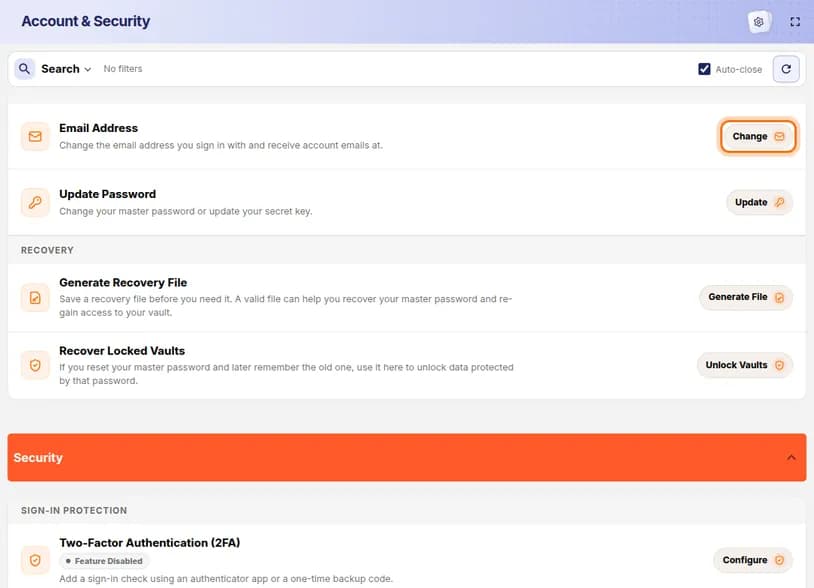
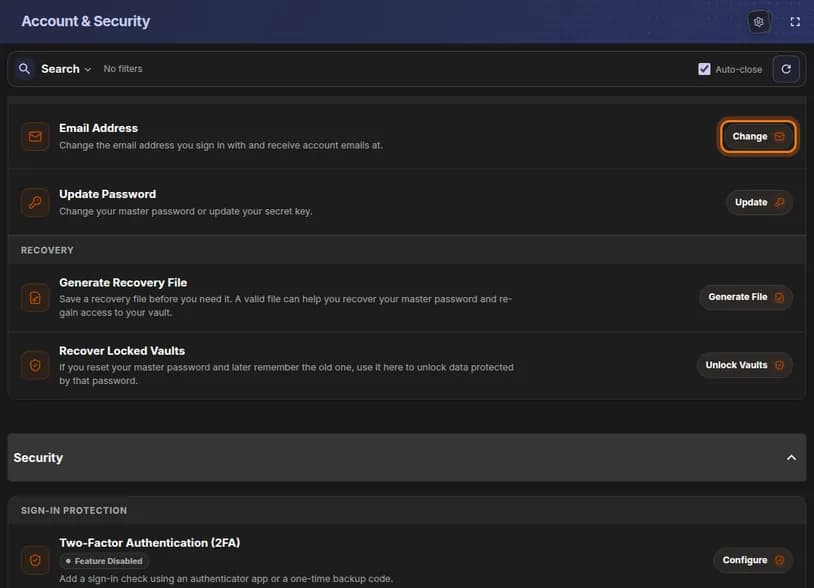
- In the first section, Profile, find the row Email Address.
- Click Change at the right end of that row.
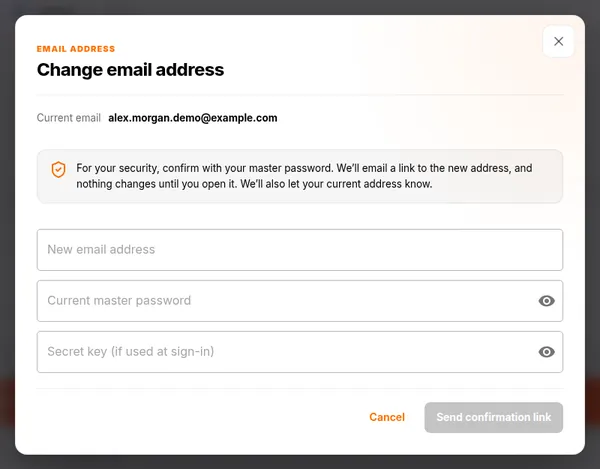
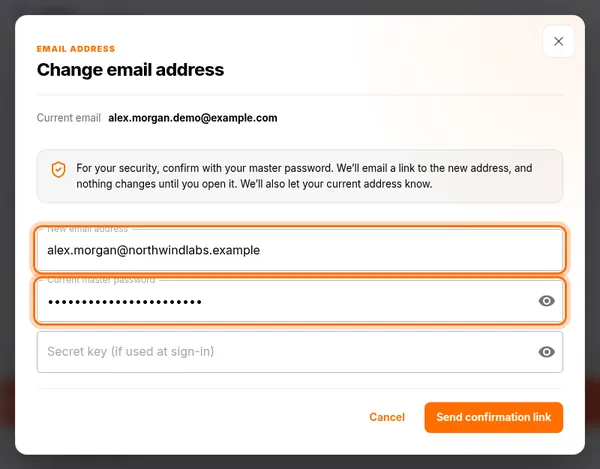
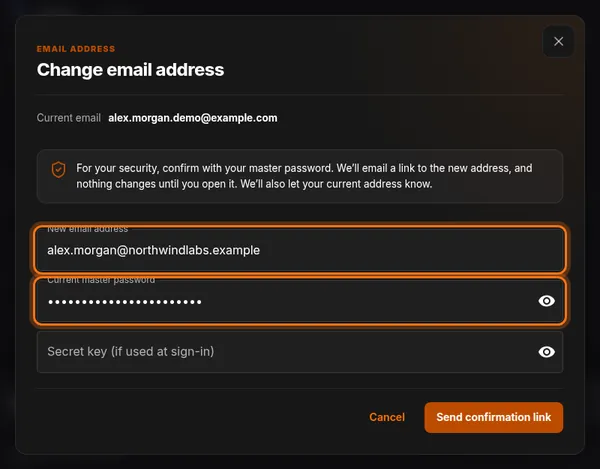
You should see: A window titled Change email address.
 Full size
 Full size
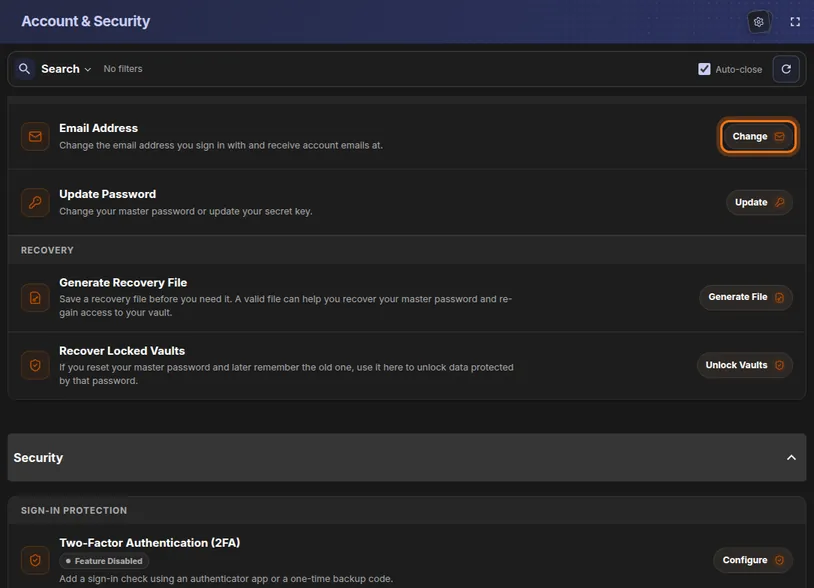
Email Address is the first row on the page. Step 2: Check your current address
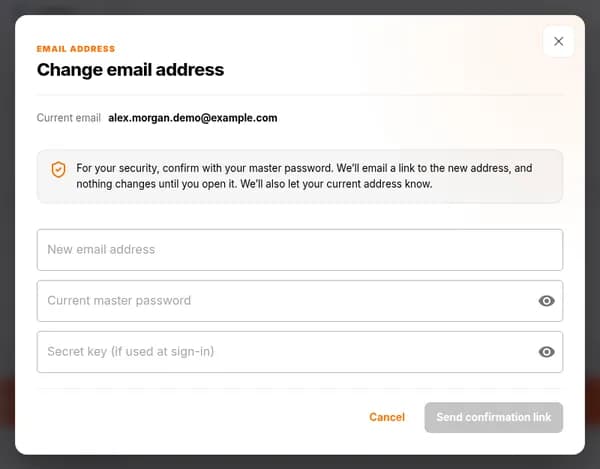
- Look at Current email at the top of the window.
- Make sure it is the address you want to replace.
 Full size
 Full size
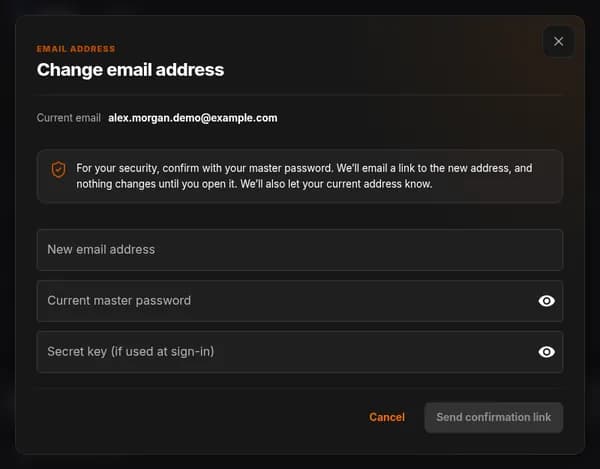
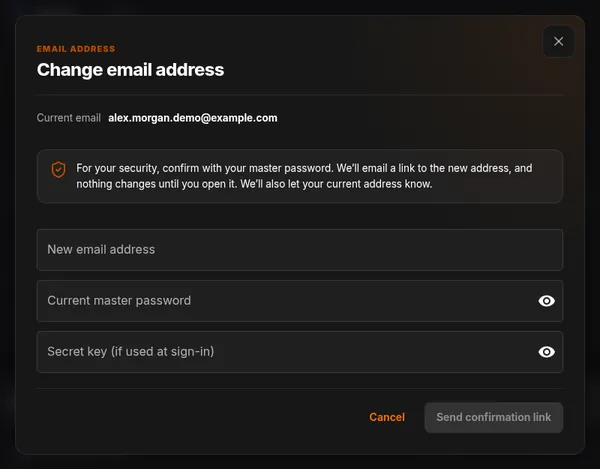
The notice explains that the change waits for your confirmation. Step 3: Enter the new address and your password
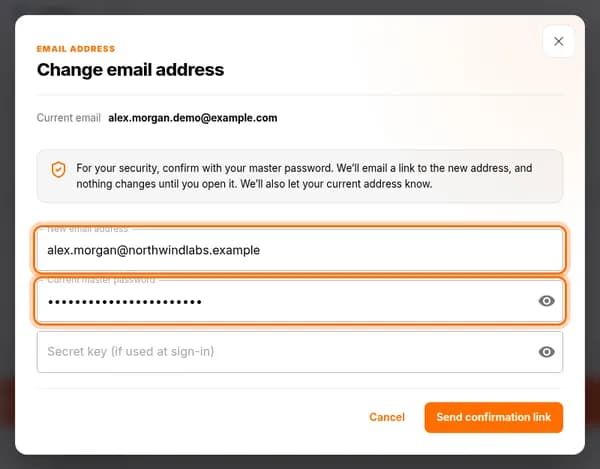
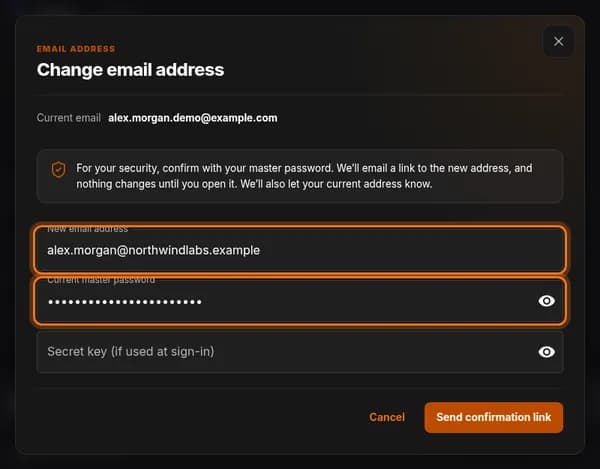
- Click New email address and type the new address. Check every letter.
- Click Current master password and type your master password.
- Only if you sign in with a secret key: type it into Secret key (if used at sign-in).
 Full size
 Full size
The master password proves that it is really you asking for the change. Step 4: Send the confirmation link
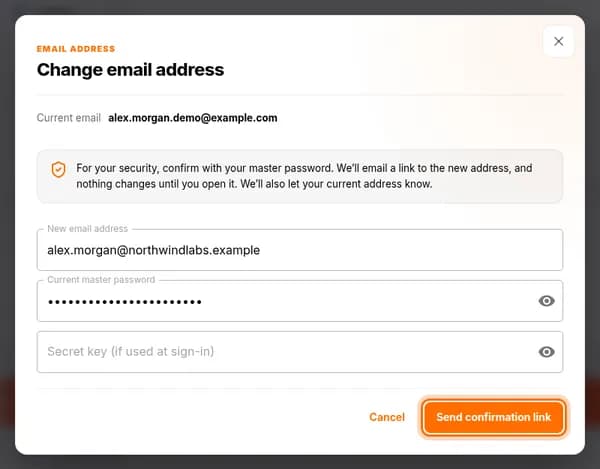
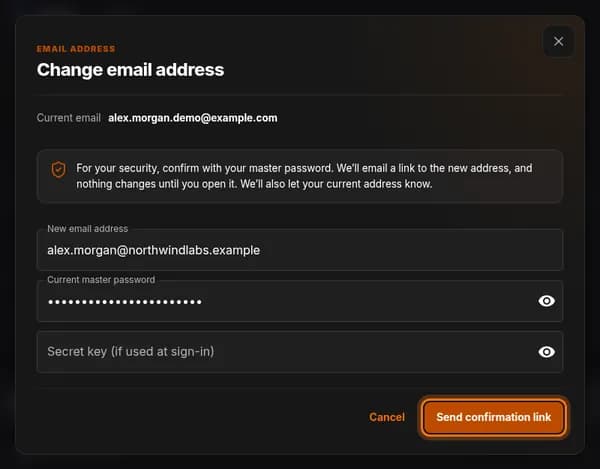
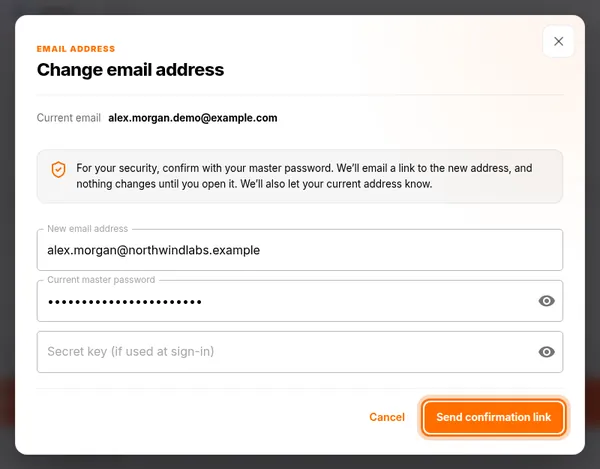
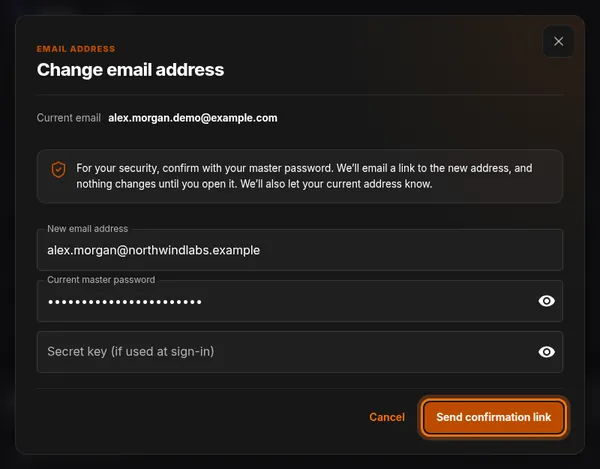
- Click the orange Send confirmation link button.
You should see: HashThat sends an email to the new address, and a notice to your current address.
 Full size
 Full size
The button turns orange once the boxes are filled in. Step 5: Open the link in the new inbox
- Open the inbox of the new email address.
- Find the email from HashThat and open it.
- Click the confirmation link inside it.
You should see: A page that confirms your email address has been changed.
Until you click that link, your account keeps the old address.
Step 6: Sign in with the new address
- Log out of HashThat.
- Sign in with the new email address and your usual master password.
Check it worked
- You can sign in with the new email address.
- In Settings, the Email Address window shows the new address under Current email.
If something looks different
The confirmation email did not arrive
Wait a few minutes, then check the spam or junk folder of the new inbox. If it is not there, repeat the steps and check the spelling of the new address carefully.
I typed the wrong new address
Nothing has changed yet, because the link was never opened. Start again from step 1 with the right address.
I got a notice about an email change I did not ask for
Someone who is signed in to your account asked for it. Sign in, open Manage Logins & Sessions, click Sign out everywhere else, and change your master password.
Tip: Changing your email does not change your master password. Your passwords, notes and links stay exactly as they are.