Create a vault recovery file
Download a small file today that can get you back into your vault if you ever forget your master password.
- 4 steps
- About 3 minutes
Before you start
- Security Pro.
- Your current master password, and your secret key if you use one. You need to make this file while you still know them.
- A safe place outside HashThat to keep the file, such as a USB stick.
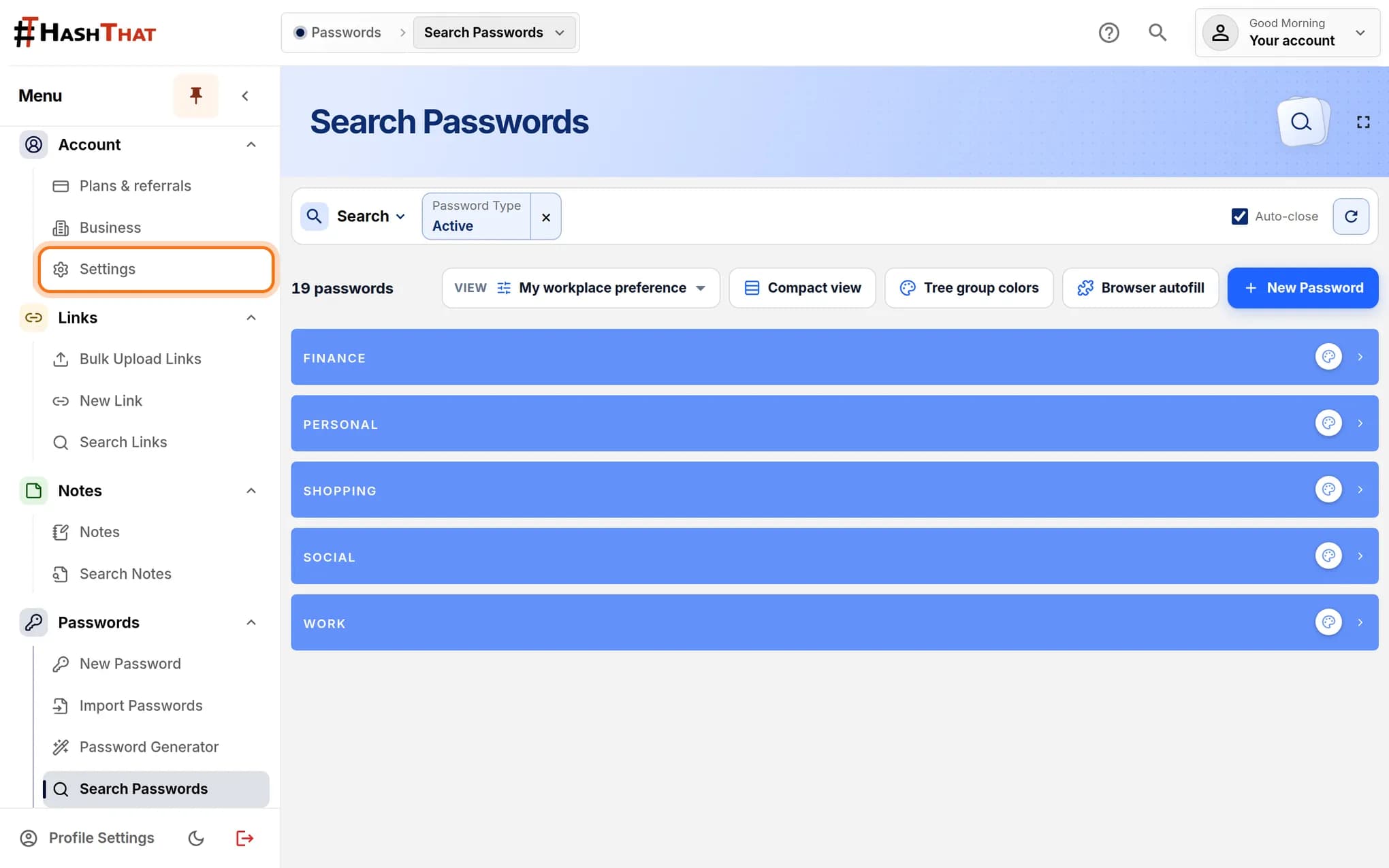
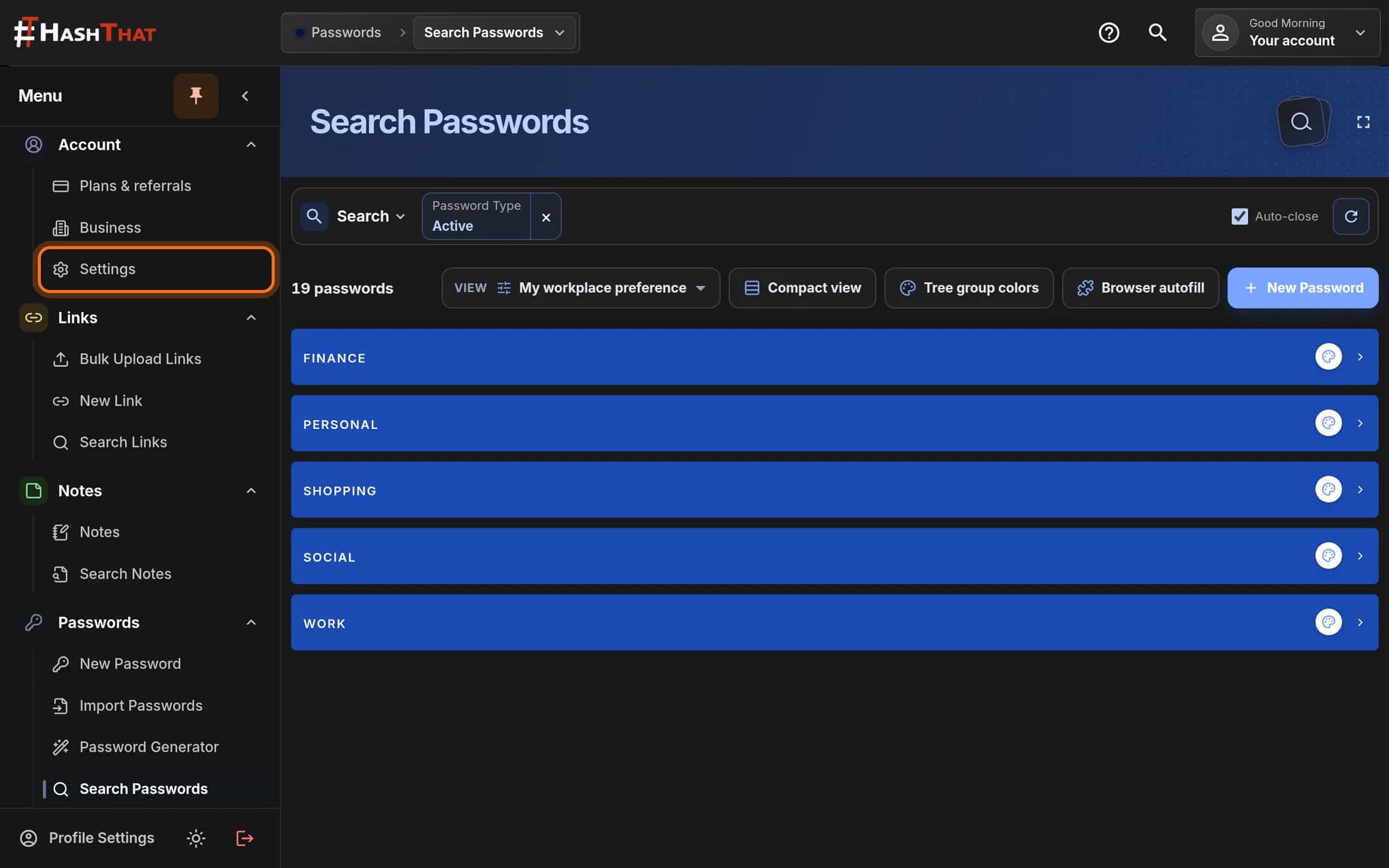
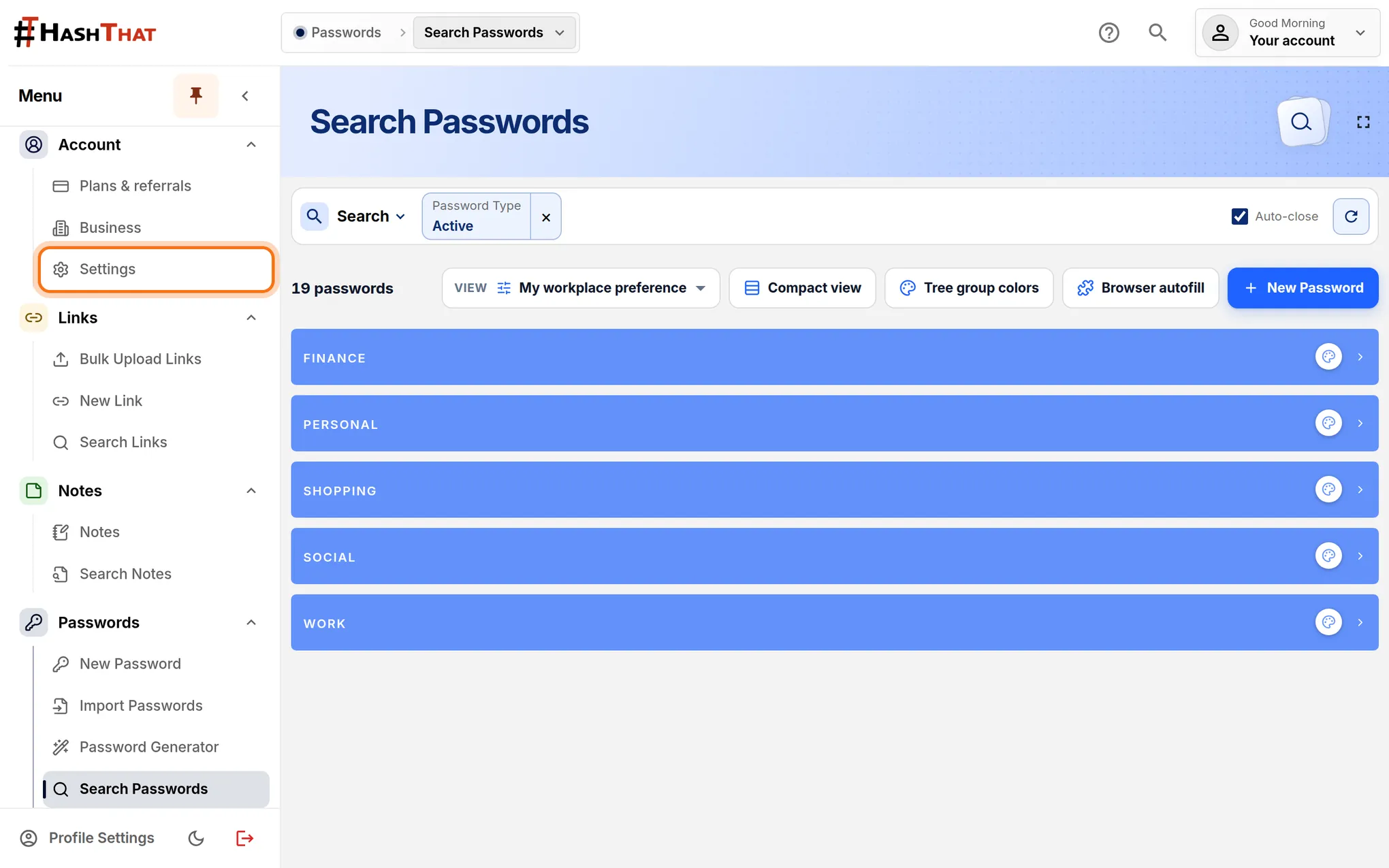
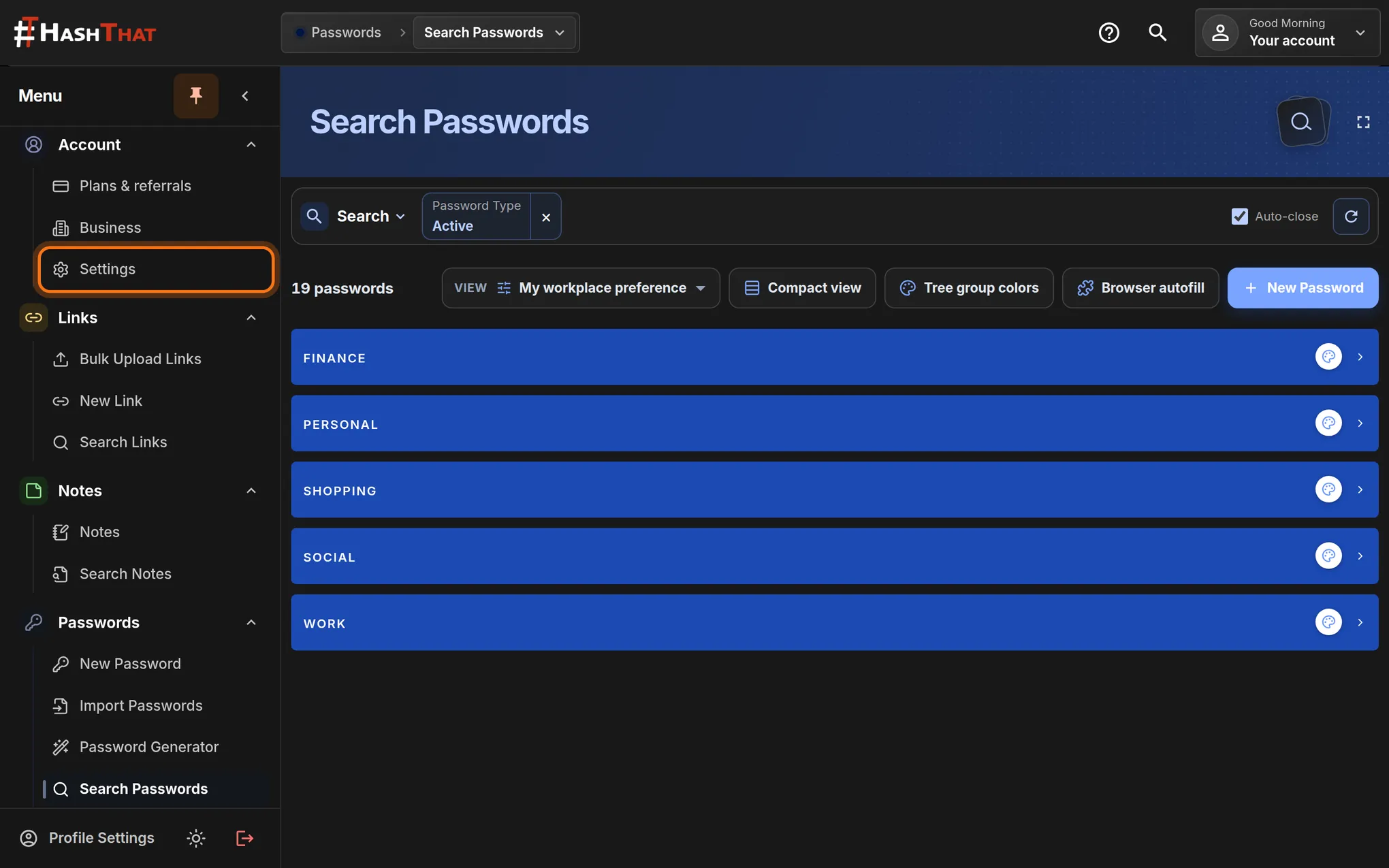
Step 1: Open Settings
- Look at the menu on the left.
- Under Account, click Settings.
You should see: A page titled Account & Security.
 Full size
 Full size
Settings is the third item under Account. Step 2: Click Generate File
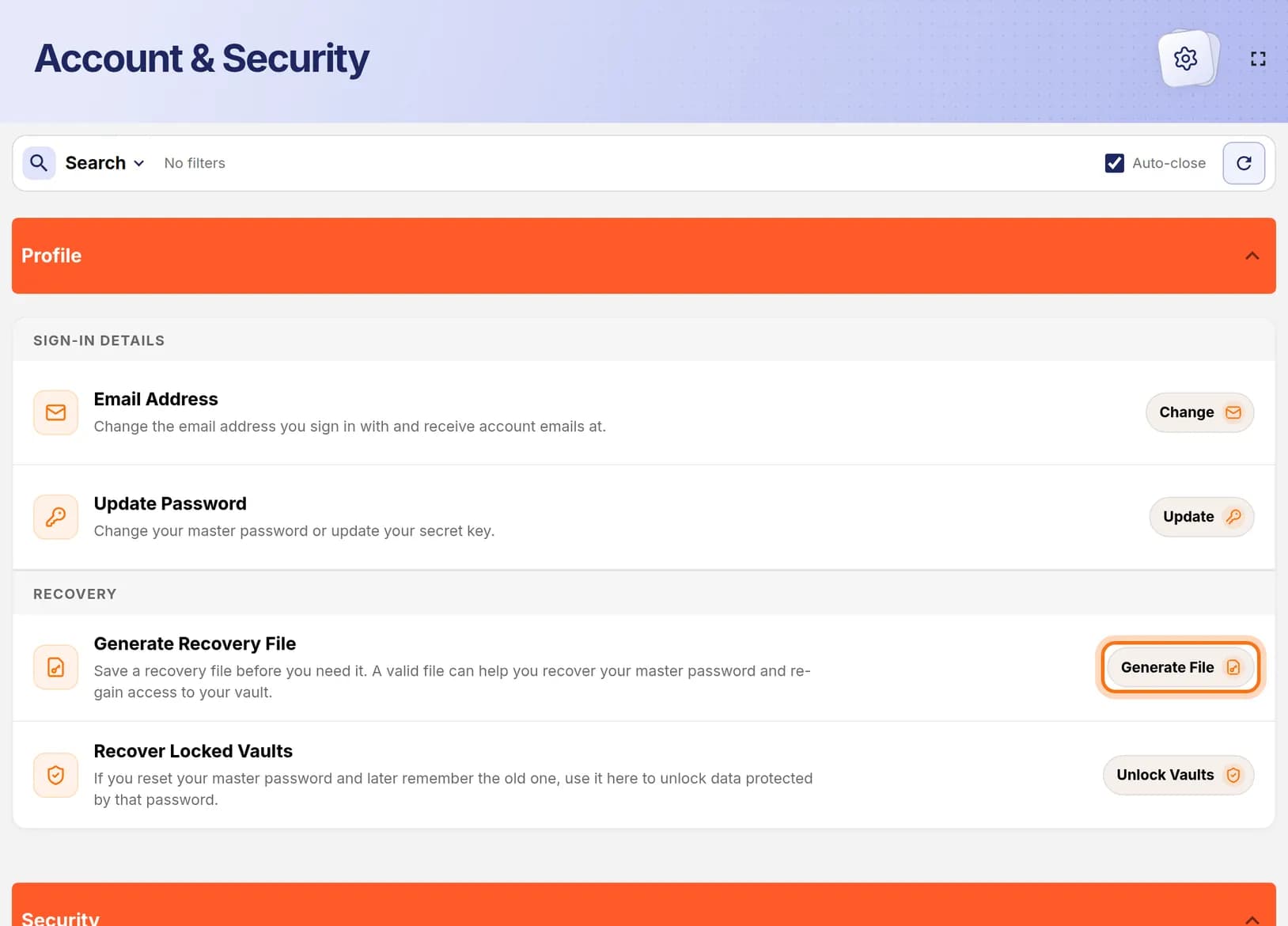
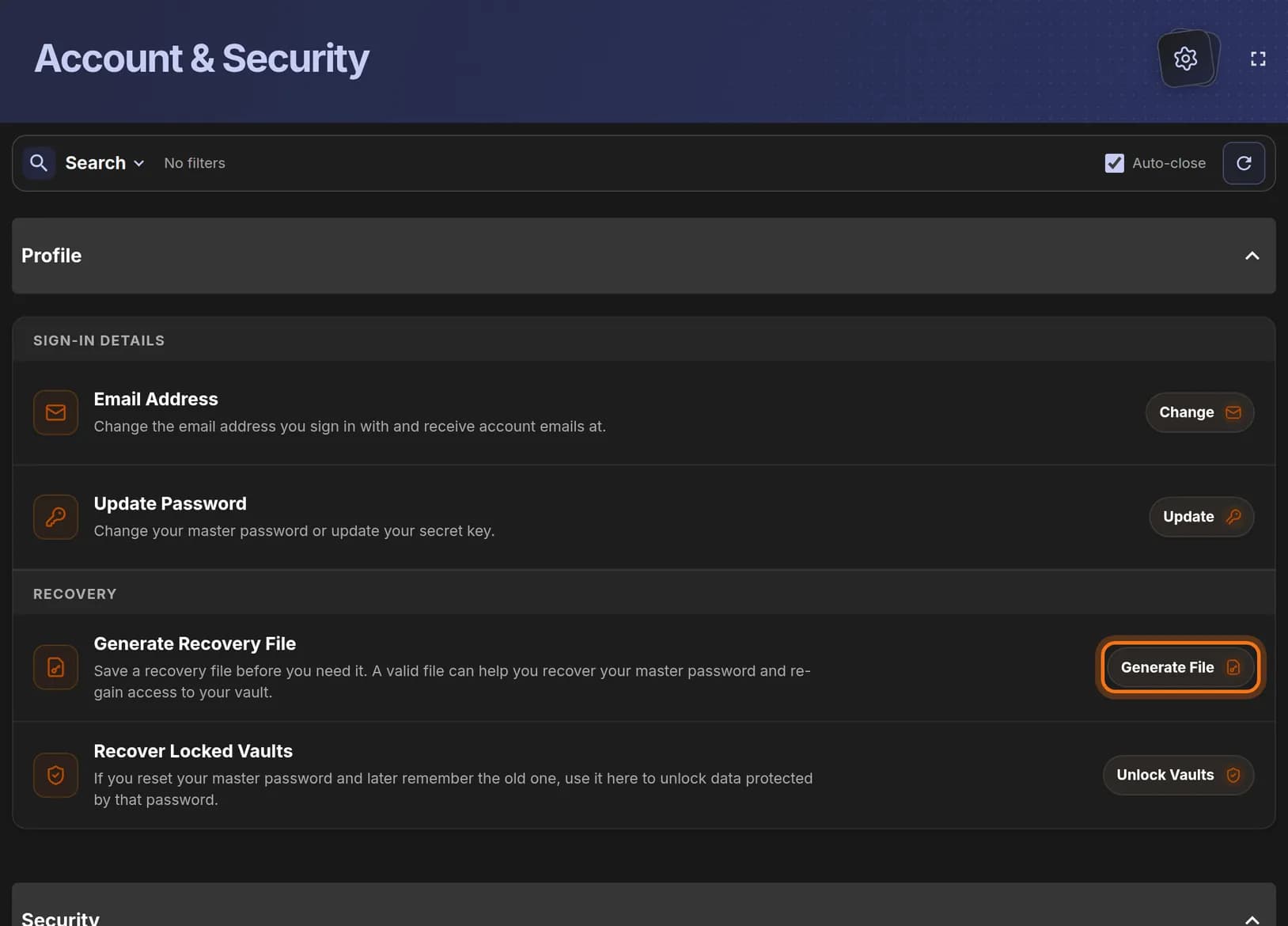
- Stay in the first section, Profile.
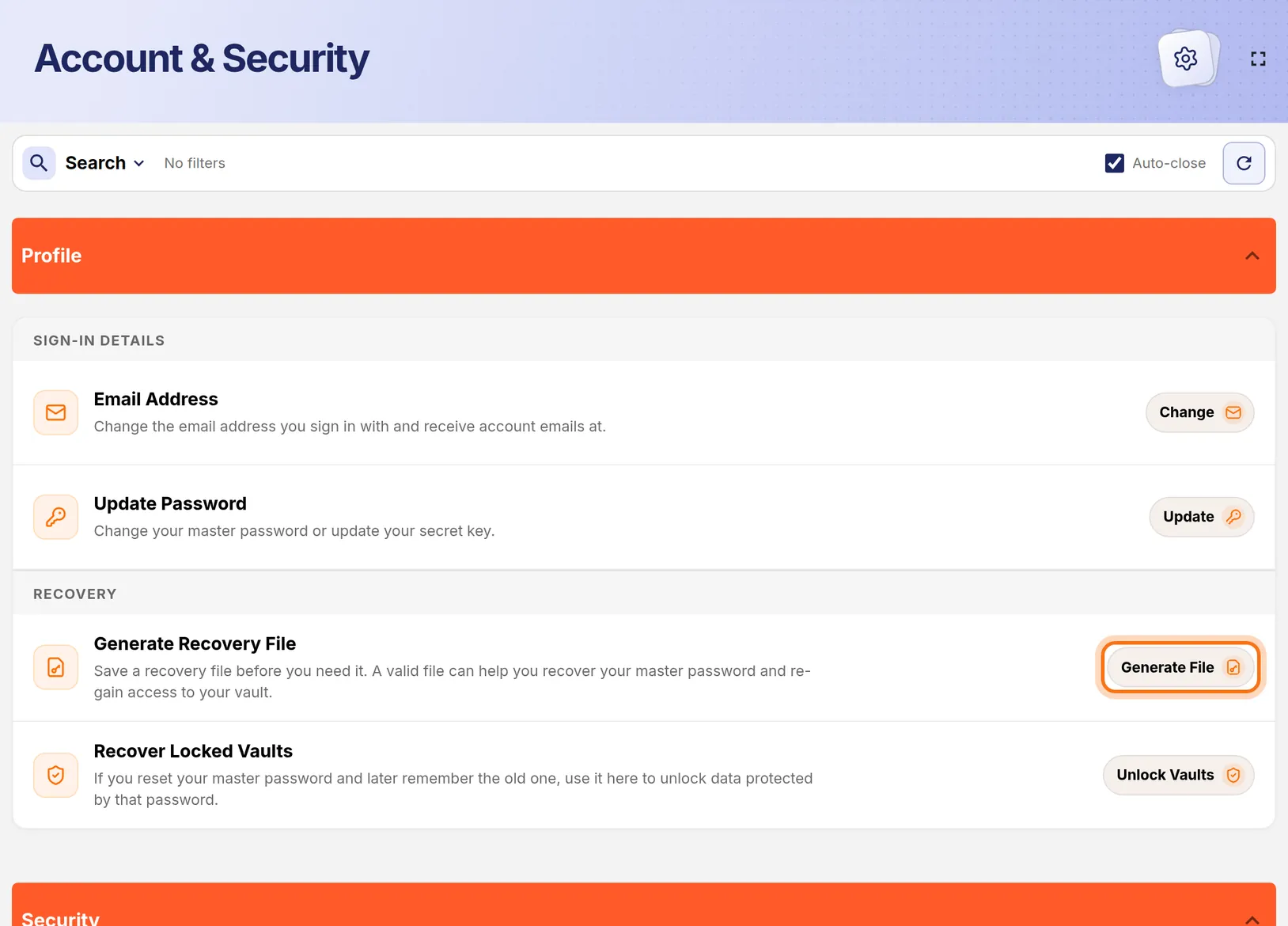
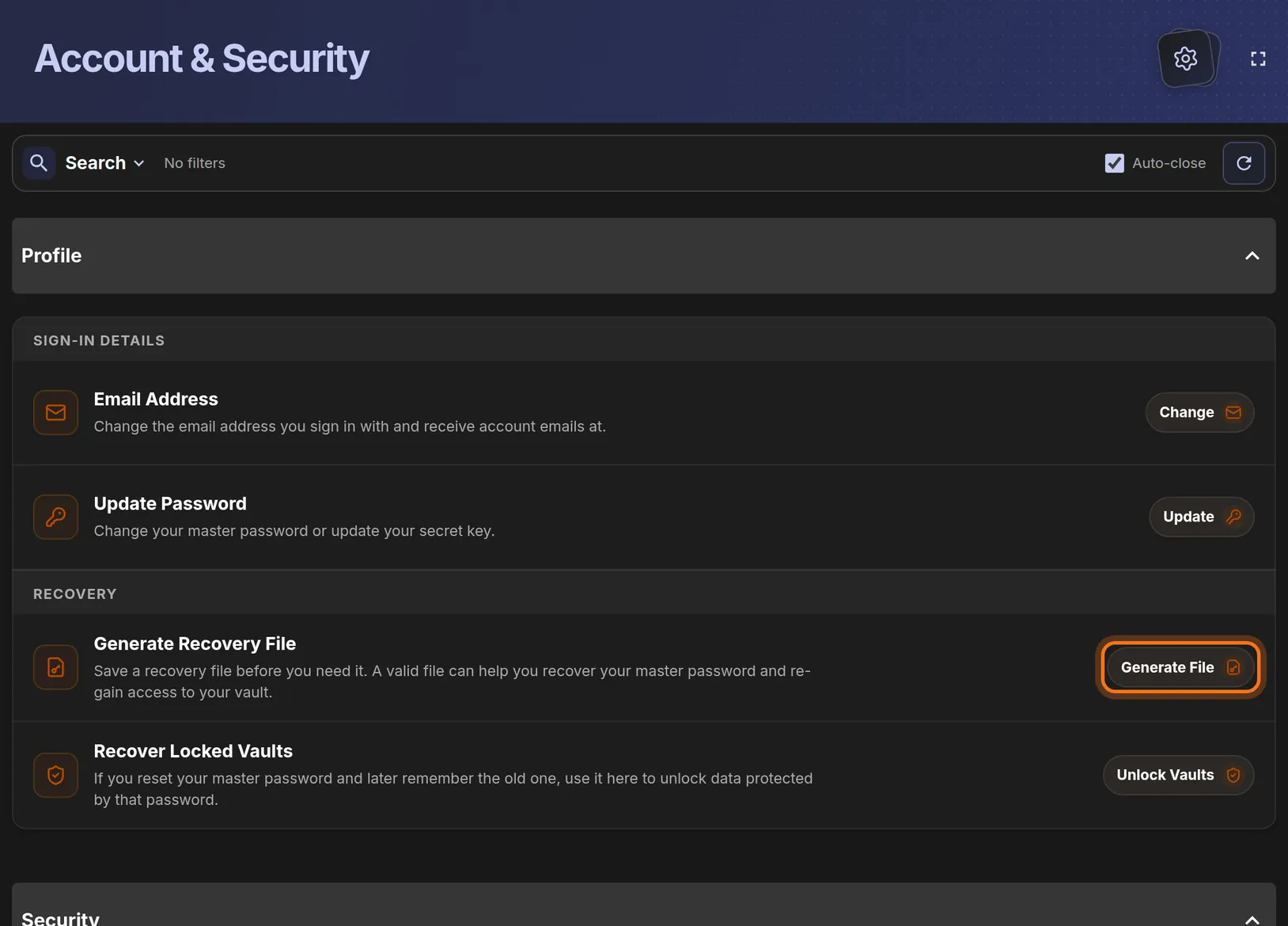
- Under Recovery, find the row Generate Recovery File.
- Click Generate File at the right end of that row.
You should see: A window titled Generate Recovery File.
 Full size
 Full size
The row is in the Profile section, under Recovery. Step 3: Enter your password and create the file
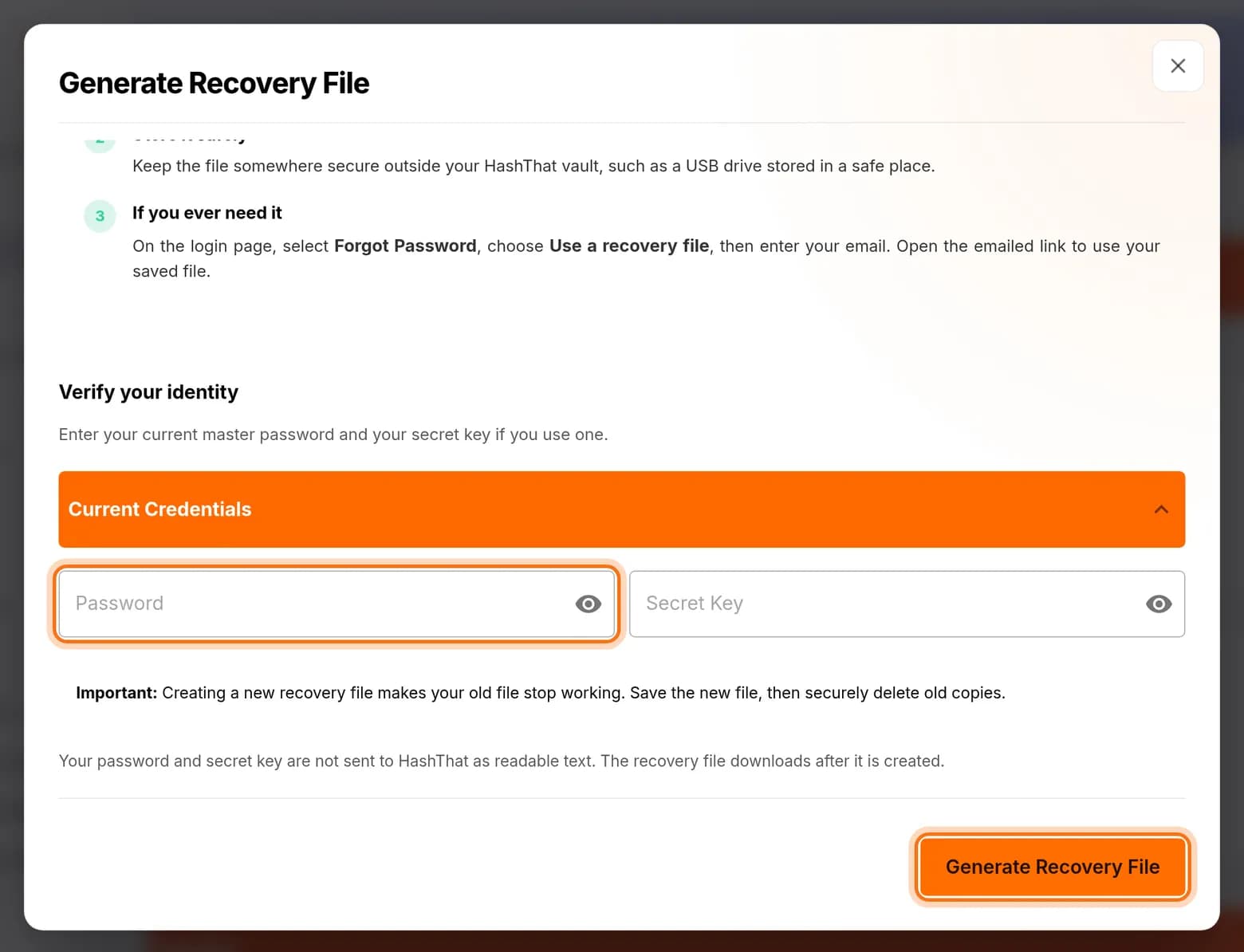
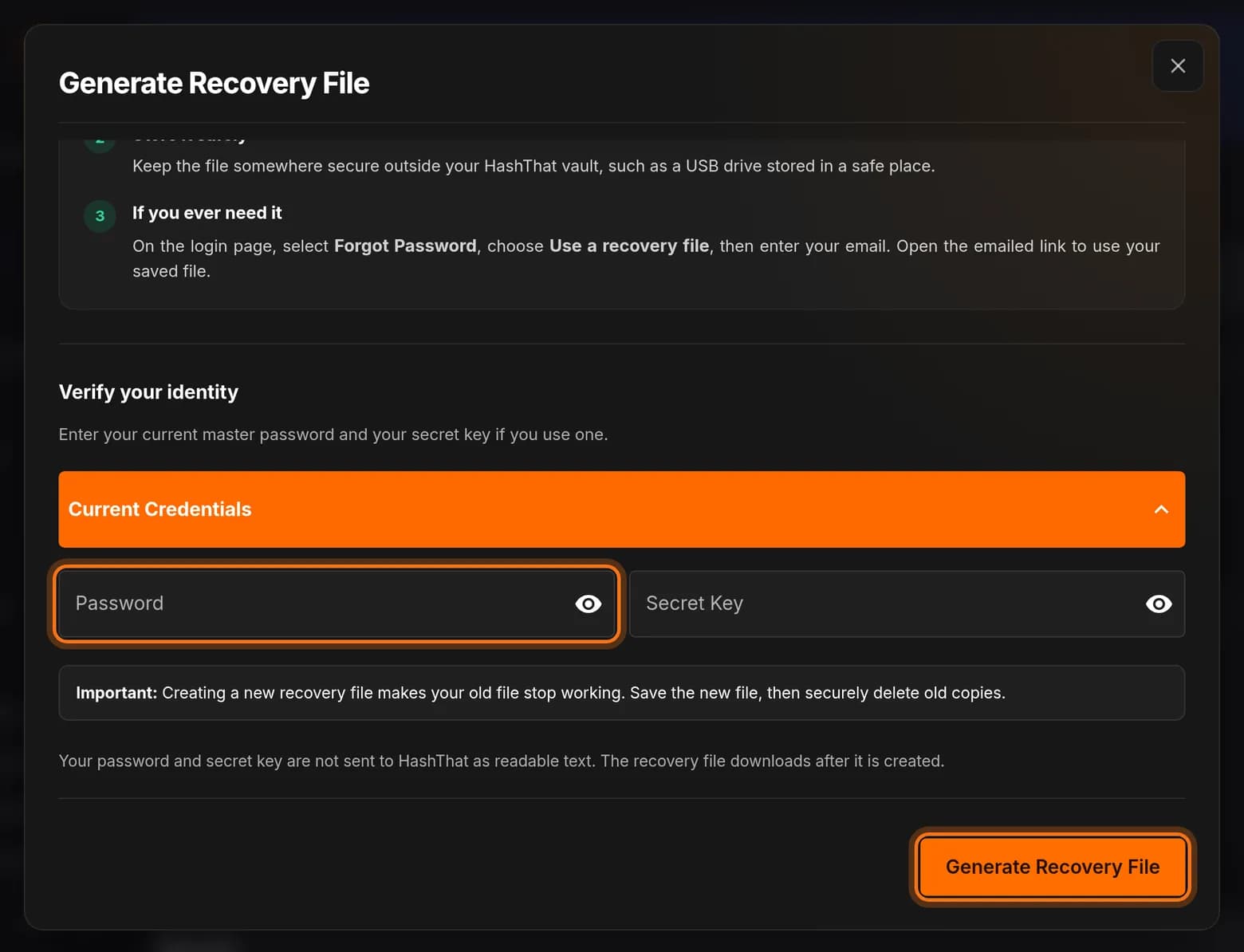
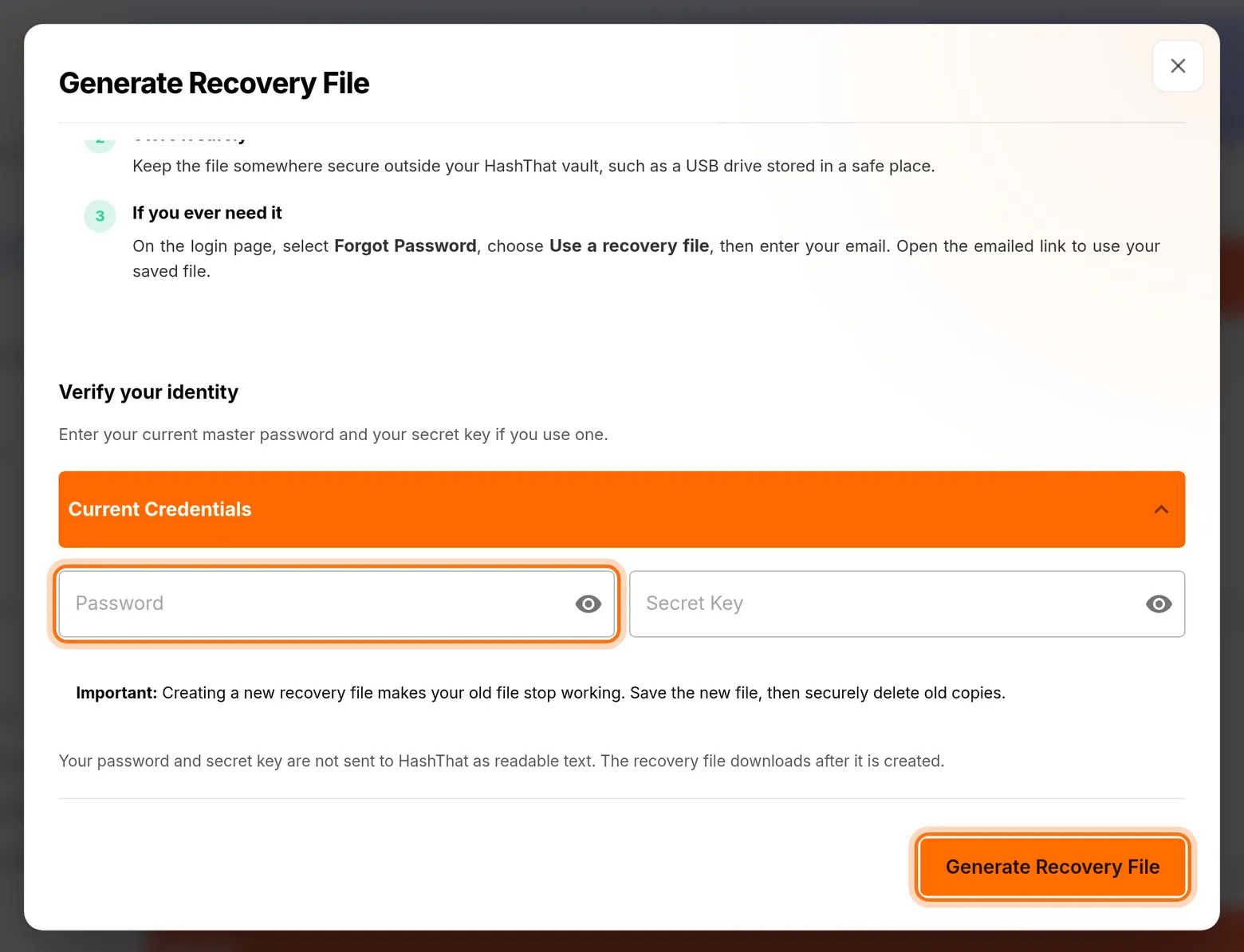
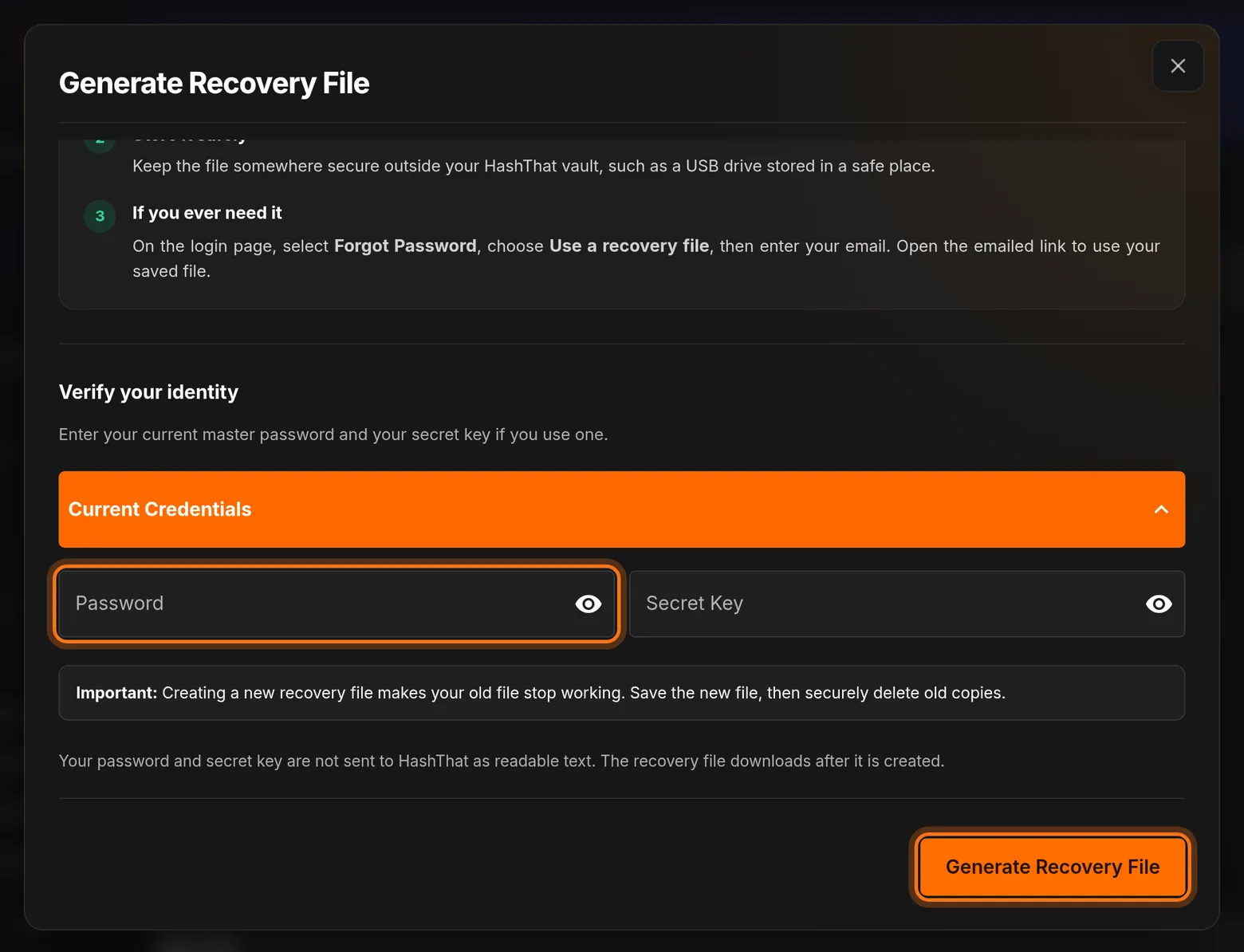
- Scroll down inside the window to Verify your identity.
- Click Password and type your current master password.
- If you use a secret key, type it in Secret Key. Otherwise leave it empty.
- Click the orange Generate Recovery File button.
You should see: Your browser downloads a file named HashThat-Recovery.htrecovery.
 Full size
 Full size
Your password and secret key are not sent to HashThat as readable text. Step 4: Move the file somewhere safe
- Open your Downloads folder and find HashThat-Recovery.htrecovery.
- Move it to a safe place outside HashThat, such as a USB stick that you keep locked away.
- Write the date on a label, so you know which file is the newest.
Do not store the file as a note or attachment inside HashThat. If you are locked out, you cannot reach it there.
Check it worked
- The file HashThat-Recovery.htrecovery is in the safe place you chose.
- It is no longer in your Downloads folder.
If something looks different
I already have an older recovery file
Creating a new file makes the old one stop working. Keep the new file and delete the old copies.
How do I use the file if I forget my password?
On the sign-in page, choose Forgot Password, then Use a recovery file, and enter your email. HashThat emails you a link. Open it and select your saved file.
Nothing was downloaded
Check that the password is your current master password, and look for a download notice in your browser that needs your approval.
Tip: Create a new recovery file every time you change your master password. The old file stops working after the change.