Review your account activity
See a dated list of sign-ins, password views and changes on your account, and search it when something looks unusual.
- 5 steps
- About 3 minutes
Before you start
- You are signed in to HashThat.
- Activity tracking is turned on in Settings. It is on unless you switched it off.
Step 1: Open the activity list
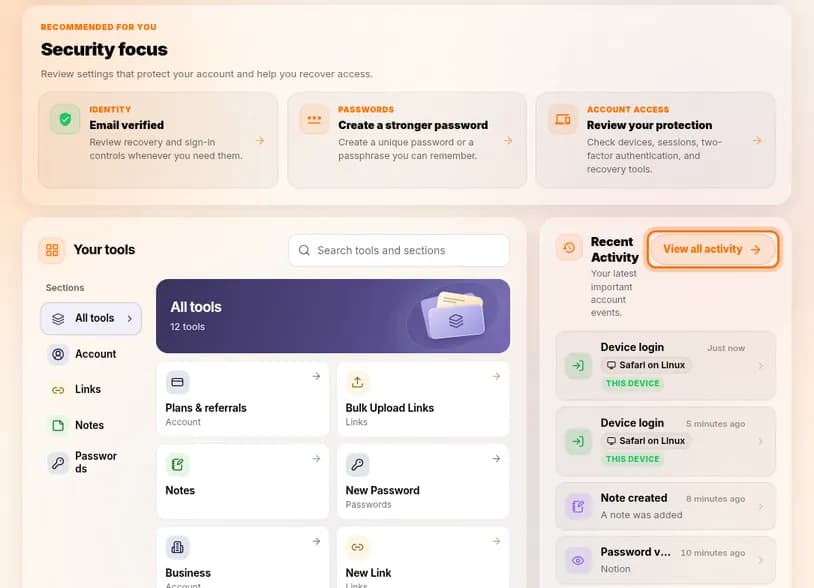
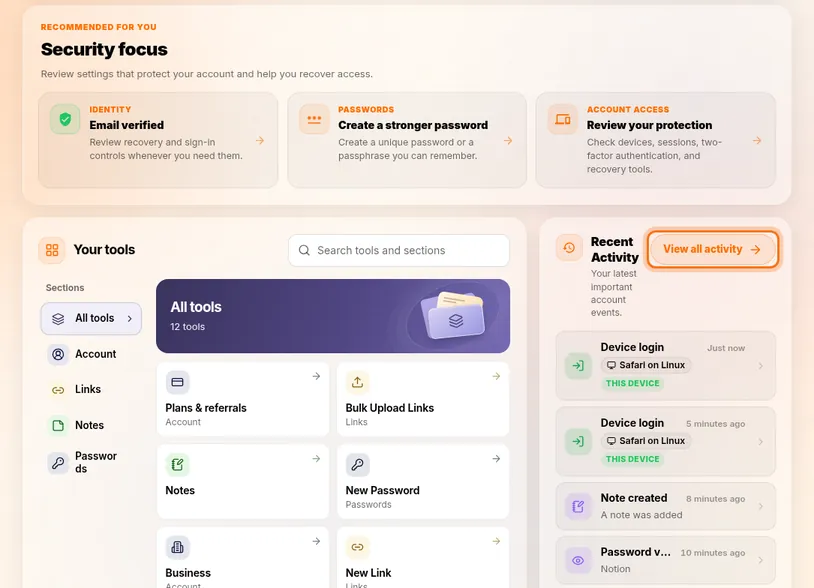
- Click the HashThat logo at the top left to go to your home page.
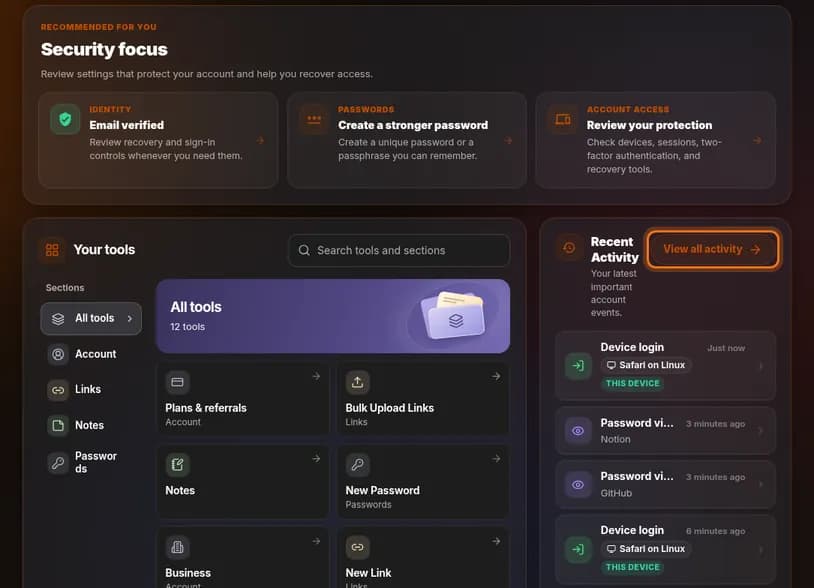
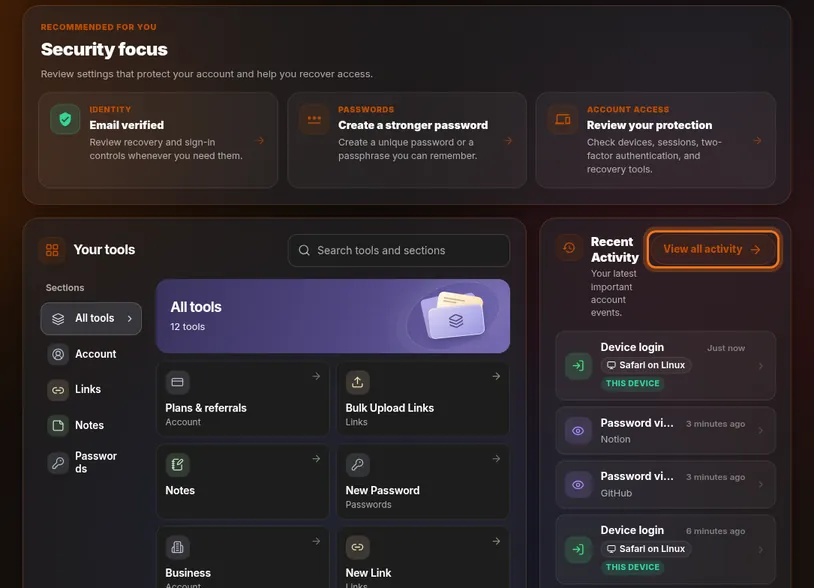
- Scroll down to the panel called Recent Activity.
- Click View all activity.
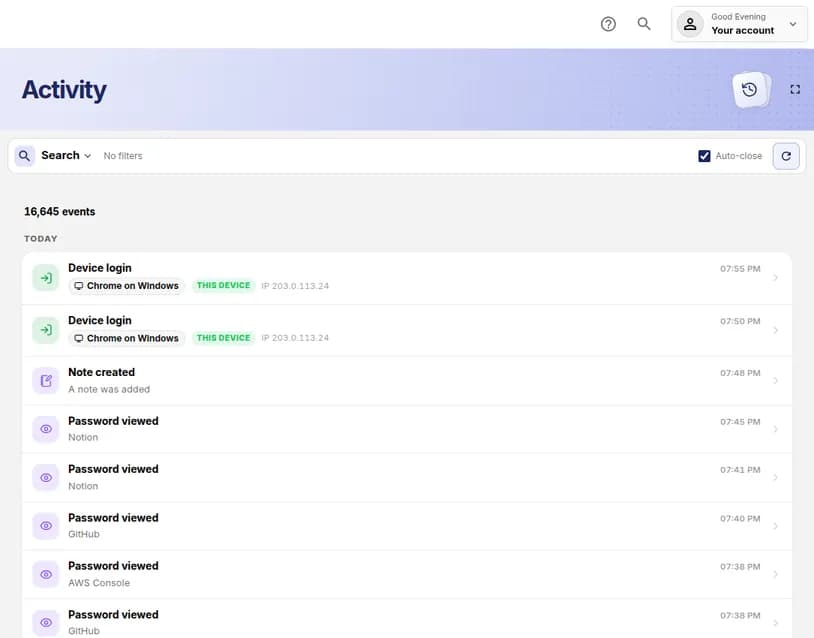
You should see: A page titled Activity.
 Full size
 Full size
The panel shows your latest events. The button opens the full list. Step 2: Read the list
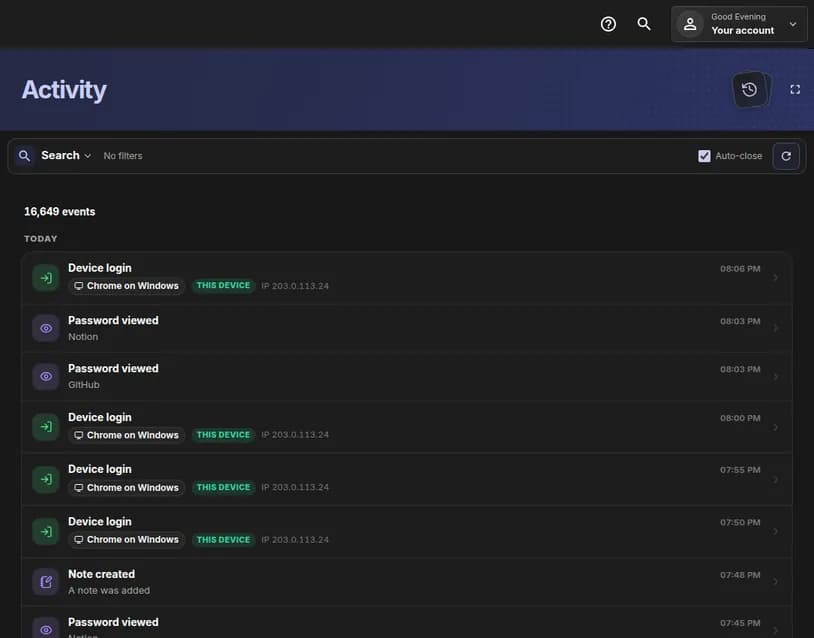
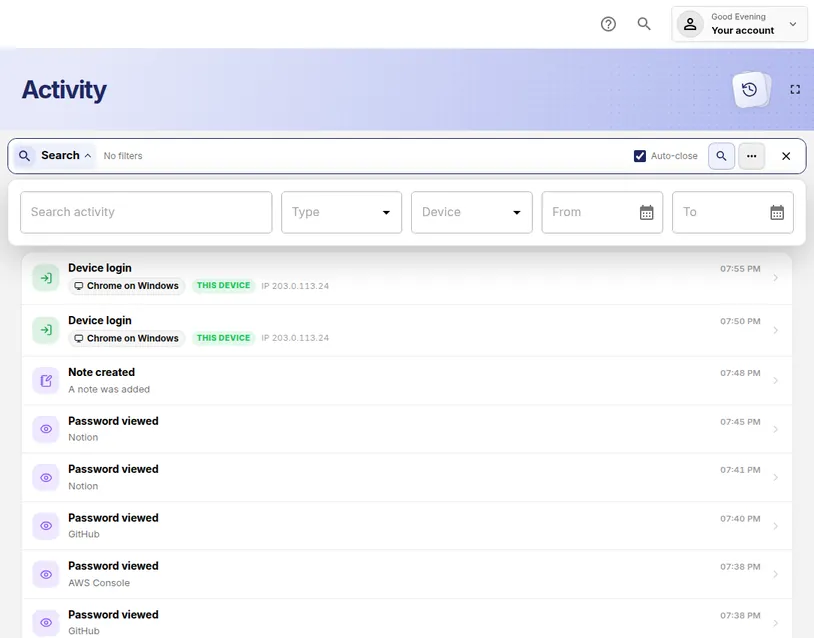
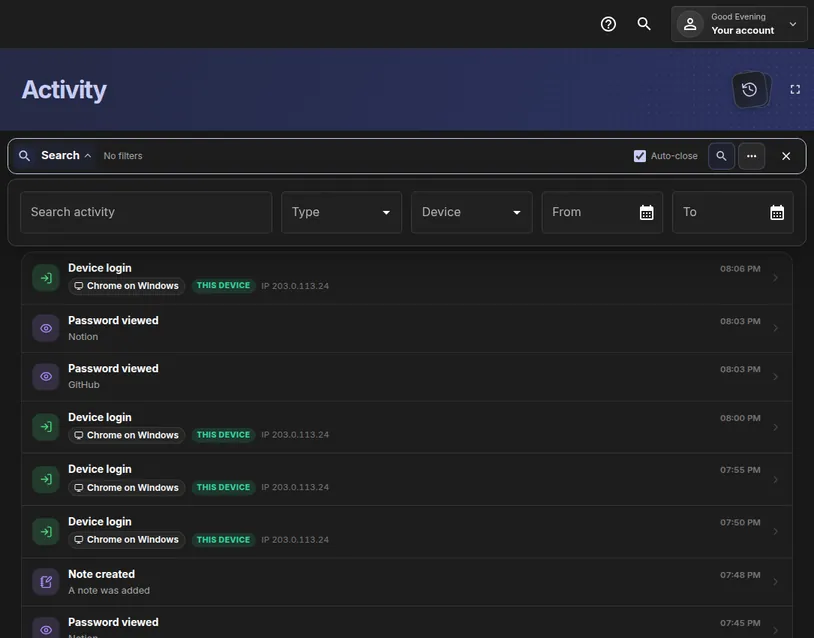
- Events are grouped by day, starting with Today. The newest is at the top.
- Each line shows what happened, such as Device login or Password viewed, and the time on the right.
- For sign-ins, the line also names the device. This device marks the one you are using.
 Full size
 Full size
The number at the top is the total of recorded events. The list shows that something was viewed or changed. It never shows the password or the note text itself.
Step 3: Search for one kind of event
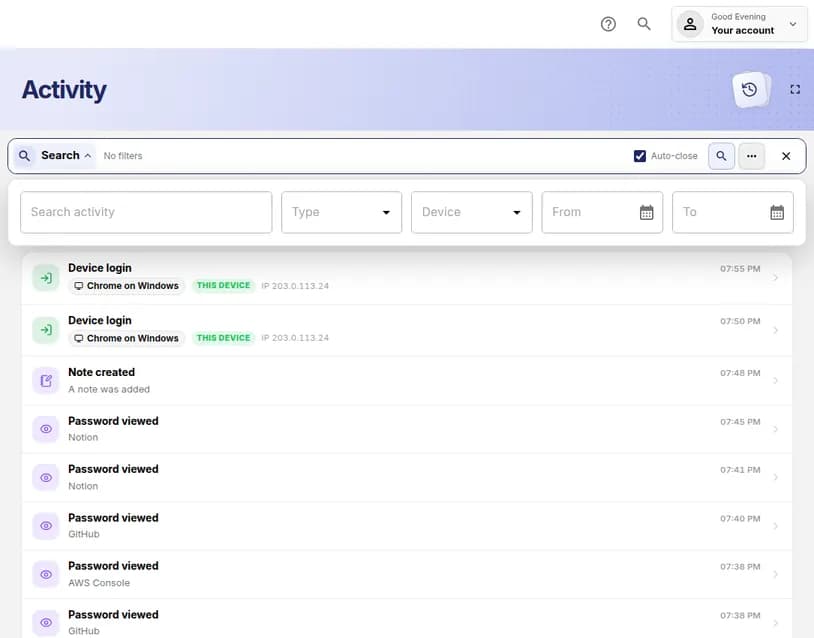
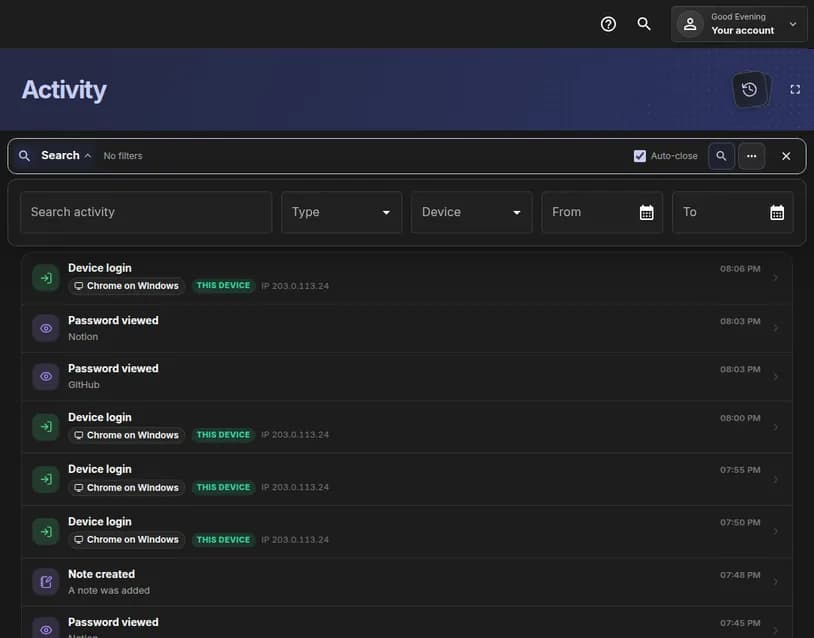
- Click Search at the top left of the list.
- Use Type to pick a kind of event, or Device to pick one device.
- Use From and To to limit the dates, then press Enter.
 Full size
 Full size
Search activity also takes free text, such as the name of a login. Step 4: Look further back
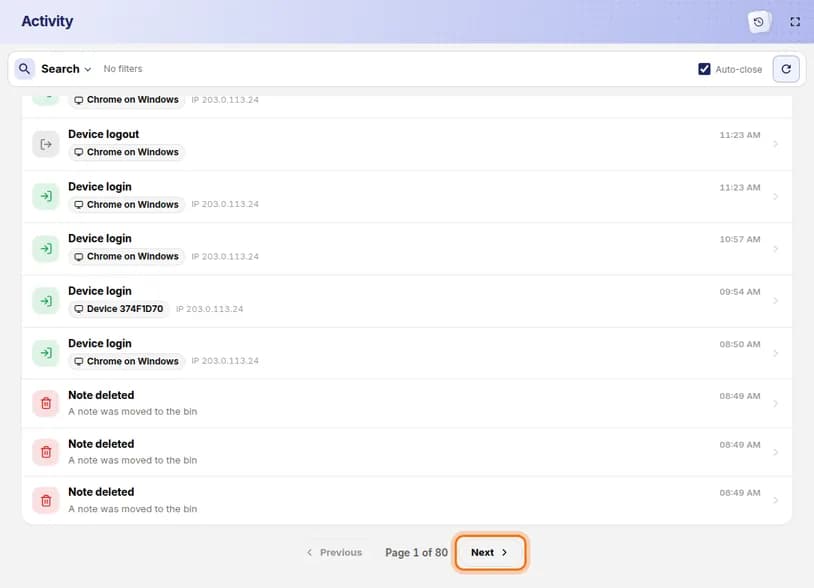
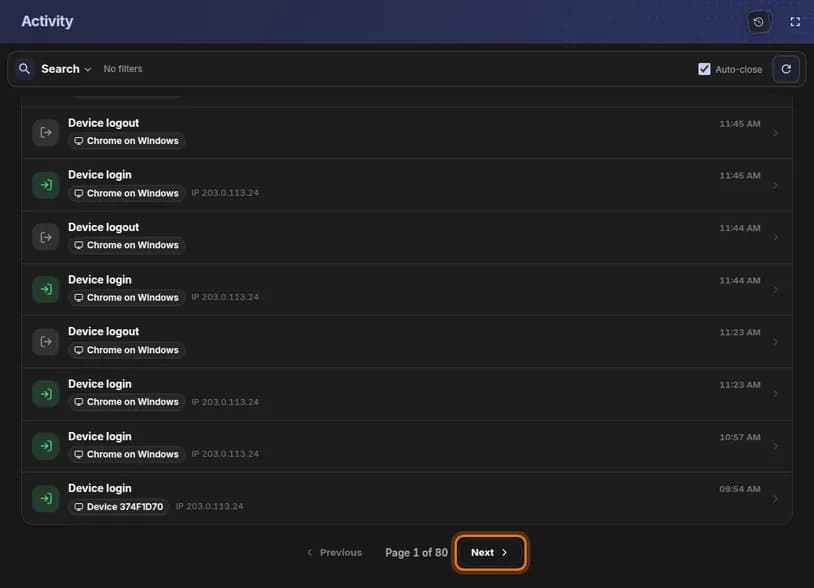
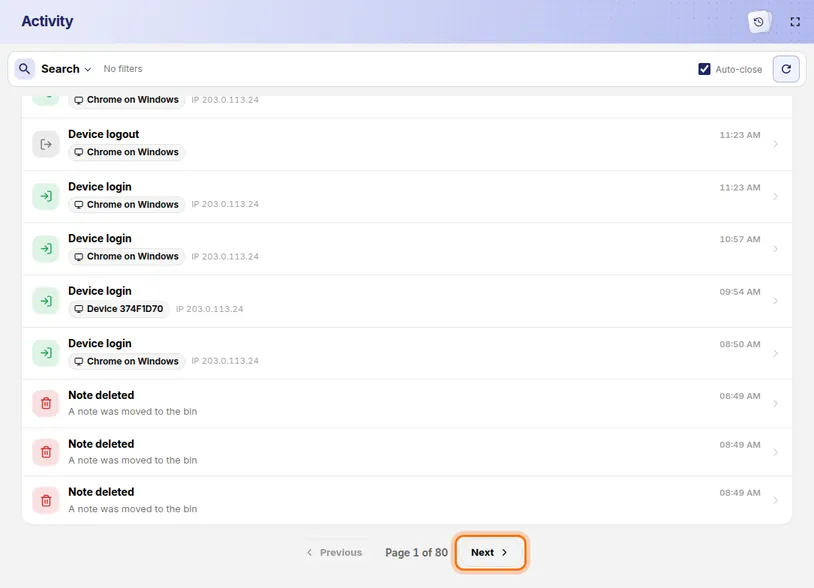
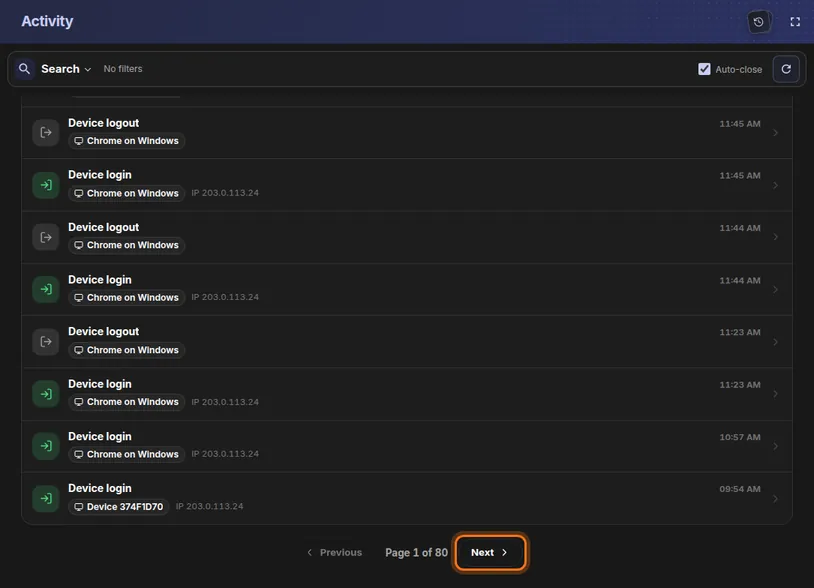
- Scroll to the bottom of the page.
- Click Next to see older events, and Previous to come back.
 Full size
 Full size
Each page holds 25 events. Step 5: Act on anything you do not recognise
- A Device login you did not make is the most important thing to look for.
- If you find one, open Settings, then Manage Logins & Sessions, and sign that device out.
The tutorial See where you are signed in and sign out another device covers this.


Check it worked
- The top of the list shows your own sign-in from a few minutes ago.
- You recognise the devices named on the Device login lines.
If something looks different
There is no View all activity button
Activity tracking is switched off. Open Settings, scroll to Alerts and activity, and turn on Activity tracking. History is recorded from that moment on.
A device has a strange name, such as Device followed by letters and numbers
That is a device HashThat could not name by itself. Open Manage Logins & Sessions in Settings, find it, and use Rename device if it is yours.
My search shows nothing
Clear the filters one at a time with the × next to each, starting with the dates.
Tip: For one login only, use the clock icon on its card instead. It shows every time that single password was viewed, filled or changed.