Download a QR code for a short link
Turn any of your short links into a QR code picture that you can print on a poster, a menu or a business card.
- 5 steps
- About 2 minutes
Before you start
- You are signed in to HashThat.
- You have at least one short link. If not, follow Create your first short link first.
Step 1: Open your links
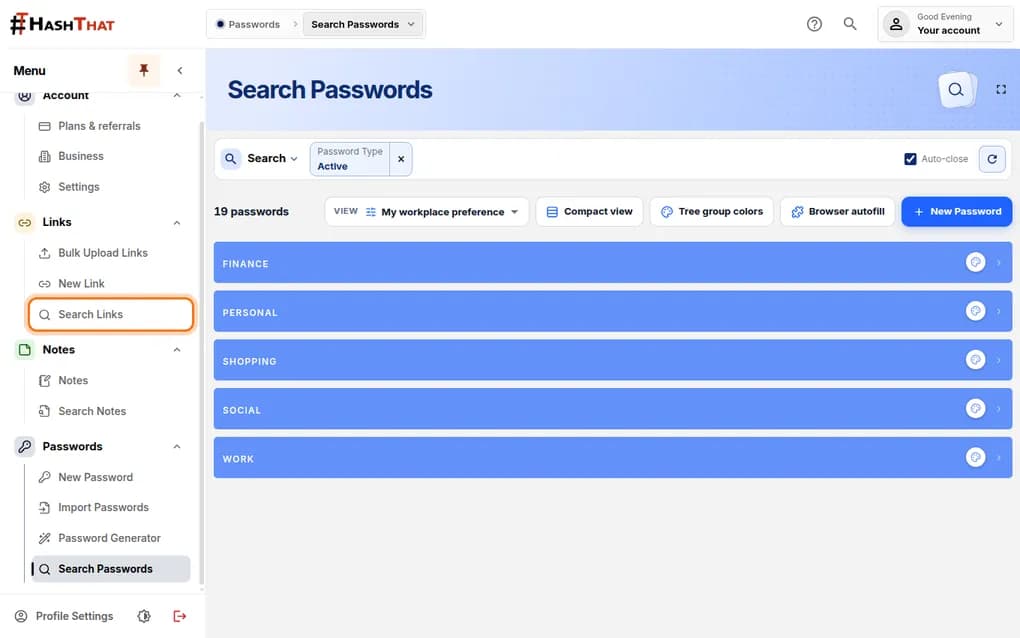
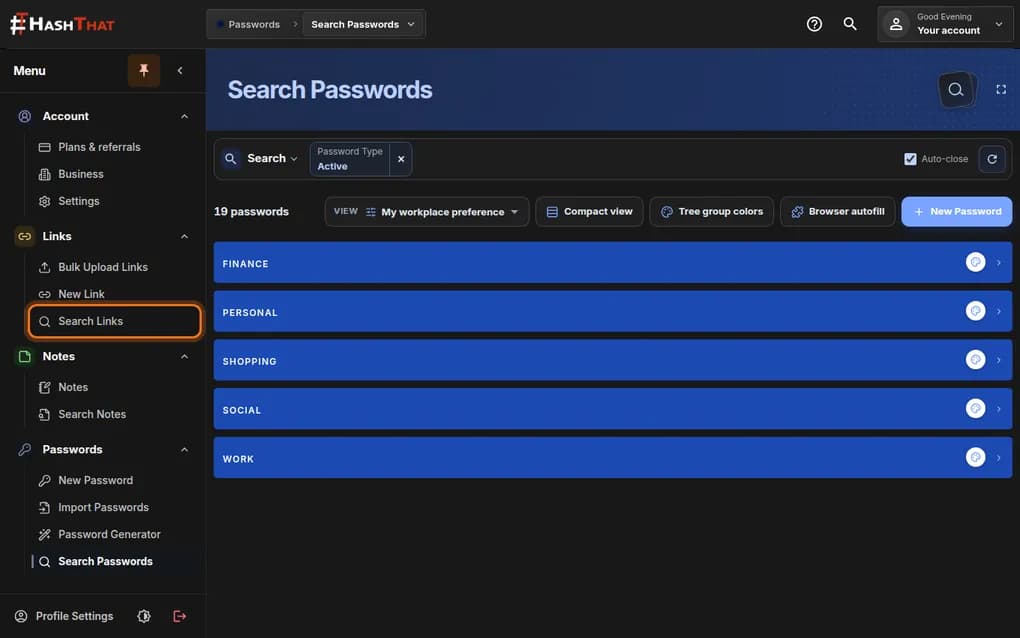
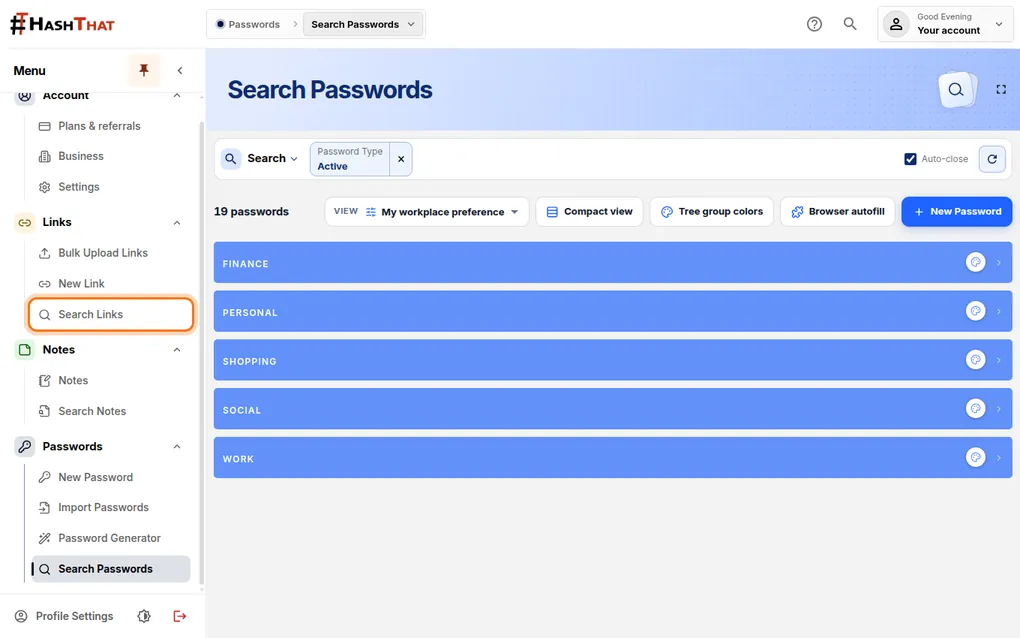
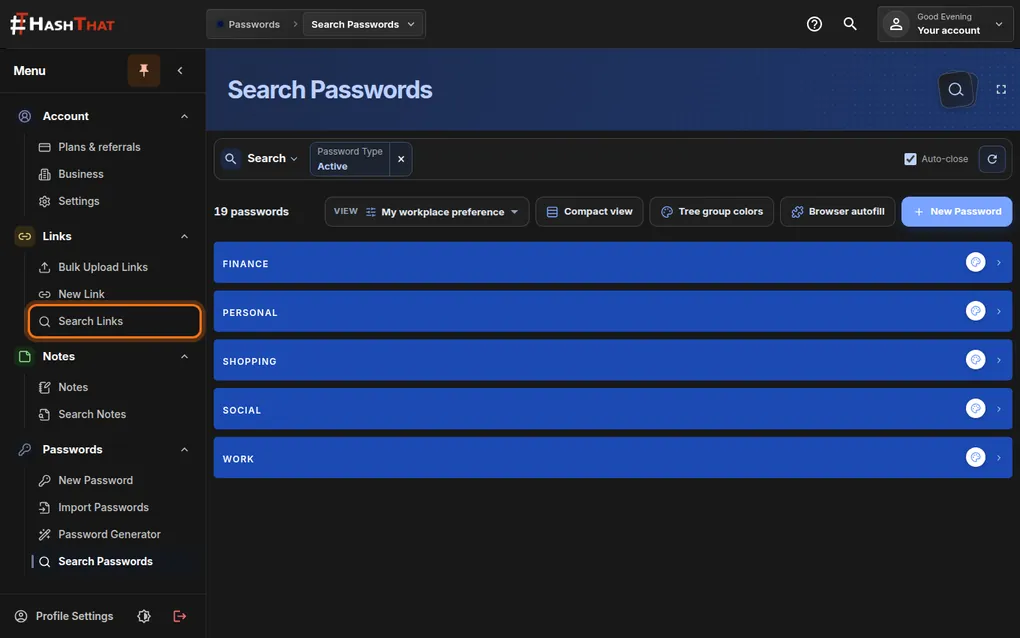
- Look at the menu on the left side of the screen.
- Under Links, click Search Links.
You should see: A page titled Search Links with a card for each link.
 Full size
 Full size
Search Links lists every short link you have made. Step 2: Find the link’s card
- Links are grouped by project. Click a coloured bar to open that project.
- Find the card whose Short URL you want as a QR code.
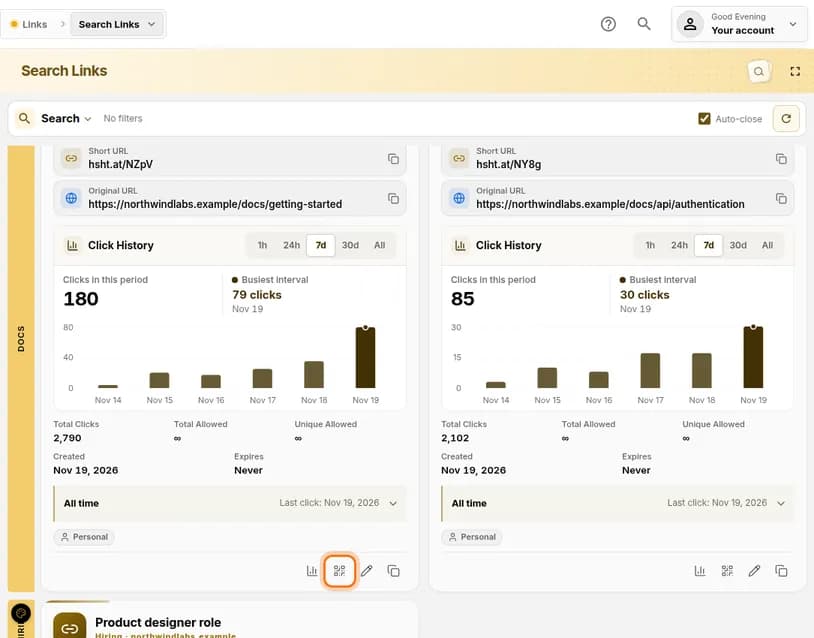
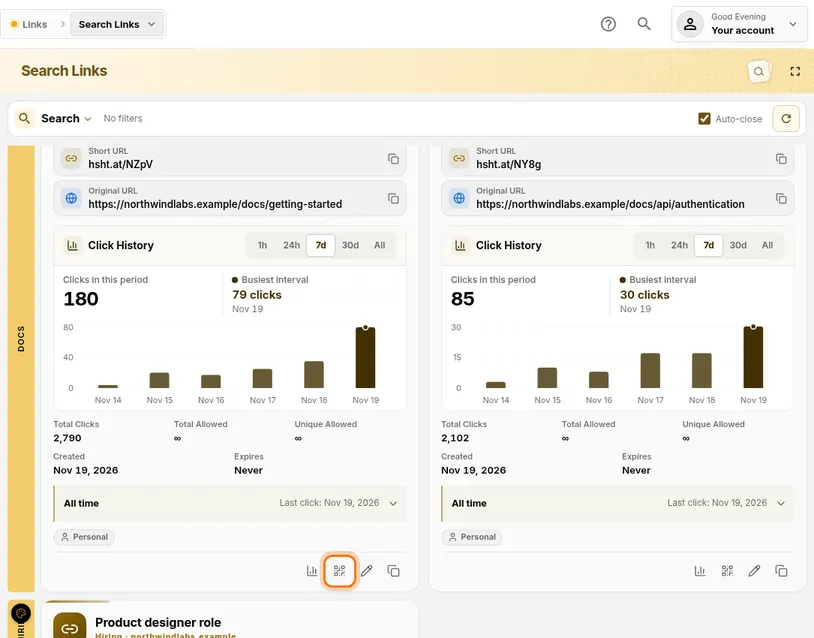
- Scroll down to the row of small icons at the bottom of that card.
Many links? Click Search at the top, type a word from the description, and press Enter.
Step 3: Download the QR code
- In the row of icons, click the QR code icon. It is the second one and looks like four small squares.
You should see: A short message that says QR code downloaded. Your browser saves a picture file named qr- followed by the link’s short code.
 Full size
 Full size
The icons are, from left to right: analytics, QR code, edit, copy. Step 4: Open the picture
- Open your computer’s Downloads folder.
- Double-click the file that starts with qr-.
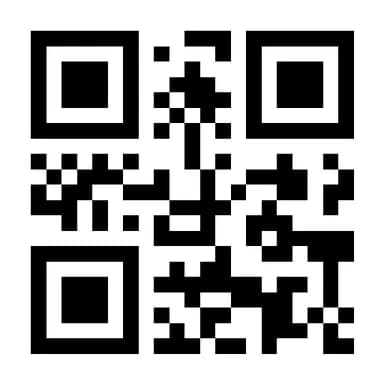
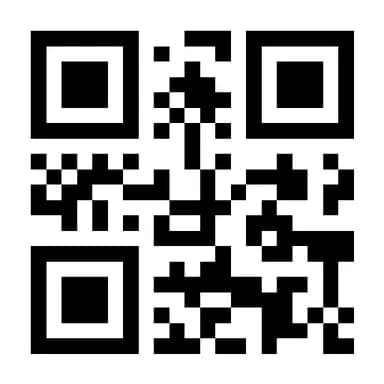
You should see: A black and white square pattern.
 Full size
 Full size
This picture is the QR code. It leads to your short link. Step 5: Test it with a phone
- Open the camera app on a phone.
- Point it at the QR code on your screen and hold still for a second.
- Tap the link that appears.
You should see: The phone opens the same page as your short link.



Check it worked
- A phone camera reads the code and opens the right page.
- After the scan, the link’s card shows one more click under Click History.
If something looks different
Nothing was downloaded
Your browser may have blocked the download. Look for a download icon or a warning at the top of the browser window and allow downloads from HashThat, then click the QR code icon again.
The phone does not react to the code
Make the picture larger on screen, raise the screen brightness and hold the phone about 20 cm away. On paper, print the code at least 2 cm wide and keep a white border around it.
The code opens the wrong page
The QR code always follows the short link. Click the pencil icon on the card, correct Website address and save. You do not need a new QR code.
Tip: Because the code points to the short link, you can change where it leads later without reprinting anything. Edit the link and every printed code follows.