Protect a short link with a password, an end date and a click limit
Decide who can open a short link and for how long: ask for a password, stop it on a set date, or stop it after a number of clicks.
- 7 steps
- About 4 minutes
Before you start
- You are signed in to HashThat.
- The short link already exists. If not, follow Create your first short link first.
Step 1: Open the link for editing
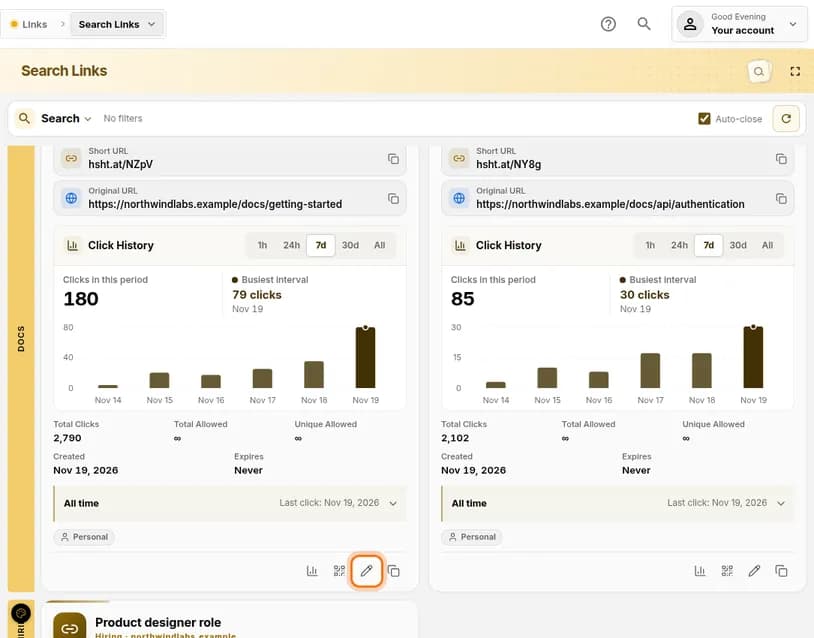
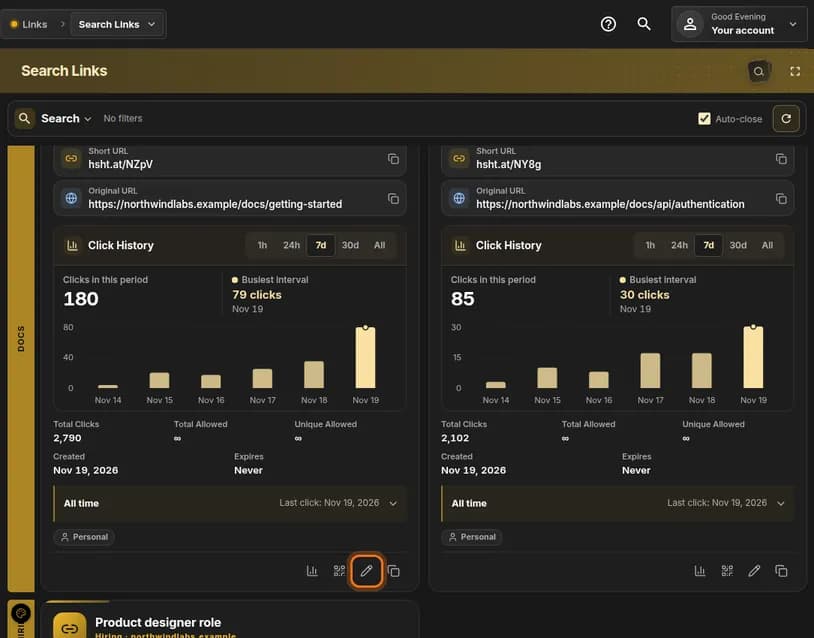
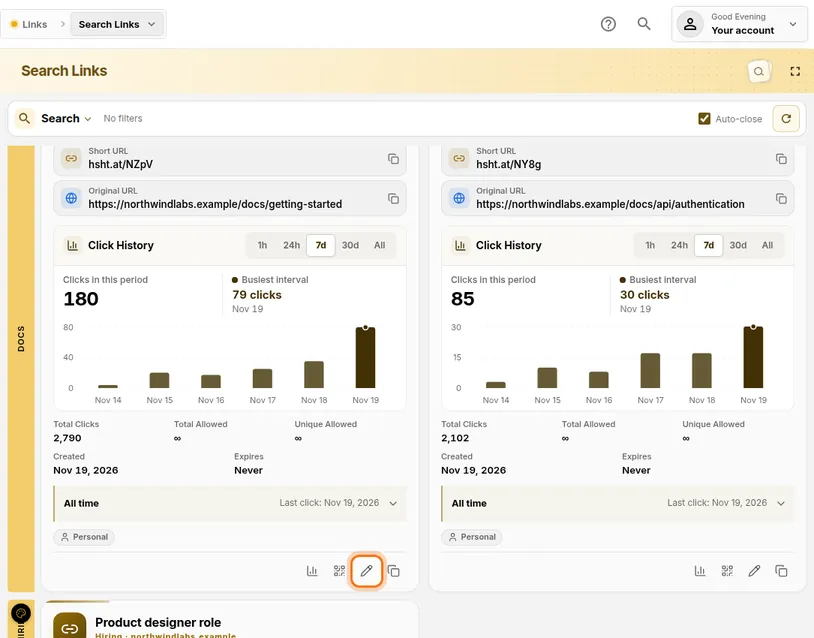
- In the left menu, under Links, click Search Links.
- Find the link’s card and scroll to the row of icons at the bottom.
- Click the pencil icon.
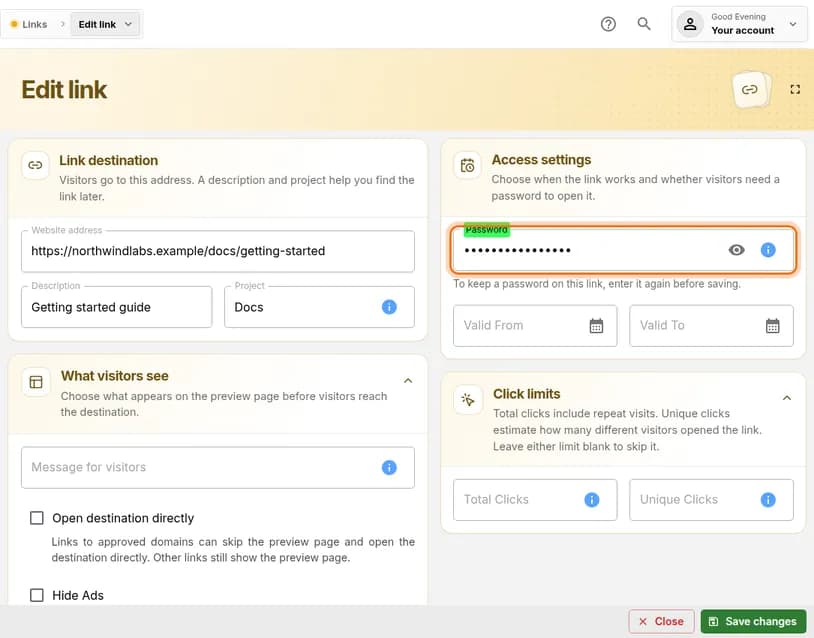
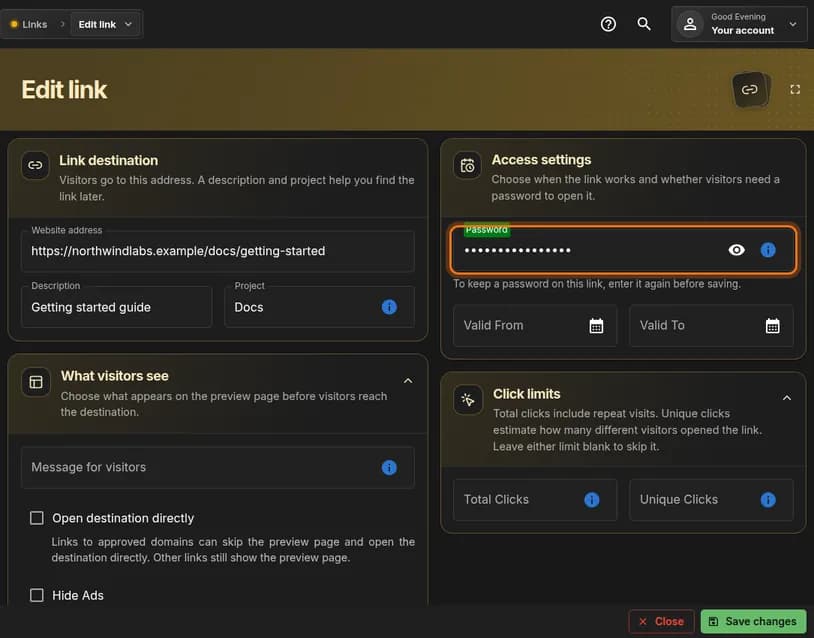
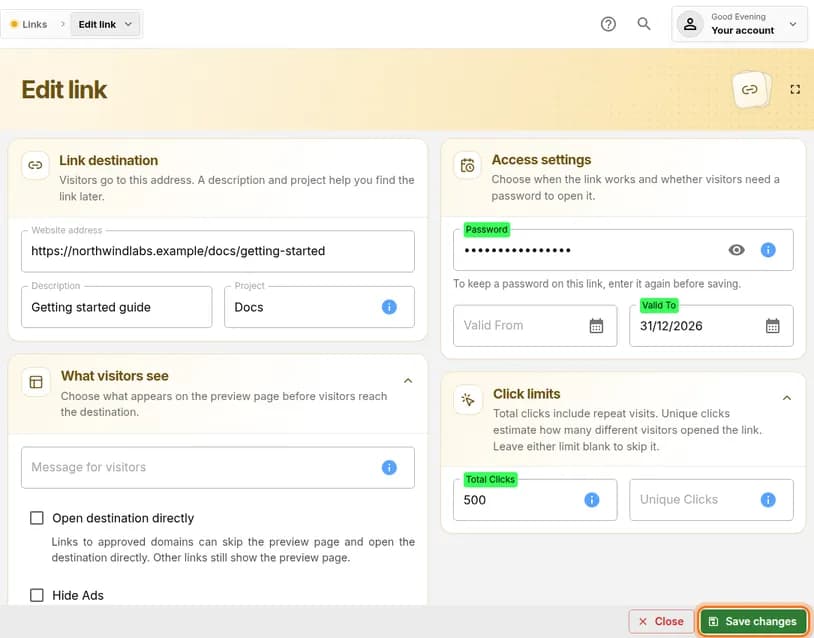
You should see: A page titled Edit link. The settings you need are in the Access settings and Click limits panels on the right.
 Full size
 Full size
The pencil is the third icon in the row. Step 2: Add a password
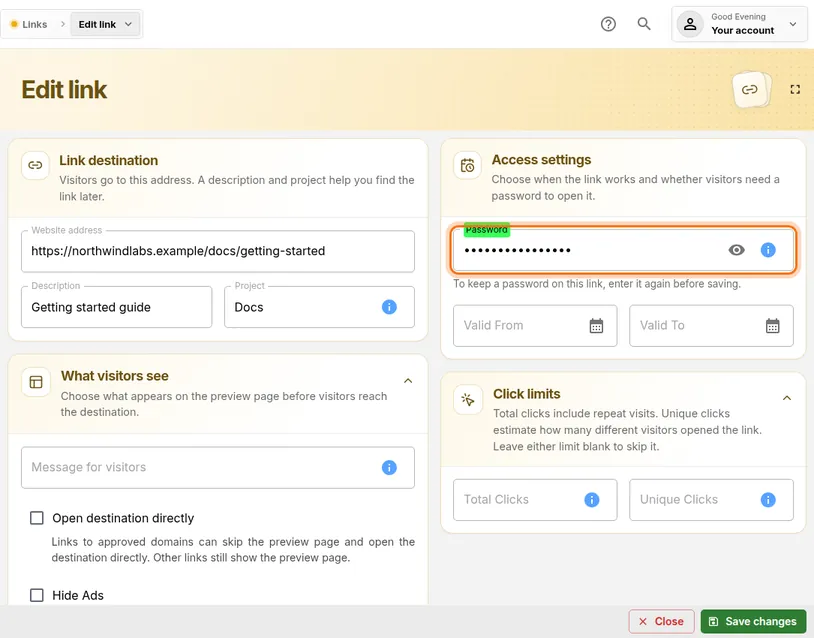
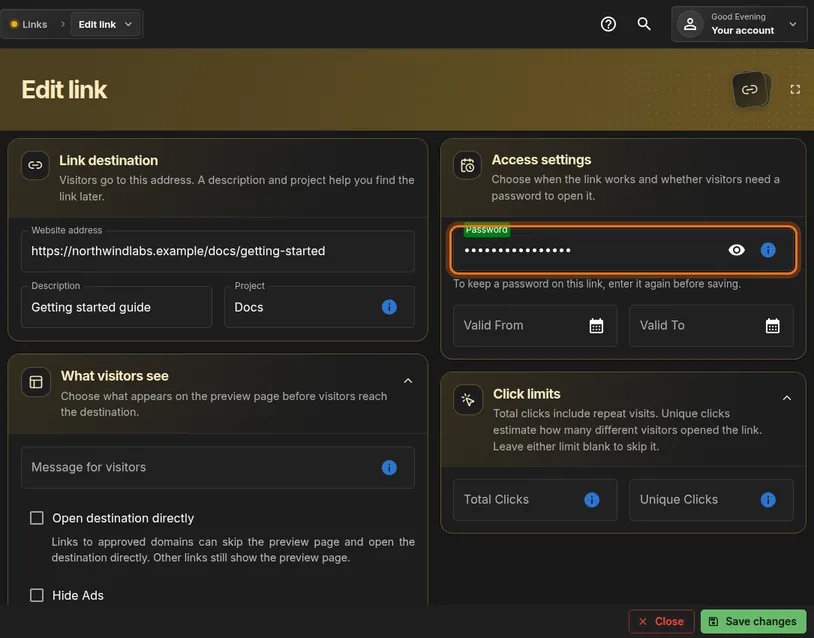
- In Access settings, click the Password box.
- Type the password visitors must enter, for example Launch-Team-2026.
- Click the eye icon to check what you typed.
 Full size
 Full size
Visitors are asked for this password before they reach the page. This is a password for the link only. Never use your HashThat master password or any password you use elsewhere.
Step 3: Set an end date
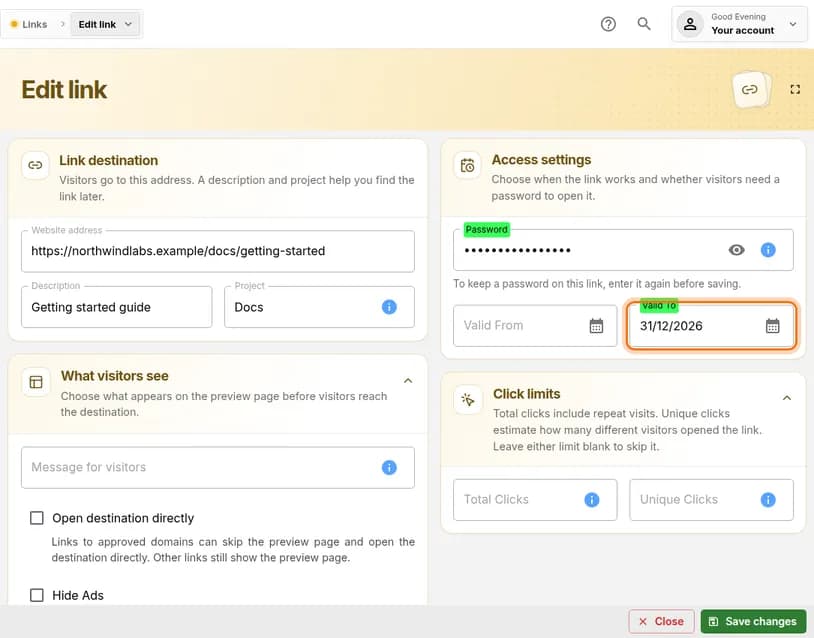
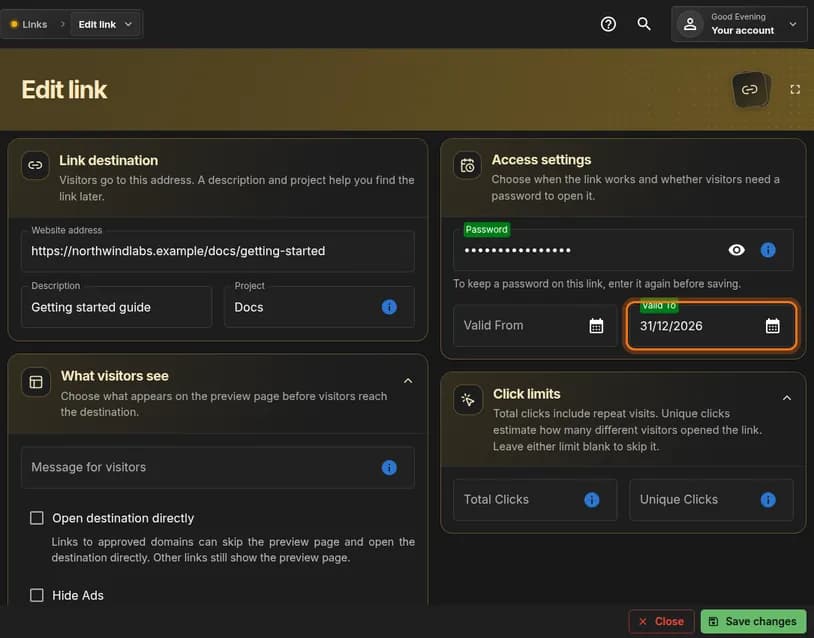
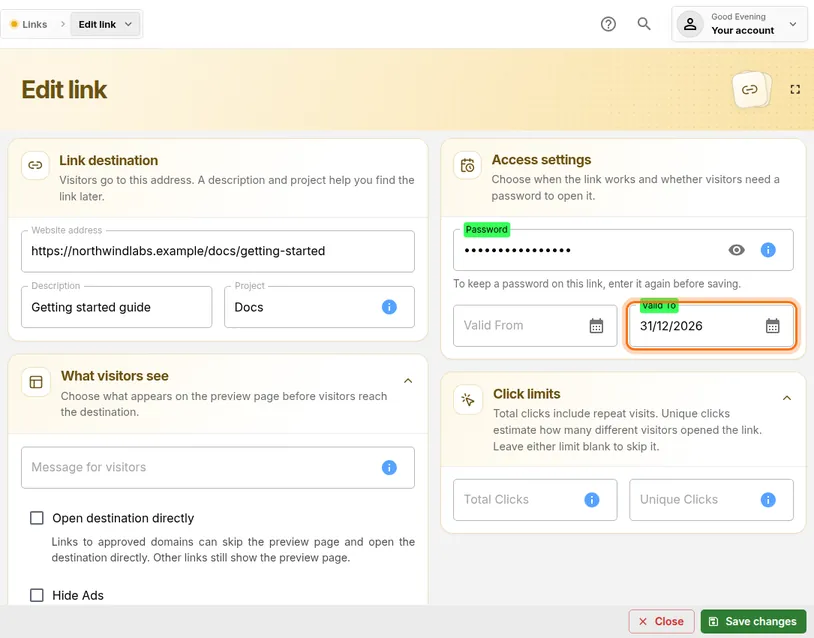
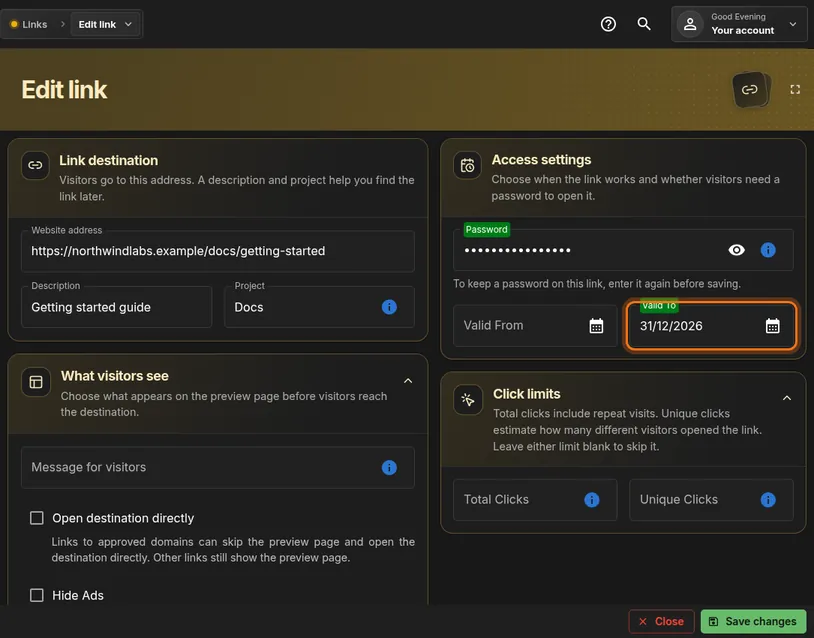
- Click the Valid To box.
- Type the last day the link should work, as day, month, year. For example 31/12/2026.
- Or click the calendar icon and pick the day.
 Full size
 Full size
Valid From does the opposite: the link starts working on that day. Leave Valid To empty if the link should never end.
Step 4: Limit the number of clicks
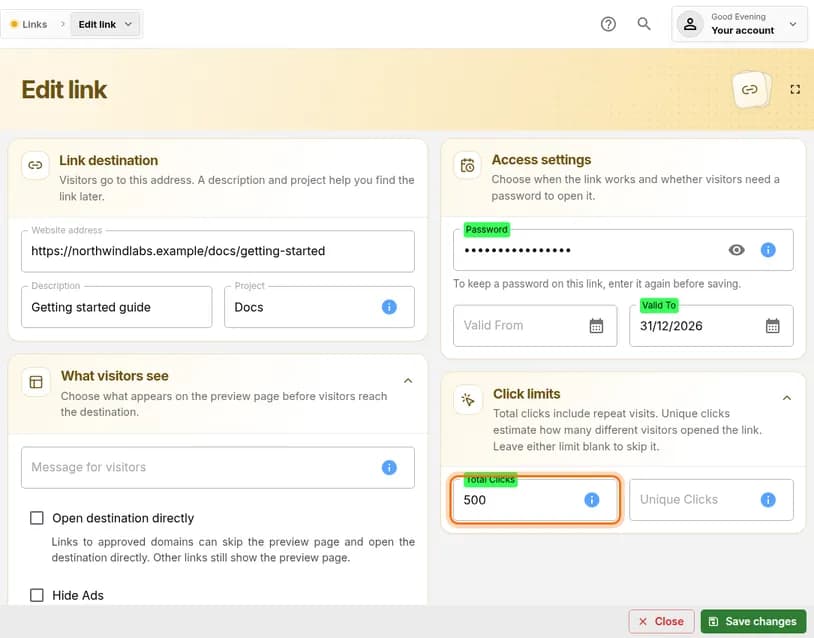
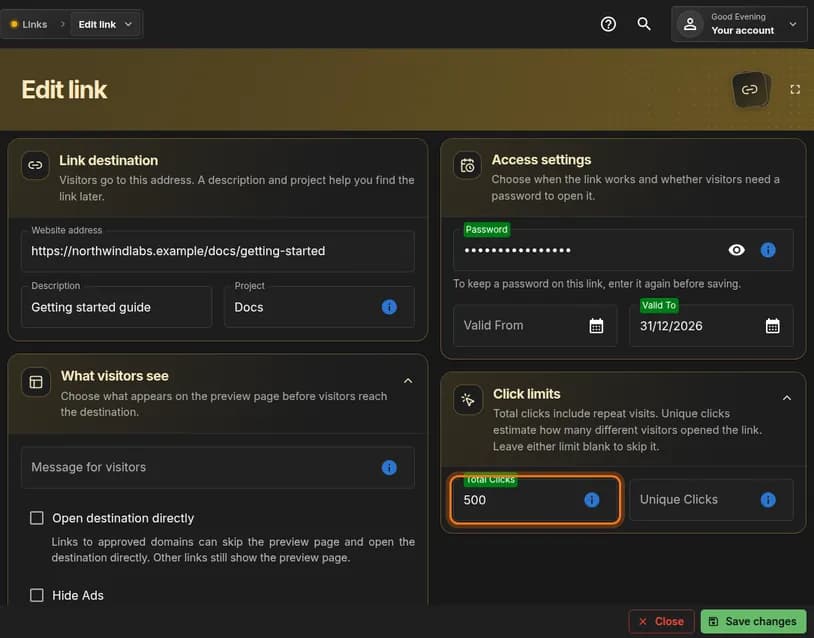
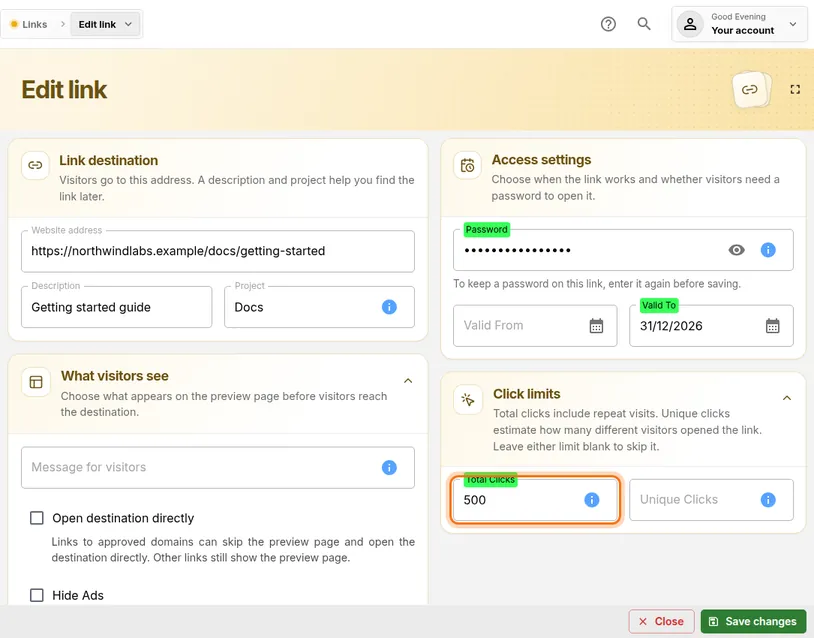
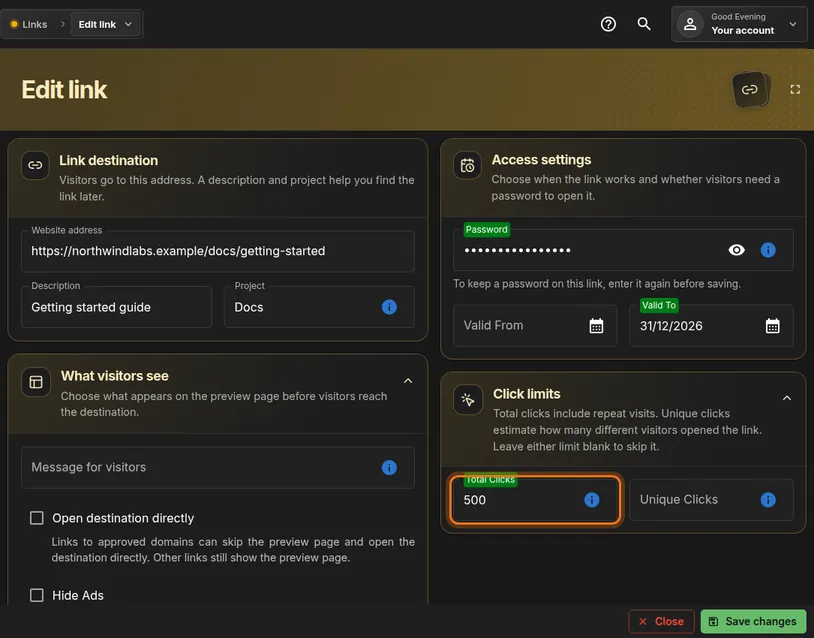
- In Click limits, click Total Clicks.
- Type the highest number of visits you allow, for example 500.
 Full size
 Full size
Total Clicks counts every visit. Unique Clicks counts each visitor once. Leave both boxes empty for no limit.
Step 5: Save the changes
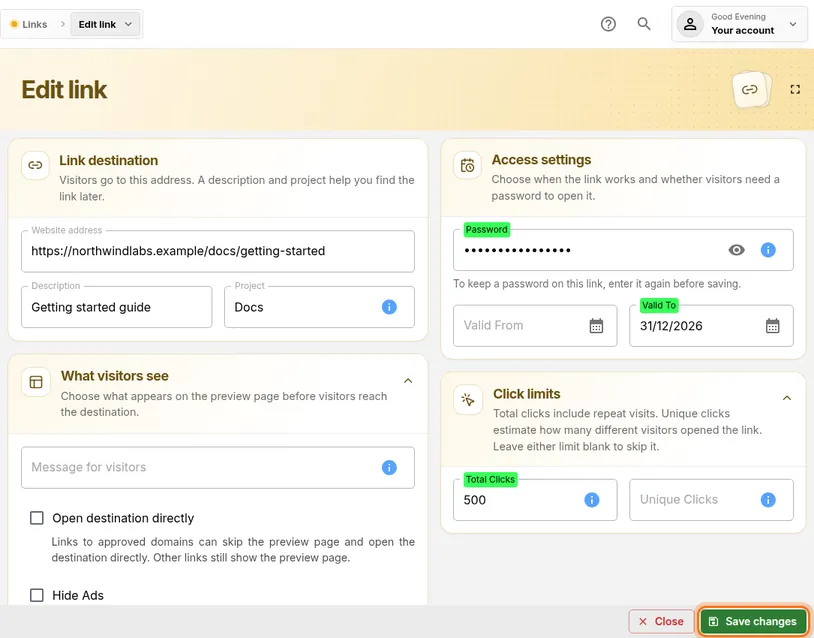
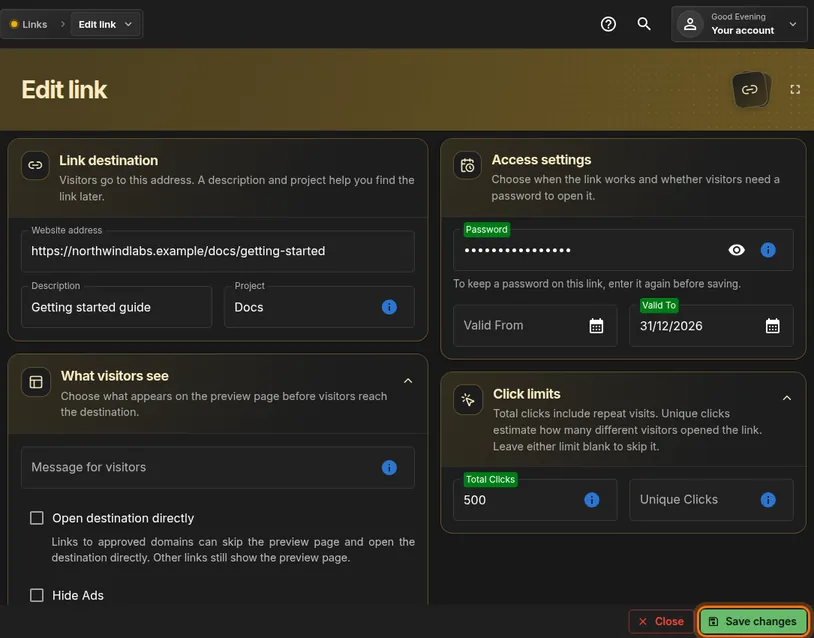
- Click the green Save changes button at the bottom right.
You should see: A short confirmation message, and you return to your list of links.
 Full size
 Full size
Nothing changes for visitors until you save. Step 6: Test the link
- Copy the short address from the card’s Short URL row.
- Open a private browser window and paste the address.
- Enter the password you set.
You should see: The link asks for the password, then opens your page.
Step 7: Send the password separately
- Send the short link in one message, for example by email.
- Send the password another way, for example by phone or in a chat.
Check it worked
- In a private window, the link asks for a password before it opens.
- The card on Search Links shows your end date under Expires and your limit under Total Allowed.
If something looks different
The password disappeared after I edited the link again
For safety the form never shows a saved link password. To keep the password when you change something else, type it into Password again before you click Save changes.
The link stopped working
It has passed its Valid To date or reached its click limit. Edit the link, choose a later date or a higher number, and save.
The date box will not take my date
Type the day first, then the month, then the year, such as 31/12/2026. Or use the calendar icon and click the day.
Tip: For a one-time handover, set Unique Clicks to 1. The link works for the first visitor and is closed for everyone after that.