See which channel brings the most clicks
Make one version of your short link for your newsletter and one for Instagram, then compare their clicks.
- 7 steps
- About 6 minutes
Before you start
- Links Pro.
- A short link you have already saved.
- Two places where you will post it, for example an email newsletter and Instagram.
Step 1: Open the link’s analytics
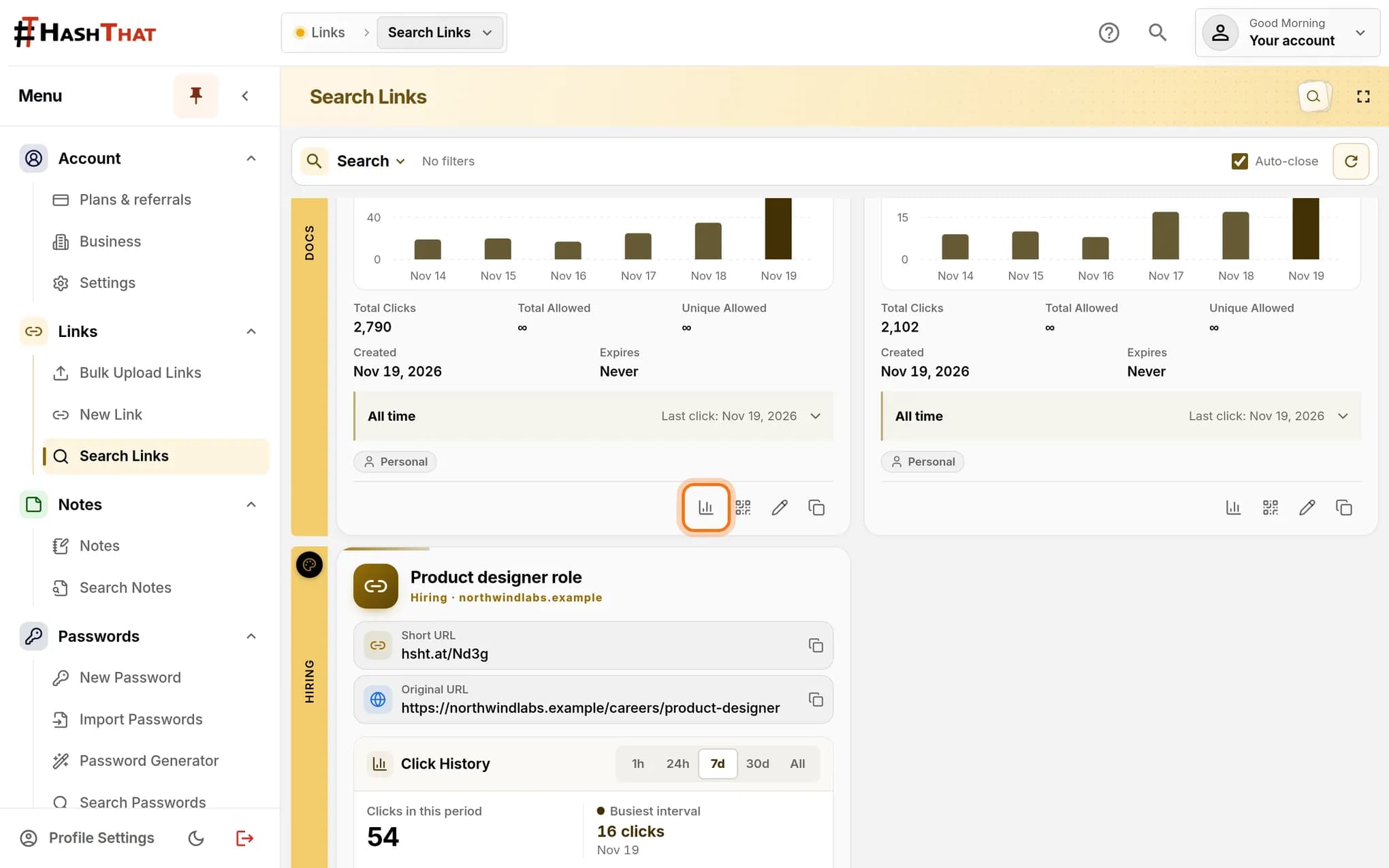
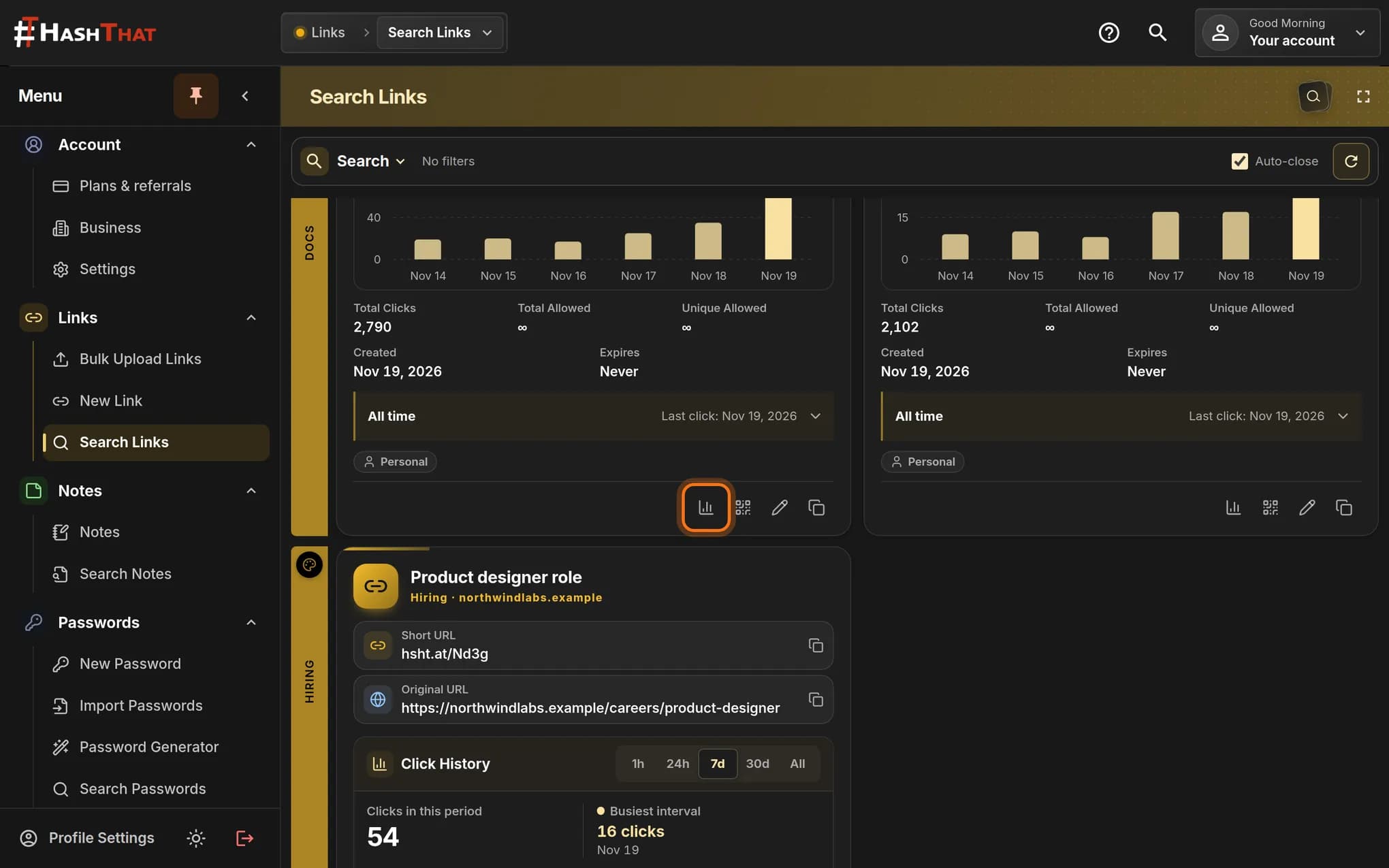
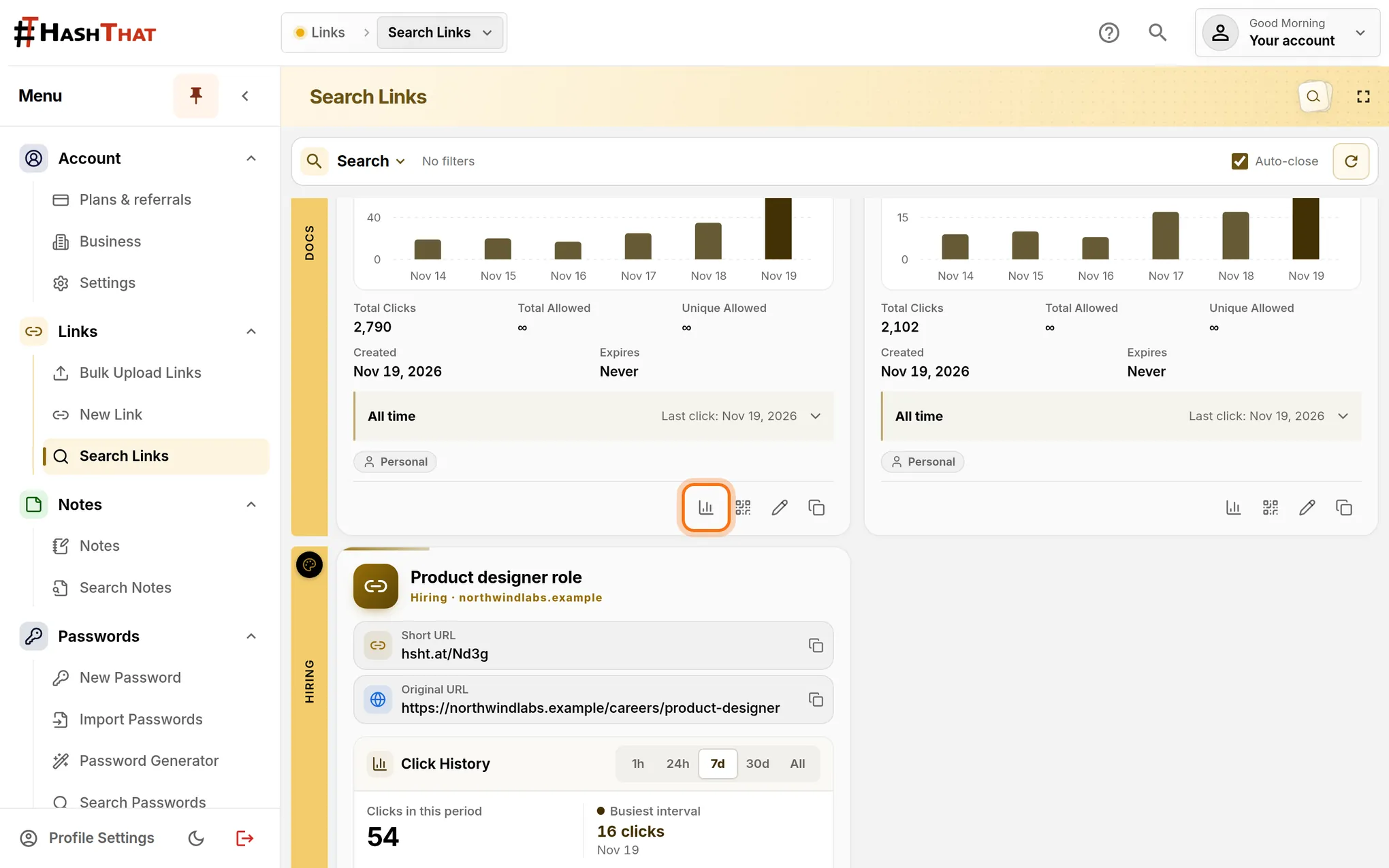
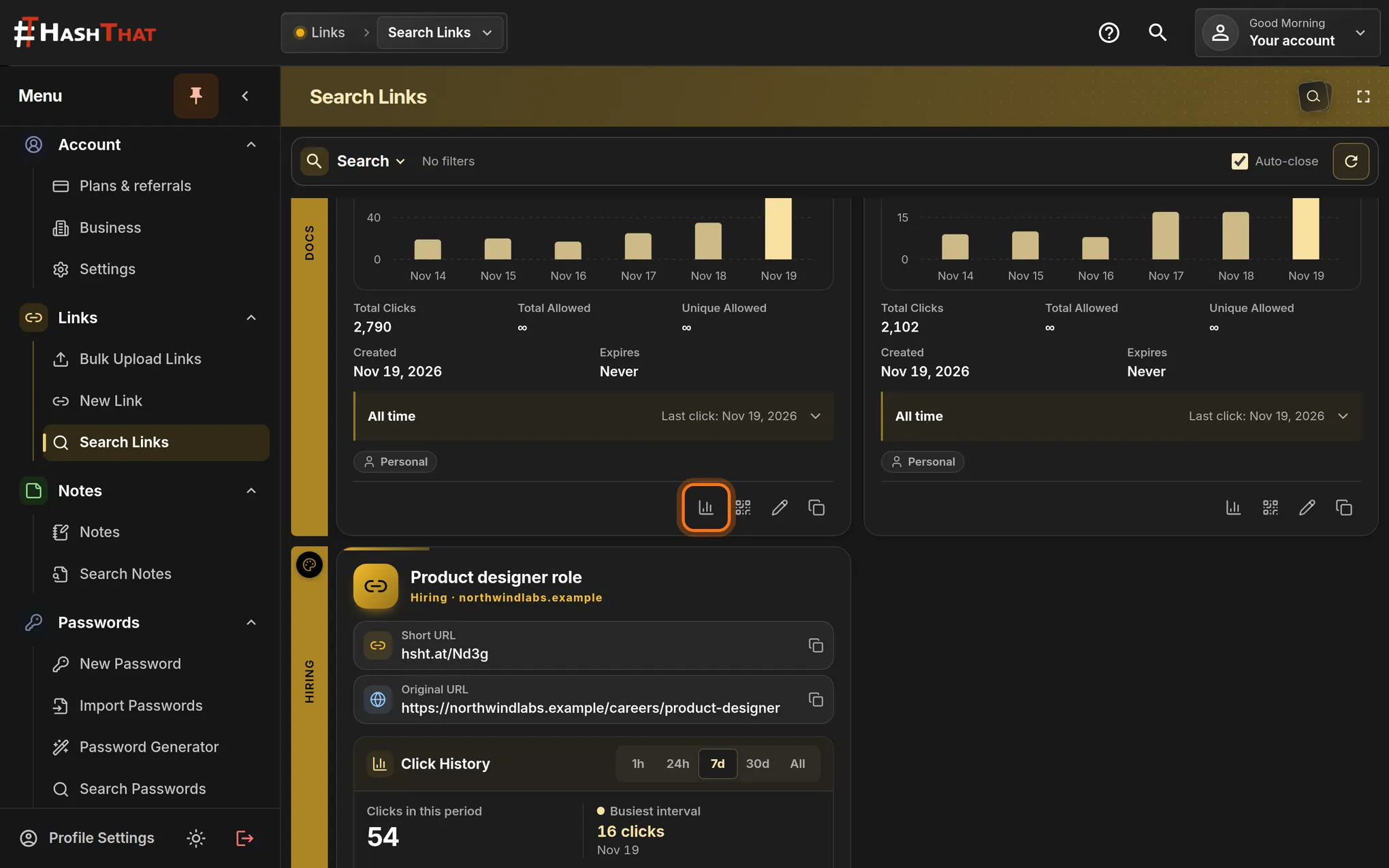
- In the left menu, click Search Links.
- Find the card of the link you want to promote.
- At the bottom of the card, click the small chart icon. Its name is View Detailed Analytics.
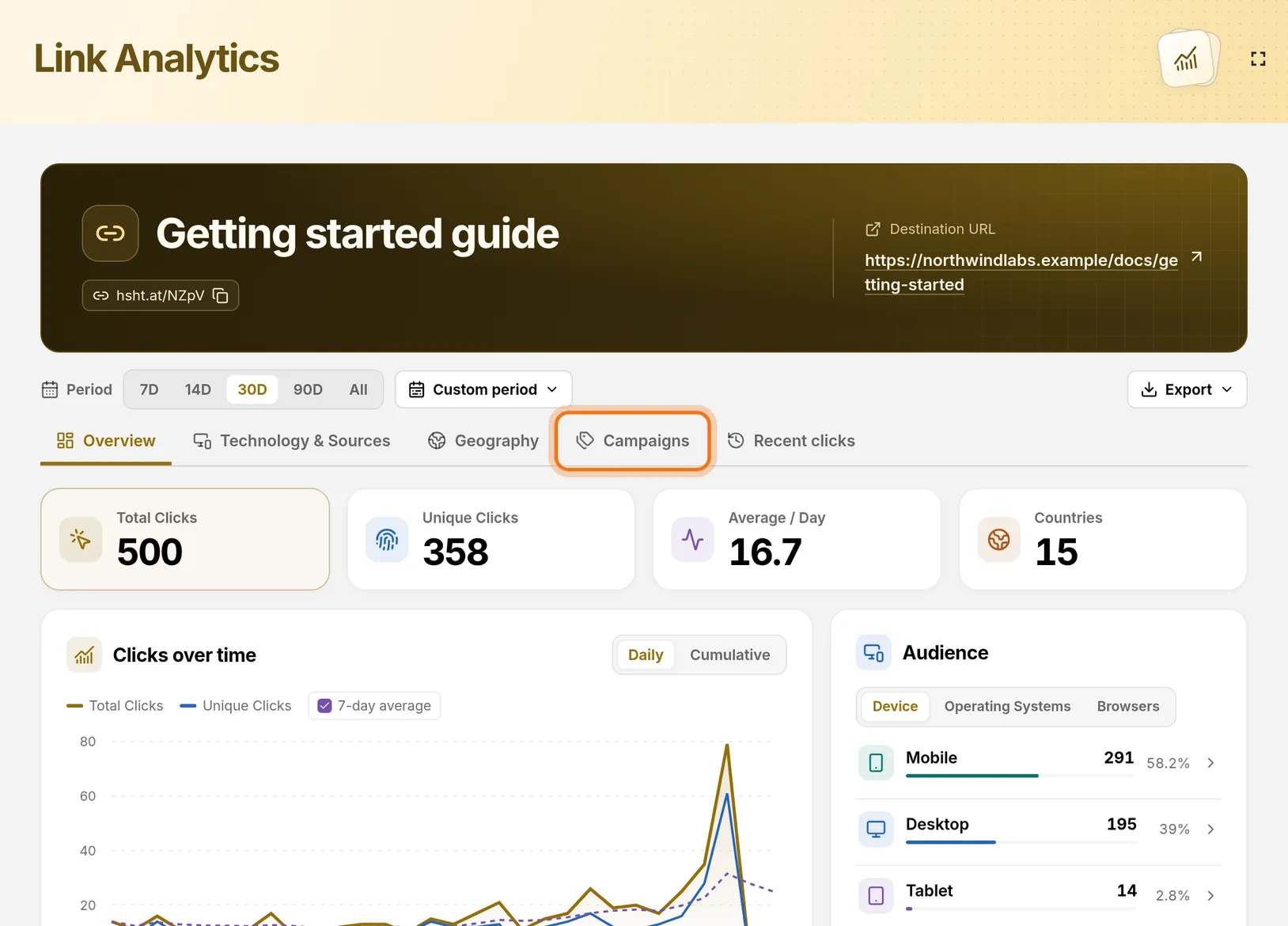
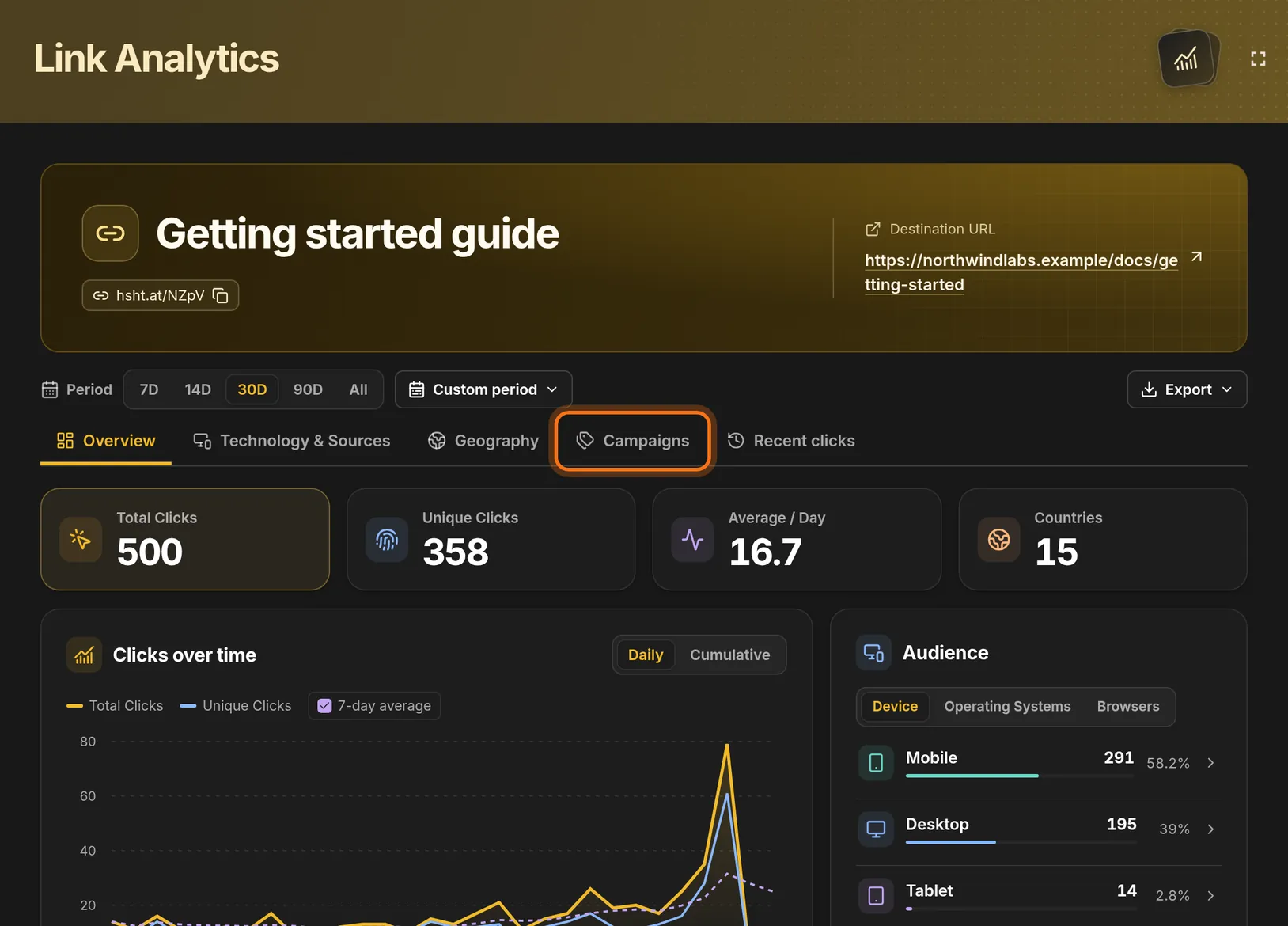
You should see: A page titled Link Analytics with the link’s name in a dark banner.
 Full size
 Full size
The chart icon is the first of the four icons at the bottom of a link card. Step 2: Open the Campaigns tab
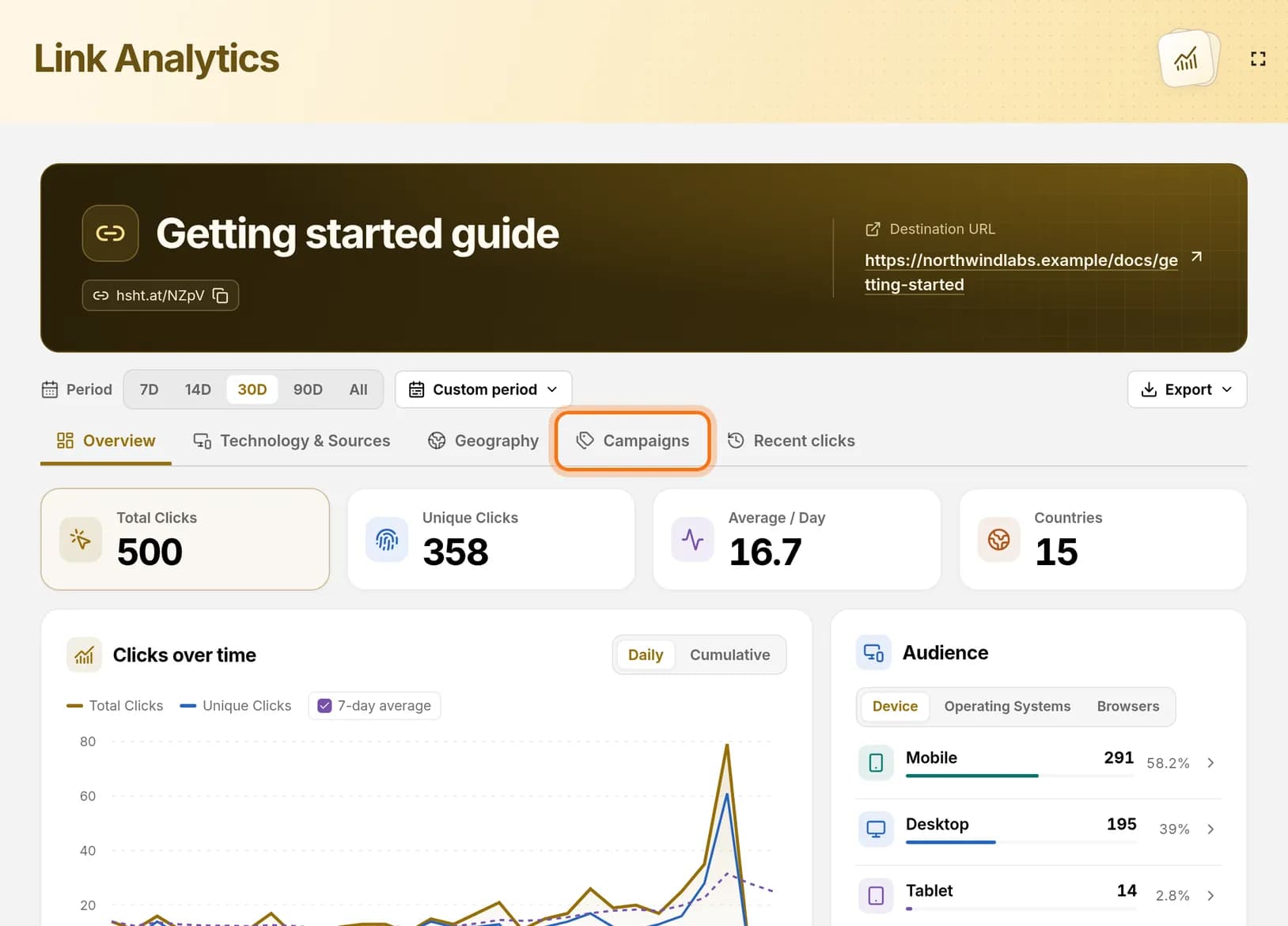
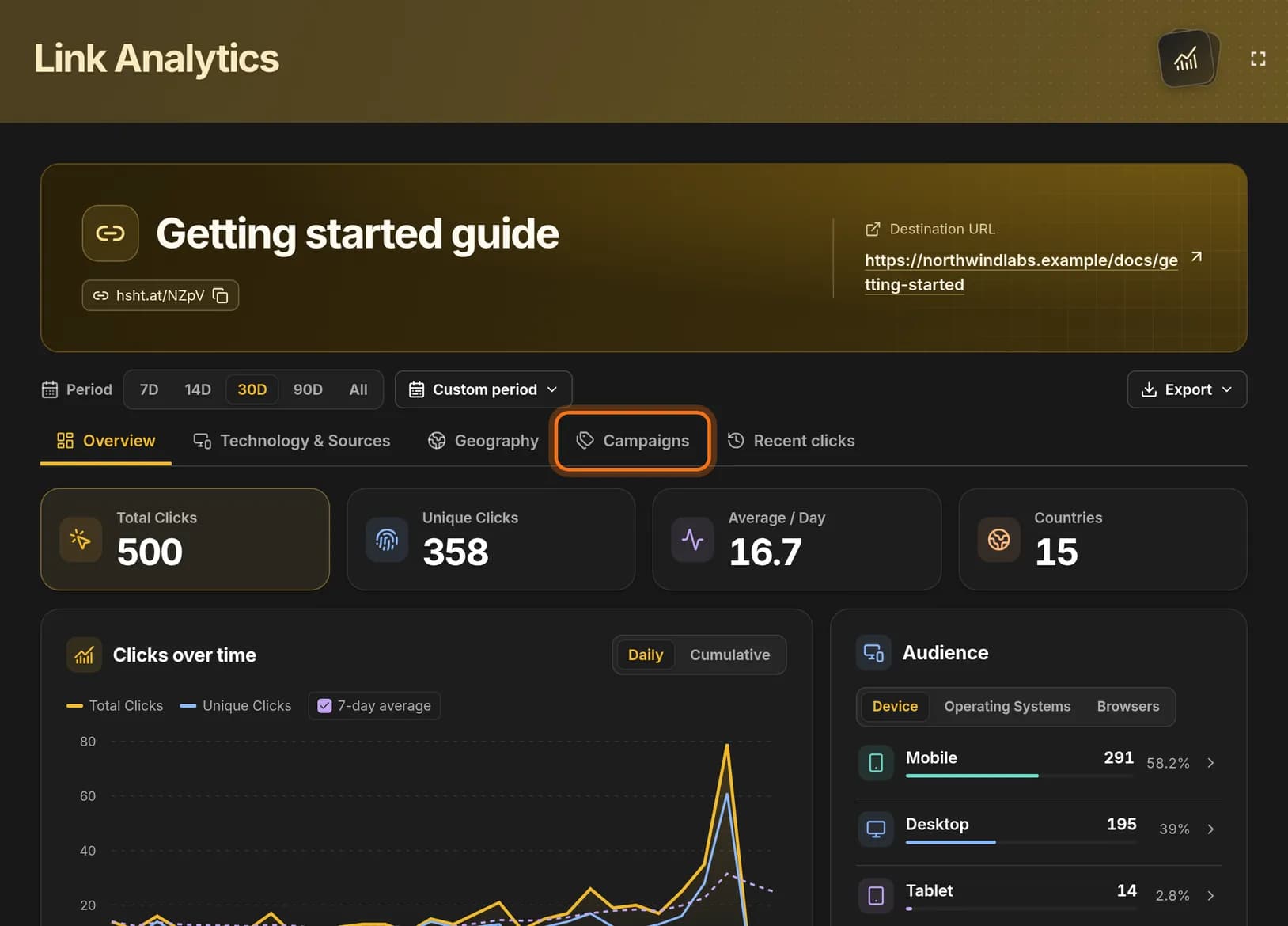
- Find the row of tabs under the banner: Overview, Technology & Sources, Geography, Campaigns, Recent clicks.
- Click Campaigns.
You should see: A table called UTM Campaign Breakdown, and below it the UTM link builder.
 Full size
 Full size
Campaigns is the fourth tab. A UTM tag is a short label added to the end of a link. It tells HashThat where a click came from.
Step 3: Choose the Newsletter preset
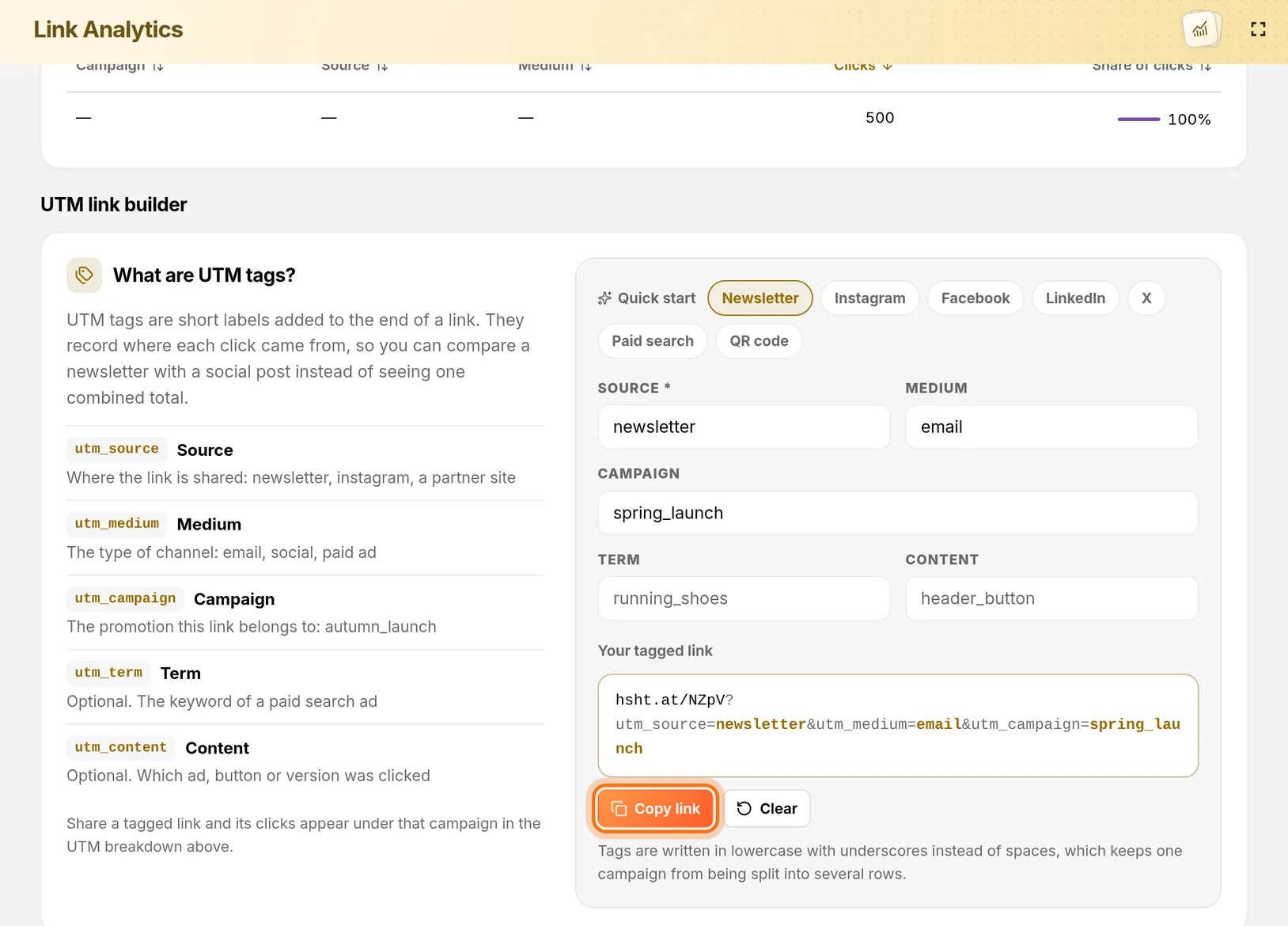
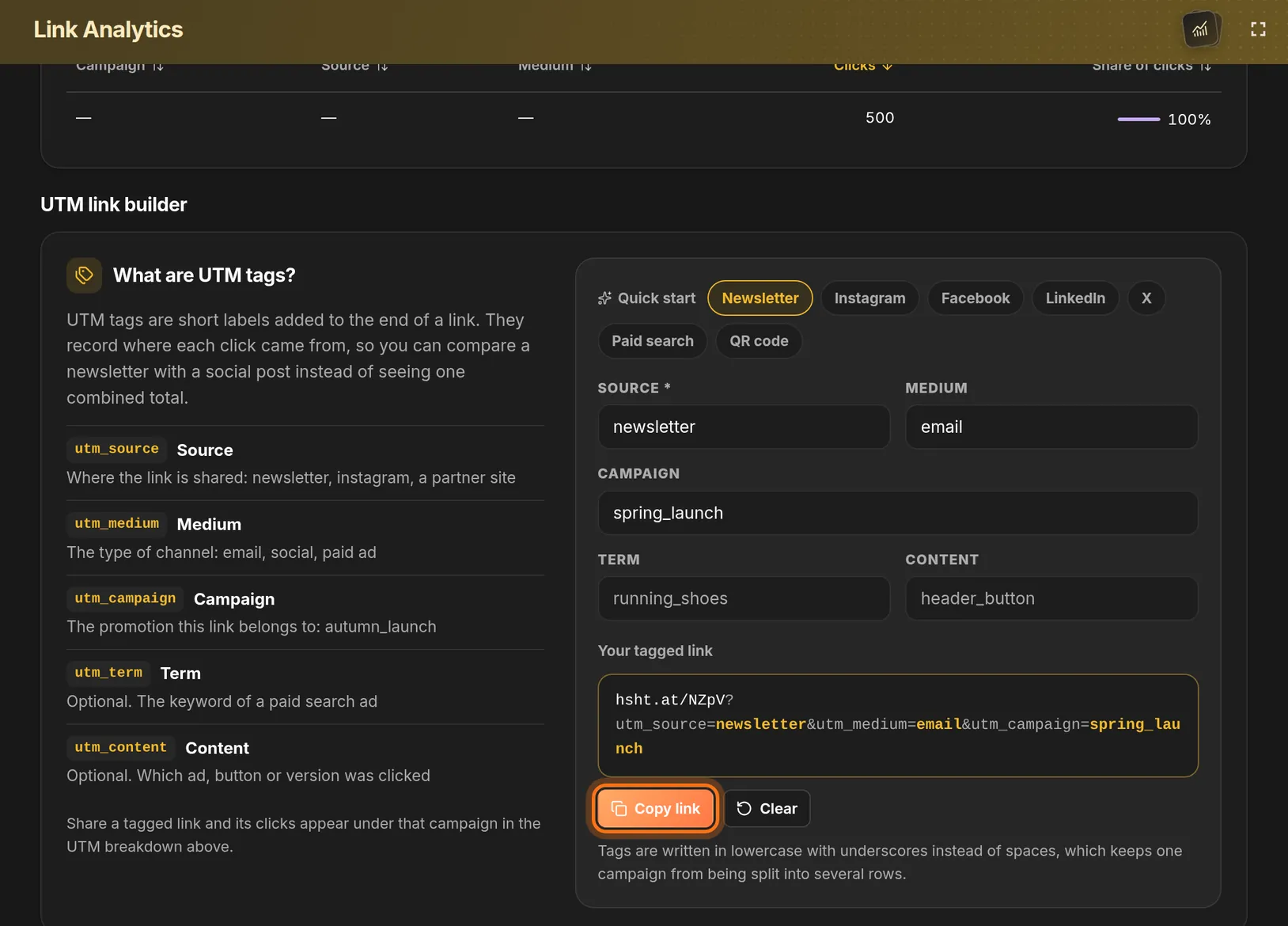
- Scroll down to the UTM link builder.
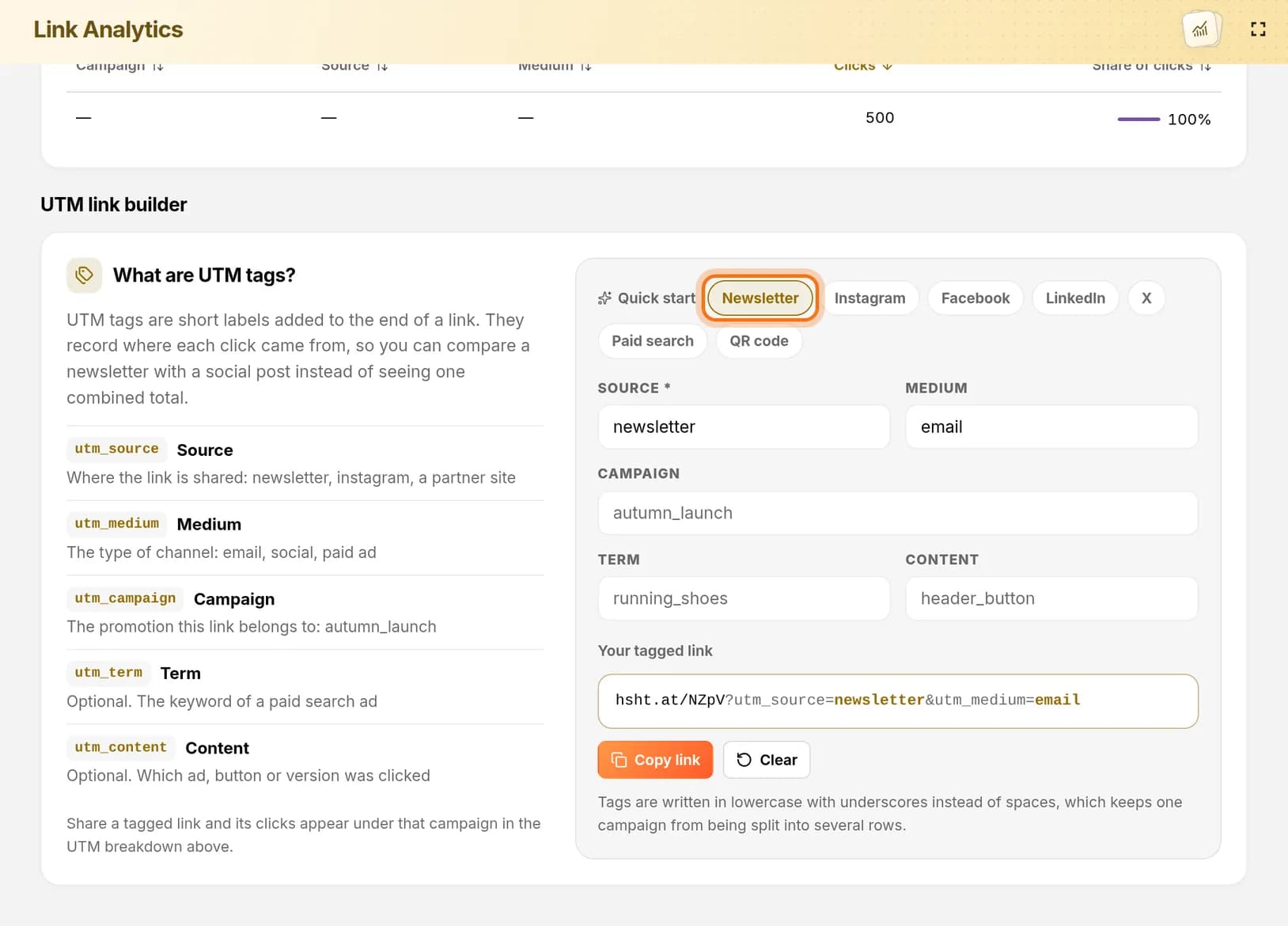
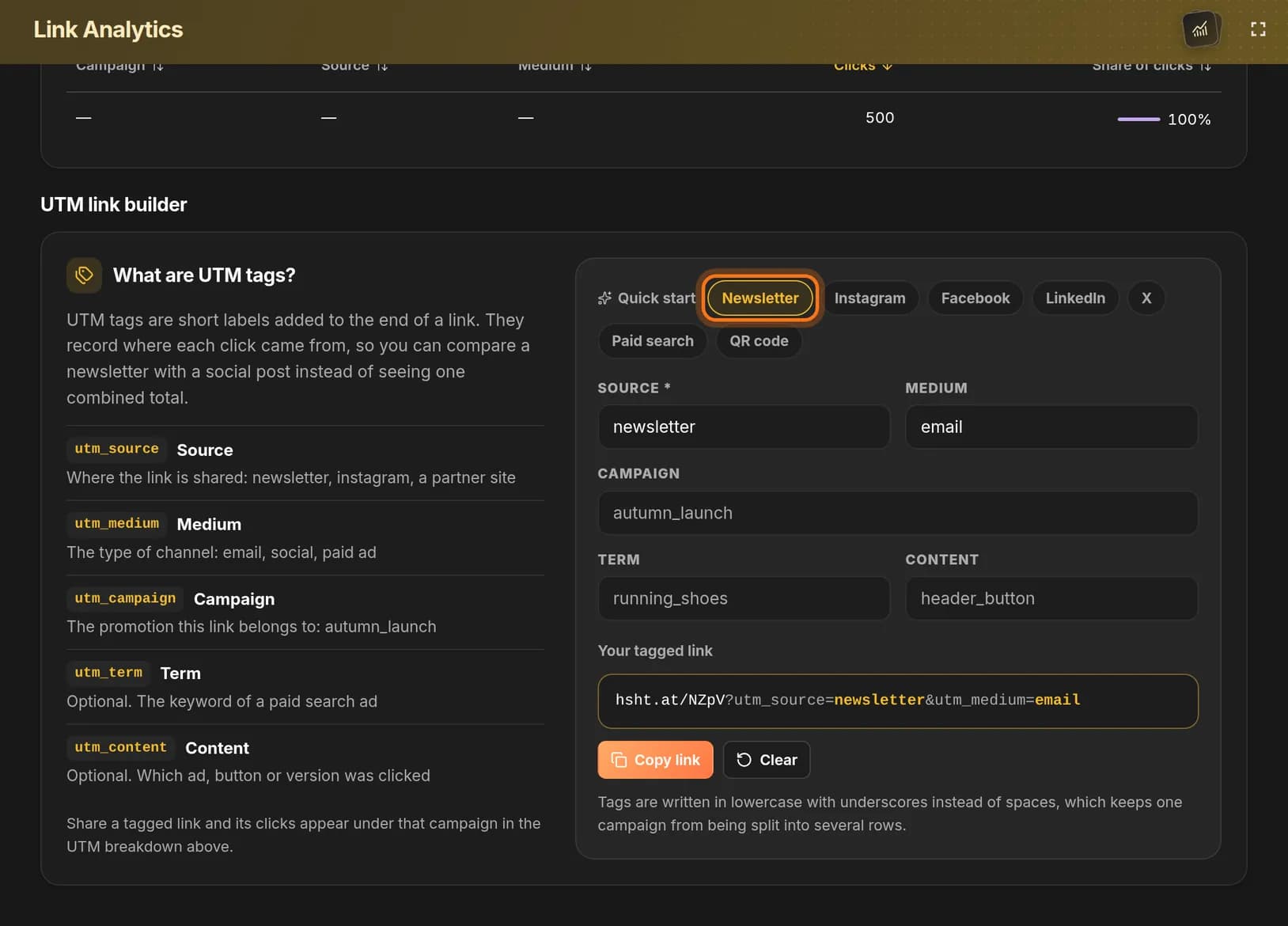
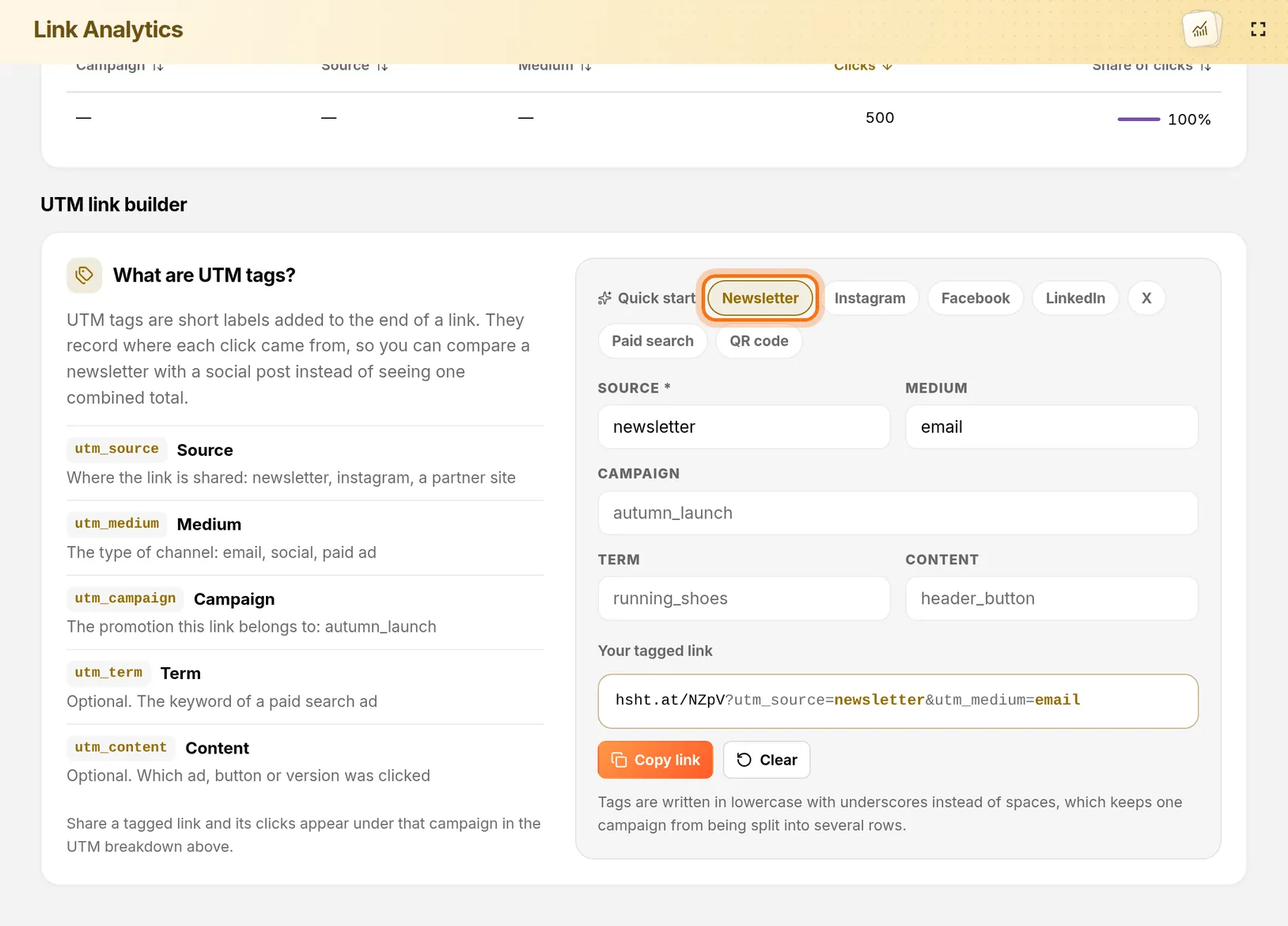
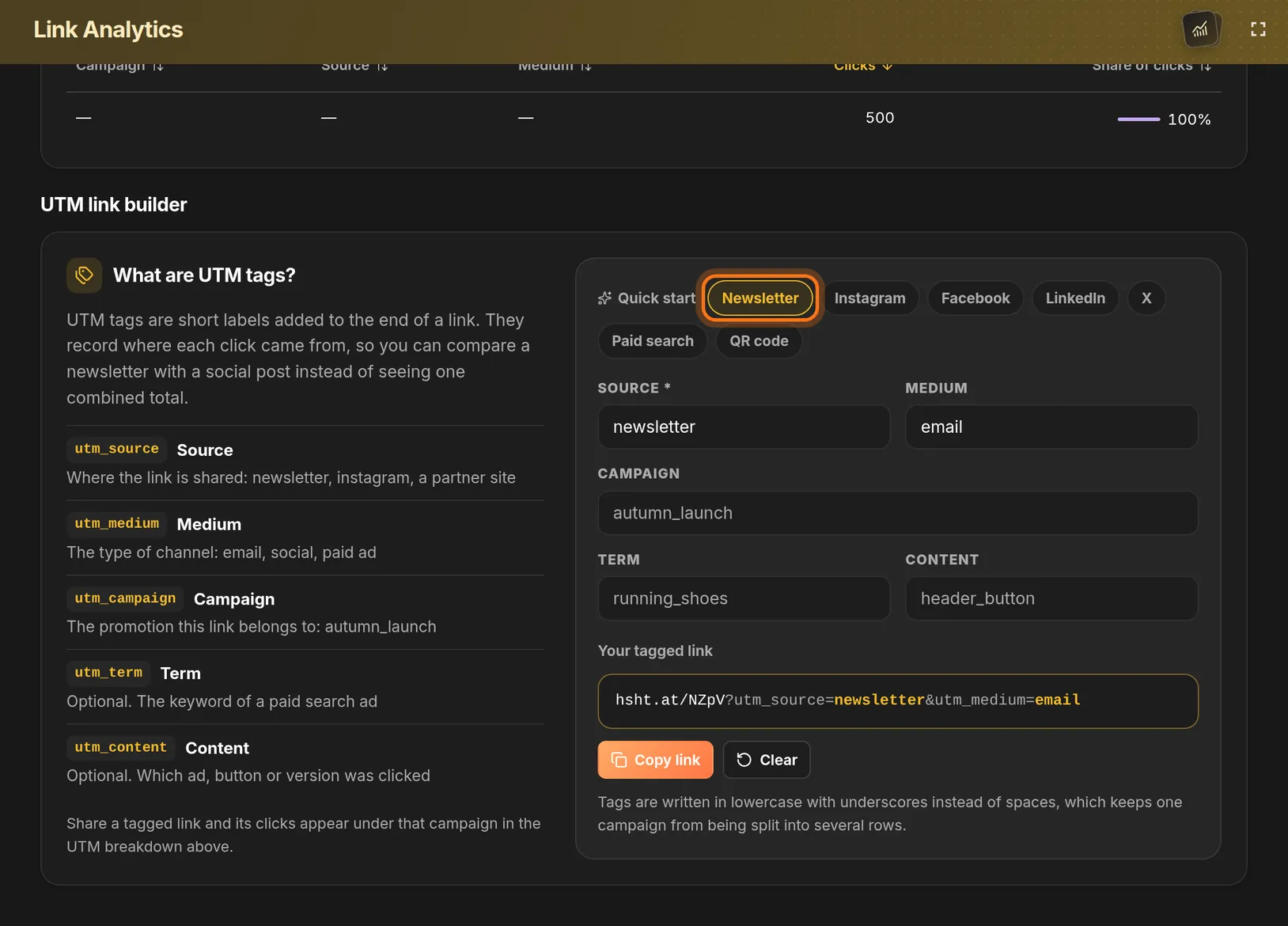
- Next to Quick start, click Newsletter.
You should see: Source is filled with newsletter and Medium with email.
 Full size
 Full size
A preset fills in Source and Medium for you. Step 4: Name your campaign
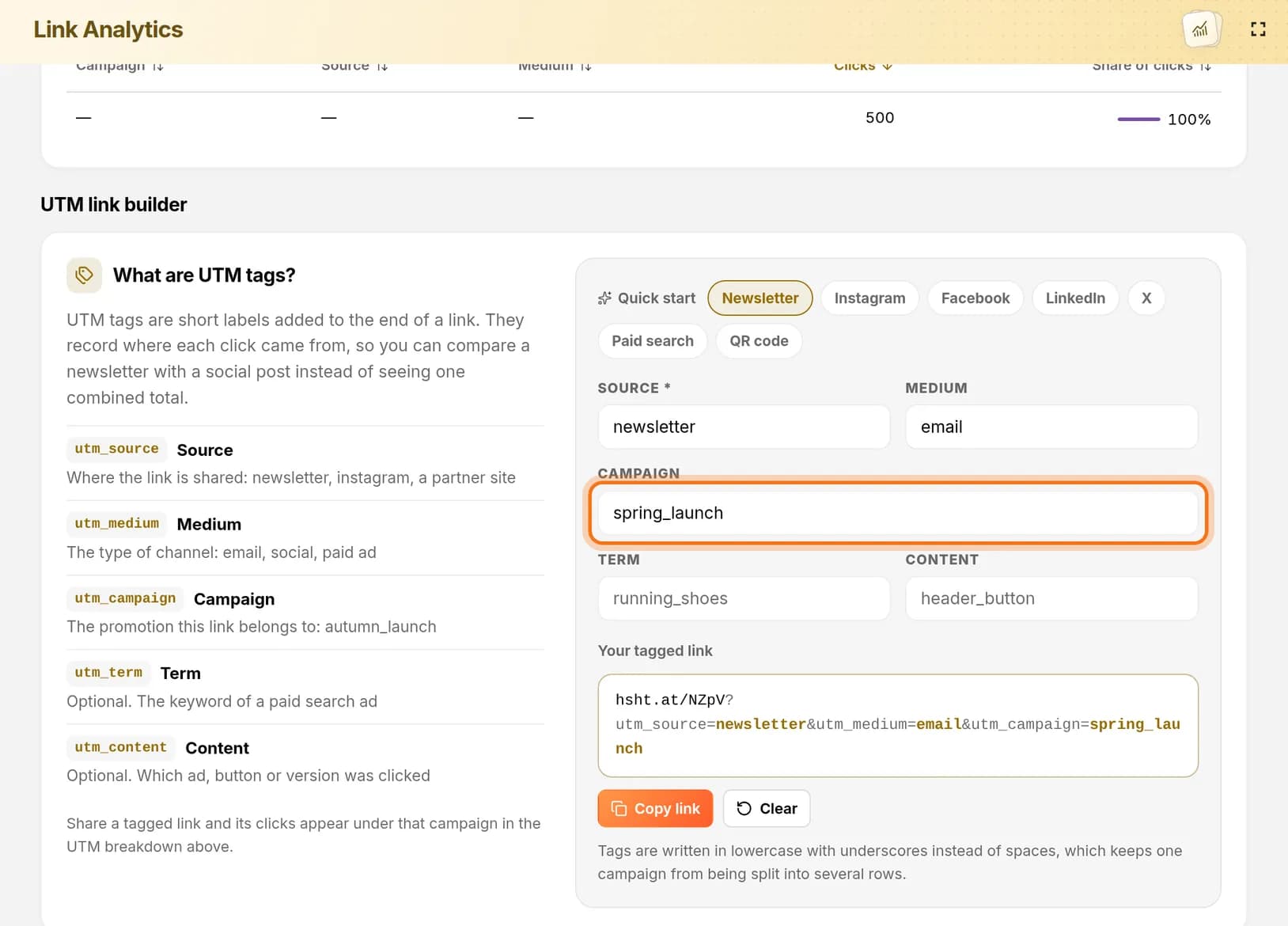
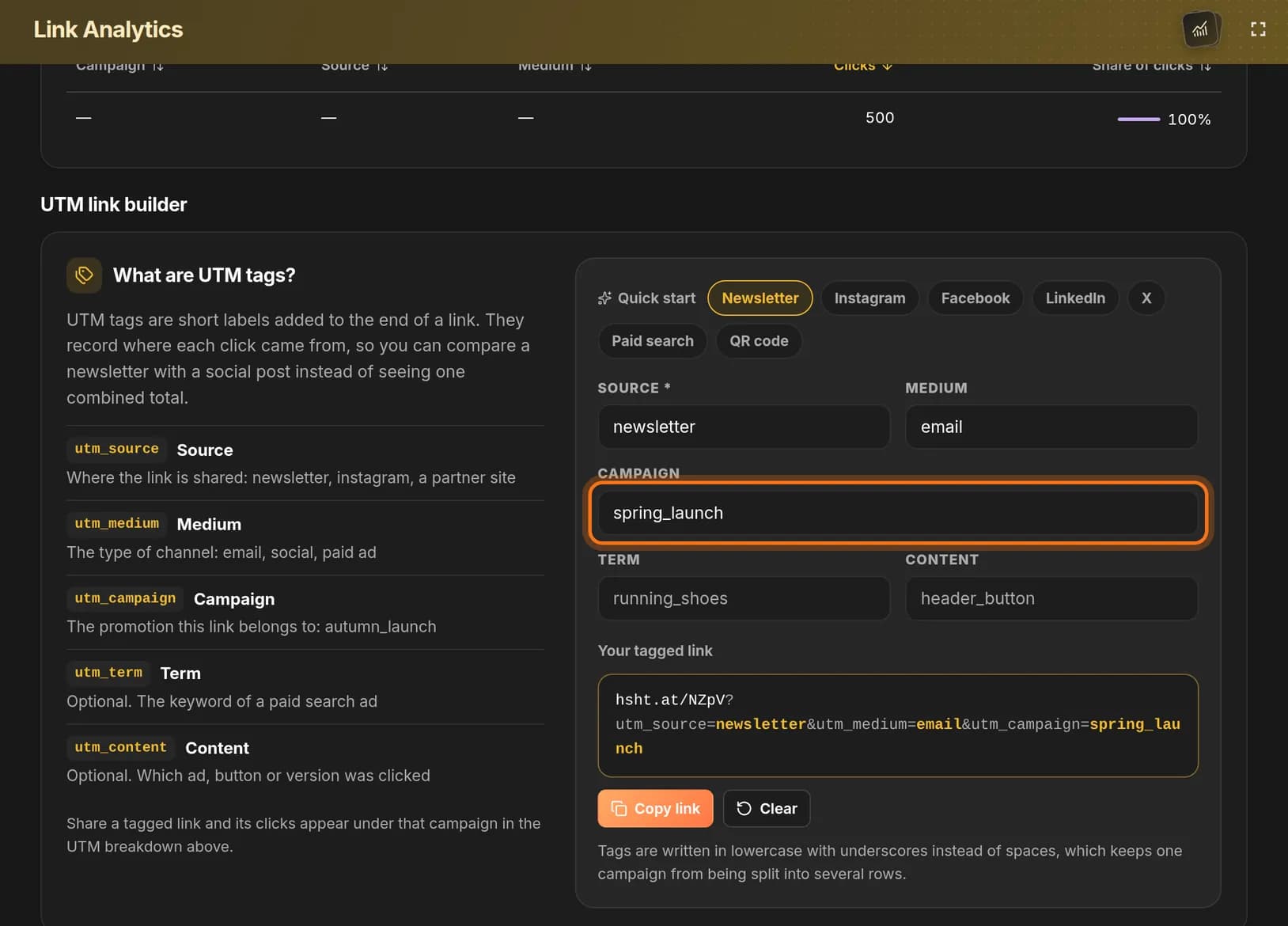
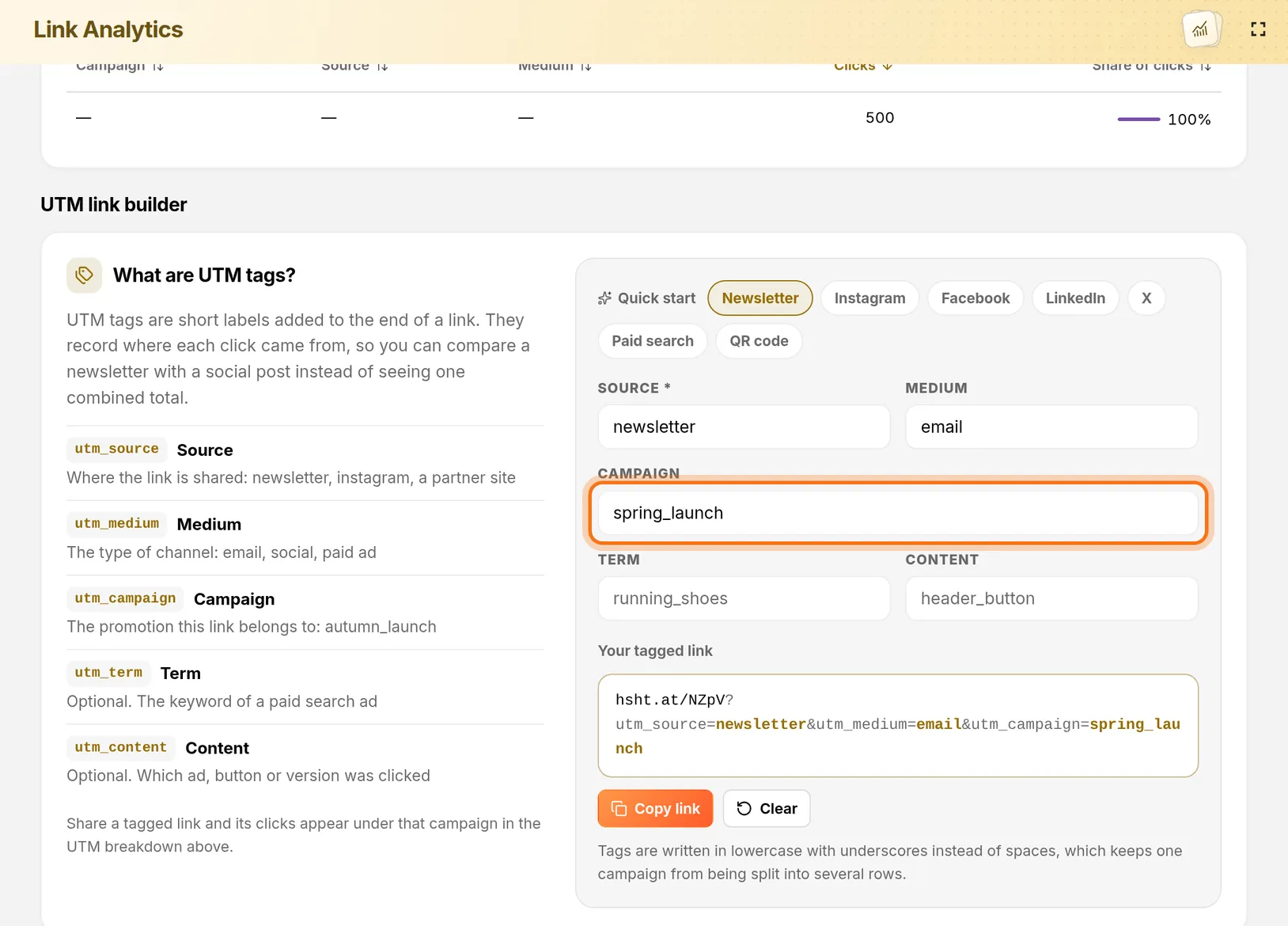
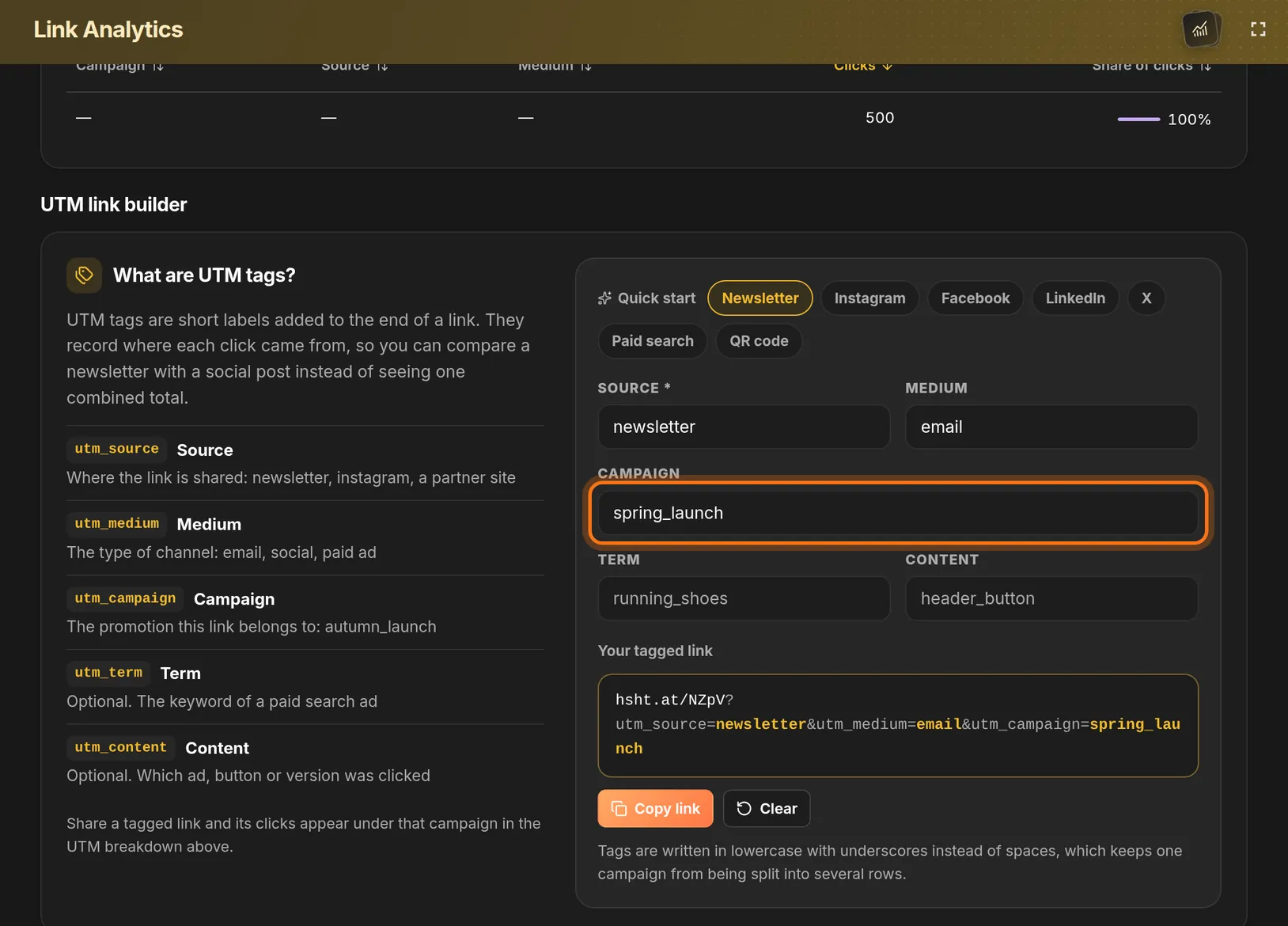
- Click the Campaign box.
- Type one name for this promotion, for example spring_launch.
You should see: A longer address under Your tagged link that ends with your campaign name.
 Full size
 Full size
Use the same campaign name for every channel of one promotion. HashThat writes tags in lowercase with underscores, so “Spring Launch” becomes spring_launch.
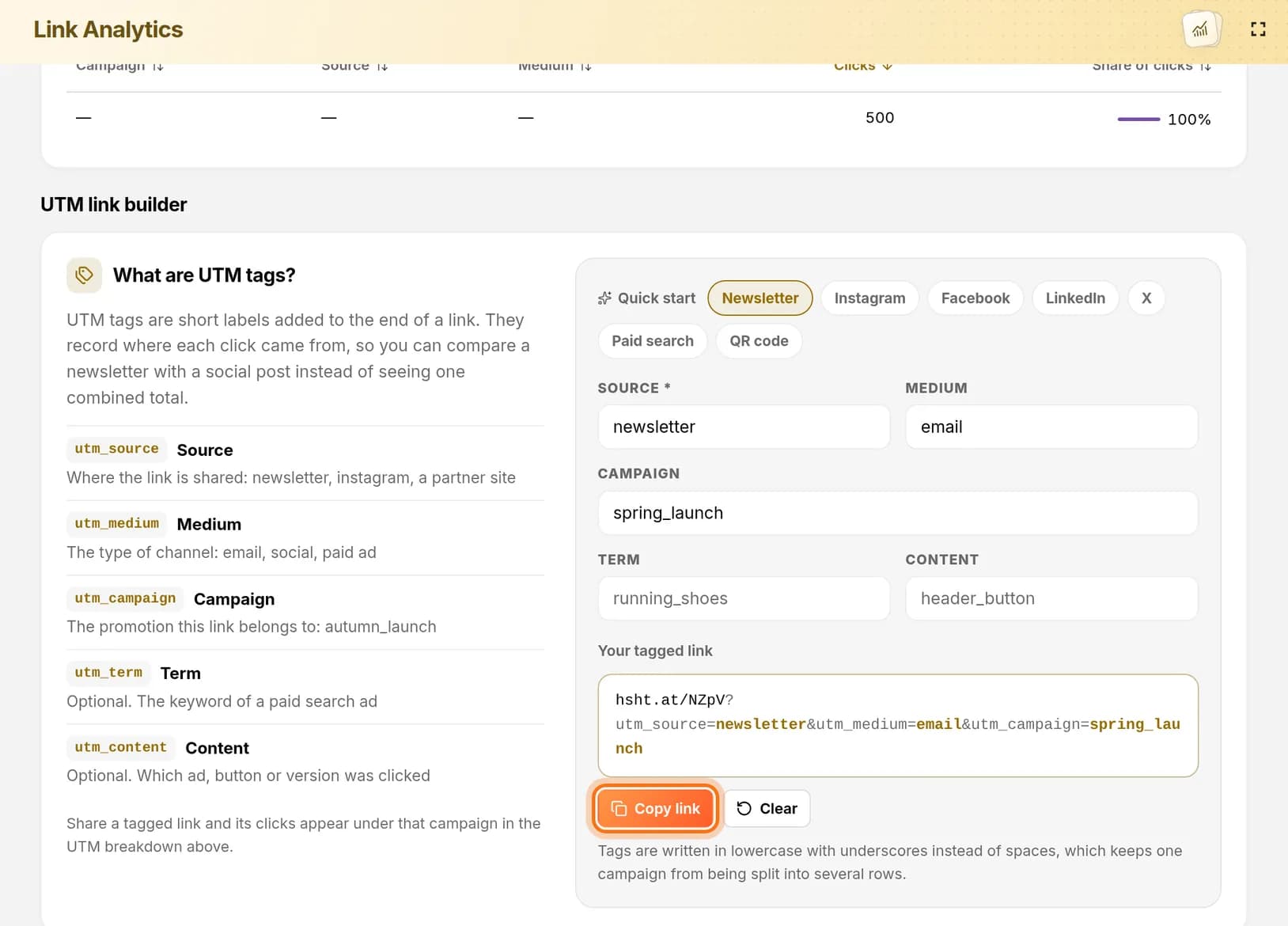
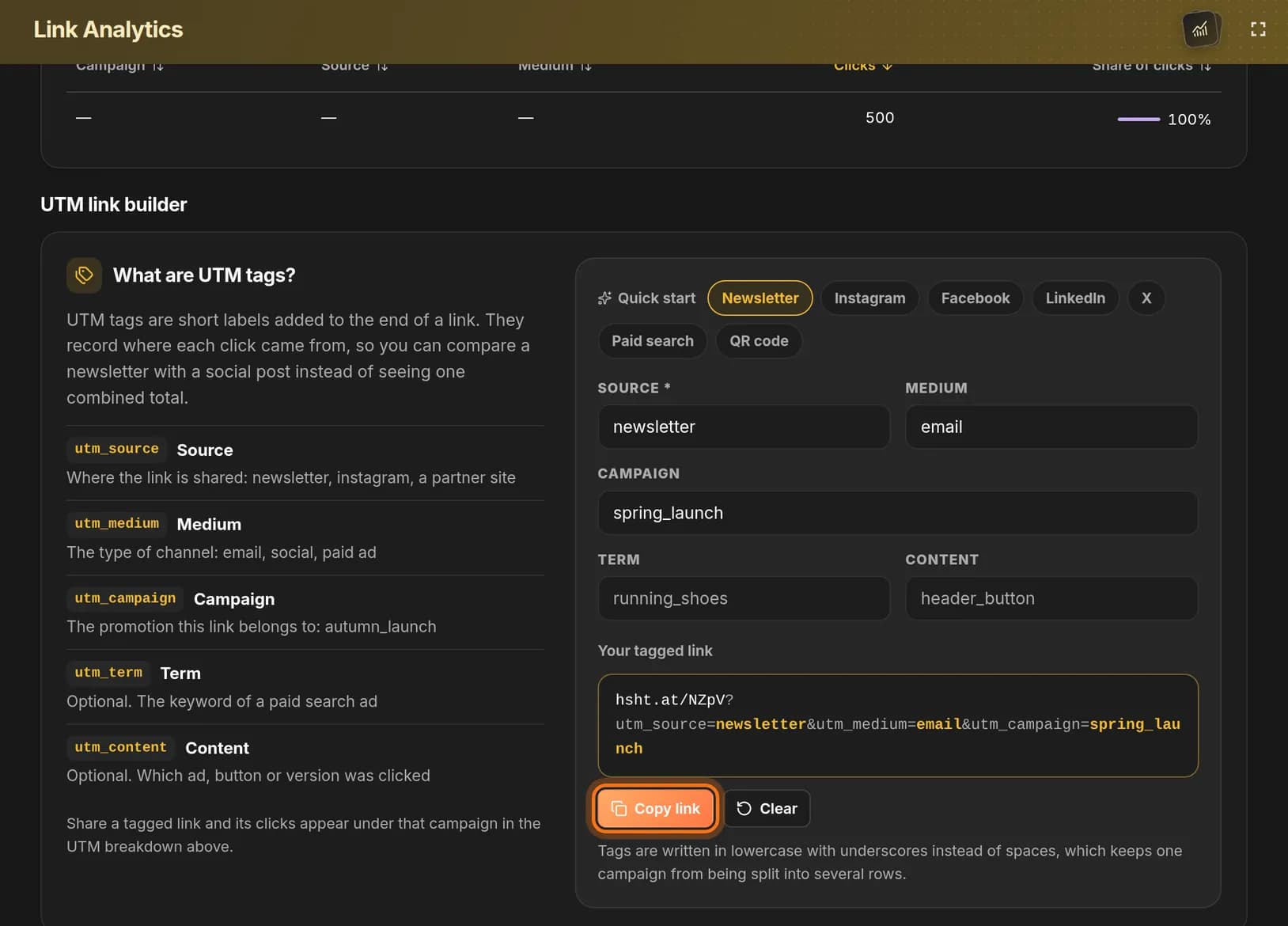
Step 5: Copy the newsletter link
- Click Copy link under Your tagged link.
- Paste this link into your newsletter.
 Full size
 Full size
This version of the link is only for your newsletter. Step 6: Make the Instagram link
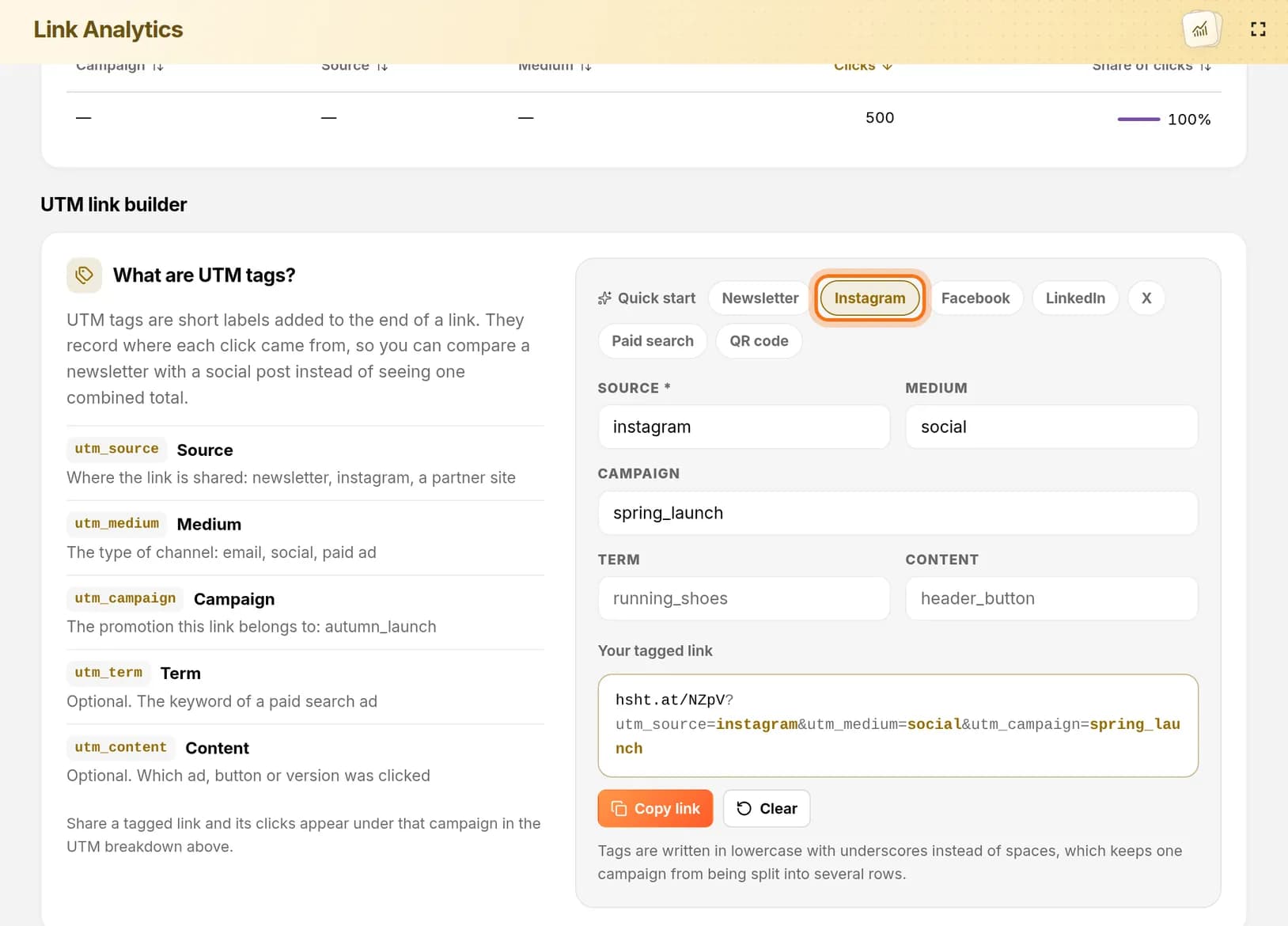
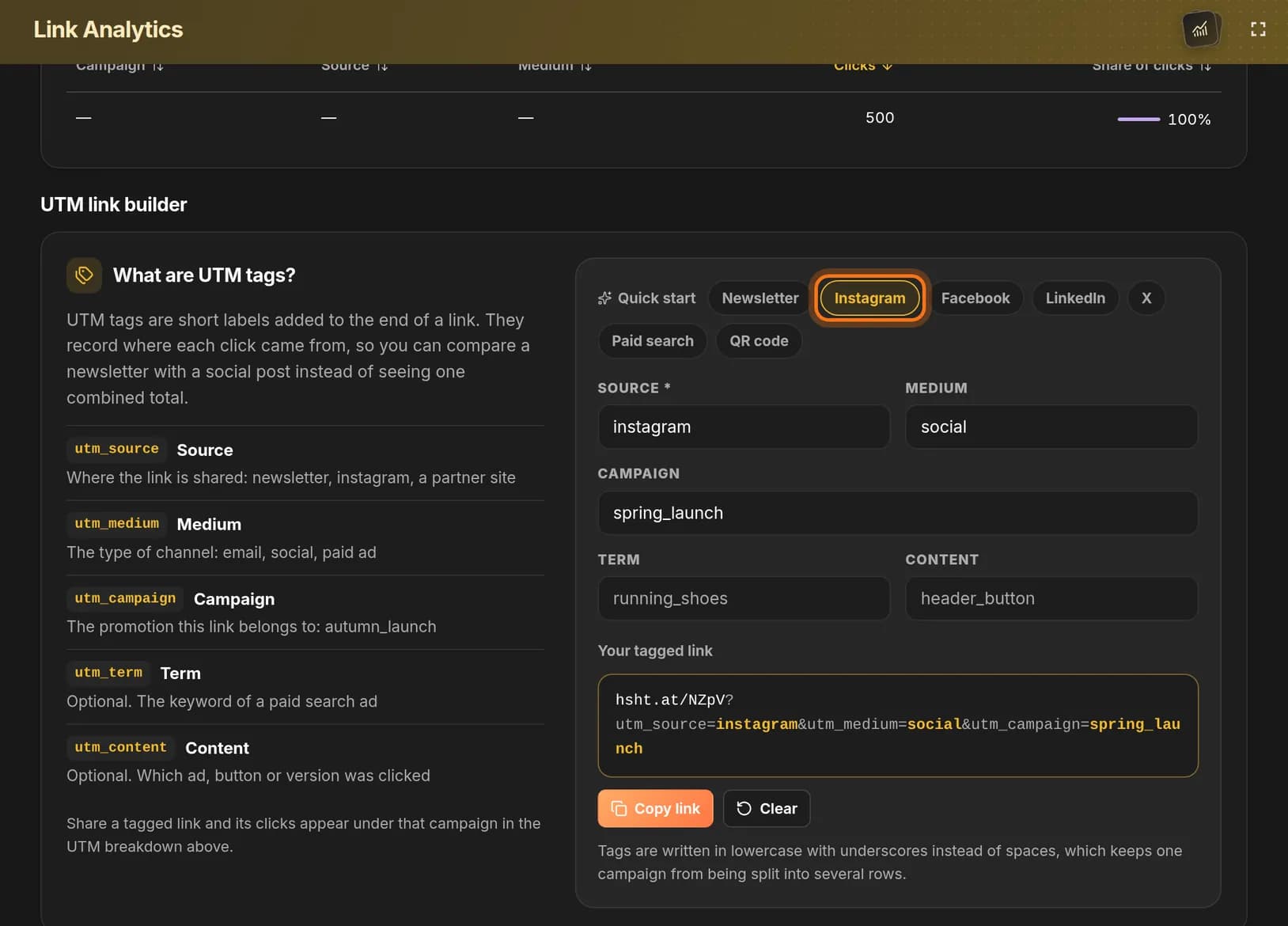
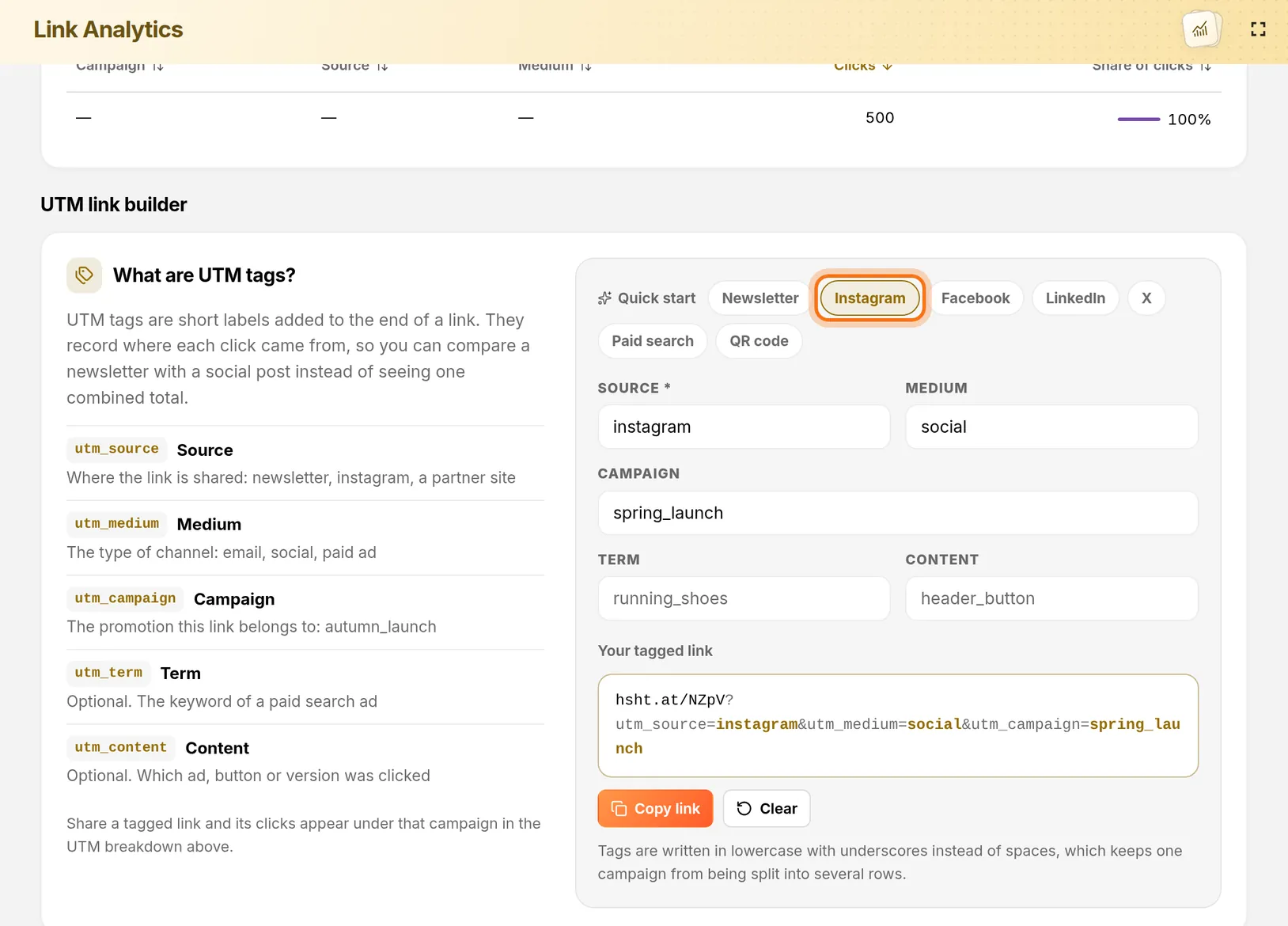
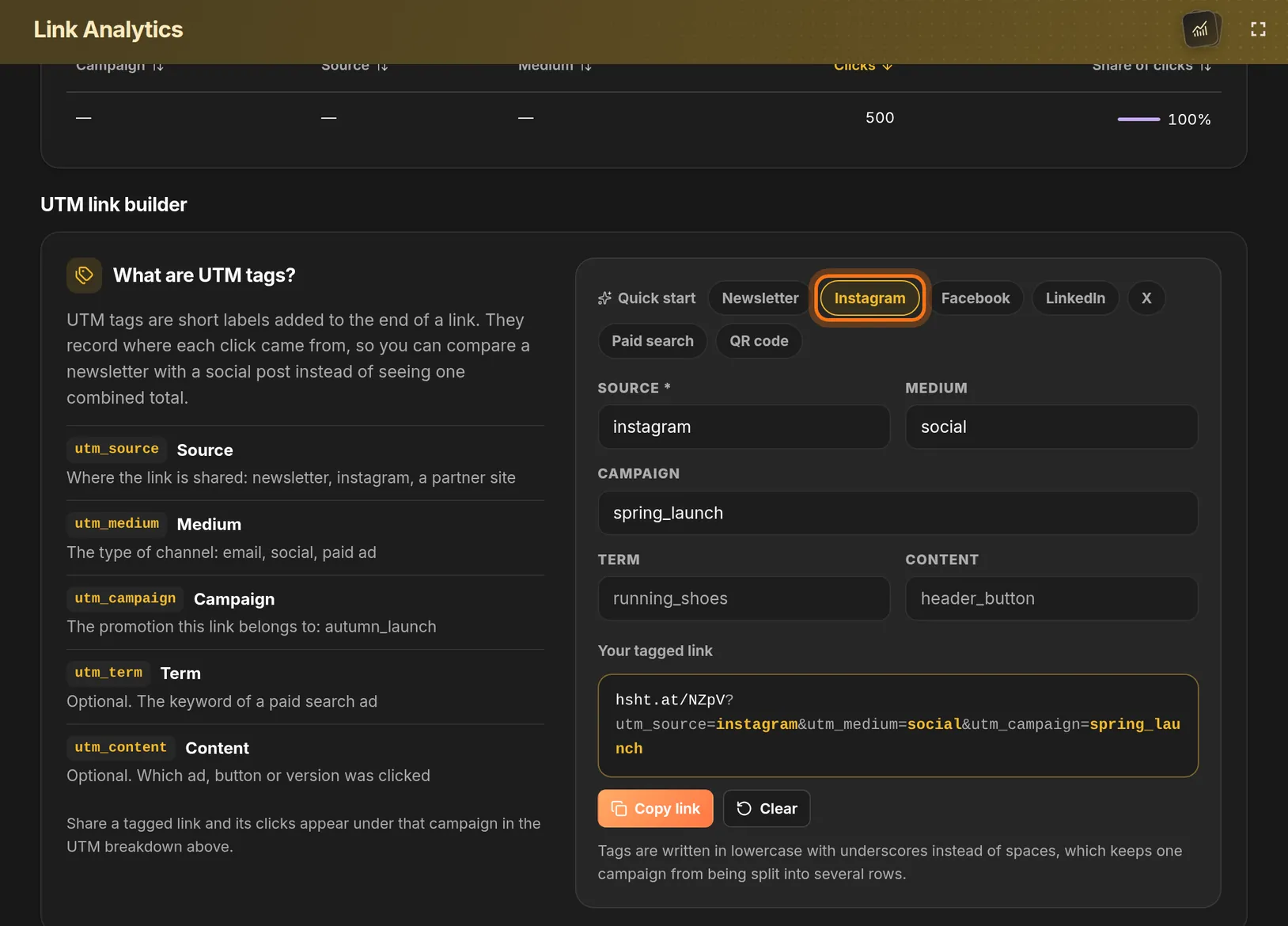
- Next to Quick start, click Instagram.
- Source changes to instagram and Medium to social. Keep the same Campaign name.
- Click Copy link again.
- Paste this second link into your Instagram post or profile.
 Full size
 Full size
Same campaign, different source: that is what lets you compare the two. Step 7: Compare the clicks
- Wait until people have clicked both links.
- Open the Campaigns tab of the same link again.
- In UTM Campaign Breakdown, find the rows with your campaign name.
- Compare the Clicks column of the newsletter row and the instagram row.
A row with dashes in its tag columns counts clicks on the plain short link, without any tags.
Check it worked
- Both tagged links open the same page as your plain short link.
- After some clicks, UTM Campaign Breakdown has one row per channel under the same campaign name.
If something looks different
The builder says “Add a source to build your link”
Source is empty. Click a preset next to Quick start, or type a source yourself.
My campaign shows up as two separate rows
The campaign name was spelled differently in the two links. Build both links again with exactly the same name.
The breakdown is still empty
Rows appear only after someone clicks a tagged link. Also check that the Period at the top covers the days of your posts.
Tip: There are presets for Facebook, LinkedIn, X, paid search and QR codes too. Make one tagged link for every place you post.