Get back an earlier version of a note
Deleted or overwrote something in a note? Open its version history, read the older text, and restore it.
- 5 steps
- About 3 minutes
Before you start
- You are signed in to HashThat.
- The note is a personal note that is not shared. Versions are kept only for those.
- The note has been changed and saved at least once since you created it.
Step 1: Open the note
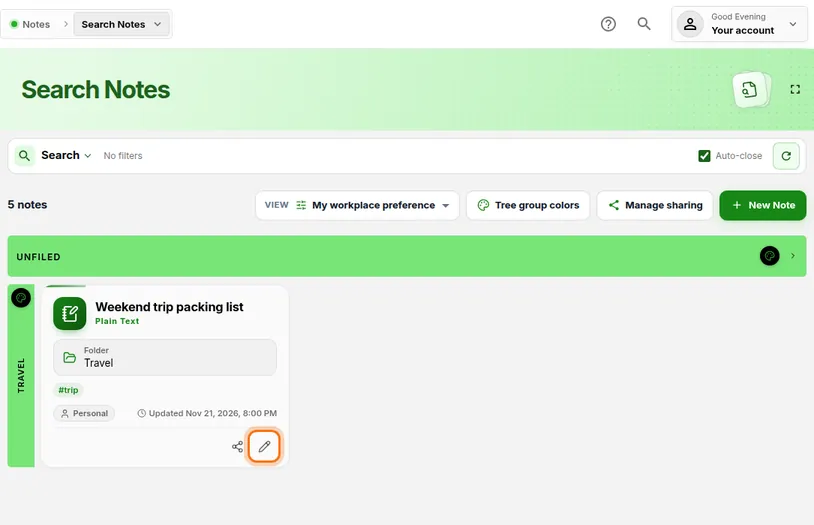
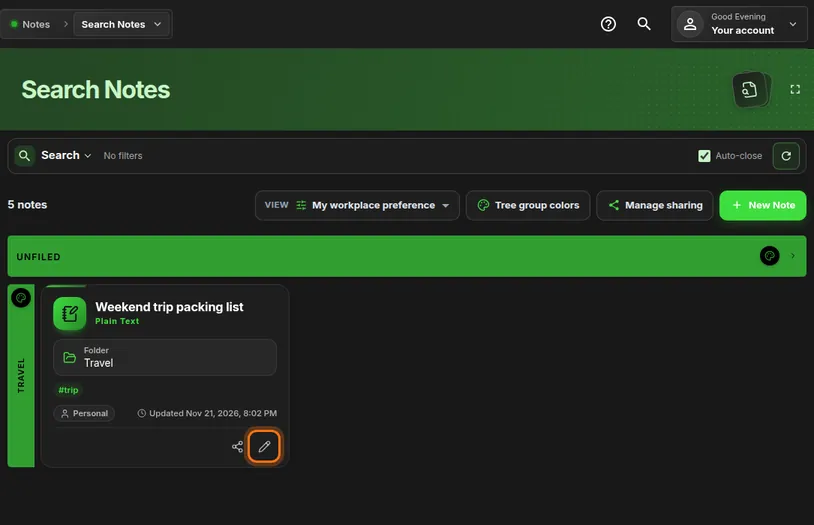
- In the left menu, under Notes, click Search Notes.
- Click the coloured bar for the note’s folder to open it.
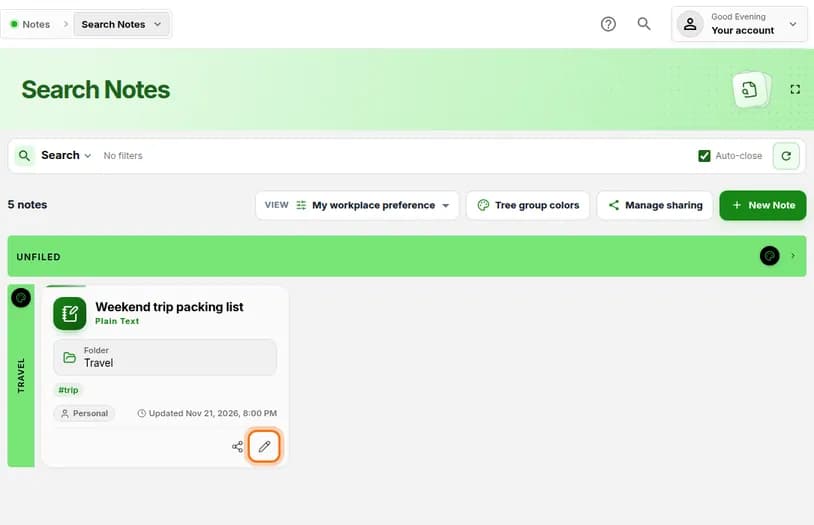
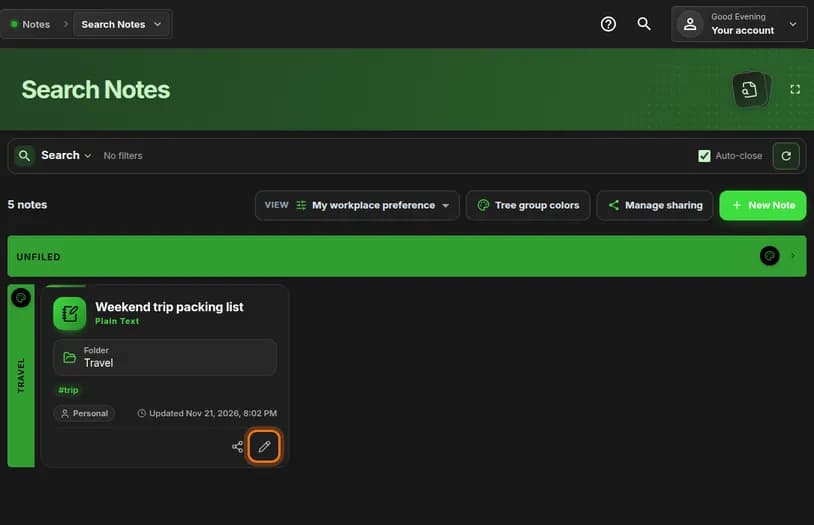
- On the note’s card, click the pencil icon.
You should see: The note opens in the editor.
 Full size
 Full size
The pencil opens the note for editing. Step 2: Open the version history
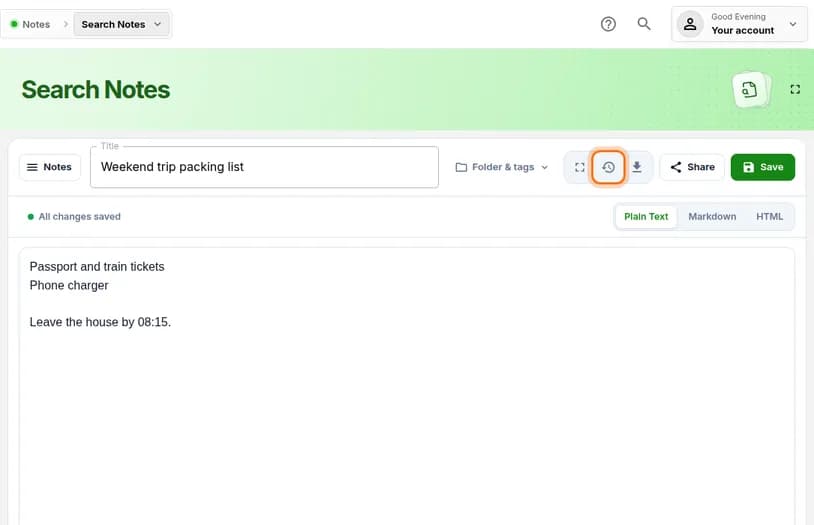
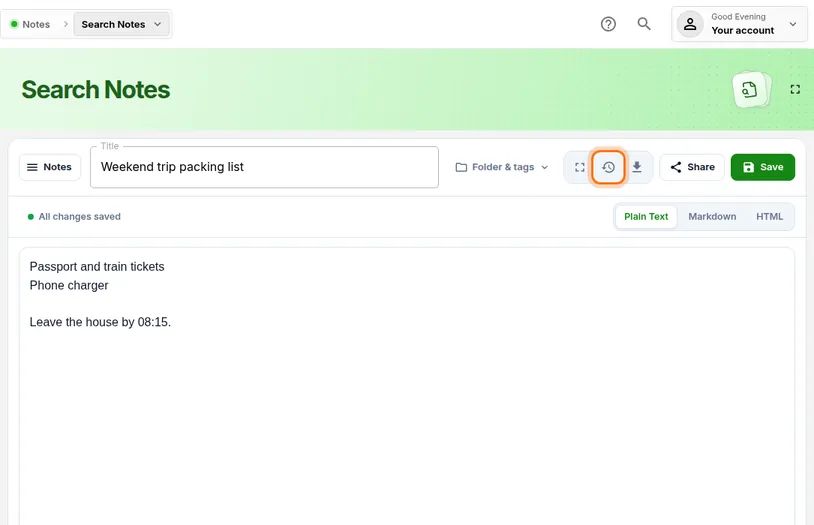
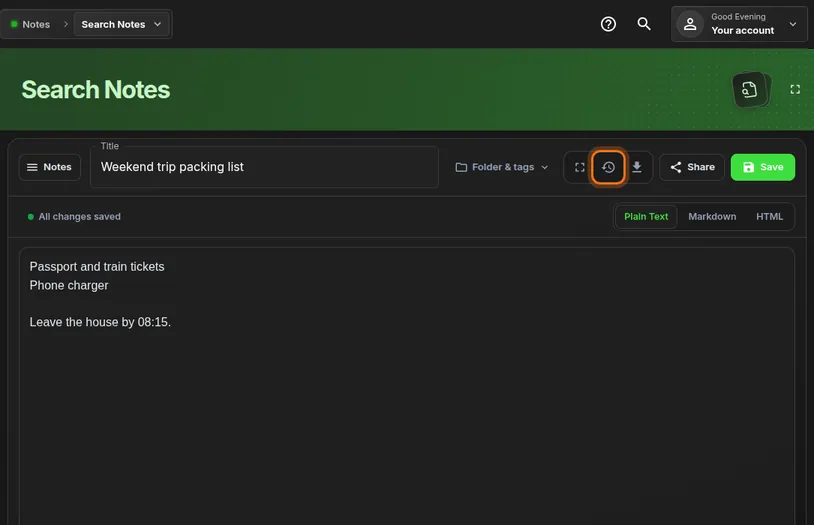
- Look at the row of small icons to the right of the title.
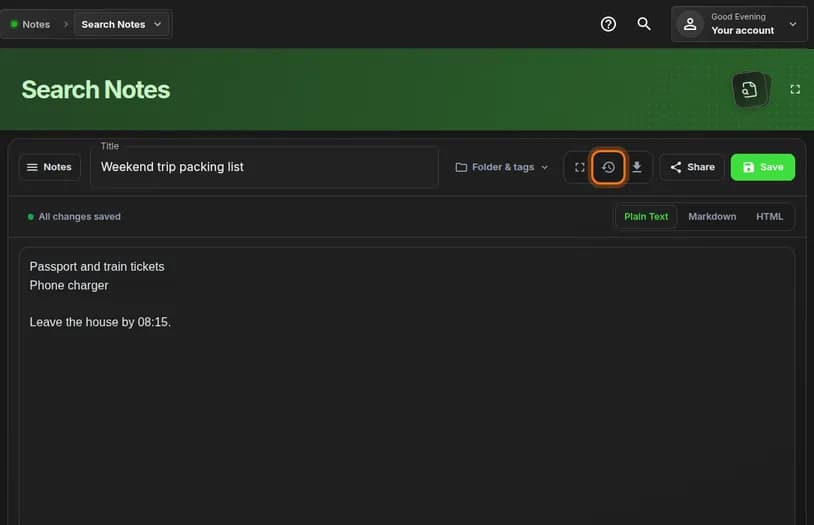
- Click the clock icon. If you rest the mouse on it, it says Version history.
You should see: A window titled Version history with a list of dates on the left.
 Full size
 Full size
The clock icon appears once a note has been saved. Step 3: Pick a date
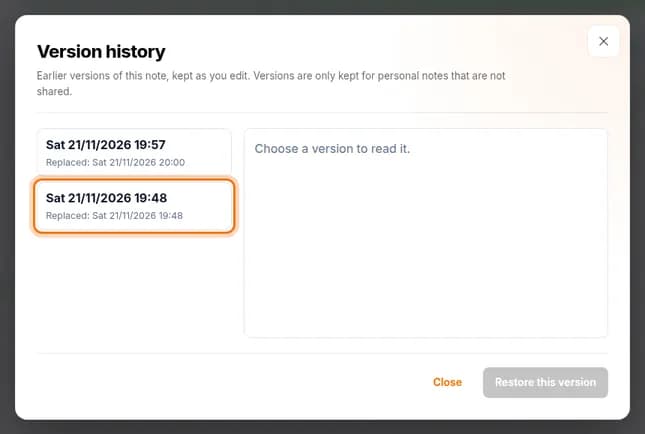
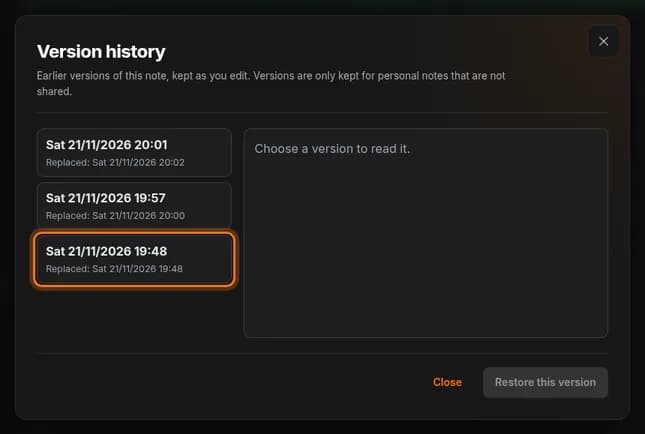
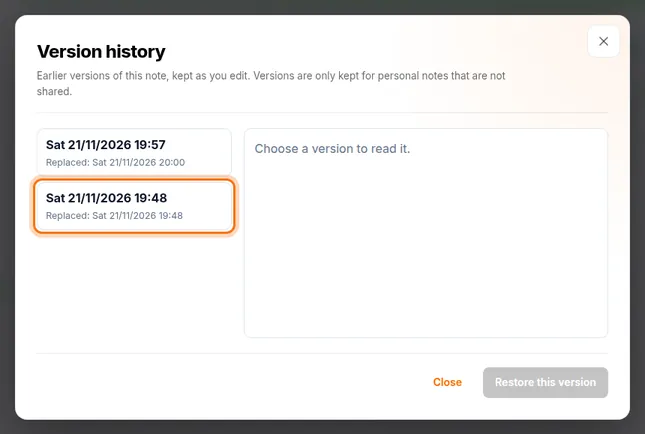
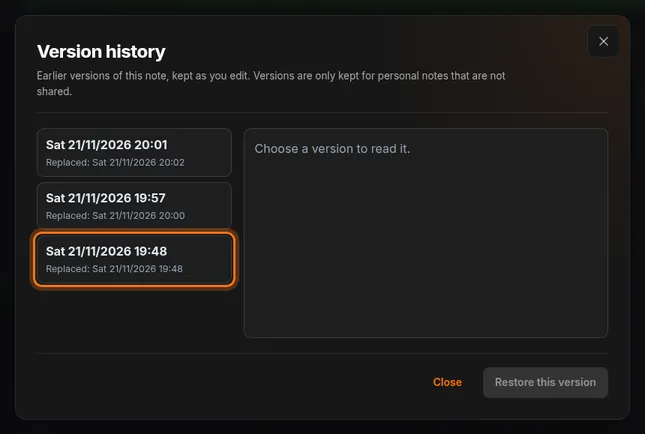
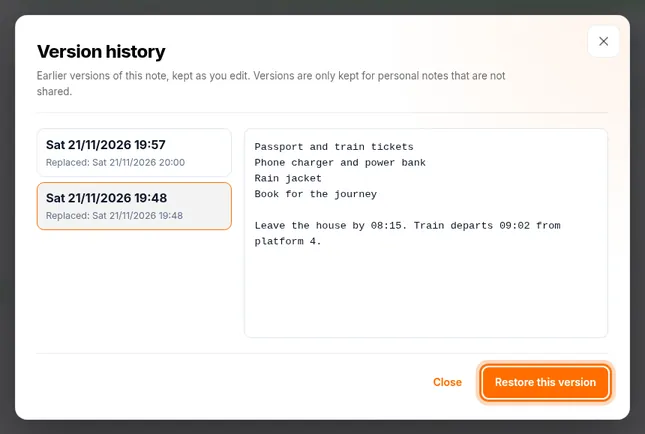
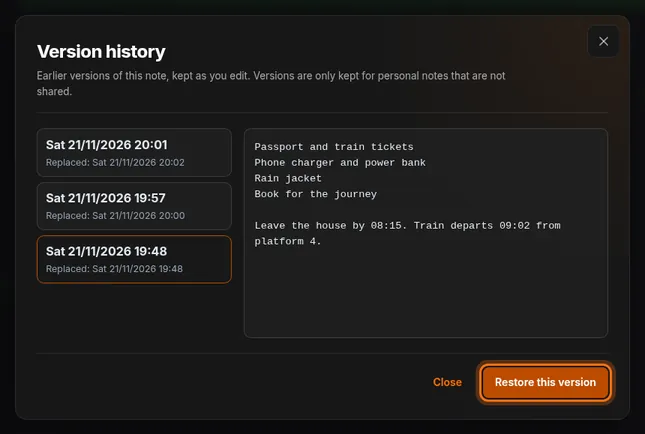
- Each line in the list is one earlier version. The large date is when that text was written.
- Click the version you want to look at. The oldest one is at the bottom.
You should see: The text of that version appears on the right.
 Full size
 Full size
Replaced shows when that version was overwritten by a newer save. Step 4: Read it, then restore it
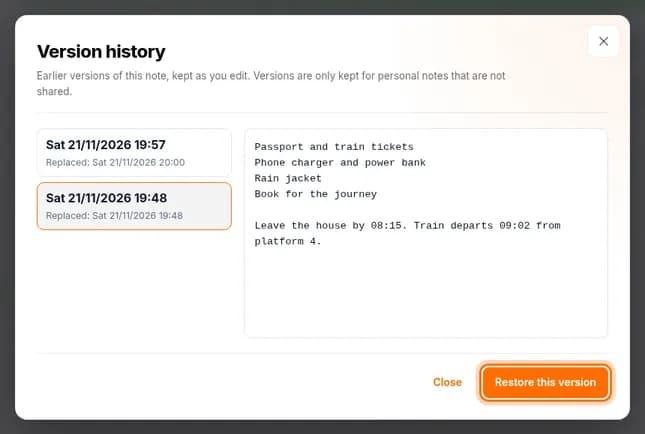
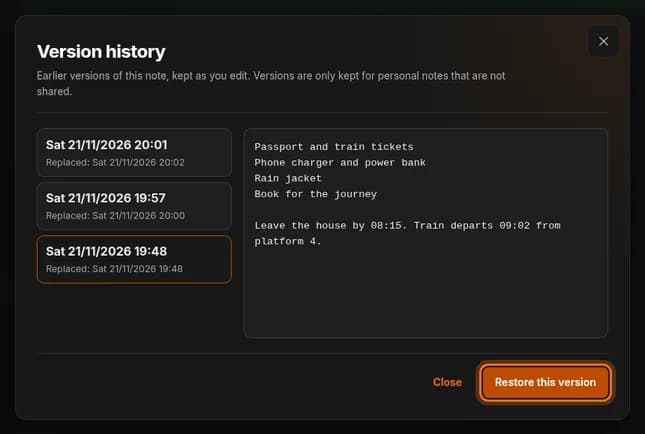
- Read the text on the right and make sure it is the version you want.
- Not the right one? Click another date in the list.
- Click Restore this version.
You should see: The window closes and the editor shows the older text.
 Full size
 Full size
Looking at a version changes nothing. Only Restore this version does. Step 5: Check the restored note
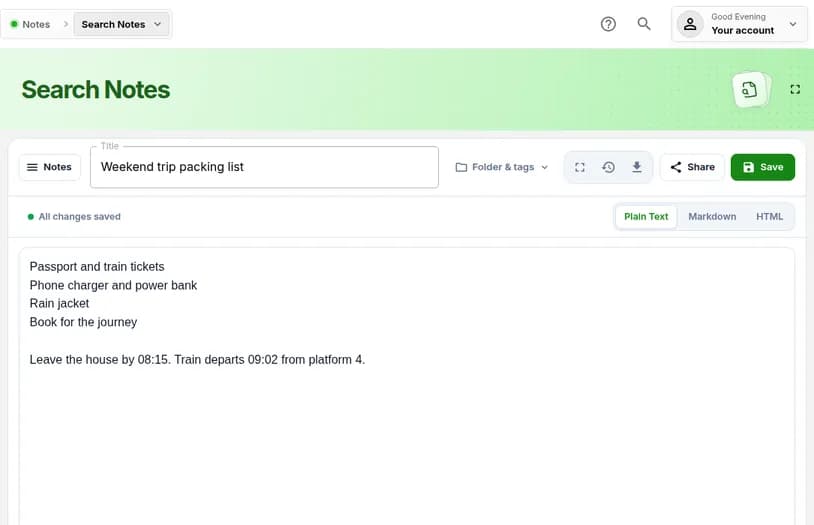
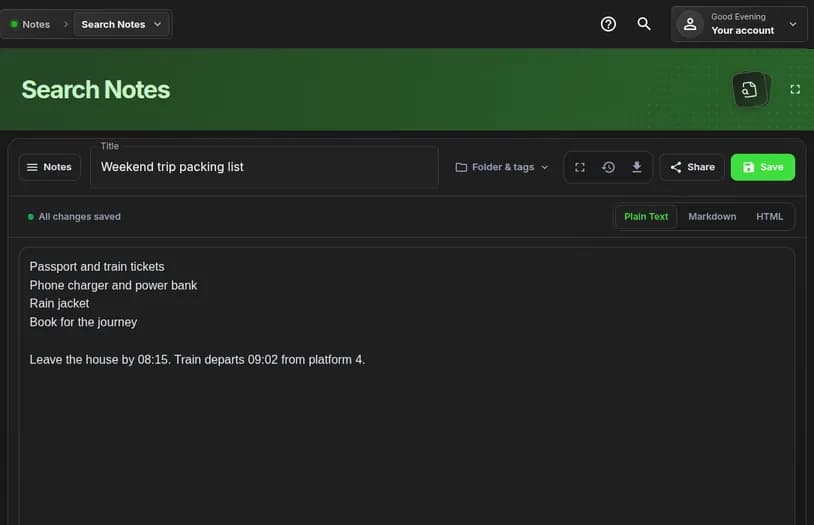
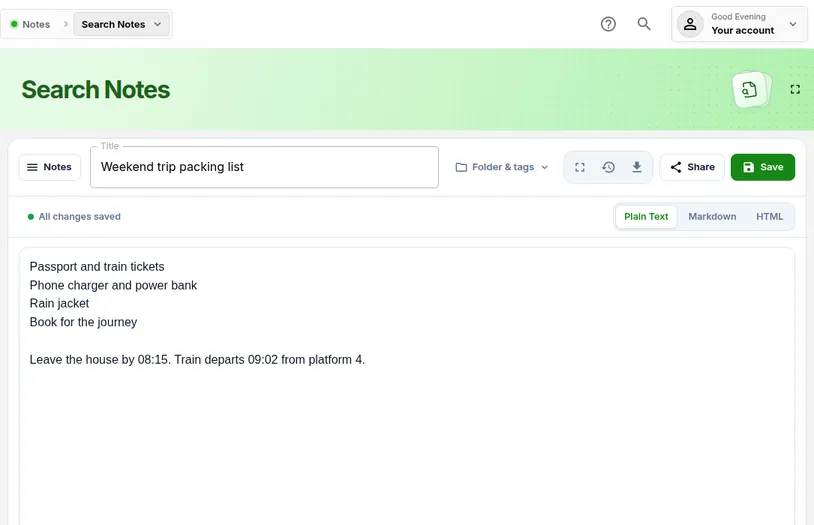
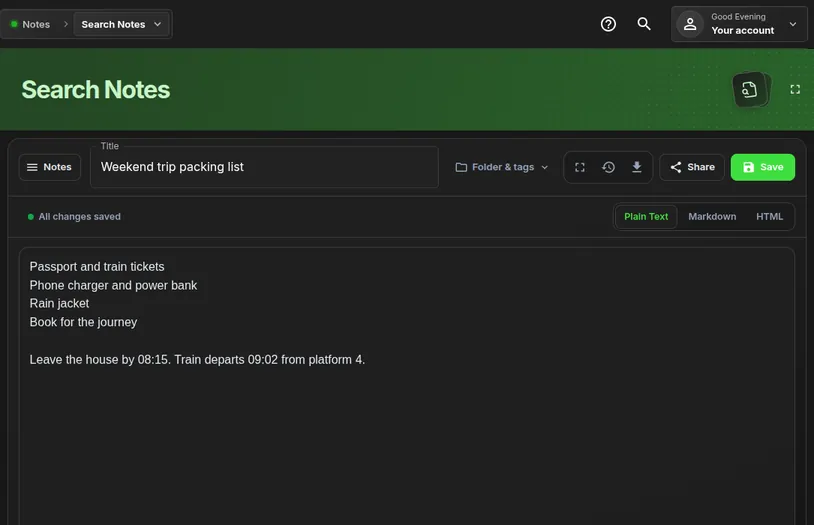
- Read the note in the editor.
- Look for All changes saved above the writing area.
 Full size
 Full size
The note is back to the way it was on the date you picked.
Check it worked
- The editor shows the older text.
- All changes saved is shown above the writing area.
If something looks different
The list says there are no earlier versions
A version is kept when you change a saved note, at most once every 10 minutes. A brand-new note, or one you changed several times within a few minutes, may have none or only one.
There is no clock icon
The icon appears after the note has been saved once. It is also missing on notes that are shared, because versions are kept only for personal notes that are not shared.
I restored the wrong version
Open Version history again, click a different date, read the text on the right, and click Restore this version. Restoring never removes versions from the list.
Tip: Before a big rewrite, click Save first. That gives you a clean version to return to if you change your mind.