Save a note as a PDF
Turn a finished note into a PDF file on your computer, using your browser’s print window.
- 5 steps
- About 3 minutes
Before you start
- HashThat open in a web browser on a computer.
- A saved note with some text in it. Plain-text notes work on the free plan.
Step 1: Open the note
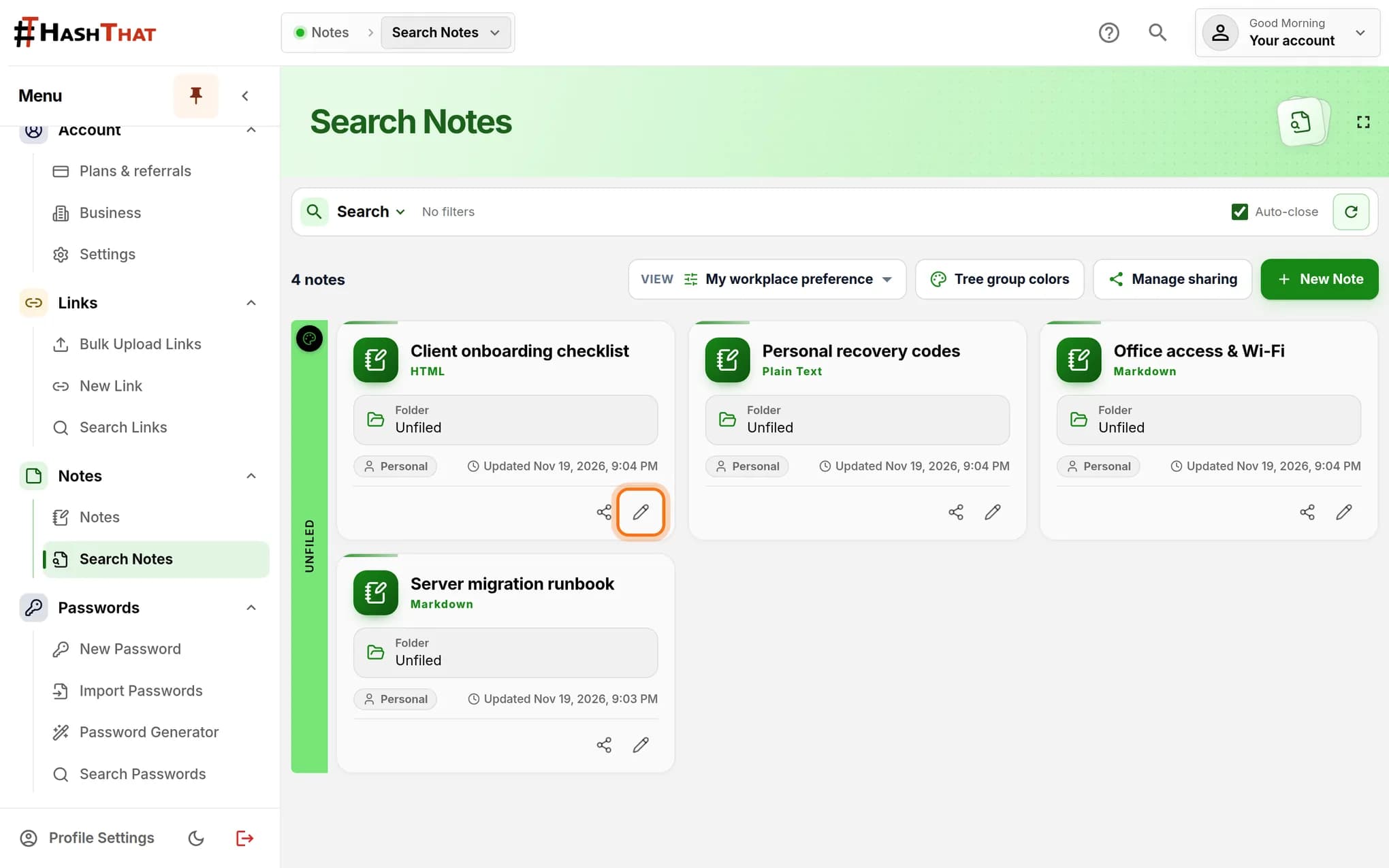
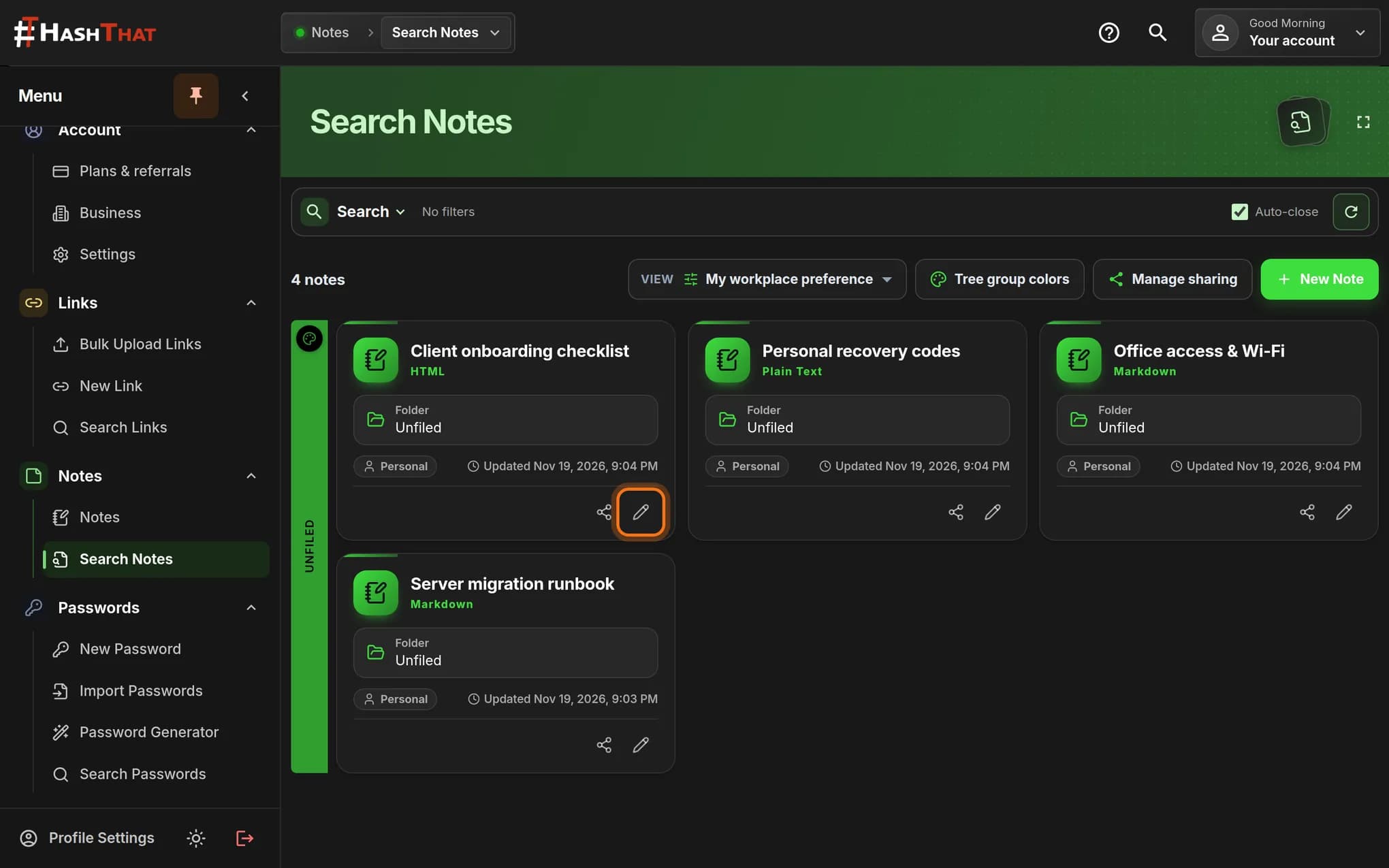
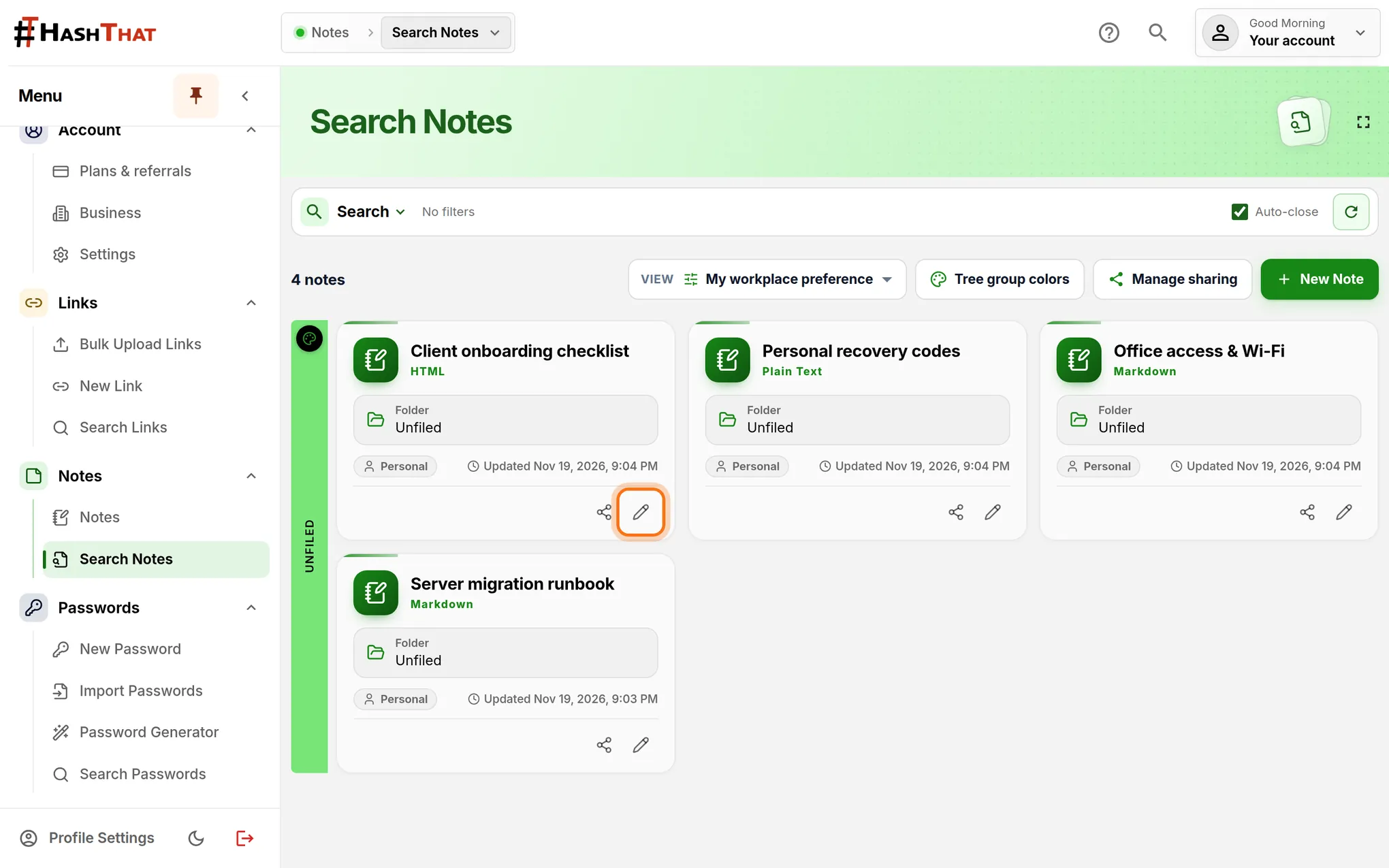
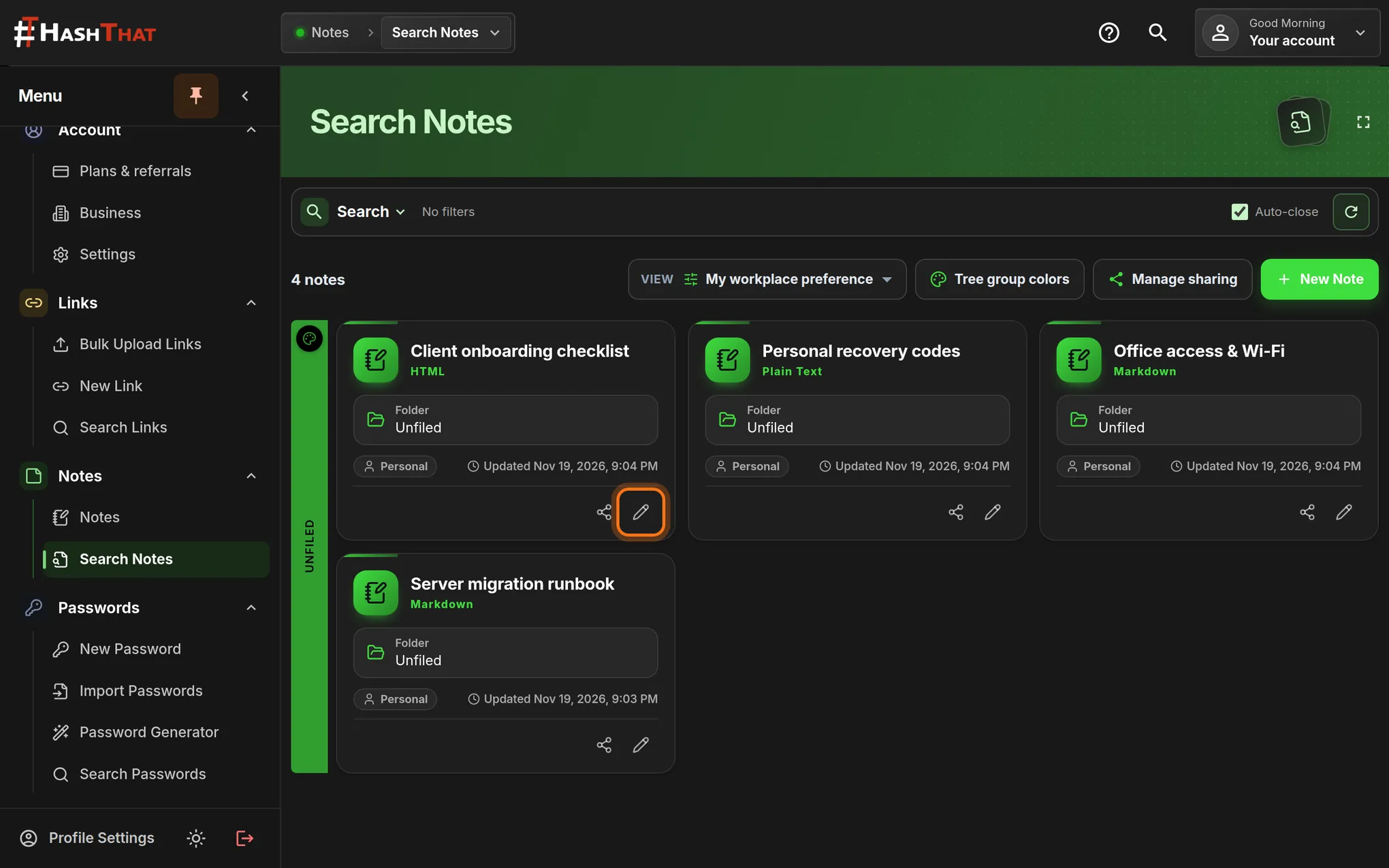
- In the left menu, click Search Notes.
- If your notes are hidden, click the green bar to open the group.
- On the note’s card, click the pencil icon at the bottom right.
You should see: The note opens in the editor, with its title at the top.
 Full size
 Full size
The pencil icon opens a note for reading and editing. Step 2: Check how it will look
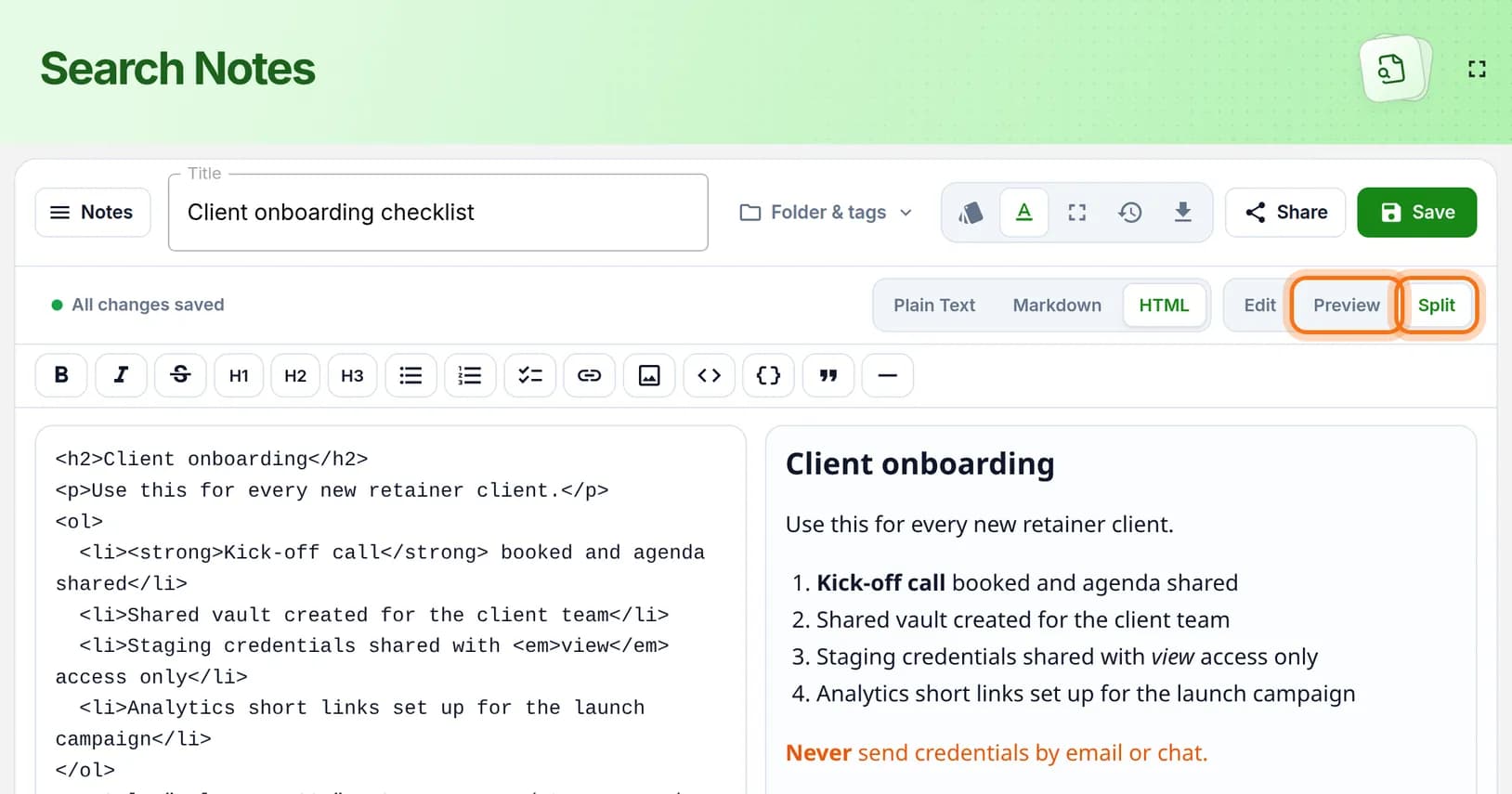
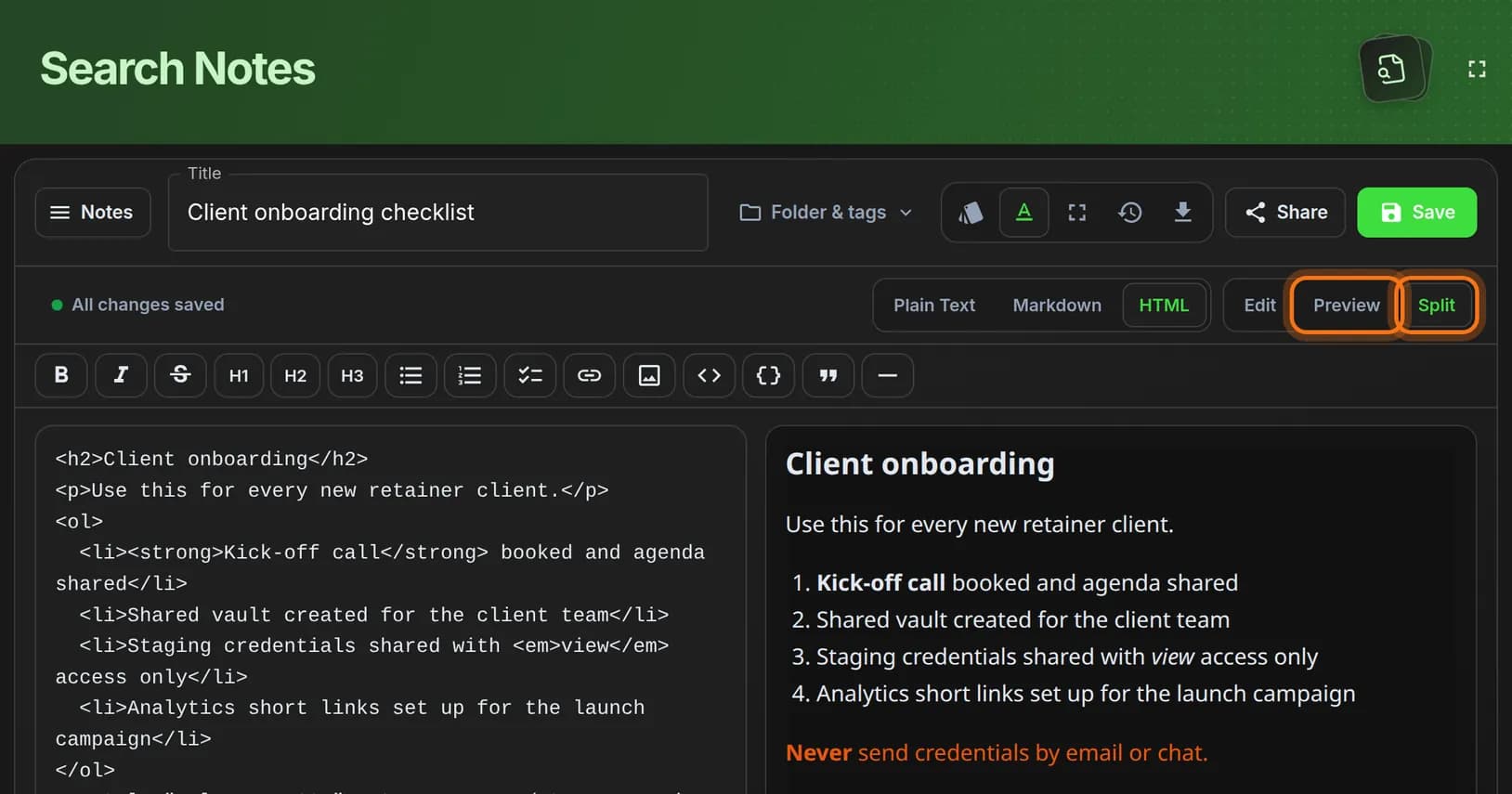
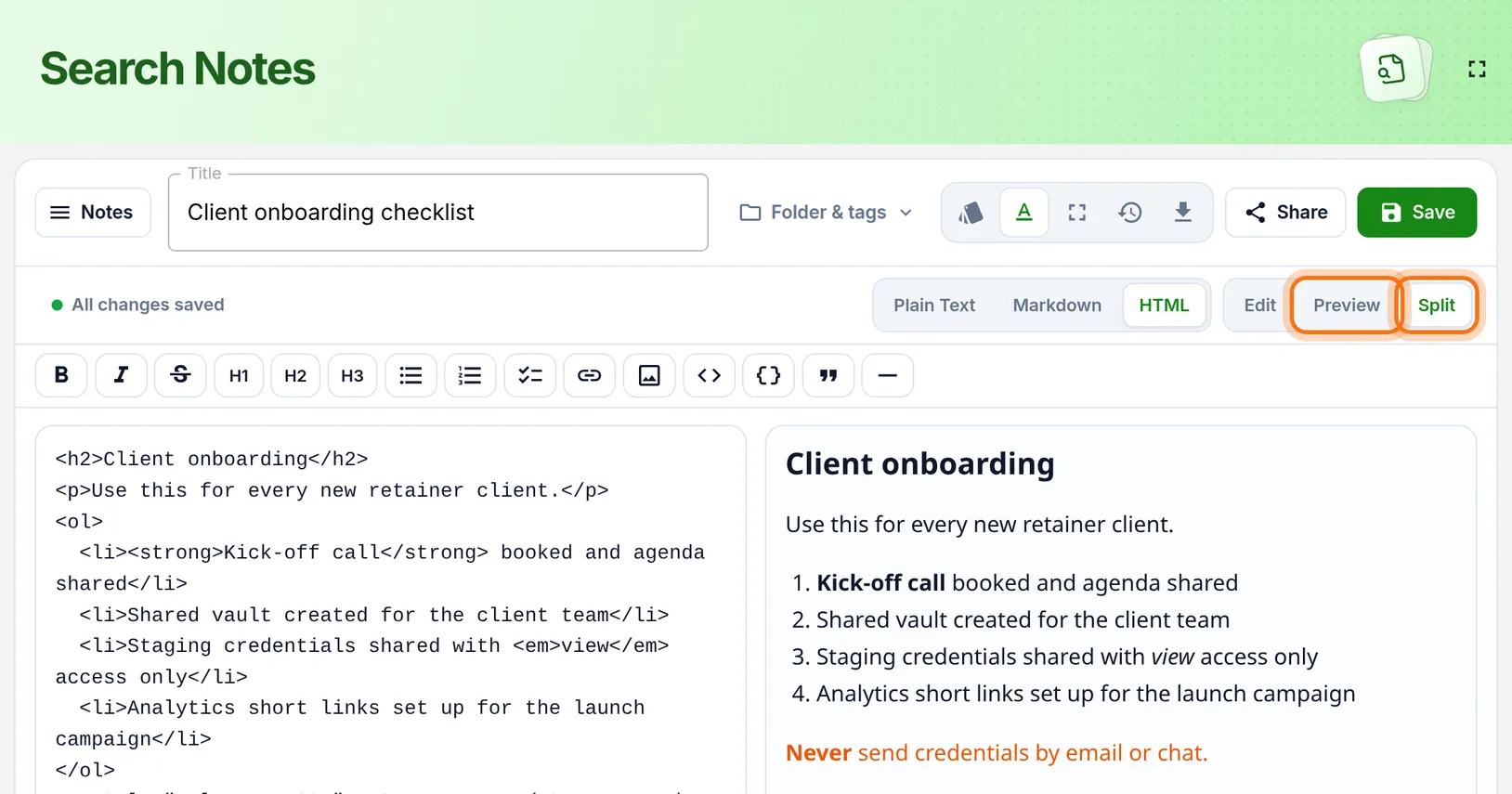
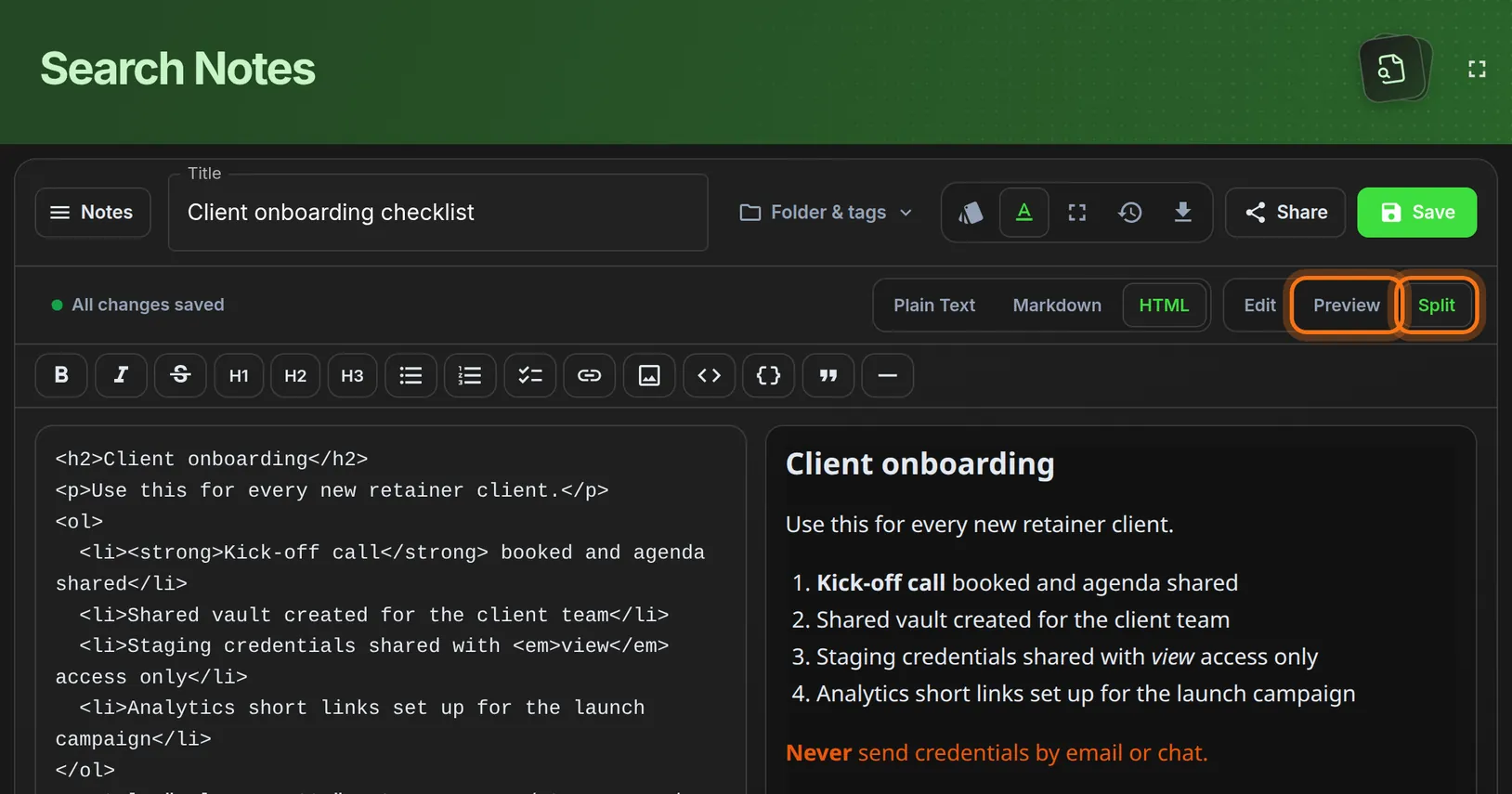
- For a Markdown or HTML note, click Split or Preview.
- Read the right-hand side. That is how the note will look in the PDF.
- Fix anything you want to change, then click Save.
 Full size
 Full size
A plain-text note has no preview. It prints exactly as you typed it. Step 3: Click the Export button
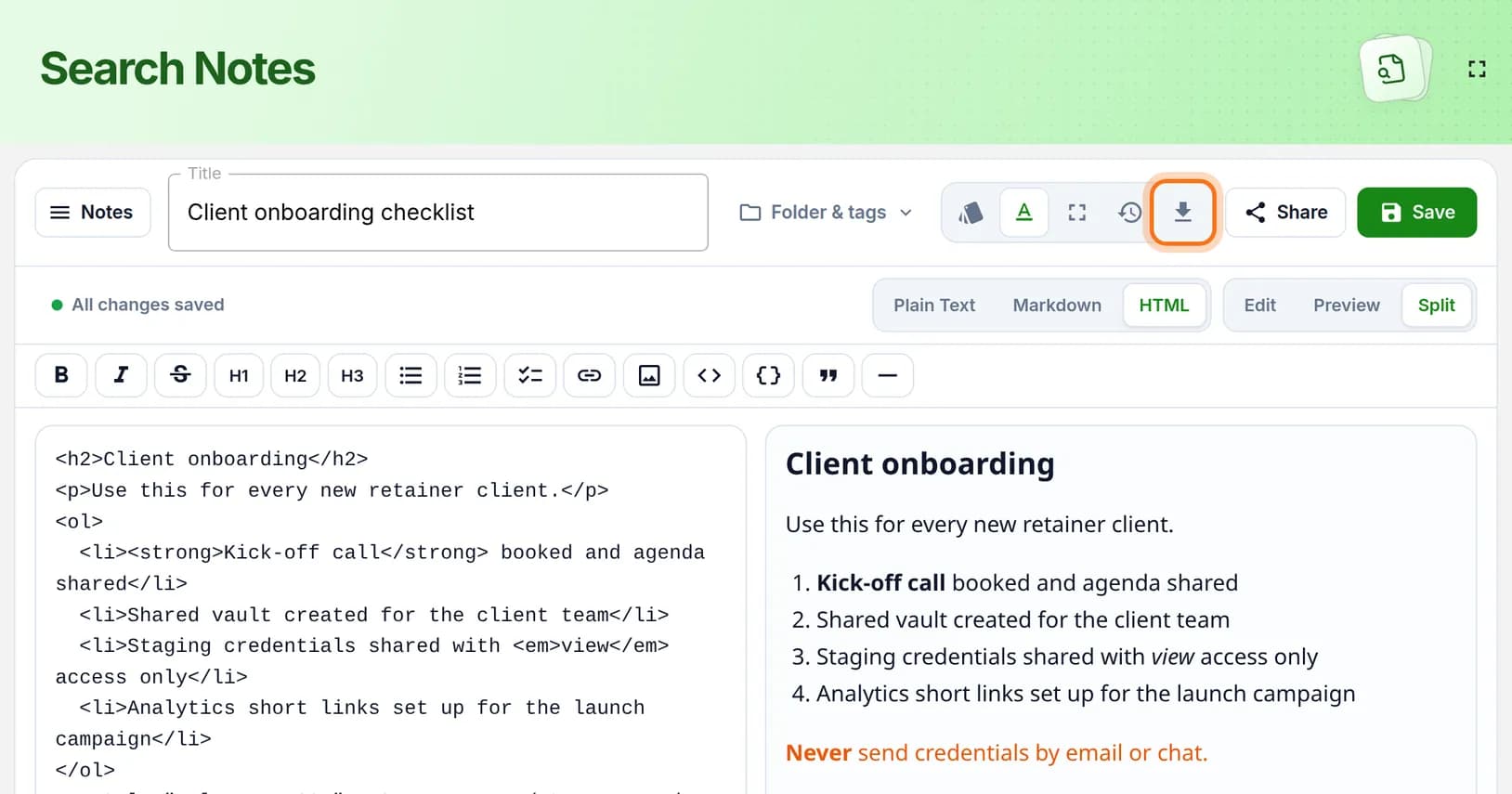
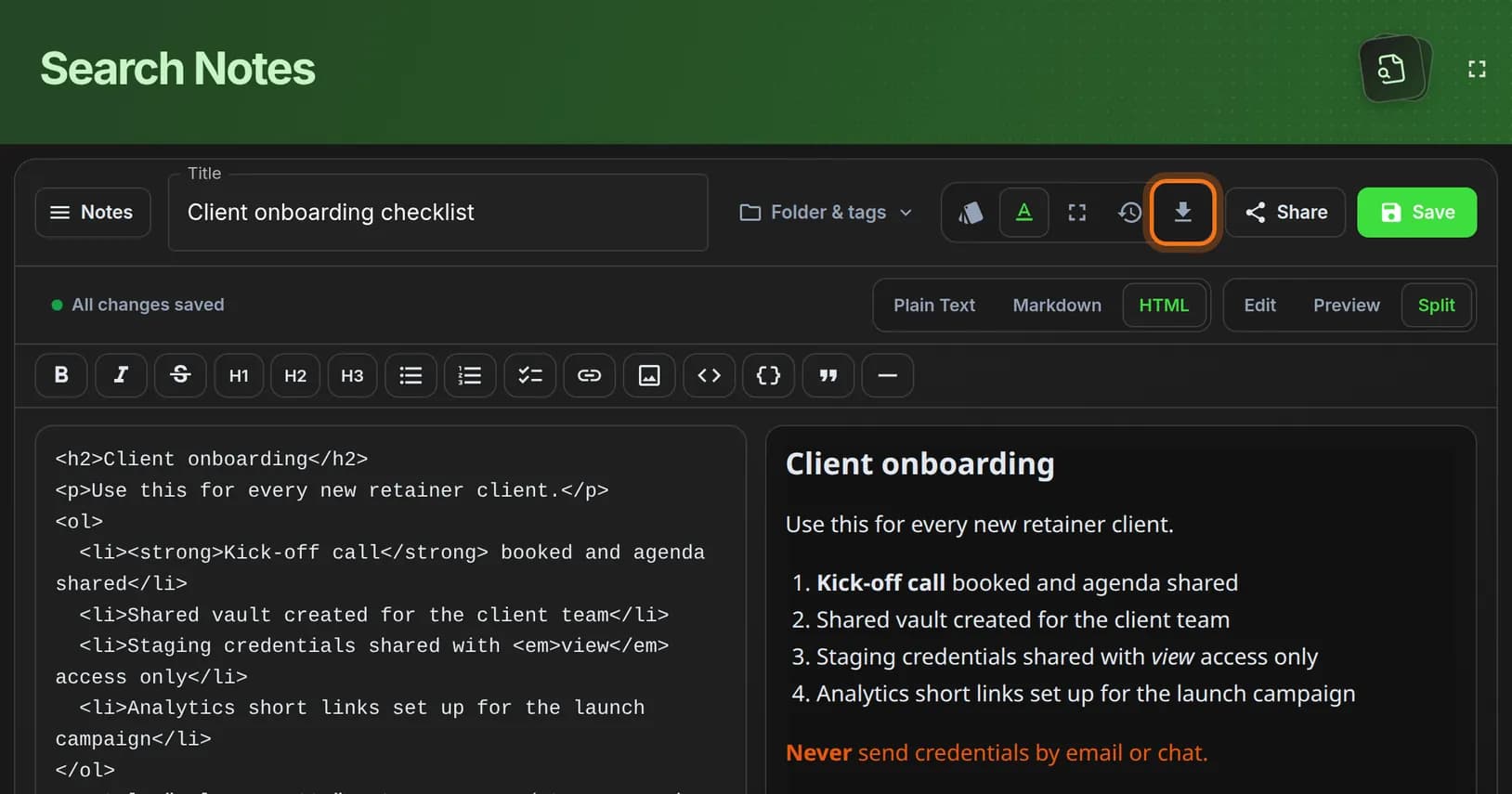
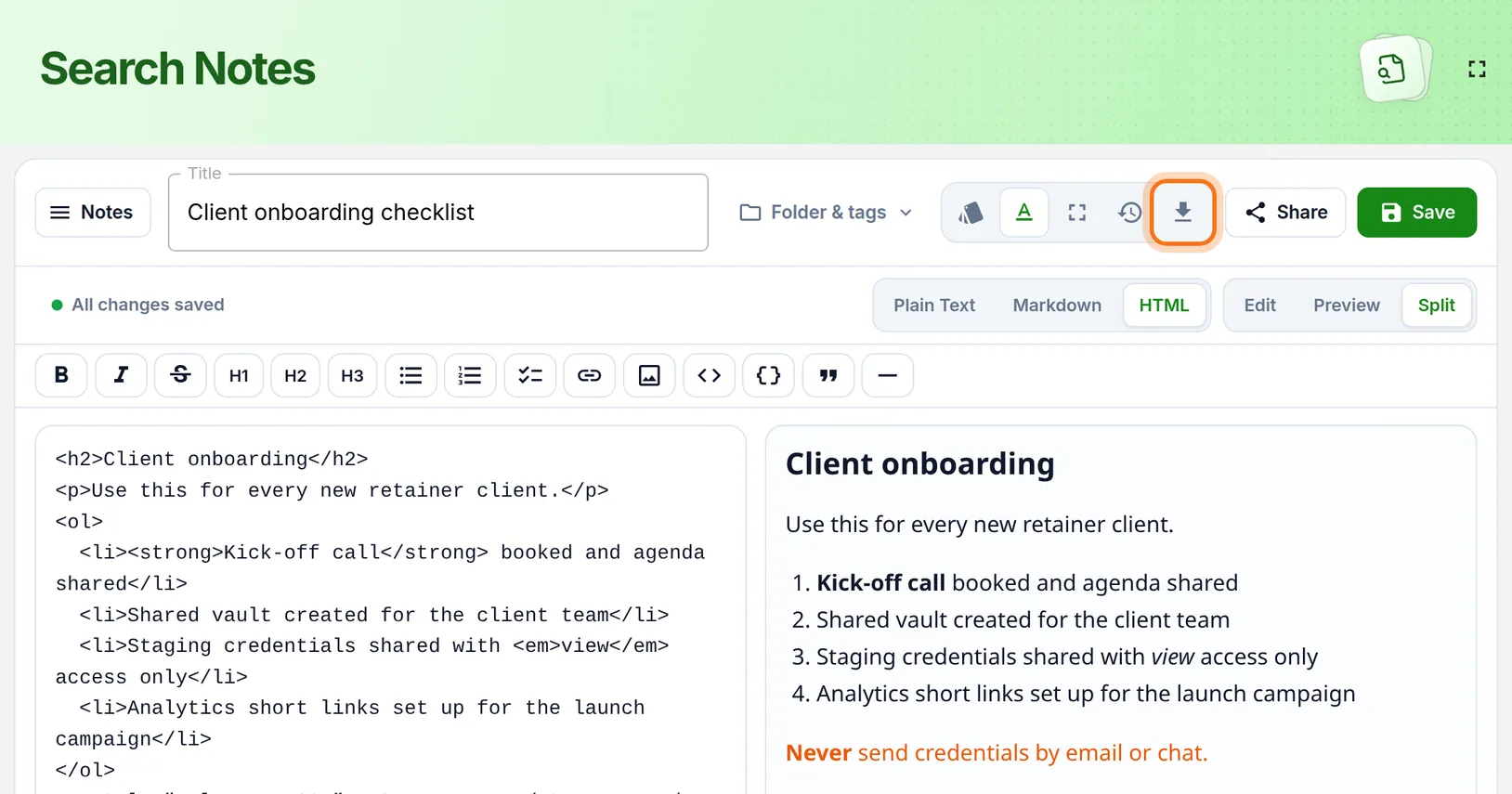
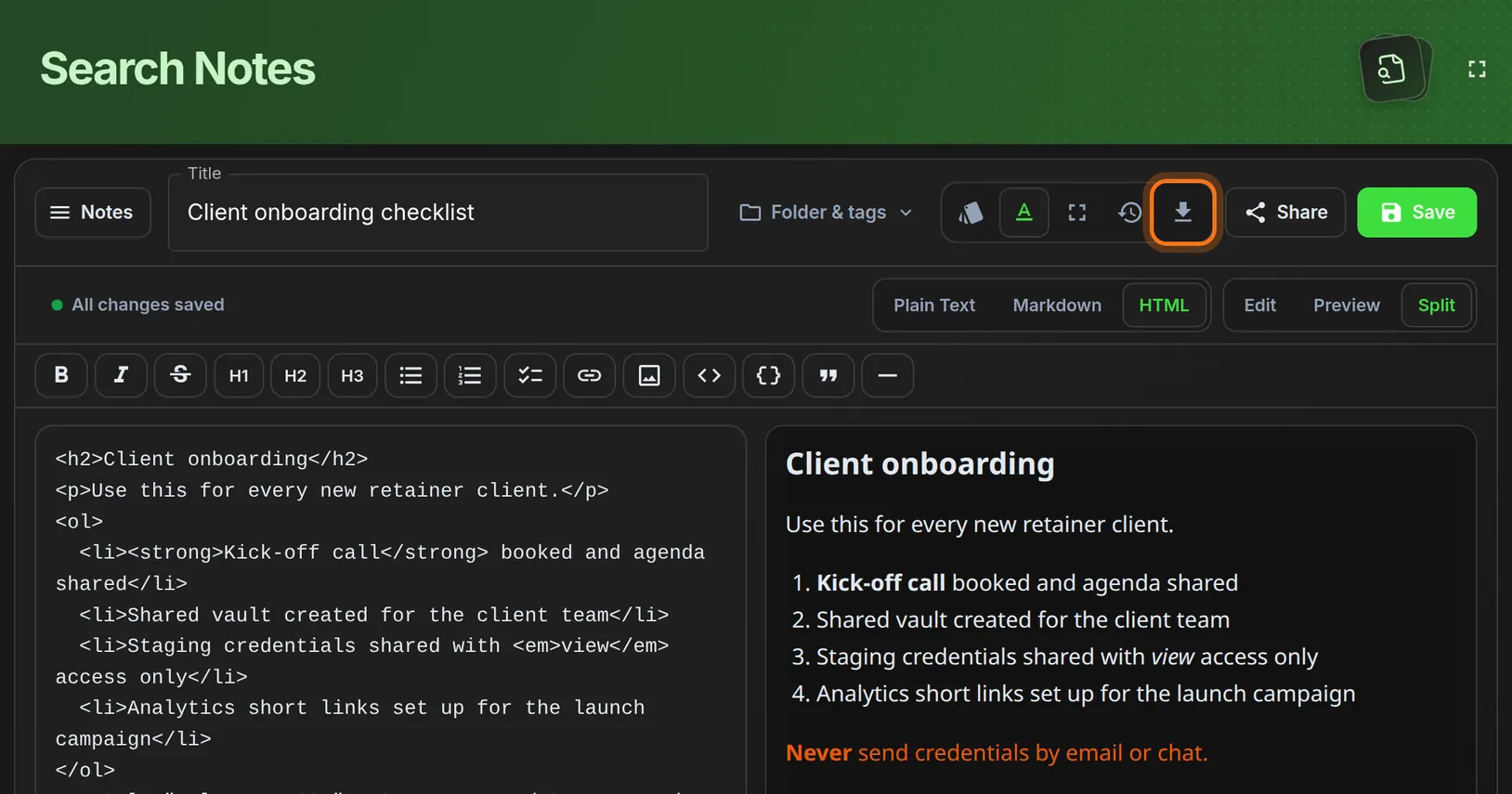
- Find the row of small buttons to the right of the title.
- Click the one with a downward arrow. Its name is Export.
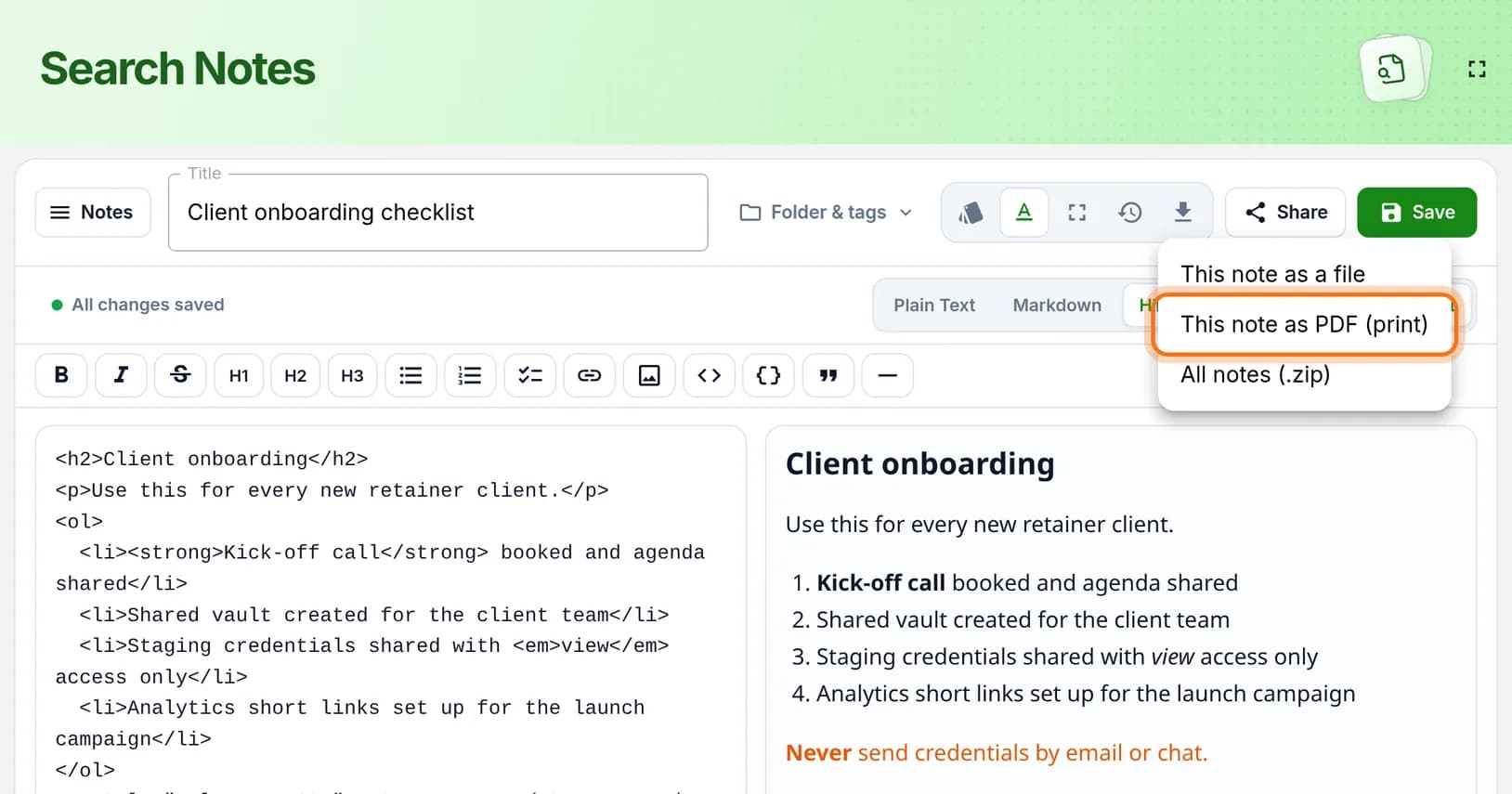
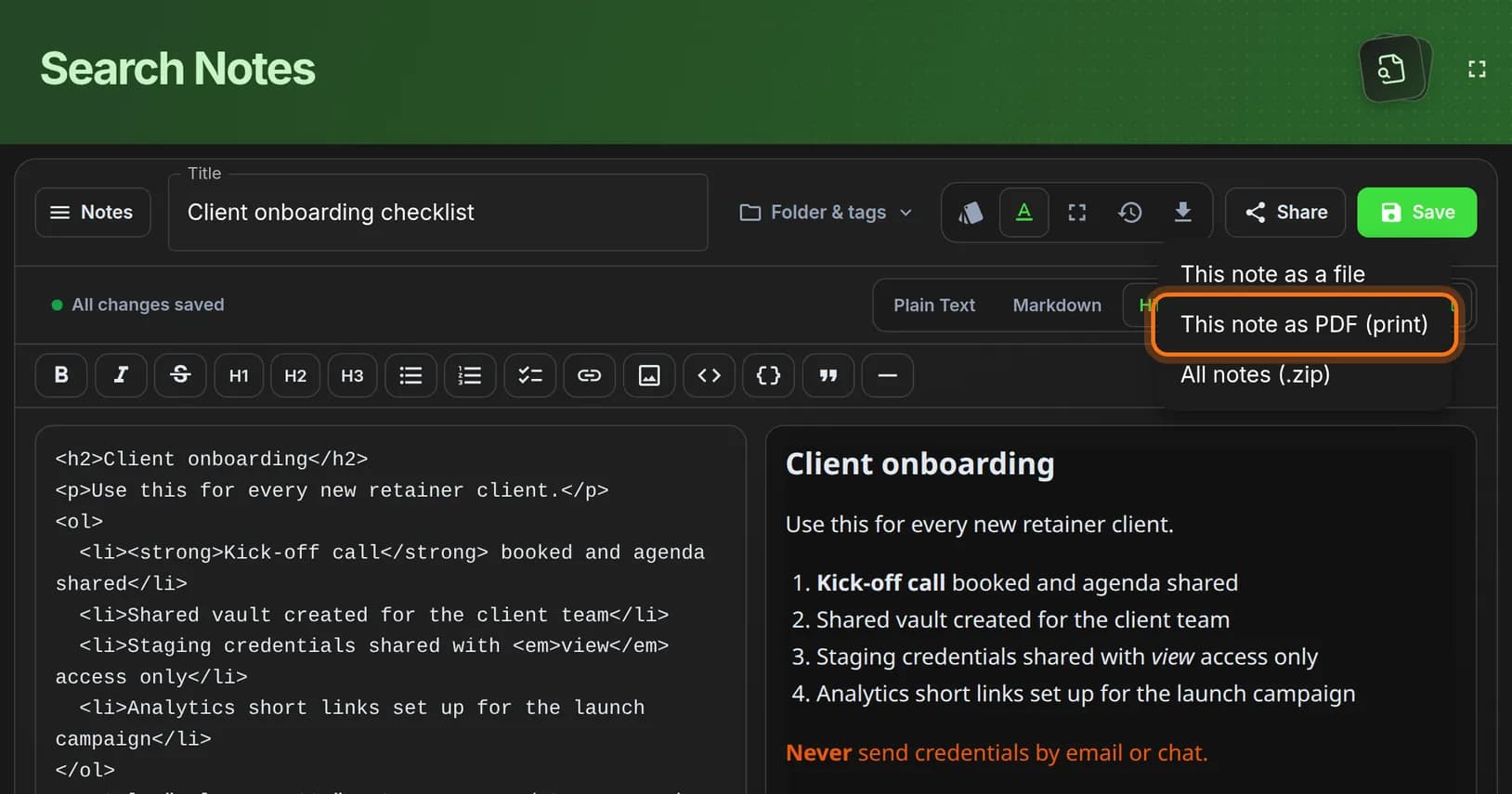
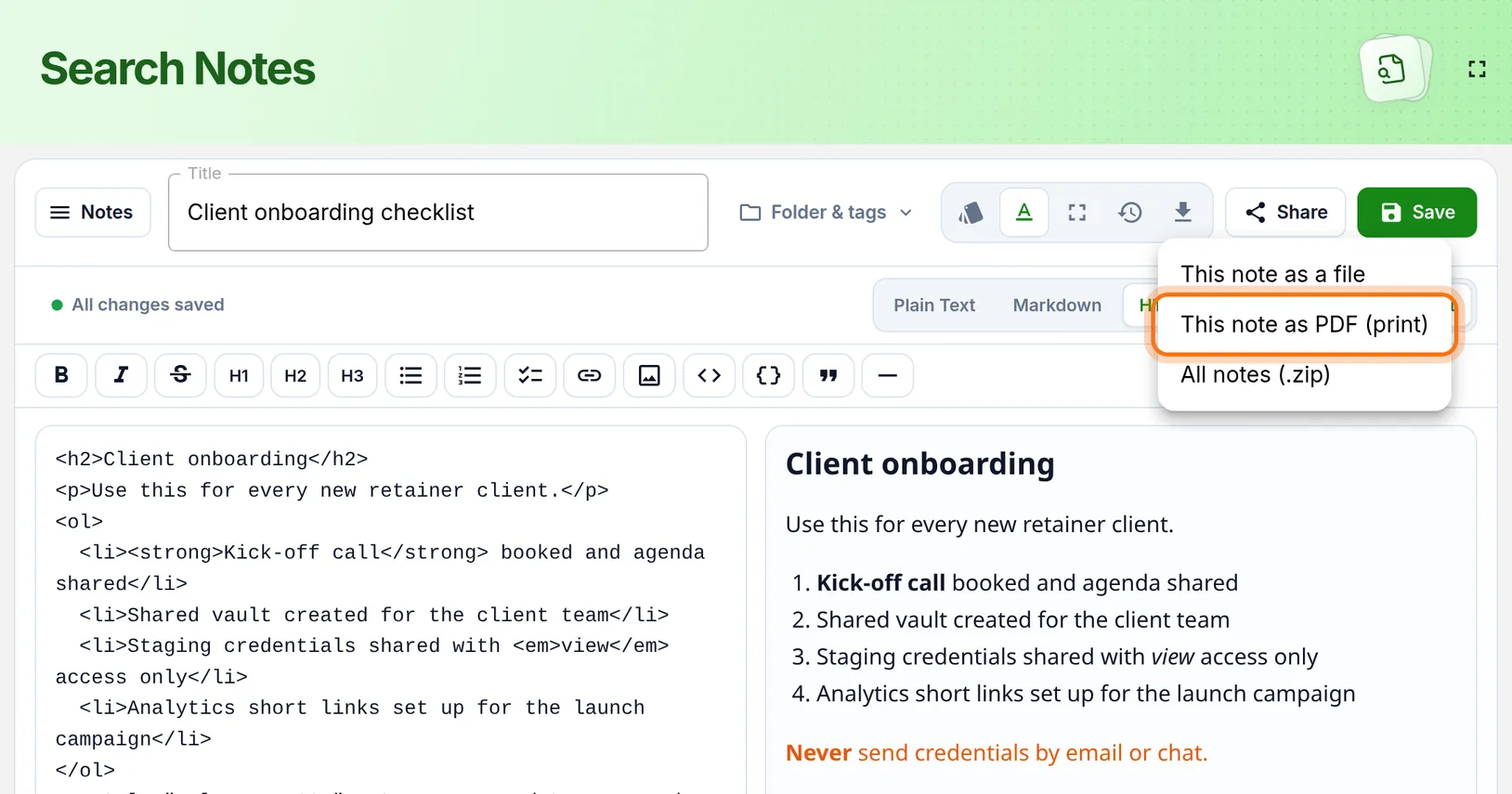
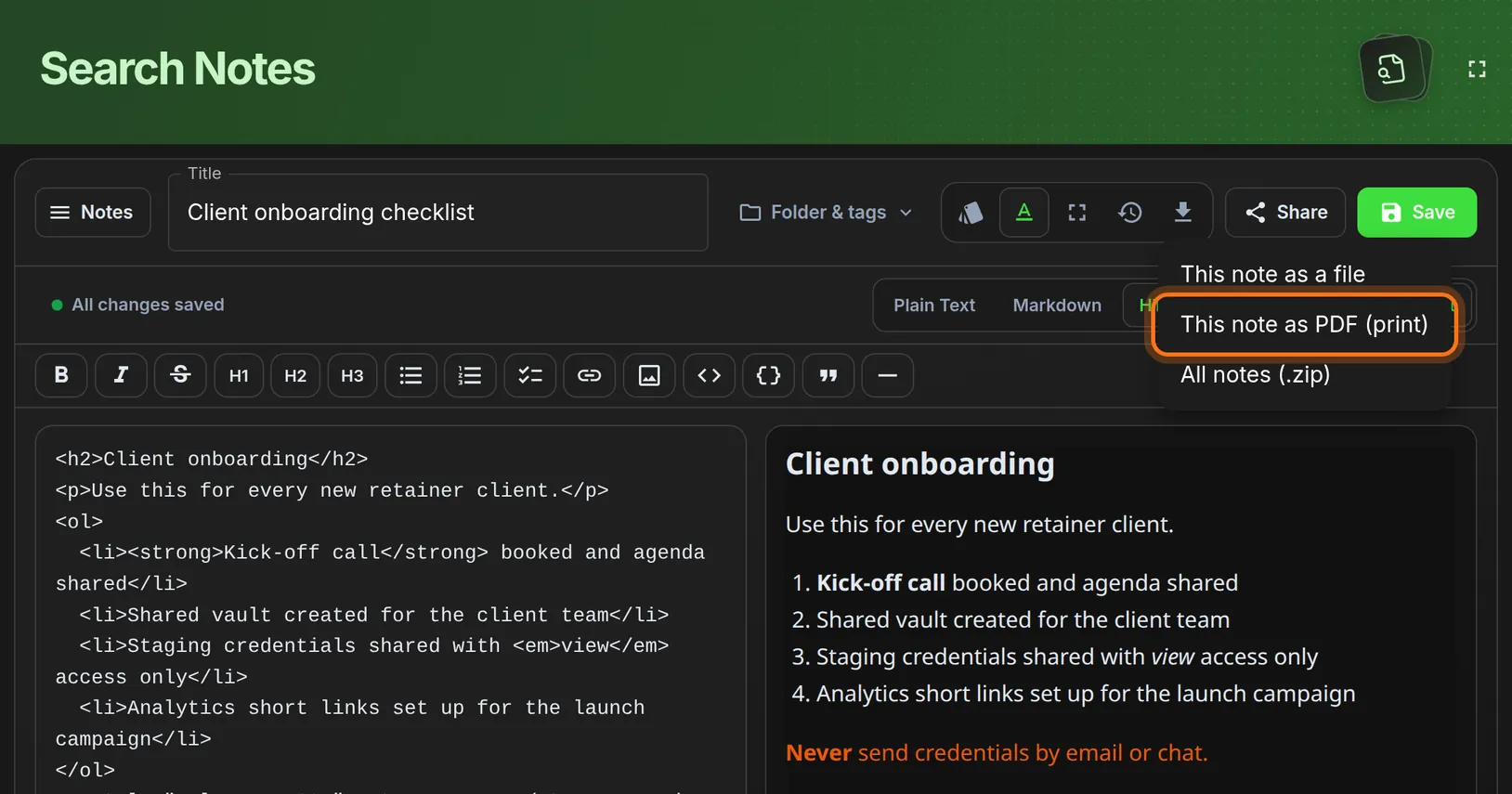
You should see: A small menu with three choices.
 Full size
 Full size
Hold your mouse over a button to see its name. Step 4: Choose the PDF option
- In the menu, click This note as PDF (print).
You should see: Your browser’s print window, with a picture of the page.
 Full size
 Full size
The other two choices download the note as a file, or all your notes as a zip file. Step 5: Save the PDF in the print window
- In the print window, find Destination or Printer.
- Choose Save as PDF. Some browsers call it Save to PDF or Microsoft Print to PDF.
- Click Save.
- Pick a folder, type a file name and click Save again.
The print window belongs to your browser, so it looks a little different in Chrome, Edge, Firefox and Safari.
Check it worked
- The PDF file is in the folder you picked.
- Open it. The first and last lines match the note.
If something looks different
No print window appears
Save the note, then choose the PDF option again. If your browser shows a notice that it blocked a pop-up or a print request, allow it for HashThat and try once more.
The PDF is missing my latest changes
Save the note first, then export again. The PDF is a copy of the note at the moment you export it.
Tip: A PDF is no longer protected by HashThat. Anyone who gets the file can read it. To give someone access you can take back later, share the note instead.