Switch between light and dark mode
Turn the whole app dark for the evening, light for the day, or let it follow your device automatically.
- 5 steps
- About 1 minute
Before you start
- You are signed in to HashThat.
Step 1: Find the Theme button
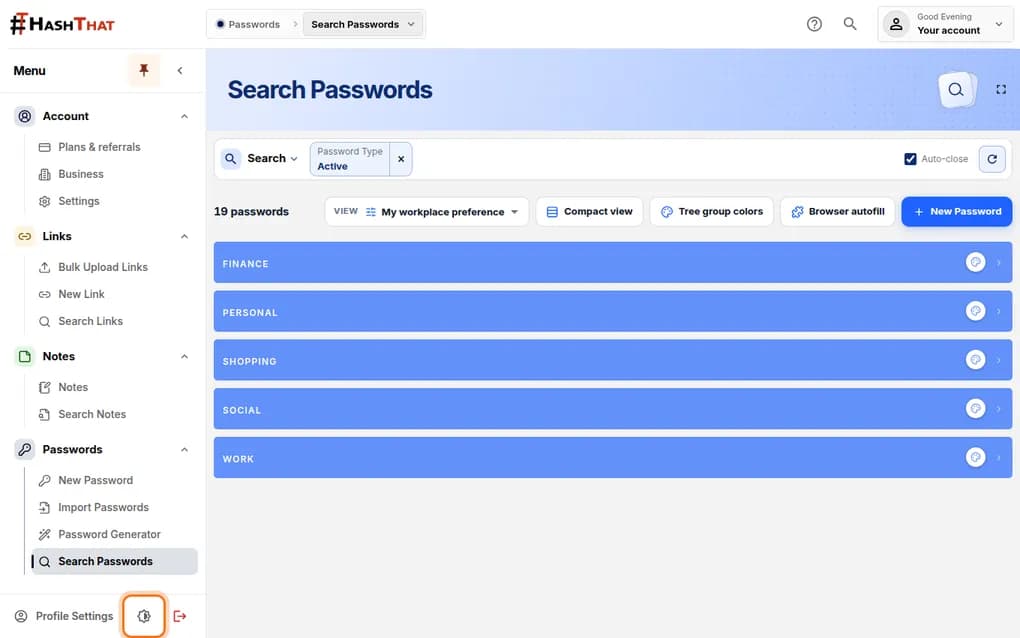
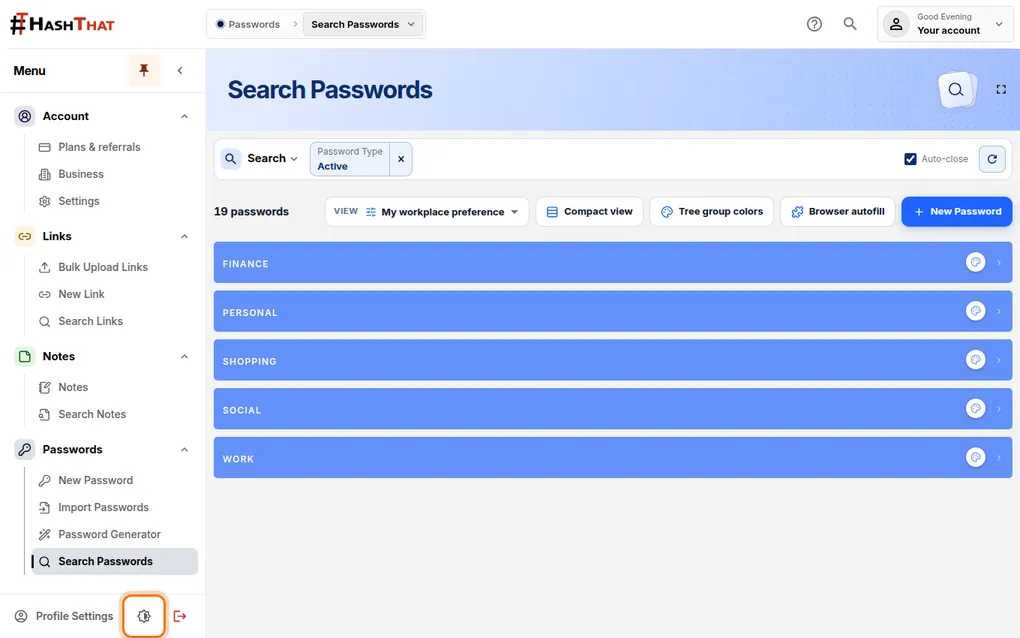
- Look at the very bottom of the menu on the left.
- Next to Profile Settings, find the small round icon that is half dark and half light.
- Click it.
You should see: A window titled Theme with three choices.
 Full size
The Theme button is always at the bottom of the menu, on every page. Step 2: Choose Dark
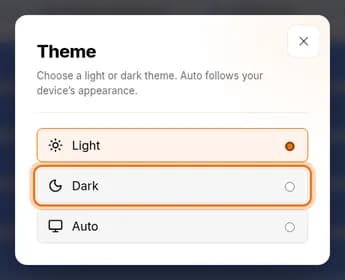
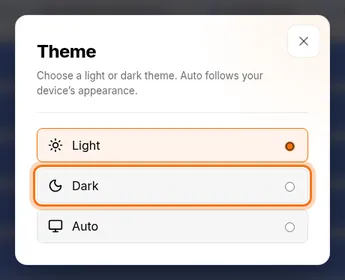
- Click Dark.
 Full size
Light is selected until you choose something else. Step 3: Watch the app change
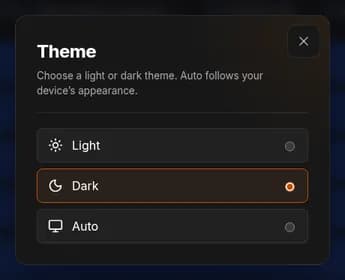
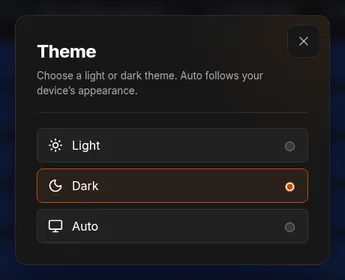
- The change happens at once. You do not need to save.
- The dot next to Dark is now filled in.
 Full size
The window itself turns dark too. Step 4: Close the window
- Click the × at the top right of the window.
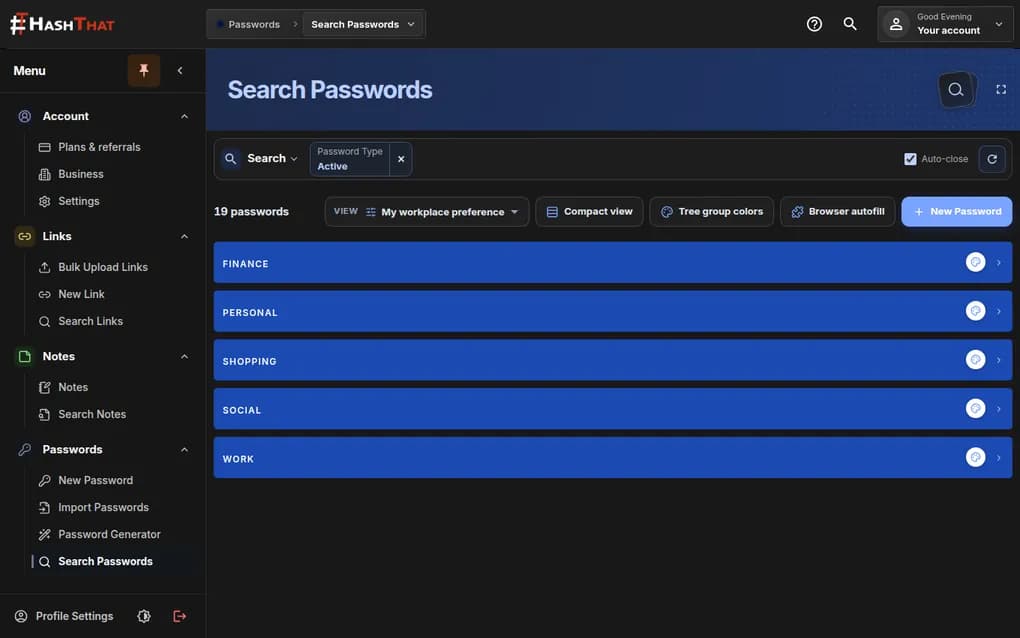
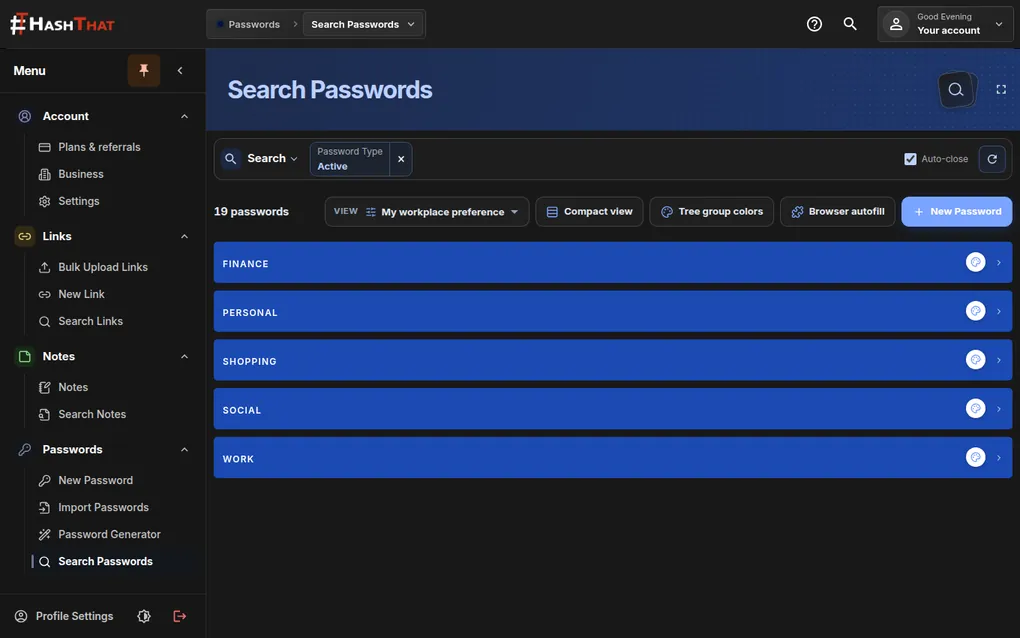
You should see: Every page of the app now has a dark background with light text.
 Full size
The same page as in step 1, now in dark mode. Step 5: Let it follow your device
- Open the Theme window again.
- Click Auto.
You should see: HashThat is dark when your phone or computer is in dark mode, and light when it is not.
To go back to the bright look, choose Light in the same window.
Check it worked
- The app keeps your choice when you move to another page.
- With Auto, changing your device’s own appearance setting changes HashThat too.
If something looks different
I cannot see the Theme button
The menu may be folded away. Click the small arrow at the top of the menu to open it, then look at the bottom.
Auto stays light
Auto copies your device. Check the appearance setting of your phone or computer. If that is set to light, HashThat is light too.
Tip: Dark mode is easier on the eyes in a dim room and saves battery on many phone screens. Auto gives you both without thinking about it.