Change the language of the app
Switch HashThat to one of 15 languages, and back to English whenever you like.
- 5 steps
- About 2 minutes
Before you start
- You are signed in to HashThat.
Step 1: Open the Language setting
- In the left menu, under Account, click Settings.
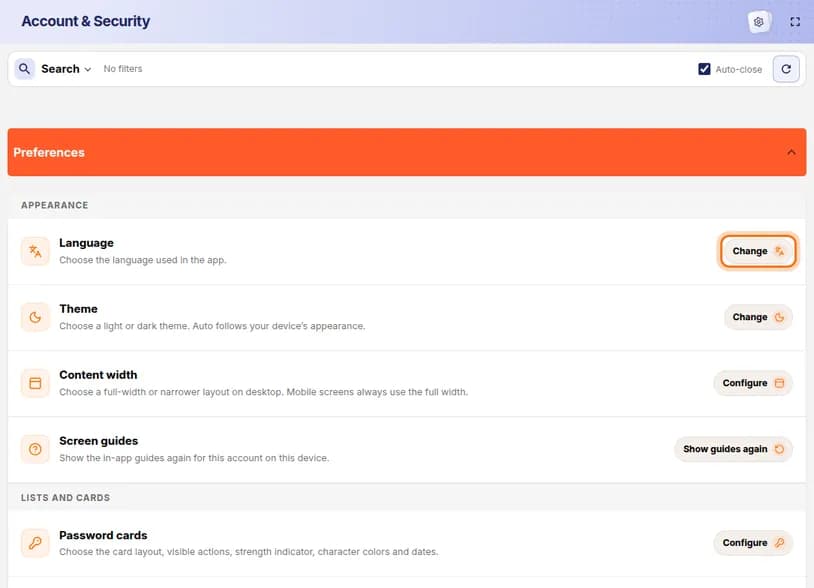
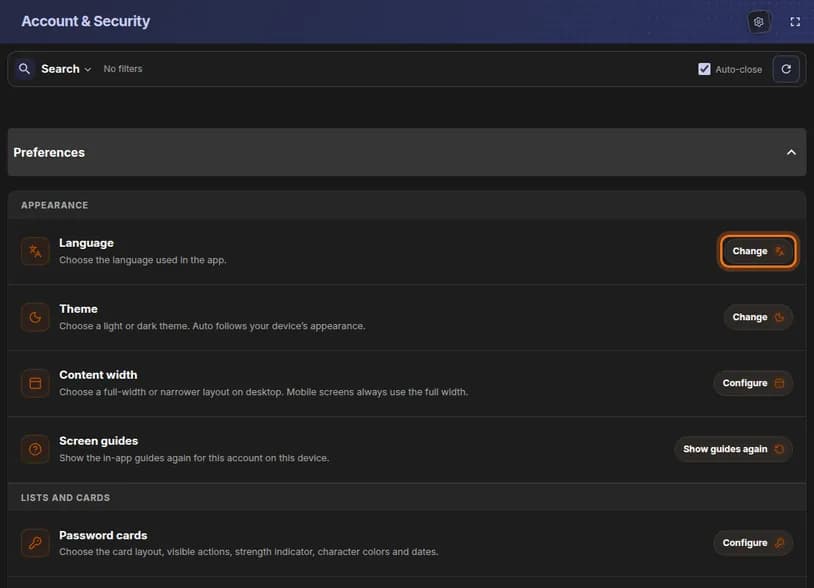
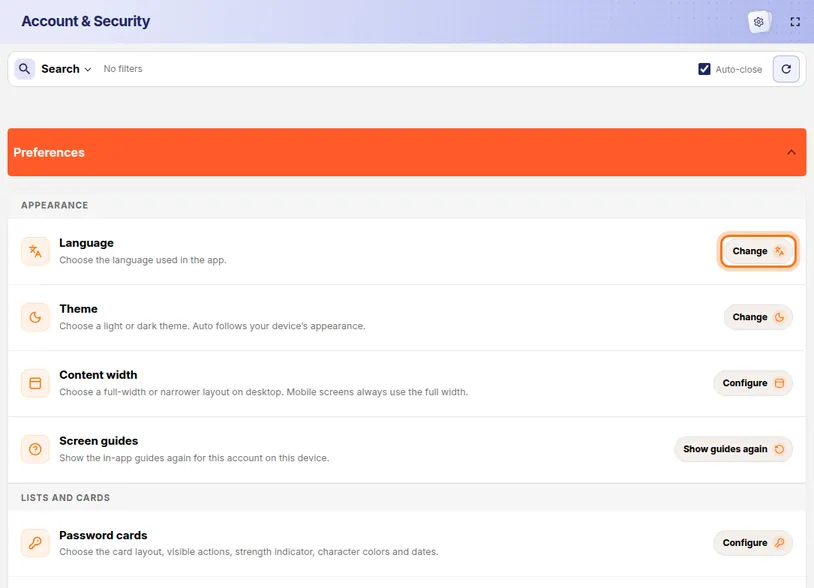
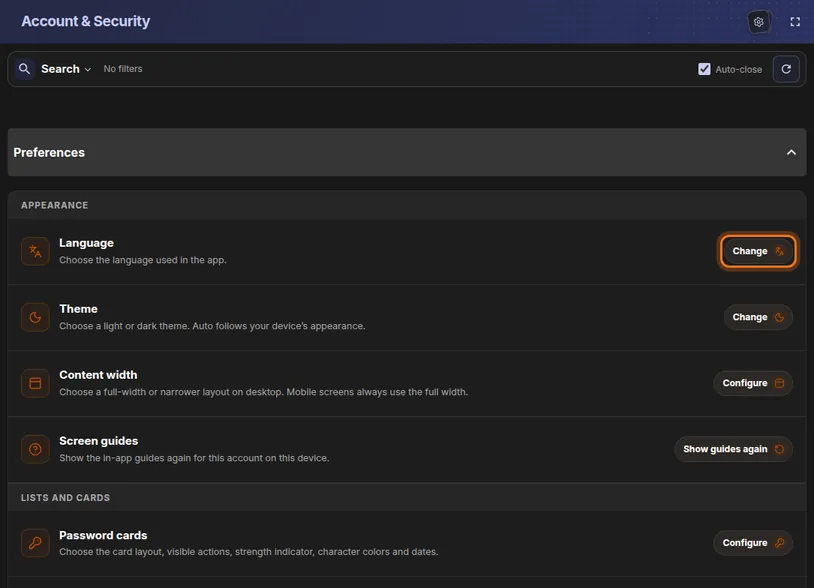
- Scroll down to the Preferences section. Language is the first row under Appearance.
- Click Change at the right end of that row.
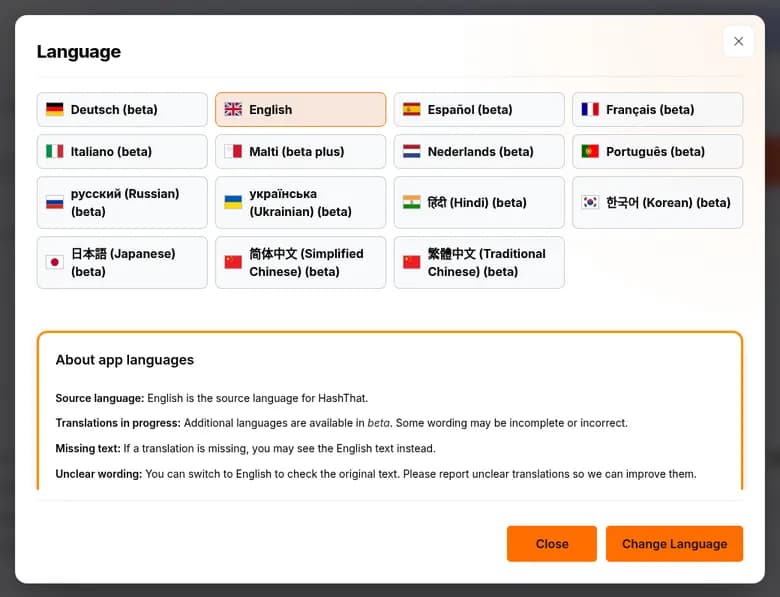
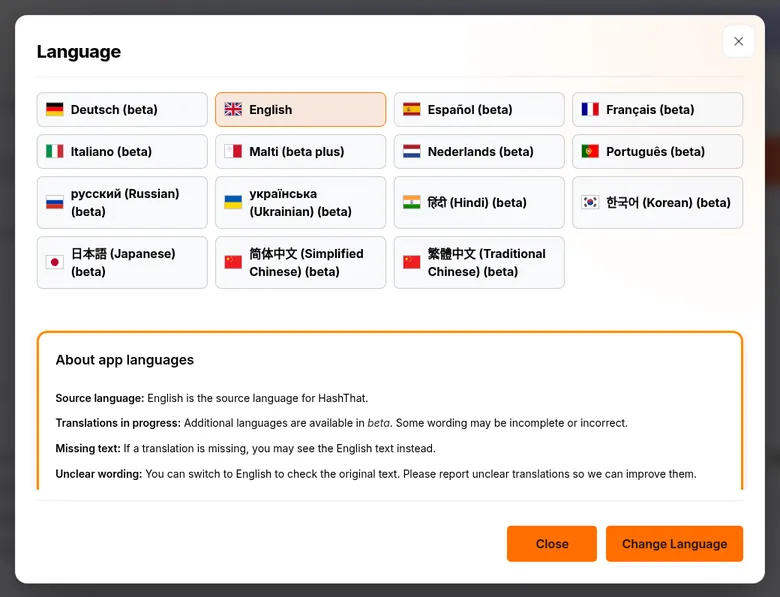
You should see: A window titled Language with a button for every language.
 Full size
 Full size
Language is the first row in the Appearance group. Step 2: Look at the list
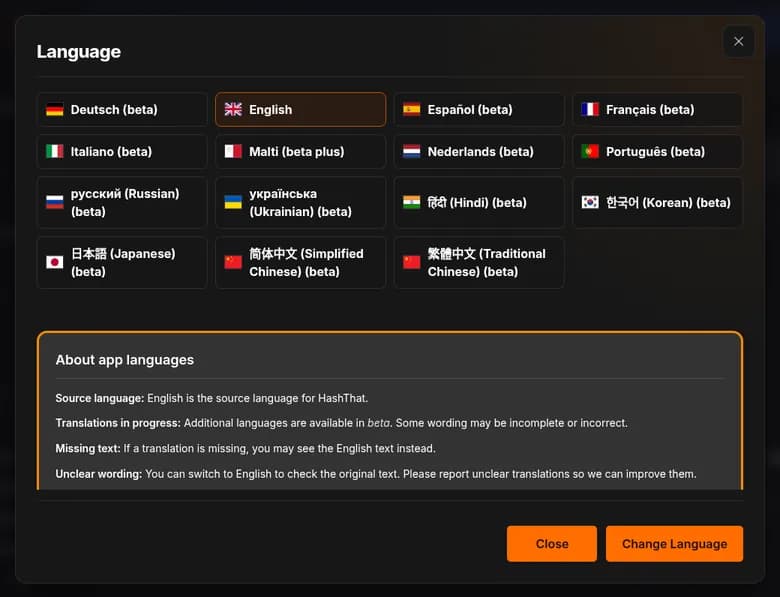
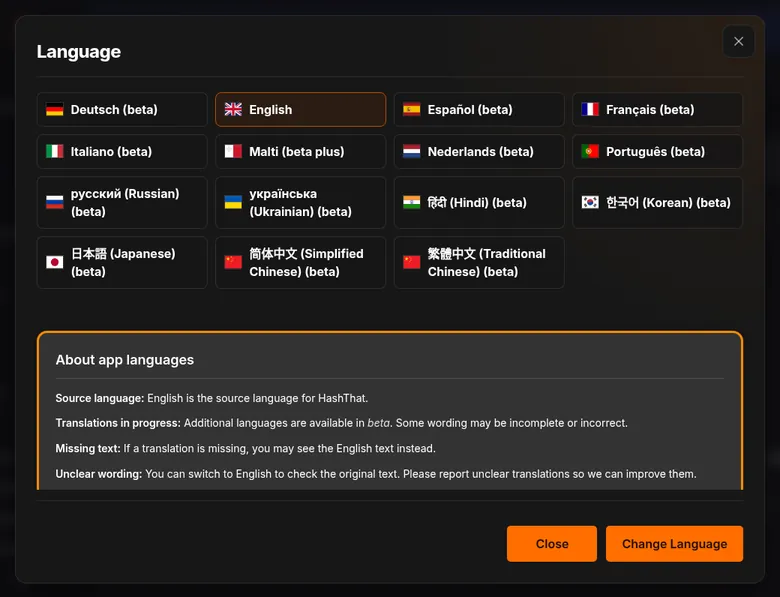
- Each button is one language, written in that language and marked with its flag.
- The language you use now has a coloured background.
 Full size
 Full size
Languages marked beta are still being translated. Step 3: Choose your language
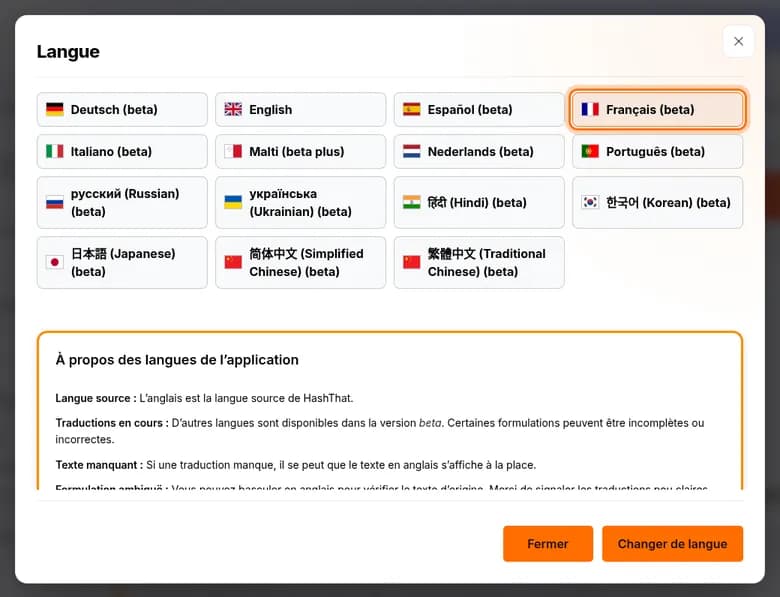
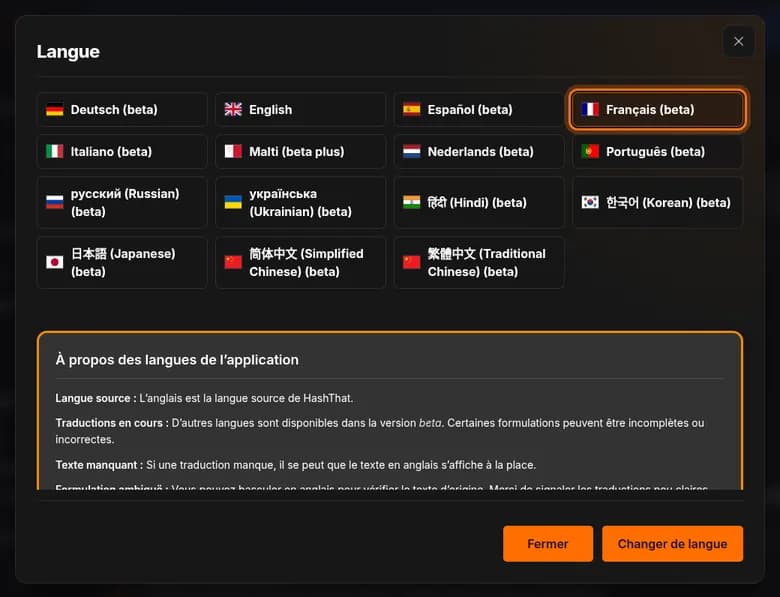
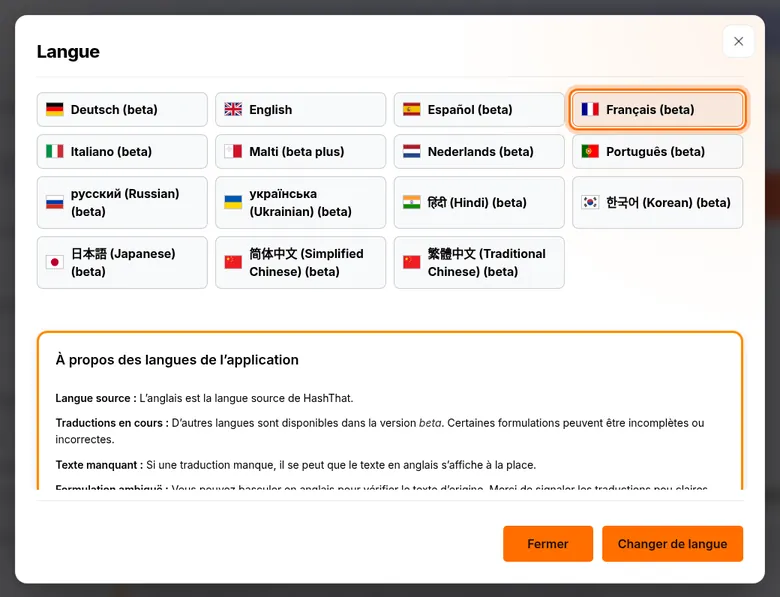
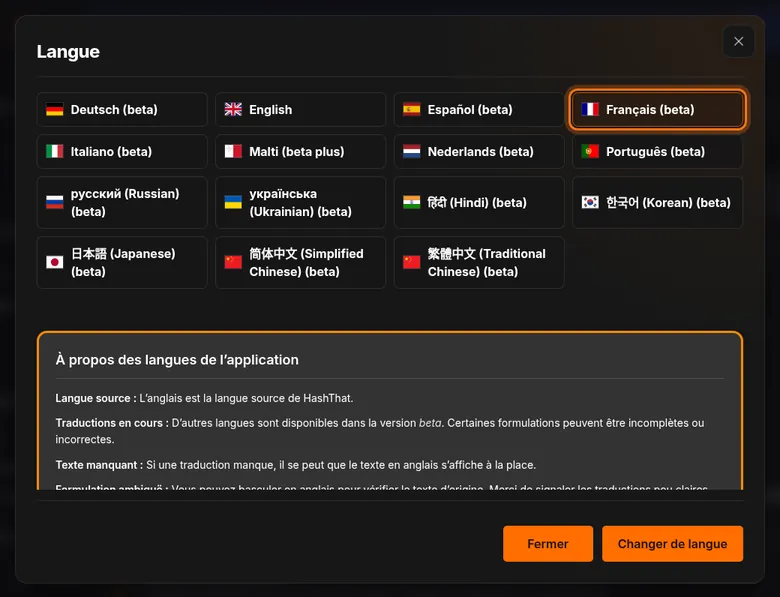
- Click the language you want, for example Français.
You should see: The window itself switches to that language, so you can see what it looks like.
 Full size
 Full size
The title, the notes and the buttons are now in the language you picked. Step 4: Confirm
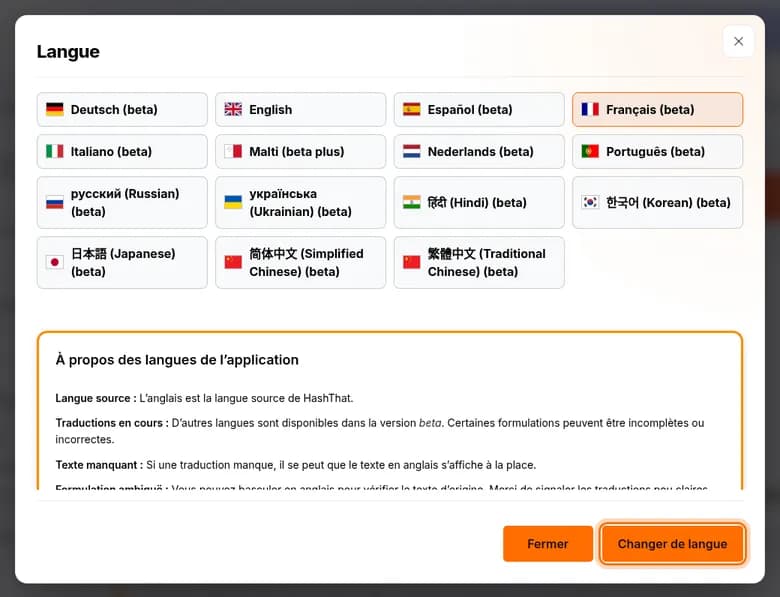
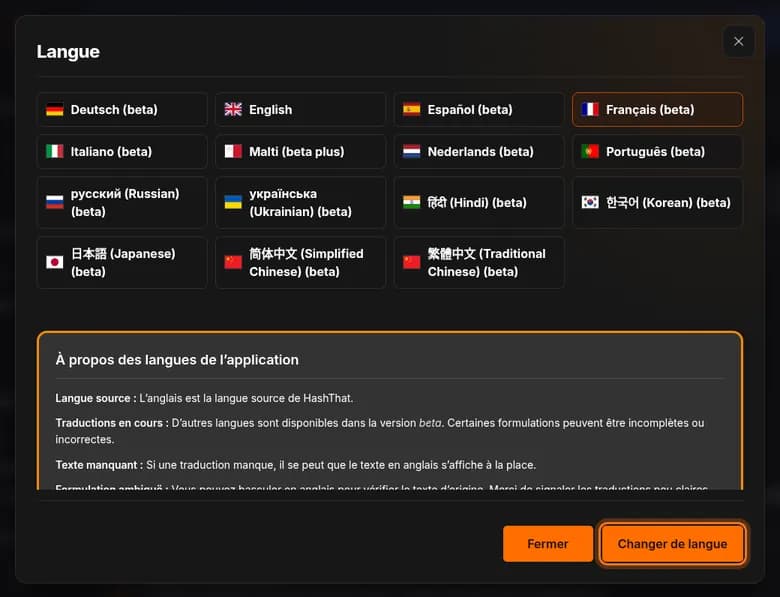
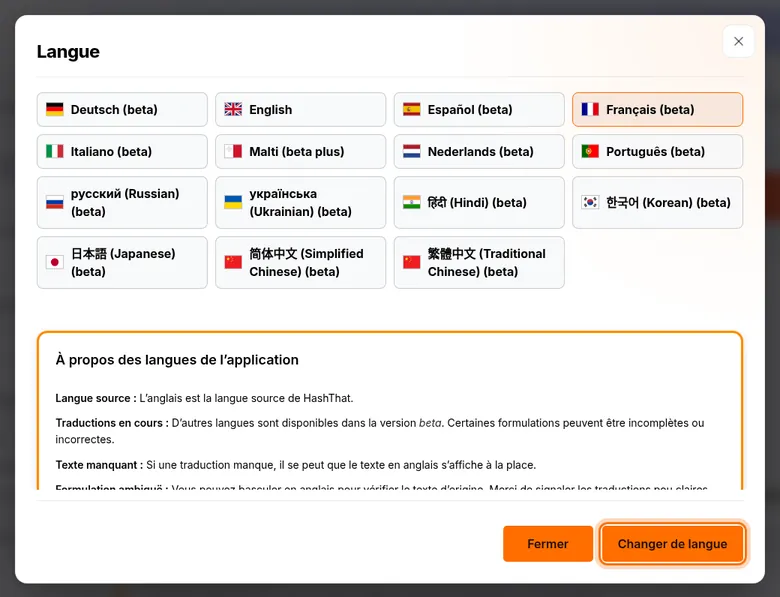
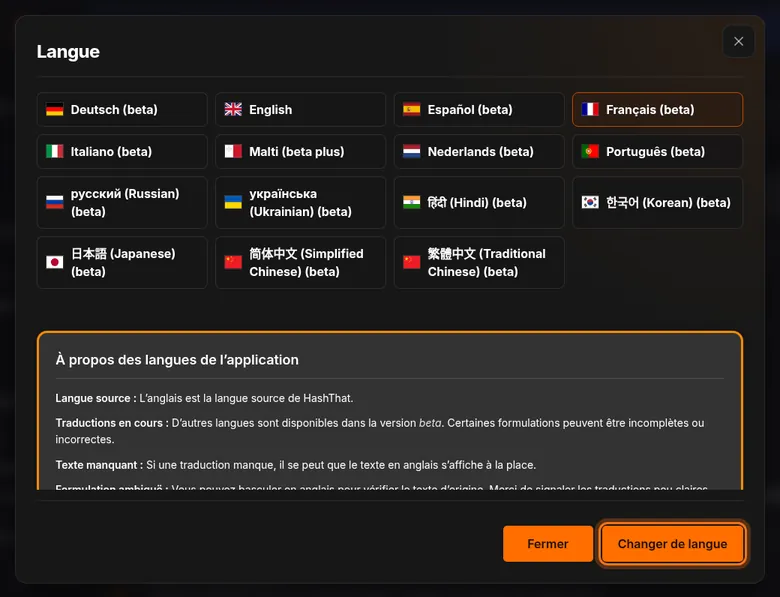
- Click the right-hand button at the bottom of the window. In English it says Change Language.
You should see: The window closes and the menu, page titles and buttons use the new language.
 Full size
 Full size
The left-hand button closes the window without changing anything. Step 5: Change back at any time
- Repeat the steps and click English.
- The Language row keeps the same place and the same icon, in every language.
Lost in a language you cannot read? In the left menu, click the item with the cog icon. That is Settings.
Check it worked
- The left menu and the page titles are in the language you chose.
- Opening the Language window again shows your language with a coloured background.
If something looks different
Some words are still in English
Languages marked beta are not finished. Where a translation is missing, the English text is shown instead.
A translation is wrong or unclear
Switch to English to read the original wording, and tell us through the Contact page so we can fix it.
Does this change my saved data?
No. Only the app’s own menus, buttons and messages change. Your passwords, notes and links stay as you wrote them.
Tip: Learning a language? Switching the apps you use every day is an easy way to practise, and you can switch back in a few clicks.